
I was working with Wearable applications using Xamarin.Android. It was working great and I was able to run the application on the emulator and on the actual wearable device itself. The problem began when I was updating the Xamarin.Android.Support and installed the Xamarin.Android.Support.V4 from Nuget. I was able to successfully install that library but when I built my application in Visual Studio it just gave me “BUILD FAILED” and that's it, meaning it doesn't show any errors at all and I was like, what the heck is going on? I began to worry about how to fix this without seeing any errors. At first I thought it was a firewall issue or perhaps an anti-virus that was causing the build to fail for some reasons and that didn't help at all. So I spent hours figuring things out and scratching my head until I found this – Setting MSBuild Verbosity. Configuring the verbosity of MSBuild gives you the verbosity levels of the logger. The following are the options that you can set.
Quiet: Only shows the result of your build. Quiet verbosity that displays a build summary.
Normal: Normal verbosity that displays errors, warnings, messages with MessageImportance values of High, some status events and a build summary. Normal: This will show all the targets and its mainly steps.
Minimal: Minimal verbosity that displays errors, warnings, messages with MessageImportance values of High and a build summary.
Details: Detailed verbosity that displays errors, warnings, messages with MessageImportance values of High or Normal, all status events and a build summary.
Diagnostic: Contains all the information that the MSBuild needs and produces, its switches, parameters, prerequisites and so on. The input parameter of the target and task and also contains the value of the input and output parameter, the detailed procedure of the task execution and the time execution for each task.
To configure the MSBuild verbosity in Visual Studio 2013 just go to Tools > Options > Project and Solutions > Build and Run. See the following for a clearer view.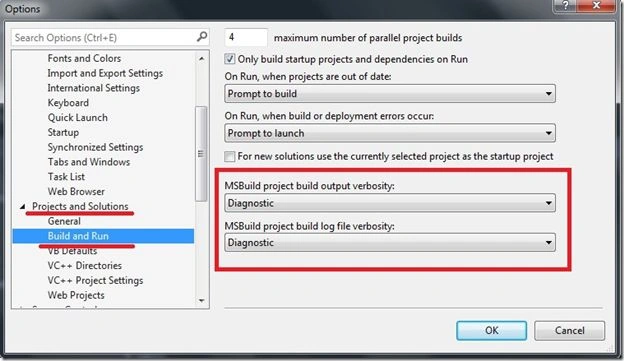
Then to ensure that the logger captures everything then I had to set the verbosity to Diagnostic. Then I restarted Visual Studio and opened the project again and then did a “build” and Voila! Now it gives me logs after building my app. Here's the portion of the log that caught my attention.
- “1 > COMPILETODALVIK: UNEXPECTED TOP - LEVEL error: 1 > java.lang.OutOfMemoryError: Java heap space(TaskId: 131)
- 1 > at java.util.HashMap.resize(HashMap.java: 580)(TaskId: 131)
- 1 > at java.util.HashMap.addEntry(HashMap.java: 879)(TaskId: 131)
- 1 > at java.util.HashMap.put(HashMap.java: 505)(TaskId: 131)
- 1 > at java.util.HashSet.add(HashSet.java: 217)(TaskId: 131)
- 1 > at com.android.dx.ssa.Dominators.compress(Dominators.java: 132)(TaskId: 131)
- 1 > at com.android.dx.ssa.Dominators.eval(Dominators.java: 160)(TaskId: 131)
- 1 > at com.android.dx.ssa.Dominators.run(Dominators.java: 207)(TaskId: 131)
- 1 > at com.android.dx.ssa.Dominators.make(Dominators.java: 90)(TaskId: 131)
- 1 > at com.android.dx.ssa.DomFront.run(DomFront.java: 86)(TaskId: 131)
- 1 > at com.android.dx.ssa.SsaConverter.placePhiFunctions(SsaConverter.java: 297)(TaskId: 131)
- 1 > at com.android.dx.ssa.SsaConverter.convertToSsaMethod(SsaConverter.java: 51)(TaskId: 131)
- 1 > at com.android.dx.ssa.Optimizer.optimize(Optimizer.java: 98)(TaskId: 131)
- 1 > at com.android.dx.ssa.Optimizer.optimize(Optimizer.java: 72)(TaskId: 131)
- 1 > at com.android.dx.dex.cf.CfTranslator.processMethods(CfTranslator.java: 297)(TaskId: 131)
- 1 > at com.android.dx.dex.cf.CfTranslator.translate0(CfTranslator.java: 137)(TaskId: 131)
- 1 > at com.android.dx.dex.cf.CfTranslator.translate(CfTranslator.java: 93)(TaskId: 131)
- 1 > at com.android.dx.command.dexer.Main.processClass(Main.java: 729)(TaskId: 131)
- 1 > at com.android.dx.command.dexer.Main.processFileBytes(Main.java: 673)(TaskId: 131)
- 1 > at com.android.dx.command.dexer.Main.access$300(Main.java: 82)(TaskId: 131)
- 1 > at com.android.dx.command.dexer.Main$1.processFileBytes(Main.java: 602)(TaskId: 131)
- 1 > at com.android.dx.cf.direct.ClassPathOpener.processArchive(ClassPathOpener.java: 284)(TaskId: 131)
- 1 > at com.android.dx.cf.direct.ClassPathOpener.processOne(ClassPathOpener.java: 166)(TaskId: 131)
- 1 > at com.android.dx.cf.direct.ClassPathOpener.process(ClassPathOpener.java: 144)(TaskId: 131)
- 1 > at com.android.dx.command.dexer.Main.processOne(Main.java: 632)(TaskId: 131)
- 1 > at com.android.dx.command.dexer.Main.processAllFiles(Main.java: 510)(TaskId: 131)
- 1 > at com.android.dx.command.dexer.Main.runMonoDex(Main.java: 279)(TaskId: 131)
- 1 > at com.android.dx.command.dexer.Main.run(Main.java: 245)(TaskId: 131)
- 1 > at com.android.dx.command.dexer.Main.main(Main.java: 214)(TaskId: 131)
- 1 > at com.android.dx.command.Main.main(Main.java: 106)(TaskId: 131)
- 1 > The command exited with code 3.(TaskId: 131)
- 1 > Done executing task "CompileToDalvik"--FAILED.(TaskId: 131)”
The fix was to add this section to your .CSPROJ file.
- <PropertyGroup>
- <JavaMaximumHeapSize>1G</JavaMaximumHeapSize>
- </PropertyGroup>
That's it's. I hope someone finds this article useful.


Afzaal Ahmad ZeeshanTOP 100Posted Apr 29, 2015, 2:55 AM EDT
Great then, welcome to C# Corner community Vinz (from ASP.NET Forums). Its good to have you here... :)
Sibeesh VenuTOP 100Posted Apr 28, 2015, 10:22 PM EDT
Good One
Vincent Maverick DuranoPosted Apr 28, 2015, 9:14 PM EDT
Hello Afzaal Ahmad Zeeshan. I am the "Vinz" from ASP.NET forums :)
Afzaal Ahmad ZeeshanTOP 100Posted Apr 28, 2015, 12:01 PM EDT
Good one... Just asking, aren't you the "Vinz" from ASP.NET Forums? :)
Santhakumar MunuswamyPosted Apr 28, 2015, 10:37 AM EDT
Thanks for good one
NitinPosted Apr 28, 2015, 8:14 AM EDT
nice
Karthik Muthu KaruppanPosted Apr 28, 2015, 7:23 AM EDT
Good one
Gowtham RajamanickamTOP 100Posted Apr 28, 2015, 12:08 AM EDT
good