
In this article you will create an SHA1 Fingerprint key for Xamarin Android Google Map App Development. Here are the steps,
Create Google Maps API v2 key through the following steps:
- Create Debug Keystore for SHA1 Fingerprint Signed Key.
- Create Project in Google Developer API Console
- Obtaining google API KEY
Let’s start,
Create Debug Keystore for SHA1 Fingerprint Signed Key
Step 1: Go to My Computer C:\Users\Admin\AppData\Local\Xamarin\Mono and then copy debug.keystore File.
Step 2: Then Go to C:\Program Files\Java\jre1.8.0_73\bin paste copied debug.keystore file.
Step 3: Open Command Prompt -> Shift + Right Click + Open Command Window here
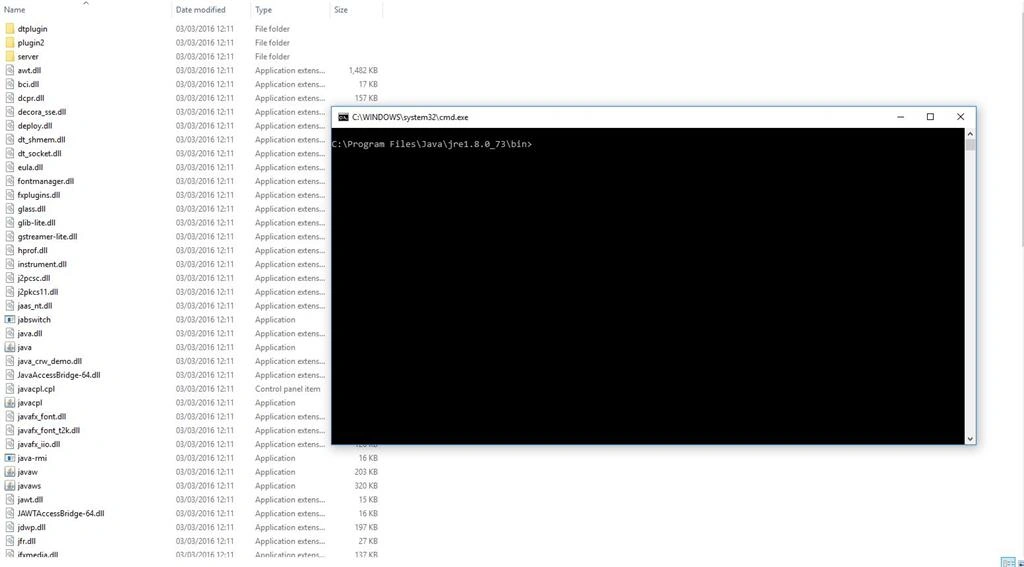
Step 4: Then type the below content in command prompt,
keytool -list -v -keystore debug.keystore -alias androiddebugkey -storepass android -keypass android Next to Press Enter Button that time will create SHA1 KEY,
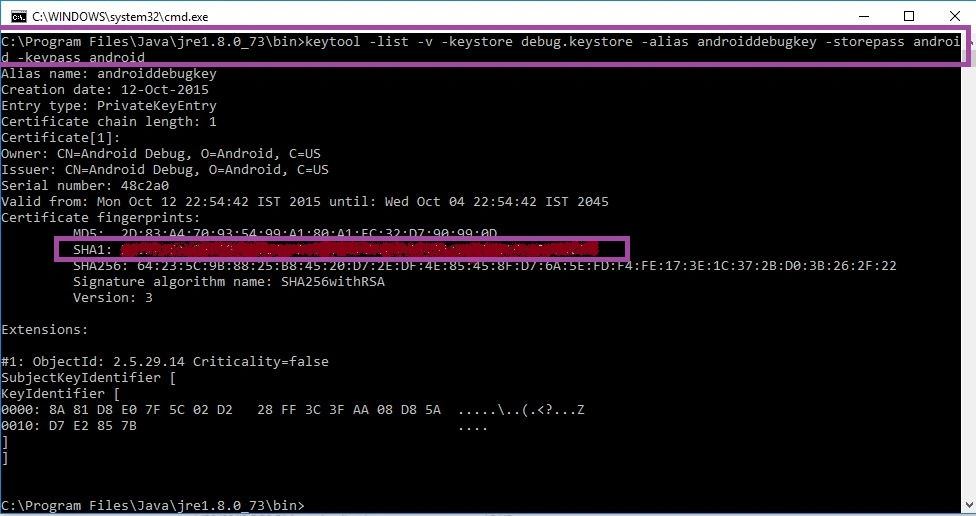
Step 5:The Xamarin Android Debug KEY is created successfully. You can Copy SHA1 KEY next to Create project in Developer console.
Create Project in Google Developer API Console
Step 1:Go to Google Developer Console Page link.
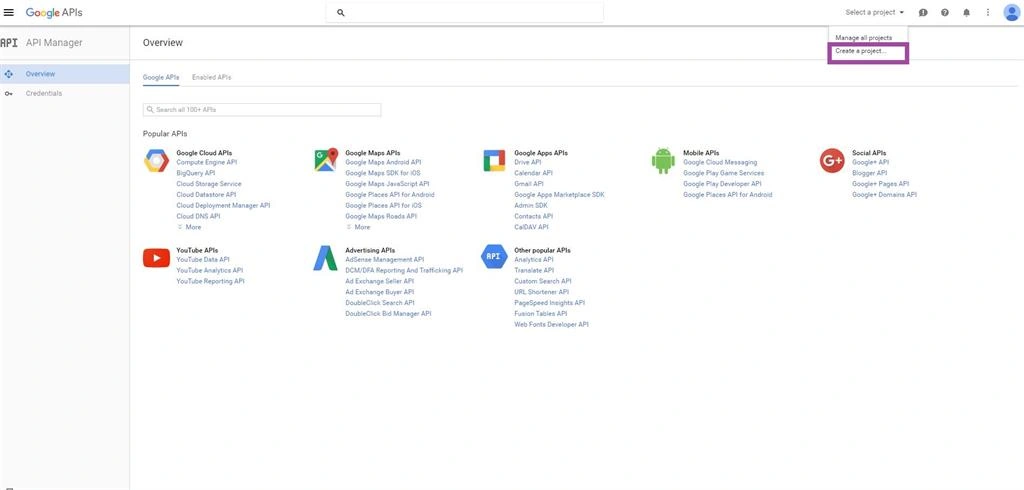
Step 2: Go to Console Page Right Side corner to Click Select a Project menu then Click create a project.
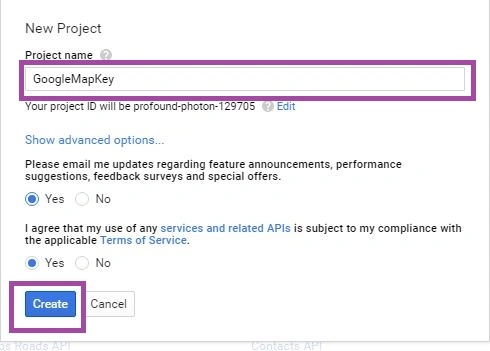
Step 3:Next it's showing New Project popup window; here give your Project Name; after that create new project.
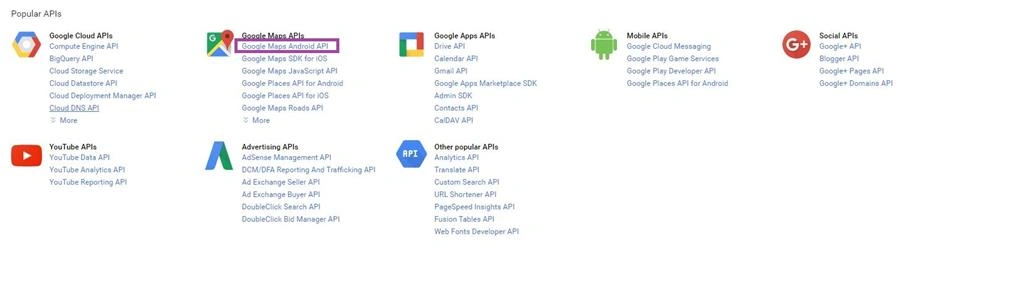
Step 4: Then Go for Google APIs select Google Maps Android API,
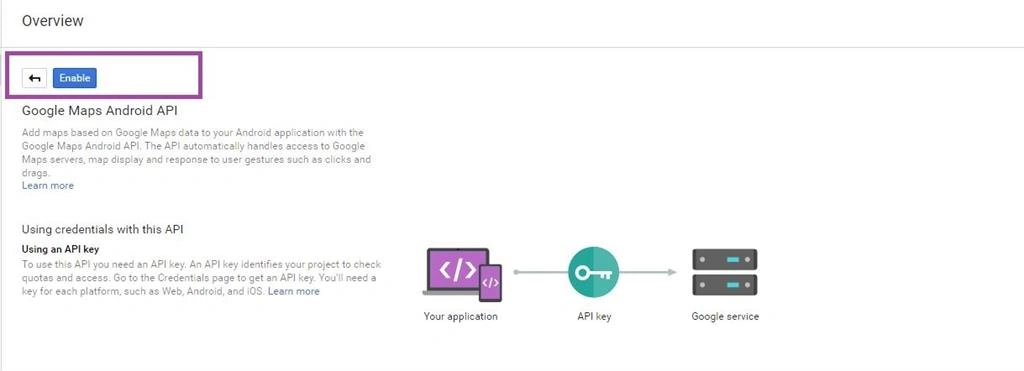
Step 5: Enable Google Android API,
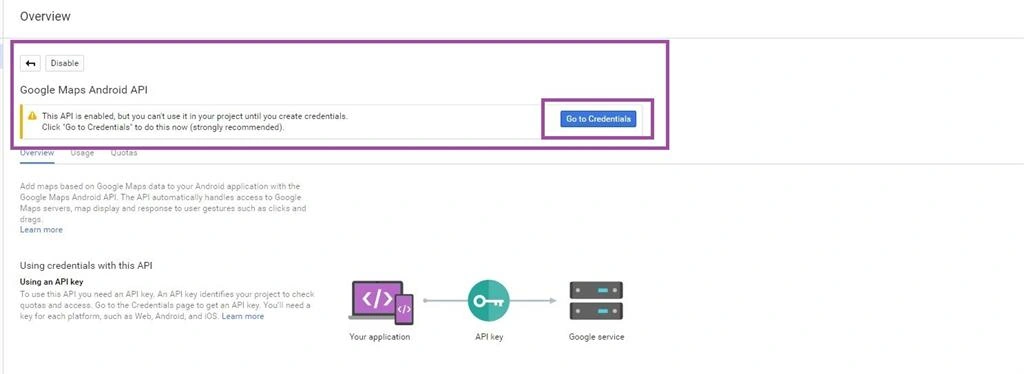
Step 6: After enabling Google API go to Google API credentials page,
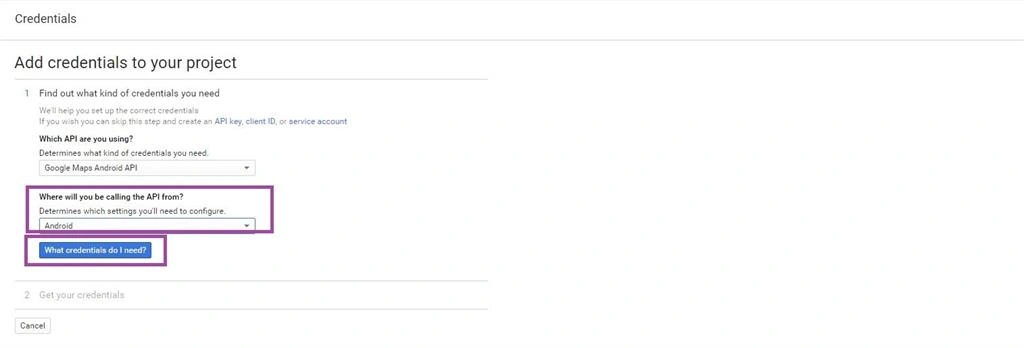
Step 7: Then Select Configure dropdown value of Android in. Next Click What credentials do I need? Button.
Step 8: Next Windows is showing Create as API Key to Give your Project name and Click Add Package name and fingerprint button,
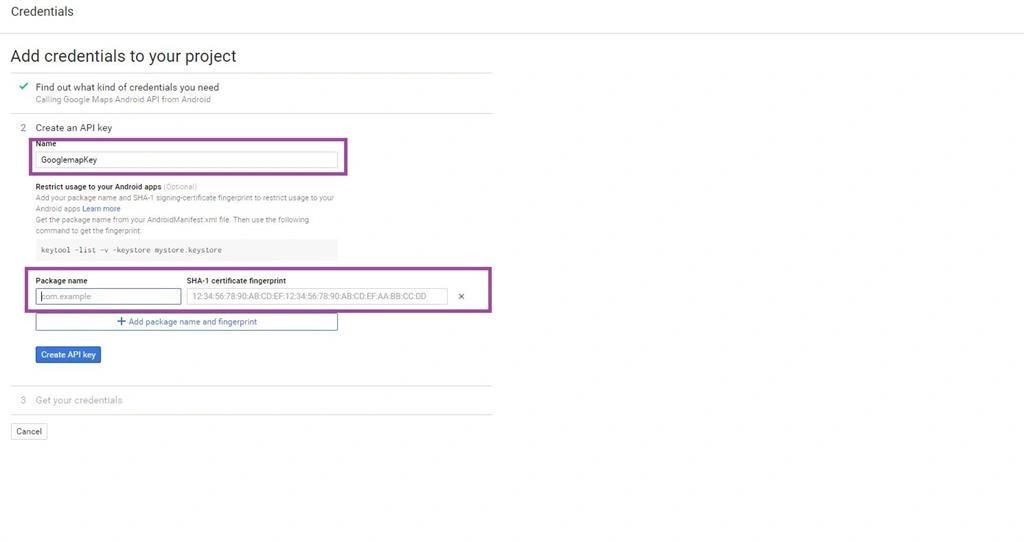
Step 9: Then give Package Name com.example.example. next to copy paste here Created SHA1 Key,
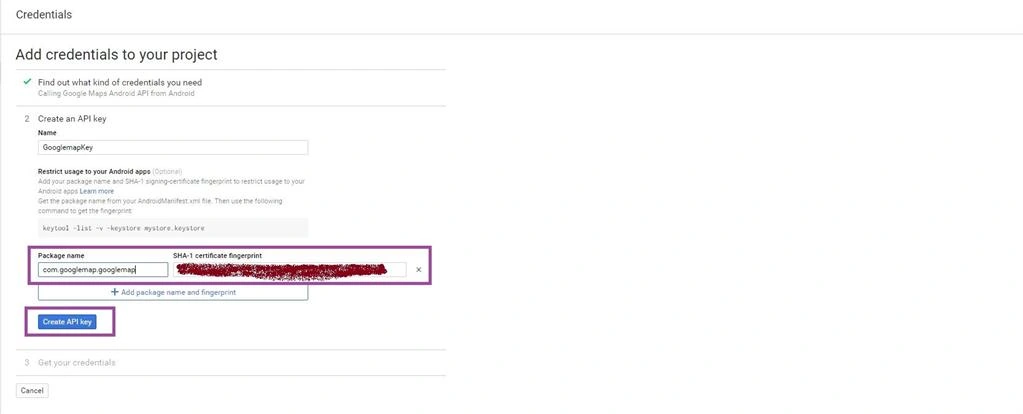
Step 10: Then Click create API Key button it returns APIs Page here will be sowing API key.
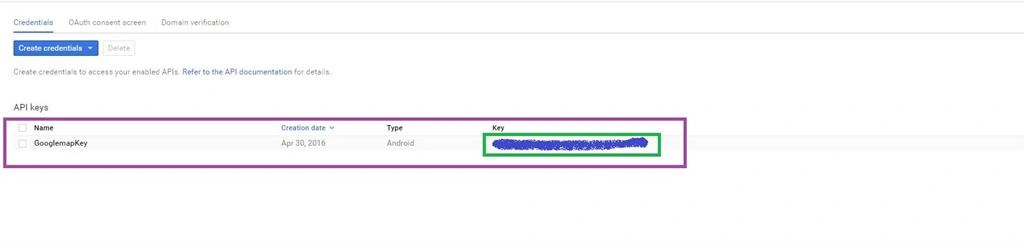
Step 11: Then in this API a key is added to the AndroidManifest.XML file of a Xamarin Android application to be add below code,
- <meta-data android:name="com.google.android.maps.v2.API_KEY" android:value="YOUR API_KEY" />
- <meta-data android:name="com.google.android.gms.version" android:value="@integer/google_play_services_version" /> </application>
Read more articles on Xamarin:


Umair KhanPosted Oct 4, 2017, 3:59 AM EDT
I follow your code step by step but in last in my phone maps are not showing just yellow screen apear how to show proper map
Umair KhanPosted Oct 4, 2017, 12:20 AM EDT
When i paste my google key then this problem show on my visual studio how to fix this (No resource found that matches the given name (at 'value' with value '@integer/29.0.0.1'). on Android Manifest.xml file
Pradeep SahooPosted May 18, 2016, 12:48 PM EDT
Nice share .........
Amit DavePosted May 3, 2016, 6:29 AM EDT
Keep up the Good work!
Bhuvanesh MohankumarPosted May 2, 2016, 2:55 AM EDT
Good one
Sonu ChaudharyPosted May 2, 2016, 1:54 AM EDT
Thanks for sharing
Gowtham RajamanickamTOP 100Posted May 1, 2016, 10:45 PM EDT
good one..
Thiruppathi RPosted May 1, 2016, 8:06 PM EDT
Super anbu..
Manoj KulkarniPosted May 1, 2016, 6:54 PM EDT
Nice article.
Kuppurasu NagarajTOP 100Posted May 1, 2016, 10:17 AM EDT
Nice Article Anbu..