
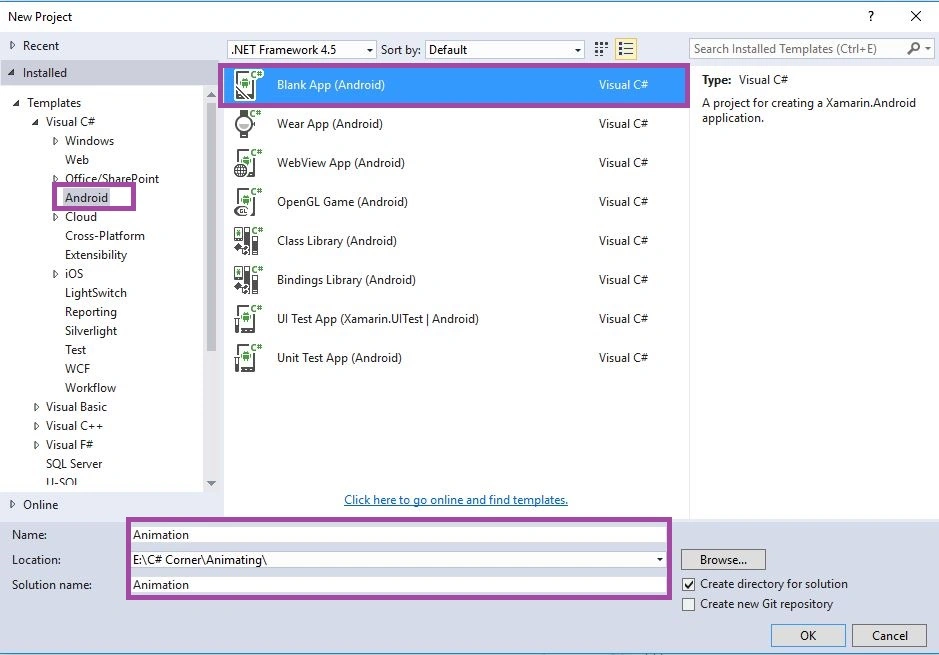
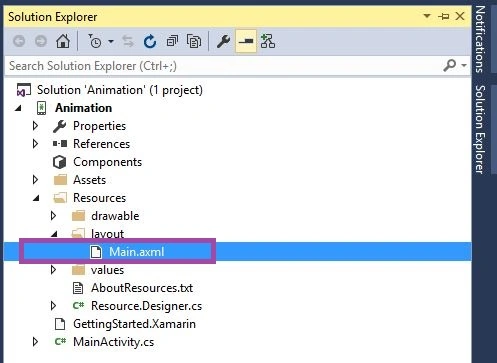
Step 1: Open Visual Studio->New Project->Templates->Visual C#->Android->Blank App
Select Blank App. Then give Project Name and Project Location.
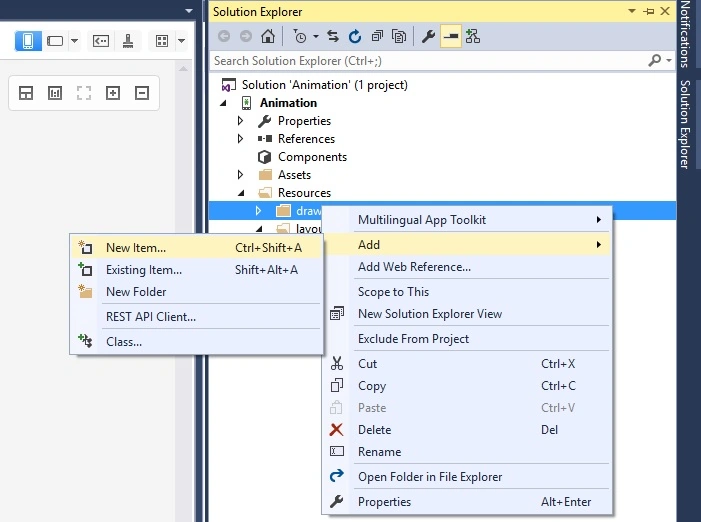
Step 3: That Dialog box to Select XML File and give Name for Animation.xml.
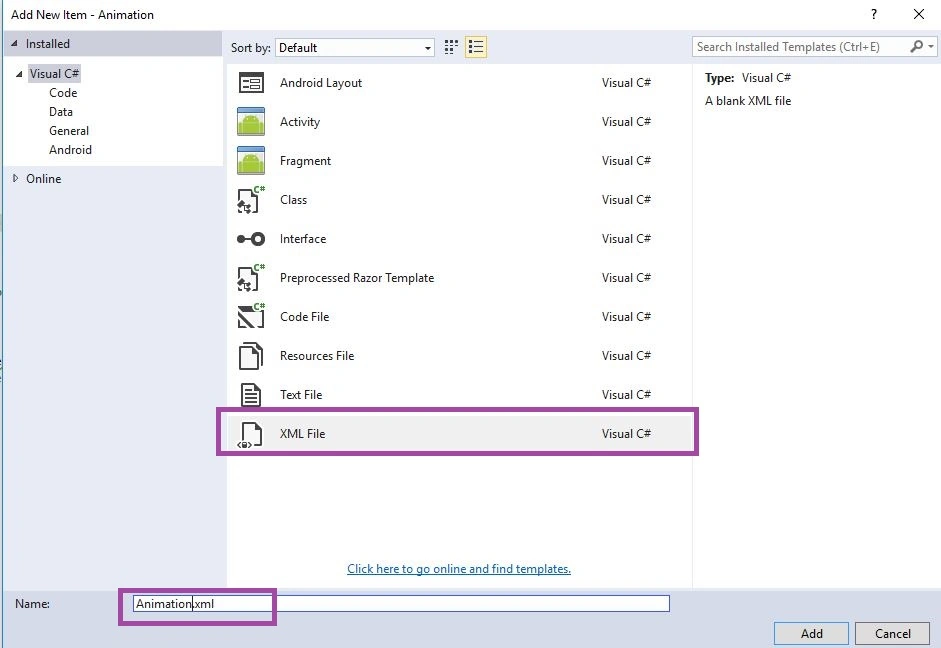
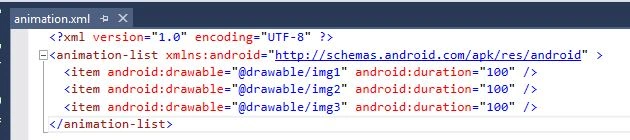
XML Code:
- <?xml version="1.0" encoding="UTF-8" ?>
- <animation-list xmlns:android="http://schemas.android.com/apk/res/android" >
- <item android:drawable="@drawable/img1" android:duration="100" />
- <item android:drawable="@drawable/img2" android:duration="100" />
- <item android:drawable="@drawable/img3" android:duration="100" />
- </animation-list>
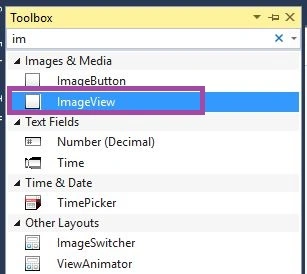
Step 6: Select Toolbar Drag and Drop ImageView Design.
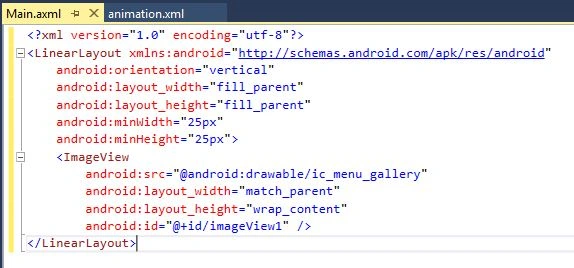
- <?xml version="1.0" encoding="utf-8"?>
- <LinearLayout xmlns:android="http://schemas.android.com/apk/res/android"
- android:orientation="vertical"
- android:layout_width="fill_parent"
- android:layout_height="fill_parent"
- android:minWidth="25px"
- android:minHeight="25px">
- <ImageView
- android:src="@android:drawable/ic_menu_gallery"
- android:layout_width="match_parent"
- android:layout_height="wrap_content"
- android:id="@+id/imageView1" />
- </LinearLayout>
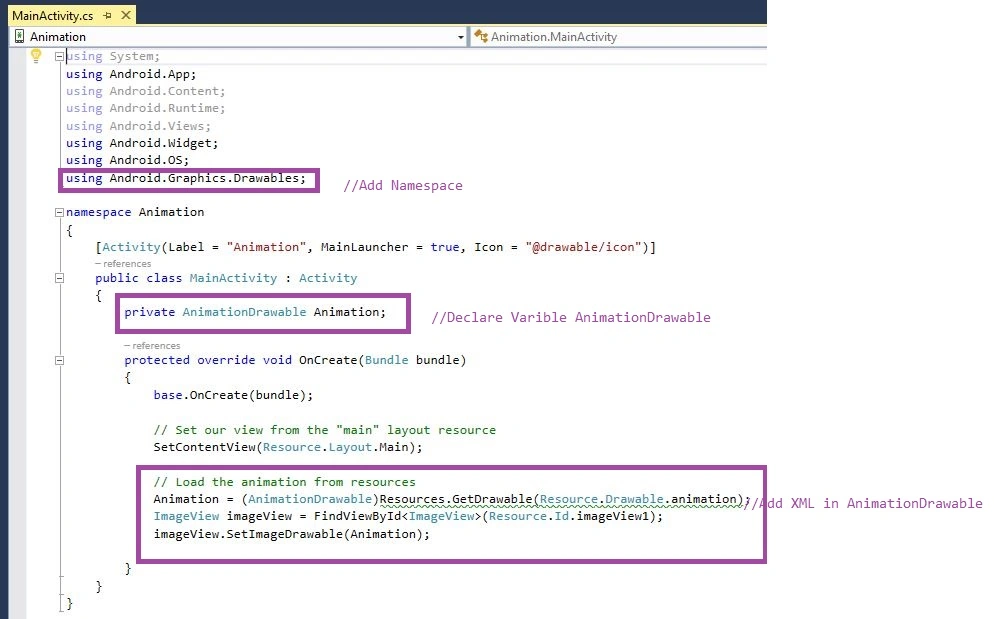
Namespace: using Android.Graphics.Drawables;
C# Code:
- using System;
- using Android.App;
- using Android.Content;
- using Android.Runtime;
- using Android.Views;
- using Android.Widget;
- using Android.OS;
- using Android.Graphics.Drawables;
- namespace Animation
- {
- [Activity(Label = "Animation", MainLauncher = true, Icon = "@drawable/icon")]
- public class MainActivity : Activity
- {
- private AnimationDrawable Animation;
- protected override void OnCreate(Bundle bundle)
- {
- base.OnCreate(bundle);
- // Set our view from the "main" layout resource
- SetContentView(Resource.Layout.Main);
- // Load the animation from resources
- Animation = (AnimationDrawable)Resources.GetDrawable(Resource.Drawable.animation);
- ImageView imageView = FindViewById<ImageView>(Resource.Id.imageView1);
- imageView.SetImageDrawable(Animation);
- }
- }
- }
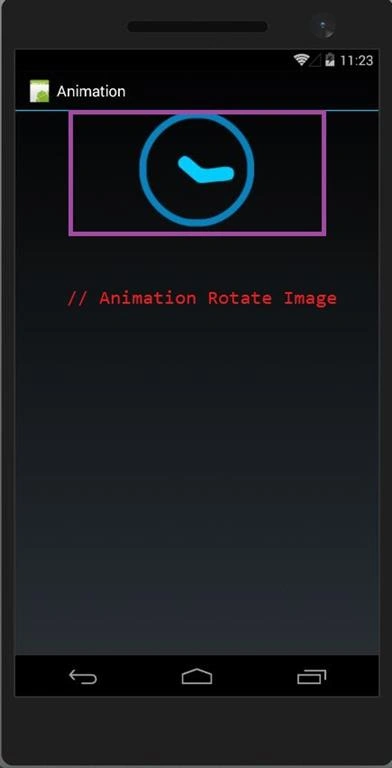
Finally, we have successfully created Xamarin Android AnimationDrawble Application.


Kim HeangPosted Apr 23, 2017, 7:00 AM EDT
Severity Code Description Project File Line Suppression StateWarning CS0618 'Resources.GetDrawable(int)' is obsolete: 'deprecated' Animation E:\computer lesson\Norton University\Xamrin Learning\Animation\Animation\MainActivity.cs 25 Active
Kim HeangPosted Apr 23, 2017, 6:41 AM EDT
Eror with Id Animation in MainActivity
Bhavik PatelPosted May 15, 2016, 5:18 PM EDT
Nice
Sonu ChaudharyPosted May 13, 2016, 9:37 AM EDT
good one
Prasanna MuraliPosted May 13, 2016, 7:39 AM EDT
Nice one.....