
First, create Web API using Azure SQL Server. Refer to part one:
Step 1
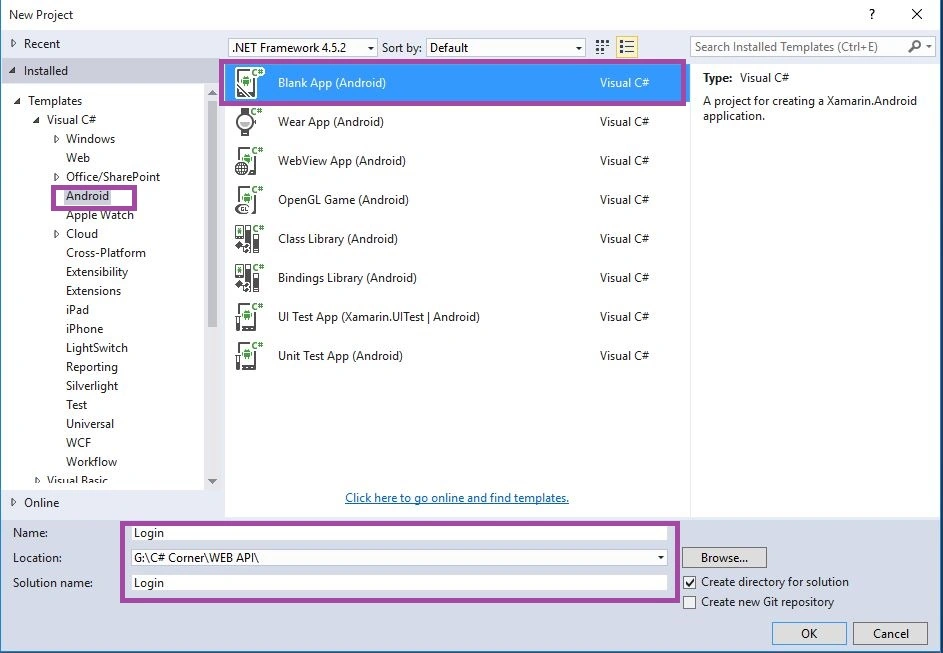
Open Visual Studio, New Project, Templates, Visual C#, Android, then select Blank App (Android).
Select Blank App. Then give Project Name and Project Location.
Step 2
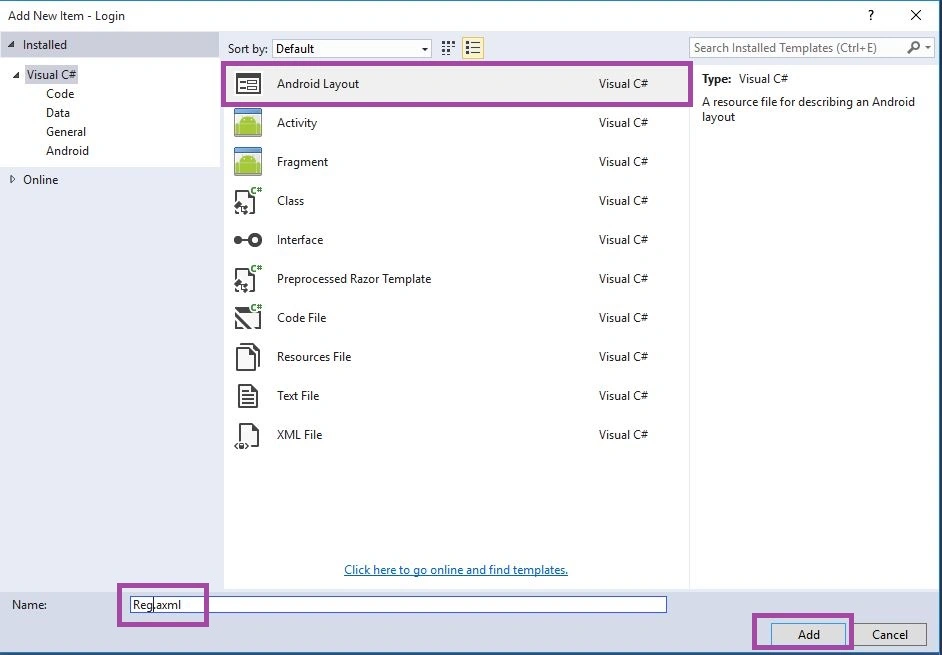
Next go to Solution Explorer-> Project Name-> Resouces->layout then Right Click to Add then open new Dialog box. Then select Android Layout give name for Reg.axml after that Add New Layout Page.
Step 3
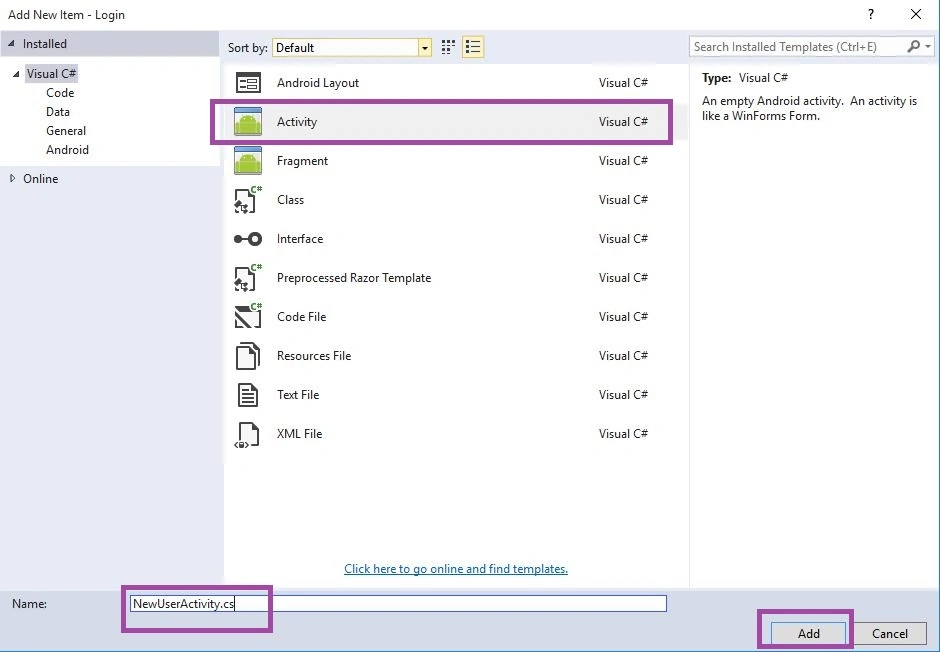
Next go to Solution Explorer-> Project Name then Right Click to Add then open new Dialog box. Then select Activity give name for NewUserActivity.cs after that Add the New Activity Class.
Step 4
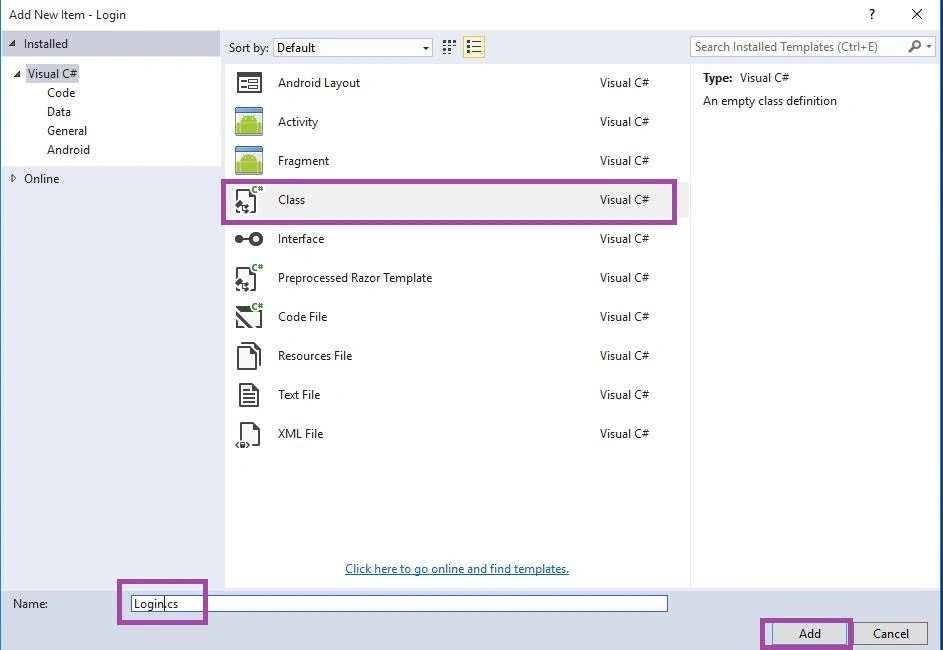
Next we need add one Data Layer Class. Go to Solution Explorer-> Project Name then Right Click to Add then open new Dialog box. Then select Class give name for Login.cs after that Add New Class.
Step 5
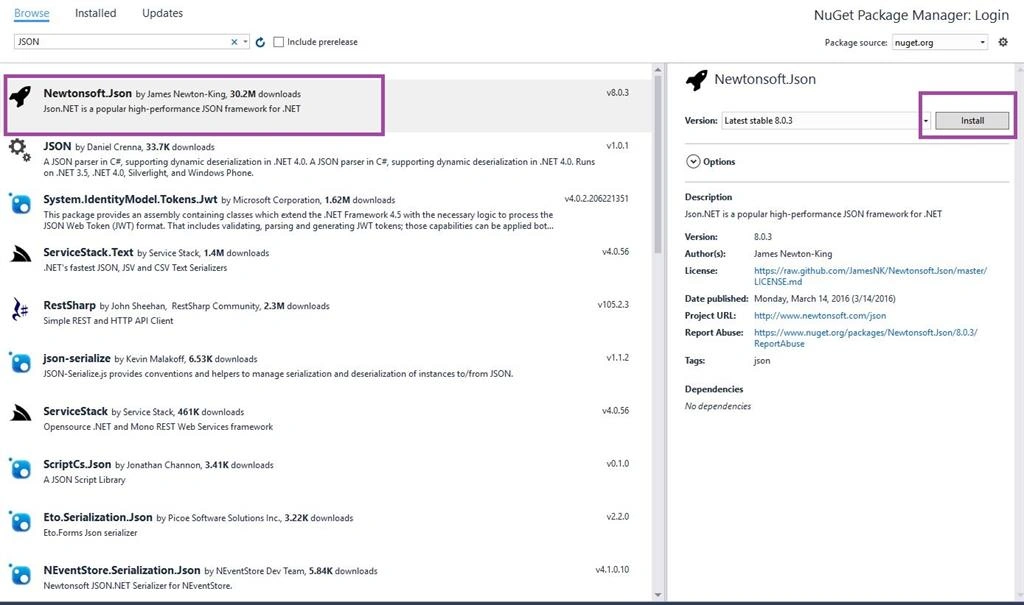
Next go to Solution Explorer-> Project Name-> References then Right Click to Manage Nuget Packages then open new Dialog box. This dialog box to search the Json then Install the Newtonsoft.Json Packages.
Step 6
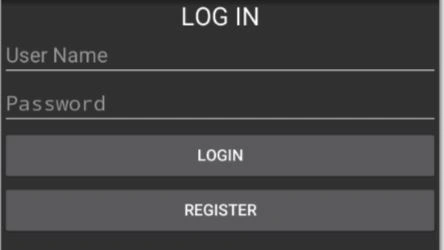
Next go to Open Solution Explorer-> Project Name->Resources->layout->Main.axml Click Open Design View. Here create Large Text, Two Plain Text and Two Buttons.
Step 7
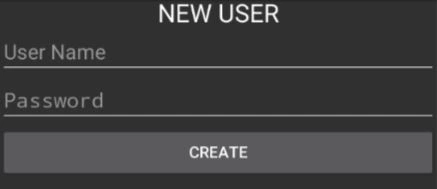
Next to Open Solution Explorer-> Project Name->Resources->layout->Reg.axml Click Open Design View. Here create Large Text, Two Plain Text and One Buttons.
Step 8
Next to Open Solution Explorer-> Project Name->Login.cs Click Open CS code Page View then create two class name Username and Password.
- public string username { get; set; }
- public string password { get; set; }
Step 9
Next to Open Solution Explorer-> Project Name->MainActivity.cs Click Open CS code Page view then add below namespaces. Next to write given below code.
- using System.Net.Http;
- using System.Net.Http.Headers;
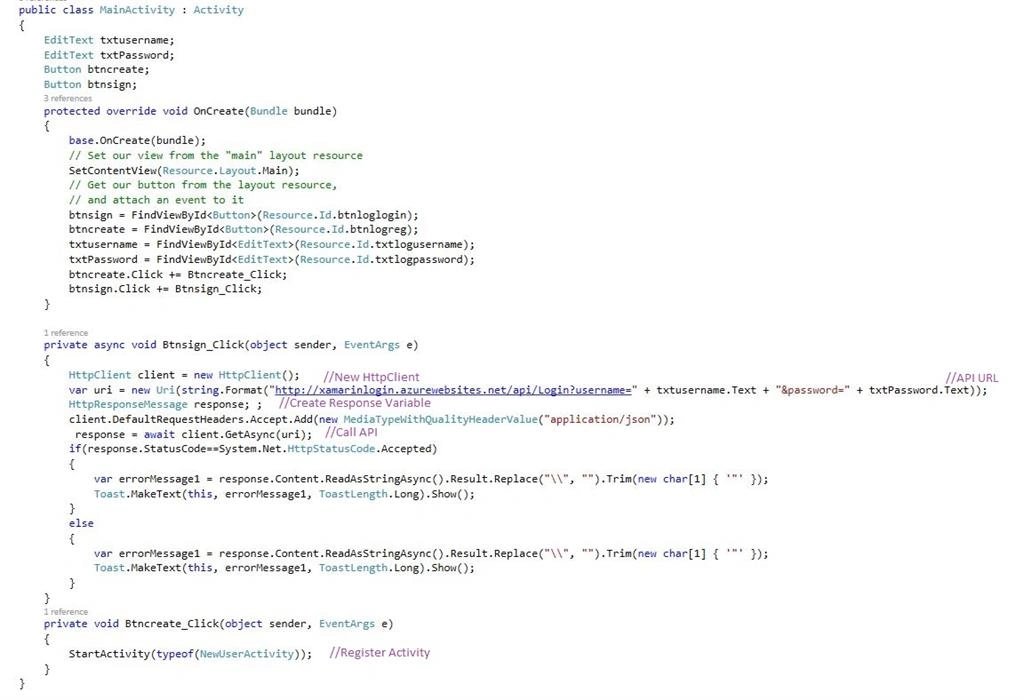
C# Code
- public class MainActivity: Activity
- {
- EditText txtusername;
- EditText txtPassword;
- Button btncreate;
- Button btnsign;
- protected override void OnCreate(Bundle bundle)
- {
- base.OnCreate(bundle);
- // Set our view from the "main" layout resource
- SetContentView(Resource.Layout.Main);
- // Get our button from the layout resource,
- // and attach an event to it
- btnsign = FindViewById < Button > (Resource.Id.btnloglogin);
- btncreate = FindViewById < Button > (Resource.Id.btnlogreg);
- txtusername = FindViewById < EditText > (Resource.Id.txtlogusername);
- txtPassword = FindViewById < EditText > (Resource.Id.txtlogpassword);
- btncreate.Click += Btncreate_Click;
- btnsign.Click += Btnsign_Click;
- }
- private async void Btnsign_Click(object sender, EventArgs e)
- {
- HttpClient client = new HttpClient();
- var uri = new Uri(string.Format("http://xamarinlogin.azurewebsites.net/api/Login?username=" + txtusername.Text + "&password=" + txtPassword.Text));
- HttpResponseMessage response;;
- client.DefaultRequestHeaders.Accept.Add(new MediaTypeWithQualityHeaderValue("application/json"));
- response = await client.GetAsync(uri);
- if (response.StatusCode == System.Net.HttpStatusCode.Accepted)
- {
- var errorMessage1 = response.Content.ReadAsStringAsync().Result.Replace("\\", "").Trim(new char[1]
- {
- '"'
- });
- Toast.MakeText(this, errorMessage1, ToastLength.Long).Show();
- }
- else
- {
- var errorMessage1 = response.Content.ReadAsStringAsync().Result.Replace("\\", "").Trim(new char[1]
- {
- '"'
- });
- Toast.MakeText(this, errorMessage1, ToastLength.Long).Show();
- }
- }
- private void Btncreate_Click(object sender, EventArgs e)
- {
- StartActivity(typeof(NewUserActivity));
- }
- }
Step 10
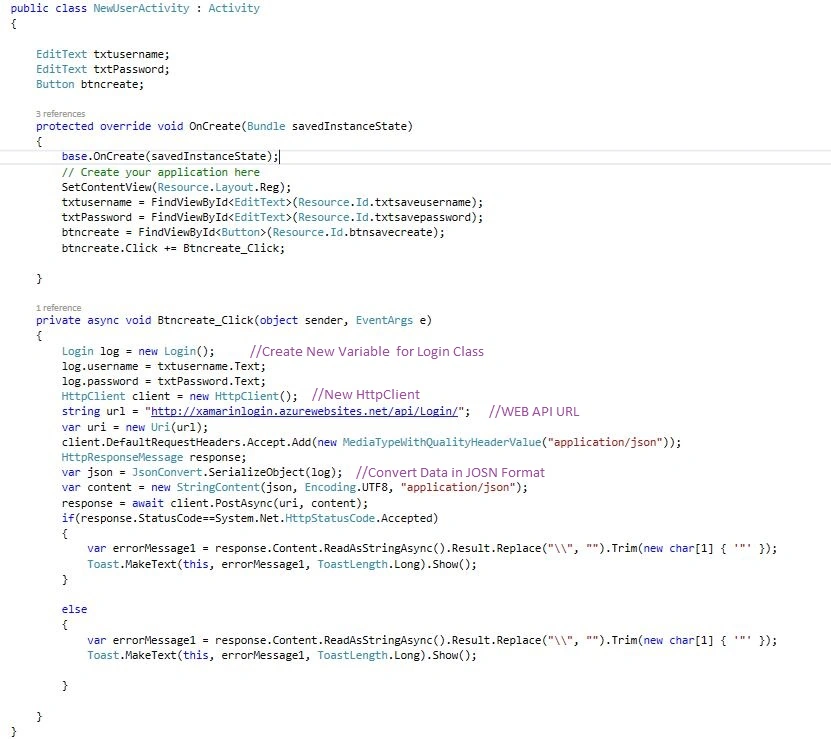
Next to Open Solution Explorer-> Project Name->NewUserActivity.cs Click Open CS code Page view then add below namespaces. Next to write given below code.
- using System.Net.Http;
- using System.Net.Http.Headers;
- using Newtonsoft.Json;
C# Code
- public class NewUserActivity: Activity
- {
- EditText txtusername;
- EditText txtPassword;
- Button btncreate;
- protected override void OnCreate(Bundle savedInstanceState)
- {
- base.OnCreate(savedInstanceState);
- // Create your application here
- SetContentView(Resource.Layout.Reg);
- txtusername = FindViewById < EditText > (Resource.Id.txtsaveusername);
- txtPassword = FindViewById < EditText > (Resource.Id.txtsavepassword);
- btncreate = FindViewById < Button > (Resource.Id.btnsavecreate);
- btncreate.Click += Btncreate_Click;
- }
- private async void Btncreate_Click(object sender, EventArgs e)
- {
- Login log = new Login();
- log.username = txtusername.Text;
- log.password = txtPassword.Text;
- HttpClient client = new HttpClient();
- string url = "http://xamarinlogin.azurewebsites.net/api/Login/";
- var uri = new Uri(url);
- client.DefaultRequestHeaders.Accept.Add(new MediaTypeWithQualityHeaderValue("application/json"));
- HttpResponseMessage response;
- var json = JsonConvert.SerializeObject(log);
- var content = new StringContent(json, Encoding.UTF8, "application/json");
- response = await client.PostAsync(uri, content);
- if (response.StatusCode == System.Net.HttpStatusCode.Accepted)
- {
- var errorMessage1 = response.Content.ReadAsStringAsync().Result.Replace("\\", "").Trim(new char[1]
- {
- '"'
- });
- Toast.MakeText(this, errorMessage1, ToastLength.Long).Show();
- }
- else
- {
- var errorMessage1 = response.Content.ReadAsStringAsync().Result.Replace("\\", "").Trim(new char[1]
- {
- '"'
- });
- Toast.MakeText(this, errorMessage1, ToastLength.Long).Show();
- }
- }
- }
Step 11
Press F5 or Build and Run the Application, first image to register the new user and then next image to login the user.
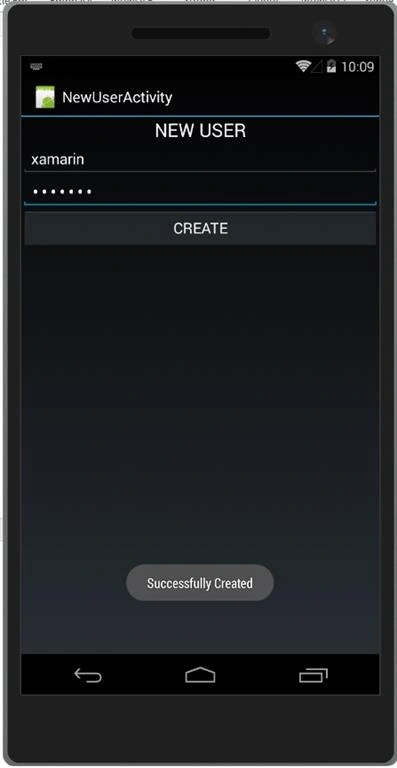
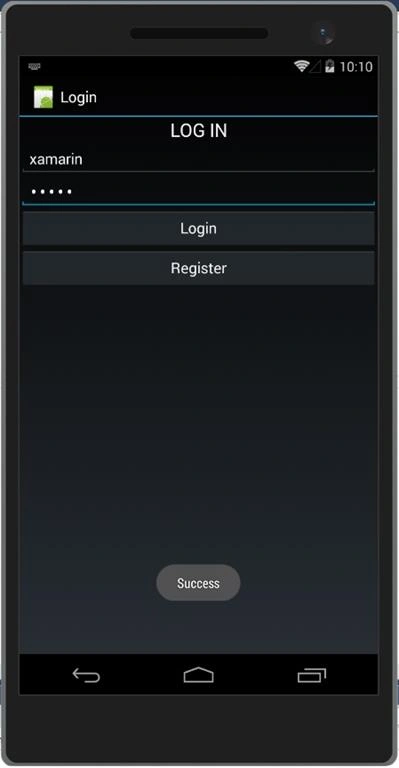
Finally, we have successfully created Login with WEB API Using Azure SQL Server.


Hrishikesh GarudPosted Nov 18, 2020, 9:41 AM EST
Error - "The resource you are looking for has been removed, had its name changed, or is temporarily unavailable"
Khaled mahmoudPosted May 11, 2020, 6:26 AM EDT
"$id":"1","message":"No HTTP resource was found that matches the request URI
Viknaraj ManogararajahTOP 100Posted Jul 27, 2018, 6:12 AM EDT
nice article anbu
ADNAN MISTRYPosted Jul 26, 2018, 6:09 AM EDT
I am getting unhandled exception error at response = await client.GetAsync(uri);
Niels de VriesPosted Jun 25, 2018, 10:44 PM EDT
Hi Anbu, thanks for your articles. However I still get the error message as others are commenting; {"$id":"1","message":"No HTTP resource was found that matches the request URI . I checked my routing and I am not using localhost. Do you have any suggestions what to do?
Wendell RamosPosted Feb 25, 2018, 7:07 PM EST
What if the API is self hosted? like WPF api, but its still a xml/json file. What i want sir is, how can i make the validation from the application? Not from the Azure app. How to make own validation from android. Thanks in advance :)
Yehudy MoyaPosted Jun 19, 2017, 10:23 AM EDT
Hi Anbu Mani I have the same problem: if I try to create a user by code, I get an error that no Http resource was found that matches the request uri...Even though I'm choosing the same url for both POST and GET, seems like in the Post request, the parameters are not being sent. "{"$id":"1","message":"No HTTP resource was found that matches the request URI = "xxxxxxxxxxxxxxxxxxxxxxxx"...... Whrere Check "WEB API Routing" I dont understand.. Please helpme... Thanks
Wael ElZahrPosted Jun 18, 2017, 8:58 AM EDT
Thanks for the tutorial. The Login works well if I add a user from the db. However, if I try to create a user by code, I get an error that no Http resource was found that matches the request uri...Even though I'm choosing the same url for both POST and GET, seems like in the Post request, the parameters are not being sent. ANy ideas?
Theodorus GumilangPosted Jun 12, 2017, 6:06 PM EDT
I have some error , when i create new user its said no HTTP reource was found that mactchse the reuques URl "http://xamari/nlogin20170612105003.azurewebsites.net/api/Login" is this right url to create user ? or my url is wrong ?
Fawad MehmoodPosted May 16, 2017, 9:02 AM EDT
I am getting below message
kannan rPosted May 3, 2017, 12:19 AM EDT
Hi Mani, in debug it working but in release app close i don't know what the issue
My HockeyPosted Nov 15, 2016, 4:42 AM EST
Thank you, that's realy work!
Kashif Ahmad KhanPosted Sep 15, 2016, 10:16 PM EDT
Thanks for the helpful article...
Davronbek UmirovPosted Jun 9, 2016, 3:19 AM EDT
Thanks for the article.. helped me!
Santhakumar MunuswamyPosted Jun 8, 2016, 8:40 PM EDT
Thank you for nice share
Debasis SahaTOP 100Posted Jun 8, 2016, 6:14 AM EDT
Good One..
Kuppurasu NagarajTOP 100Posted Jun 6, 2016, 8:00 AM EDT
Nice Sharing..
Sonu ChaudharyPosted Jun 6, 2016, 5:44 AM EDT
good one...
Vignesh ManiTOP 100Posted Jun 6, 2016, 1:30 AM EDT
Nice one
RajaPosted Jun 5, 2016, 8:21 PM EDT
Nice article...
Debasis SahaTOP 100Posted Jun 5, 2016, 8:18 PM EDT
Good One..
Bhavik PatelPosted Jun 4, 2016, 7:19 PM EDT
nice