
Where can we create Approval Workflow in Office365?
We can create it in both List and Library.
What is Approval Workflow?
Approval Workflow is a simple workflow which needs to be approved by Approver. It can be approved or rejected.
Business Case - Leave Management
- In the Organization an employee raises a leave request
- The manager gets notified about his request, based on the requirements the manager can accept/ reject their request.
- Once Approved/ Rejected the employee will be notified.
Approval Workflow Flow
- Select List /Library - Workflow Settings
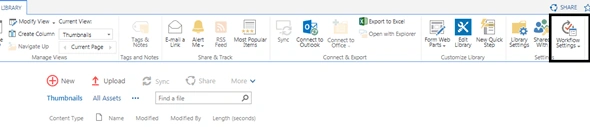
- Workflow Settings
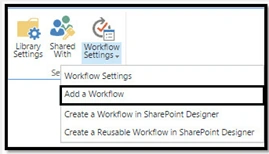
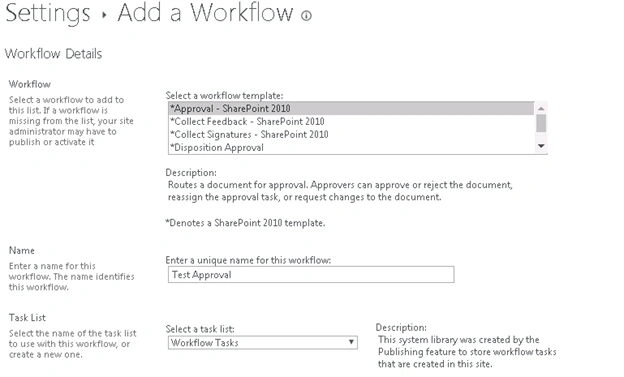
- Workflow Configuration
- Workflow – You need to choose the WF Template as Approval Sharepoint 2010
- Name – Provide your own name for the Workflow.
- Task List – Once the Item is created it will create a Task. We need to specify in which list the Task needs to be created for each entry.
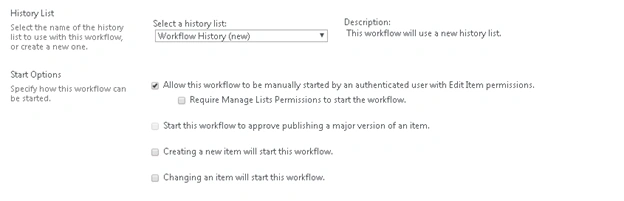
- WF History – Historical Information About the WF will be capturing in this list.
Workflow Options
- Manually – Once the user creates the item they need to trigger the workflow manually after every new item is created. (This is not a best practice)
- New Item – Once the item is created the workflow will trigger automatically. (Best practice)
- Update or Edit – Once the item is edited or changes happen to the existing item, Workflow will trigger. (Applicable based on the requirements) Approval Configurations
Approval Configurations
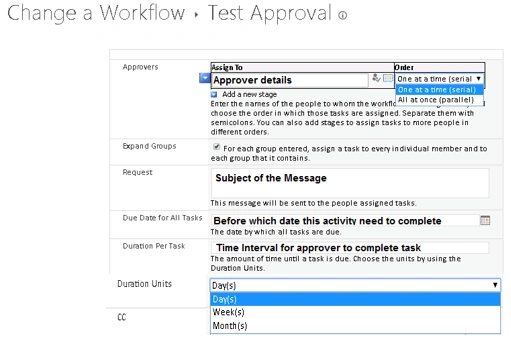
- Assign to: (Approver) In our business case we can consider our manager as the approver. Serial & Parallel are Approver's Order.
- Request: The Message needs to send to the approver when Workflow triggers. In our business case, we can provide as a leave request.
- Due Date for All Tasks: We can provide the due date for the task
- Duration: How Long it takes for one task to complete.(Units - Days/ Weeks/ Months)
Conditions
This will vary depending on the use case or requirements.
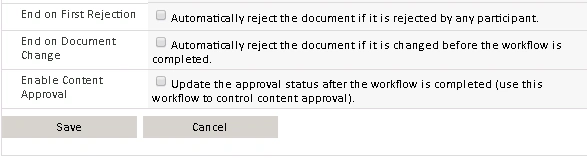
Once all the actions are configured ,save the workflow.
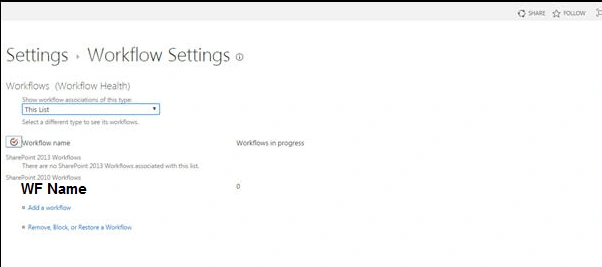
Create a File/Item in the List or Library and Workflow. Start the Workflow.
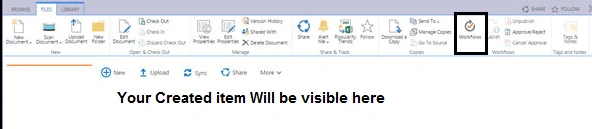
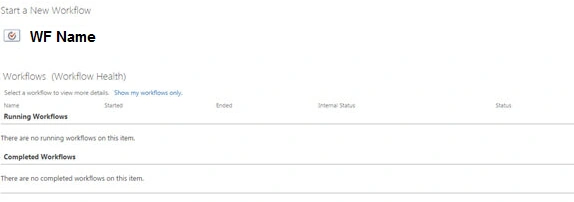
This needs to be done if the workflow option is a manual start; or else it will trigger the workflow automatically. Communication will be sent to Requestor with the status of Approved/Rejected.

Join the conversation! Your thoughts help the community grow.