
Introduction
https://github.com/microsoft/sql-server-samples/tree/master/samples/databases
Before you begin
To run this sample, you need a tool that can run Transact-SQL scripts. You can run the scripts in the following tools:
- SQL Server Management Studio (SSMS). To download SSMS, go to Download SQL Server Management Studio (SSMS).
- QL Server Data Tools (SSDT) or Visual Studio. To download SSDT, or to enable its features in Visual Studio, go to Download and install SQL Server Data Tools (SSDT) for Visual Studio.
Run the scripts in SSMS
- Open SSMS.
- Connect to the target SQL Server.
- Open the script in a new query window.
- Run the script.
Run the scripts in SSDT or Visual Studio
- Open SSDT or Visual Studio.
- Open the SQL Server Object Explorer.
- Connect to the target SQL Server.
- Open the script in a new query window.
- Run the script.
OR
You can create a database by running the below query if you have trouble with the above methods.
Create a database in SQL SERVER
The following SQL statement creates a database called “Northwind":
Example
- CREATE DATABASE Northwind;
The following example creates a table called "Customers" that contains eleven columns:
- USE [Northwind]
- GO
- SET ANSI_NULLS ON
- GO
- SET QUOTED_IDENTIFIER ON
- GO
- CREATE TABLE [dbo].[Customers](
- [CustomerID] [nchar](5) NOT NULL,
- [CompanyName] [nvarchar](40) NOT NULL,
- [ContactName] [nvarchar](30) NULL,
- [ContactTitle] [nvarchar](30) NULL,
- [Address] [nvarchar](60) NULL,
- [City] [nvarchar](15) NULL,
- [Region] [nvarchar](15) NULL,
- [PostalCode] [nvarchar](10) NULL,
- [Country] [nvarchar](15) NULL,
- [Phone] [nvarchar](24) NULL,
- [Fax] [nvarchar](24) NULL,
- CONSTRAINT [PK_Customers] PRIMARY KEY CLUSTERED
- (
- [CustomerID] ASC
- )WITH (PAD_INDEX = OFF, STATISTICS_NORECOMPUTE = OFF, IGNORE_DUP_KEY = OFF, ALLOW_ROW_LOCKS = ON, ALLOW_PAGE_LOCKS = ON) ON [PRIMARY]
- ) ON [PRIMARY]
- GO
INSERT INTO Example
The following SQL statement inserts a new record in the "Customers" table:
- INSERT [dbo].[Customers] ([CustomerID], [CompanyName], [ContactName], [ContactTitle], [Address], [City], [Region], [PostalCode], [Country], [Phone], [Fax]) VALUES (N'ALFKI', N'Alfreds Futterkiste', N'Maria Anders', N'Sales Representative', N'Obere Str. 57', N'Berlin', NULL, N'12209', N'Germany', N'030-0074321', N'030-0076545')
- INSERT [dbo].[Customers] ([CustomerID], [CompanyName], [ContactName], [ContactTitle], [Address], [City], [Region], [PostalCode], [Country], [Phone], [Fax]) VALUES (N'ANATR', N'Ana Trujillo Emparedados y helados', N'Ana Trujillo', N'Owner', N'Avda. de la Constitución 2222', N'México D.F.', NULL, N'05021', N'Mexico', N'(5) 555-4729', N'(5) 555-3745')
- INSERT [dbo].[Customers] ([CustomerID], [CompanyName], [ContactName], [ContactTitle], [Address], [City], [Region], [PostalCode], [Country], [Phone], [Fax]) VALUES (N'ANTON', N'Antonio Moreno Taquería', N'Antonio Moreno', N'Owner', N'Mataderos 2312', N'México D.F.', NULL, N'05023', N'Mexico', N'(5) 555-3932', NULL)
- INSERT [dbo].[Customers] ([CustomerID], [CompanyName], [ContactName], [ContactTitle], [Address], [City], [Region], [PostalCode], [Country], [Phone], [Fax]) VALUES (N'AROUT', N'Around the Horn', N'Thomas Hardy', N'Sales Representative', N'120 Hanover Sq.', N'London', NULL, N'WA1 1DP', N'UK', N'(171) 555-7788', N'(171) 555-6750')
Create a stored Procedure
- USE [Northwind]
- GO
- SET ANSI_NULLS ON
- GO
- SET QUOTED_IDENTIFIER ON
- GO
- ALTER procedure [dbo].[sp_select]
- as
- begin
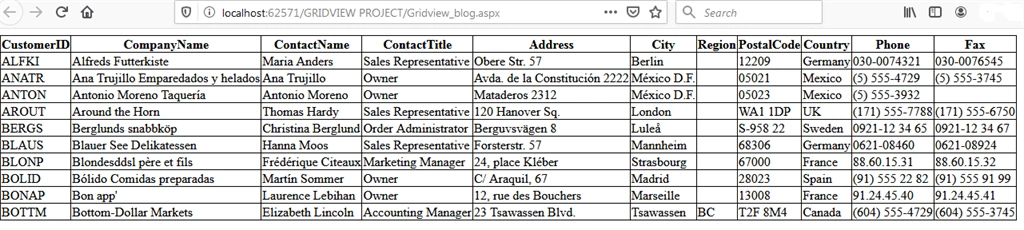
- select top 10 * from Customers
- end
Procedures
To create a new project using a standard template
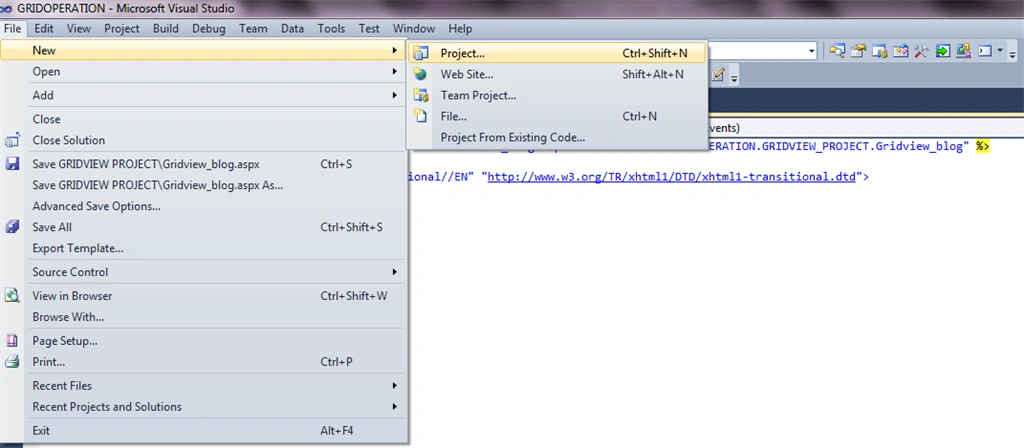
- In Microsoft Visual Studio, Click File menu -> New -> Project, (or click File menu -> New Project).
To add a page to the Web application
- In Solution Explorer, right-click the Web application name and then click Add -> New Item. The Add New Item dialog box is displayed.
- Select the Visual C# -> Web templates group on the left. Then, select Web Form from the middle list and name it Gridview_blog.aspx.
Switch to Source view
You can see the HTML in Source view that you created when you typed in Design view.
- <%@ Page Language="C#" AutoEventWireup="true" CodeBehind="Gridview_blog.aspx.cs" Inherits="GRIDOPERATION.GRIDVIEW_PROJECT.Gridview_blog" %>
- <!DOCTYPE html PUBLIC "-//W3C//DTD XHTML 1.0 Transitional//EN" "http://www.w3.org/TR/xhtml1/DTD/xhtml1-transitional.dtd">
- <html xmlns="http://www.w3.org/1999/xhtml">
- <head runat="server">
- <title></title>
- </head>
- <body>
- <form id="form1" runat="server">
- <div>
- <asp:GridView ID="GridView1" runat="server">
- </asp:GridView>
- </div>
- </form>
- </body>
- </html>
- using System;
- using System.Collections.Generic;
- using System.Linq;
- using System.Web;
- using System.Web.UI;
- using System.Web.UI.WebControls;
- using System.Data;
- using System.Data.SqlClient;
- using System. Configuration;
- using System.Web.Configuration;
- namespace GRIDOPERATION.GRIDVIEW_PROJECT
- {
- public partial class Gridview_blog : System.Web.UI.Page
- {
- string strConnString = WebConfigurationManager.ConnectionStrings["NorthwindEntities"].ConnectionString;
- protected void Page_Load(object sender, EventArgs e)
- {
- if (!this.IsPostBack)
- {
- getdata();
- }
- }
- public void getdata()
- {
- SqlConnection con = new SqlConnection(strConnString);
- SqlCommand cmd = new SqlCommand(“[sp_select]”, con);
- cmd.CommandType = CommandType.StoredProcedure;
- con.Open();
- SqlDataAdapter sda = new SqlDataAdapter(cmd);
- DataSet ds = new DataSet();
- sda.Fill(ds);
- GridView1.DataSource = ds;
- GridView1.DataBind();
- con.Close();
- }
- }
- }


Sourav Kumar DasPosted Nov 19, 2019, 5:58 PM EST
Keep it on..
Sourav Kumar DasPosted Nov 19, 2019, 5:35 PM EST
Nice useful article for basics.