
Introduction
In my previous article, you saw how to create an Azure SQL database and how to query the Database in the Azure portal. Azure SQL Database is a relational Database-as-a-Service which provides a high performance, reliable, and secure database used to build data-driven applications and websites. In this blog, you will see how to create a console application to connect to an Azure SQL database using Visual Studio. As a prerequisite, make sure you have installed the latest version of Visual Studio and also, you have created the server-level firewall rule to access the database from your machine.
SQL Database Connection Details
Log in to the Azure Portal.
Click SQL Databases -> vijaiDB (which I have created in my previous article). Click Overview and you could see the server name and connection string details which are required to connect to SQL database.
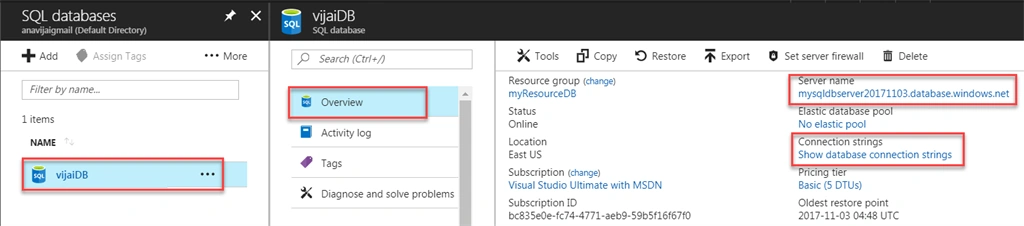
Create a console application using Visual Studio
Open Visual Studio.
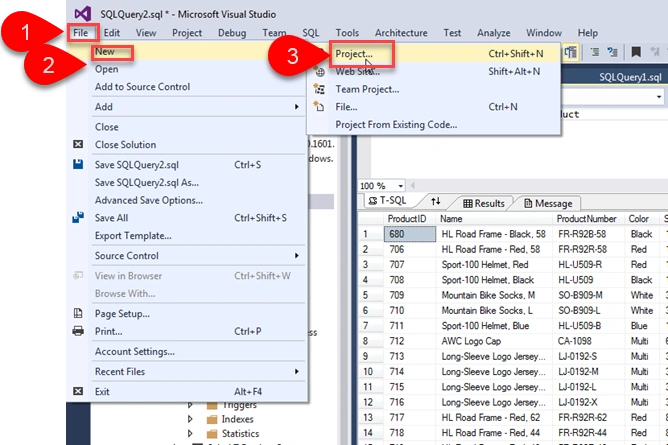
Click File->New->Project.
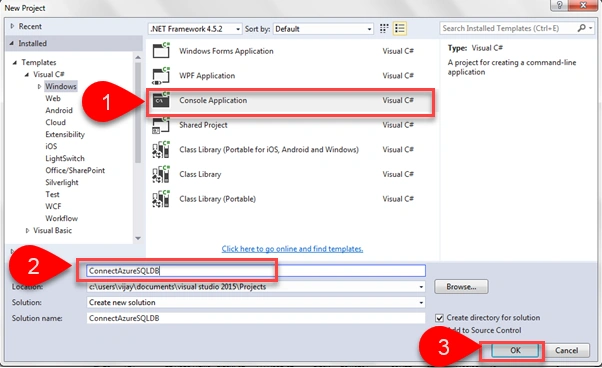
Select Console Application template, enter the name and click OK.
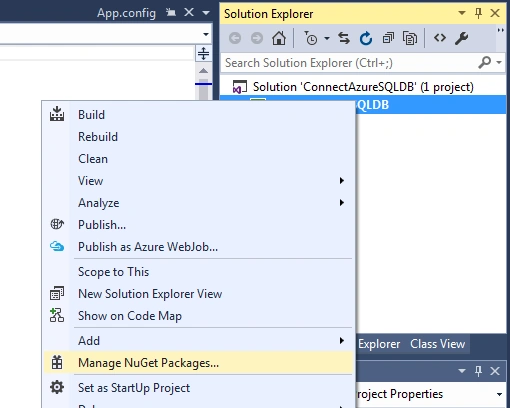
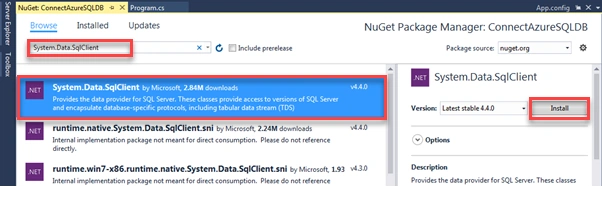
Right click on the project and then click Manage NuGet Packages.
Browse for System.Data.SqlClient and click Install.
- using System;
- using System.Collections.Generic;
- using System.Linq;
- using System.Text;
- using System.Threading.Tasks;
- using System.Data.SqlClient;
- namespace ConnectAzureSQLDB {
- class Program {
- static void Main(string[] args) {
- try {
- SqlConnectionStringBuilder connBuilder = new SqlConnectionStringBuilder();
- connBuilder.DataSource = "mysqldbserver20171103.database.windows.net";
- connBuilder.UserID = "mydbadmin";
- connBuilder.Password = "xxxxxxxxxxx";
- connBuilder.InitialCatalog = "vijaiDB";
- using(SqlConnection connection = new SqlConnection(connBuilder.ConnectionString)) {
- connection.Open();
- StringBuilder strBuilder = new StringBuilder();
- strBuilder.Append("SELECT TOP 10 p.name as ProductName ");
- strBuilder.Append("FROM [SalesLT].[Product] as p");
- string cmdText = strBuilder.ToString();
- using(SqlCommand sqlCmd = new SqlCommand(cmdText, connection)) {
- using(SqlDataReader sqlReader = sqlCmd.ExecuteReader()) {
- while (sqlReader.Read()) {
- Console.WriteLine("{0}", sqlReader.GetString(0));
- }
- }
- }
- }
- } catch (SqlException e) {
- Console.WriteLine(e.InnerException);
- }
- Console.ReadLine();
- }
- }
- }
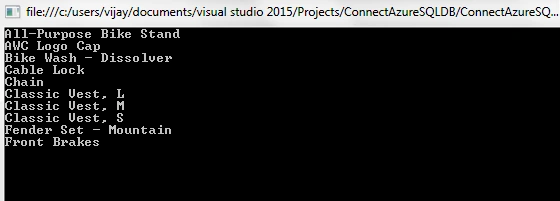
Result
Thus, in this blog, you saw how to create a console application to connect to an Azure SQL database using Visual Studio.

Join the conversation! Your thoughts help the community grow.