
Introduction
In this blog, you will see how to lock Azure Storage Account resources to prevent unexpected changes (accidentally deleting or modifying resources) using PowerShell.
Lock level can be set as CanNotDelete (Delete in portal) and ReadOnly (Read-only in portal).
CanNotDelete - authorized users can still read and modify a resource, but they can't delete the resource.
ReadOnly - authorized users can read a resource, but they can't delete or update the resource.
Click here to learn more about locking Azure resources.
Prerequisites
Install Azure PowerShell Module to run the script.
PowerShell Script
Open Notepad and paste the following script. Save the file as script.ps1.
- ################# Azure Blob Storage - PowerShell ####################
- ## Input Parameters
- $resourceGroupName="azpractice"
- $resourceName="azstorageacc1122020"
- $lockName="LockStorageAccount"
- $lockNotes="Cannot delete storage account."
- ## Connect to Azure Account
- Connect-AzAccount
- ## Function to lock Azure Storage Account resource
- Function LockResource
- {
- Write-Host -ForegroundColor Green "Locking the resource..."
- ## Lock the resource
- New-AzResourceLock -LockLevel CanNotDelete -LockName $lockName -LockNotes $lockNotes -ResourceName $resourceName -ResourceType Microsoft.Storage/storageAccounts -ResourceGroupName $resourceGroupName -Force
- Write-Host -ForegroundColor Green "Display all locks for a resource group..."
- ## Display all locks for a resource group
- Get-AzResourceLock -ResourceGroupName $resourceGroupName
- }
- LockResource
- ## Disconnect from Azure Account
- Disconnect-AzAccount
Note: Click here to know more about Azure resource providers and types.
Open Windows PowerShell window and navigate to the location where the script file was saved.
Run the following command.
.\script.ps1
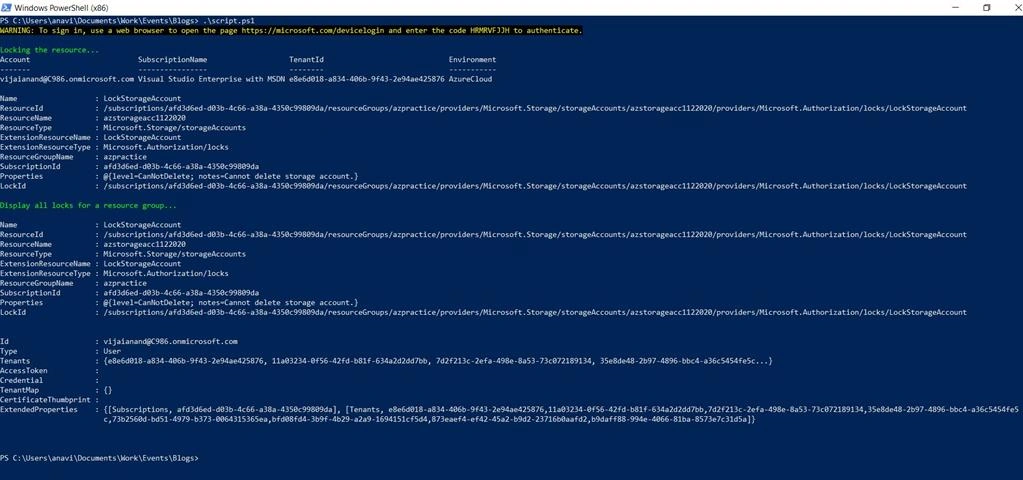
Result
Lock added successfully.

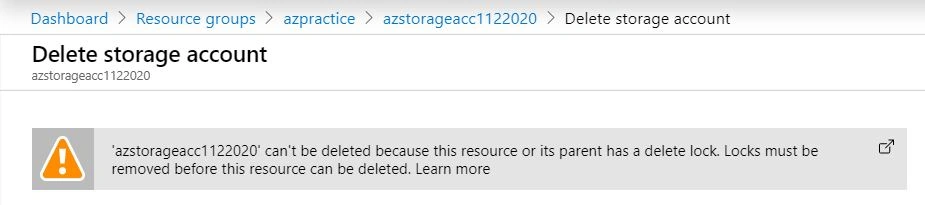
When you try to delete the resource, it throws the following error.
Summary
Thus, in this blog, you saw how to lock Azure Storage Account using PowerShell.

Join the conversation! Your thoughts help the community grow.