
There are some simple steps to understand how to upload the multiple image file by the single file upload control.
Step 1. Now, create a new ASP.NET Web Application.
Step 2. Write the code, given below, in default.aspx page.
- <%@ Page Language="C#" AutoEventWireup="true"CodeBehind="UploadMultipleFileDemo.aspx.cs"
- Inherits="MultipleFile.UploadMultipleFileDemo" %>
- <!DOCTYPE html PUBLIC "-//W3C//DTD XHTML 1.0 Transitional//EN" "http://www.w3.org/TR/xhtml1/DTD/xhtml1-transitional.dtd">
- <html xmlns="http://www.w3.org/1999/xhtml">
- <head runat="server">
- <title></title>
- </head>
- <body>
- <form id="form1" runat="server">
- <div>
- <asp:ScriptManager ID="SM" runat="server"> </asp:ScriptManager>
- <asp:UpdatePanel ID="UpdFileUpload" runat="server">
- <ContentTemplate>
- <asp:FileUpload ID="FuImage" multiple="multiple" runat="server" />
- <asp:Button ID="btnSaveFile" Text="Save" runat="server" onclick="btnSaveFile_Click" /> </ContentTemplate>
- <Triggers>
- <asp:PostBackTrigger ControlID="btnSaveFile" />- </Triggers>
- </asp:UpdatePanel>
- </div>
- </form>
- </body>
- </html>
- using System;
- using System.Web;
- using System.IO;
- namespace MultipleFile
- {
- public partial class UploadMultipleFileDemo: System.Web.UI.Page
- {
- protected void Page_Load(object sender, EventArgs e) {}
- protected void btnSaveFile_Click(object sender, EventArgs e) {
- HttpFileCollection _HttpFileCollection = Request.Files;
- for (int i = 0; i < _HttpFileCollection.Count; i++) {
- HttpPostedFile _HttpPostedFile = _HttpFileCollection[i];
- if (_HttpPostedFile.ContentLength > 0) _HttpPostedFile.SaveAs(Server.MapPath("~/a4d/ComposeEmail/" + Path.GetFileName(_HttpPostedFile.FileName)));
- }
- }
- }
- }
Step 6. Now, click browse and select one or more than one image.

Step 7. Now, click on save button after select image files.
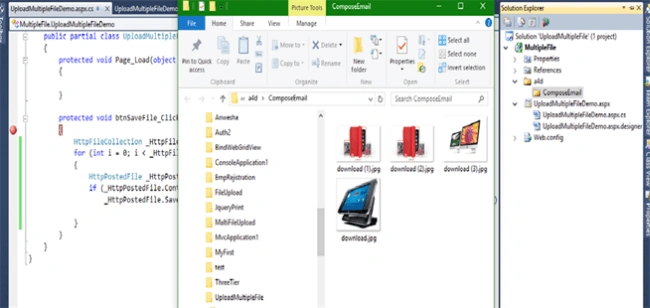
Step 8. Now, you can see in our client folder, where all the selected images are saved.


Tuan NguyenPosted Feb 3, 2020, 2:59 PM EST
Thanks a lot