
Introduction
In this blog, I am explaining how to insert online templates in Visual Studio 2015. Microsoft Visual Studio 2015 provides a new feature called online templates. First, you can search online templates and you can download them, as per your need. We have templates for new templates, components, technologies like F#, MVVM. Visual Studio 2015 provides the ability to search Online Templates.
Steps for online templates in Visual Studio 2015
Step 1
Open Visual Studio 2015 and click File -> New ->Project
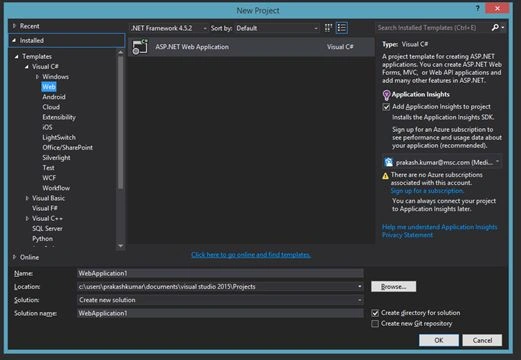
Step 2
Click Online -> Templates -> Visual C#.
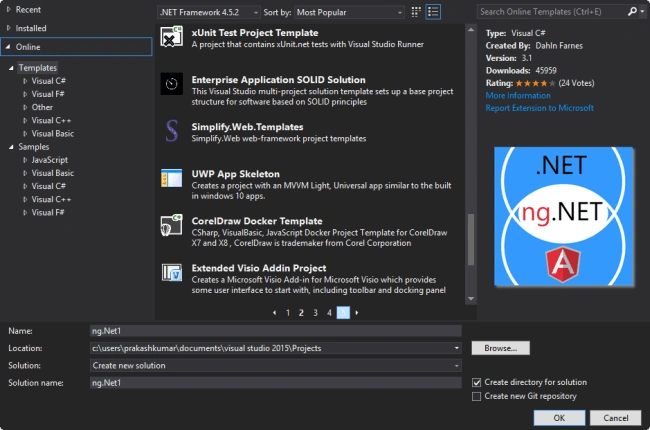
Step 3
Select any template or technology from the list item.
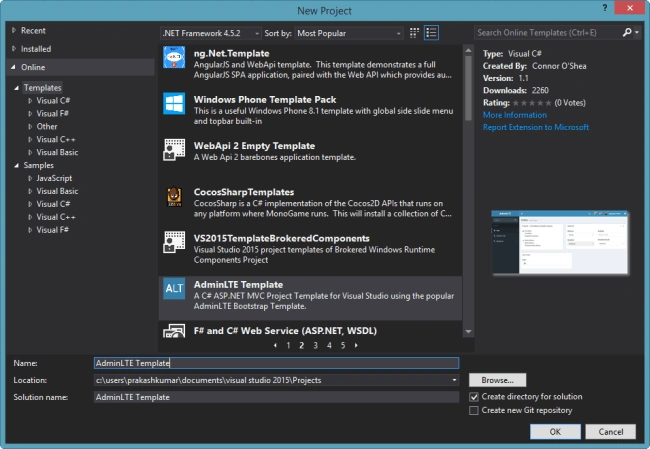
Step 4
Click to download the selected item.
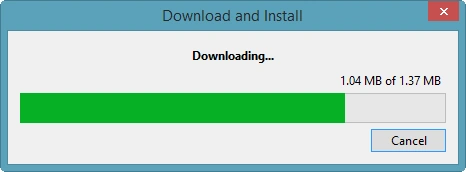
Step 5
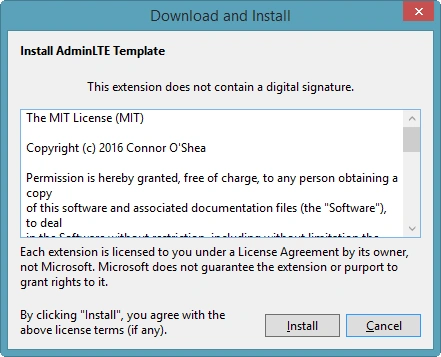
Click install button.
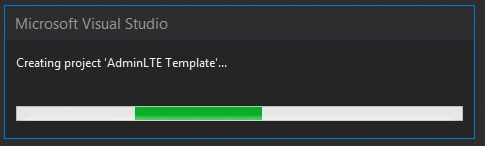
Run the Application, once the Application has completed the project creation.
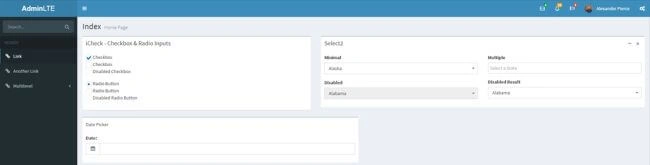
Finally, view the output in the Browser for AdminLTE template.


Anish KumarPosted Dec 1, 2016, 6:51 AM EST
Superb Bro... Fantastic...
Prakash KumarPosted Nov 10, 2016, 5:51 PM EST
Hi Subash, thanks for your feedback.
SubashPosted Nov 10, 2016, 3:49 PM EST
Very good start prakash kumar please continue write more blogs like this
Salman BegPosted Nov 9, 2016, 10:16 PM EST
Hi Prakash.Thanks for your quick reply.Whenever i will get time i will definitely look into it.thanks.
Prakash KumarPosted Nov 9, 2016, 6:09 PM EST
Hi Salman, thanks for your feedback. Using bootstrap templates will nothing happen it will give nice responsive applications. use properly and get good environment. thanks.
Salman BegPosted Nov 9, 2016, 2:54 AM EST
Hi.i gave a shot and it really worked for me but i am afraid if i modified to the existing template and use it in any other project then is there any problem? By the way Nice article.Great. Keep it Up.