
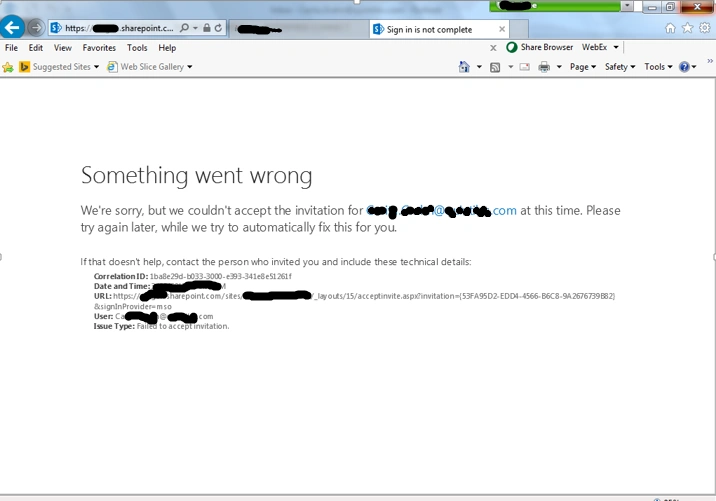
Sometimes, SharePoint Online external user sees “Something Went Wrong, Failed to Accept Invitation” error whenever he/she tries to access SharePoint Online site.
Reason
This issue is caused by a user incorrectly accepting a SharePoint Online invitation. This usually happens when a user is already signed into a Microsoft account (usually personal account) in their browser, and then copies over the invitation link to the browser. Anytime an invitation link is accepted by an account other than the intended recipient, there is an association created between the two accounts, that prevents the user from signing into SharePoint Online with the intended email address (account).
Resolution
The resolution to the “Failed to Accept Invitation” error is to use PowerShell to completely remove the user’s account from SPO, and re-send the invitation. Users need to make sure that they are completely logged out of any personal accounts from their browser before accepting the SPO invitation.
Below script can be used for removing the user from SharePoint Online.
- #Change your tenant admin account below
- $username = "youaccount@<tenant>.onmicrosoft.com"
- $password = read-host "Enter your Password" -AsSecureString
- #$password = convertto-securestring "YourPassword" -asplaintext -force
- $cred = New-Object -TypeName System.Management.Automation.PSCredential -argumentlist $userName, $password
- #Must be SharePoint Admin URL
- $siteUrl = "https://<tenant>-admin.sharepoint.com"
- Connect-SPOService -Url $siteUrl -Credential $cred
- $extUserDetail = read-host "Enter external user id (<user-email>#EXT#@<tenant>.onmicrosoft.com)"
- $extUser = Get-SPOExternalUser -filter $extUserDetail
- Write-Host "1. Display External User" -ForegroundColor Green
- Write-Host "2. Remove External User" -ForegroundColor Magenta
- $choice = Read-Host "Choice [1-2]?"
- switch ($choice)
- {
- 1 { $extUser }
- 2 { Remove-SPOExternalUser -UniqueIDs @($extUser.UniqueId) }
- default {":-) You must be kidding."}
- }


Piyush AgarwalPosted Mar 9, 2018, 12:01 AM EST
Faced this issue several times .... thanks for sharing