
PowerShell Script for Connecting D365
Open the Windows PowerShell ISE

Paste the Below command into PowerShell to Install the XRM
C#
Install-Module Microsoft.Xrm.Data.PowerShell -Scope CurrentUserSet the Execution Policy by using the below command
C#
Set-ExecutionPolicy –ExecutionPolicy RemoteSigned –Scope CurrentUserSet the Security Protocol by using the below command
C#
[System.Net.ServicePointManager]::SecurityProtocol = [System.Net.SecurityProtocolType]::Tls12Set the Username by using the below command
C#
$Username= “Replace with your Username”Set the Password by using the below command
C#
$Password="Replace with your Password"Converting the Password to Secure String by using the below command
C#
$pwd = ConvertTo-SecureString $Password -AsPlainText -ForceAdding the Username and Password to the System.Management.Automation.PSCredential by using the below command
C#
$credentials = New-Object System.Management.Automation.PSCredential($Username, $pwd)Pass the CRM URL to Establishing the connection and store the connection into $CRMConnection Variable by using the below command
C#
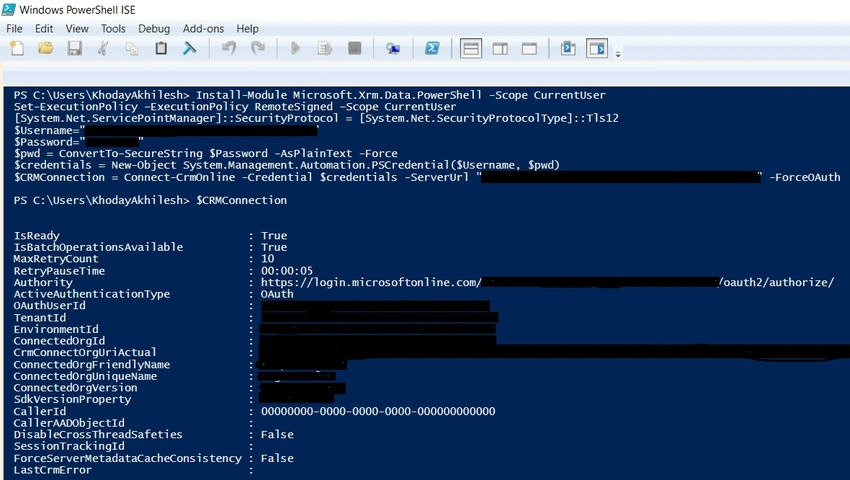
$CRMConnection = Connect-CrmOnline -Credential $credentials -ServerUrl " Replace with your URL " -ForceOAuthFinal Result
Now connected to D365 using PowerShell Script.

Join the conversation! Your thoughts help the community grow.