
/forums/uploadfile/1beccf/08032023012129AM/uctSnipAddEditView.xaml
While scrolling the content container hides the header container. How to avoid this?
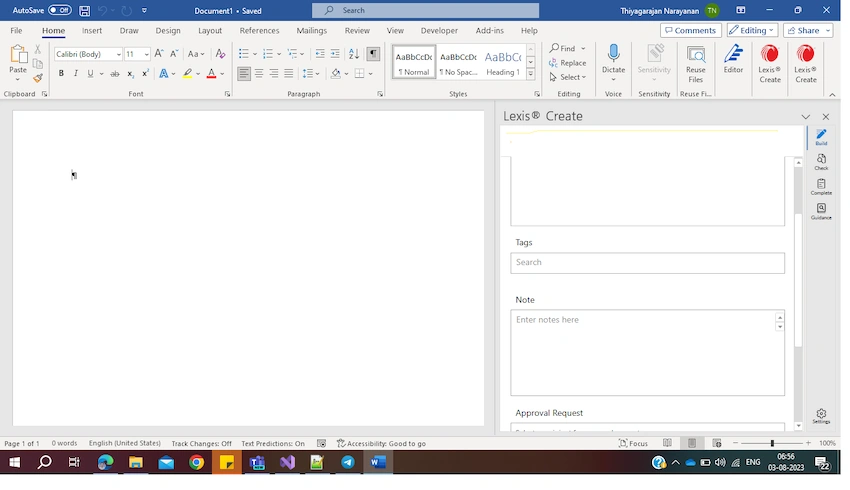
/forums/uploadfile/1beccf/08032023012129AM/uctSnipAddEditView.xaml
While scrolling the content container hides the header container. How to avoid this?
Know the answer? Post it. Somebody with the same question will find it here.
Answer a question in the forums and earn +20 SHARP for every answer.
See unanswered questions Arun PottiAnswers in the forums20answers02
 Tahir AnsariAnswers in the forums5answers03
 Kamlesh KumarAnswers in the forums5answers04
 Sam HobbsAnswers in the forums4answers05
 Željko PerićAnswers in the forums3answersFull leaderboard →
 DevSocialUpcoming · 3rd editionAI Agents ConferenceDec 1–3, 2026Live onlineFree to attend5days leftRegister

Deepak RawatRank #646 · 3.7K reputationPosted Aug 3, 2023, 2:29 AM EDT
Hi you can try these options;
Open your Word document.
Double-click on the header section of the first page (or any page where you want the header to be visible while scrolling). This will activate the header area for editing.
In the "Header & Footer Tools" Design tab that appears, check the box next to "Different First Page." This will unlink the first-page header from the header on subsequent pages.
Now, go to the second page (or any page after the first one) and double-click on the header section.
In the "Header & Footer Tools" Design tab, uncheck the "Different First Page" box. This will make the header on all subsequent pages the same as the first-page header.
In the "Options" group, check the box next to "Header from Top." This will lock the header at the top of the page.
Save your document.
Coder Thiyagarajan153 reputationPosted Aug 3, 2023, 9:22 AM EDT
Hi @Deepak Rawat,
It's related to WPF not in word environment. In the Add-In I just render the usercontrol. I attached the xaml file in the same ticket. It has header and body contents. Both in Grid Rows. While scrolling, scrollviewer will override the header element in Grid Row 0. Kindly check that xaml and let me know where I went wrong.