typescript installed but not showing typescript version
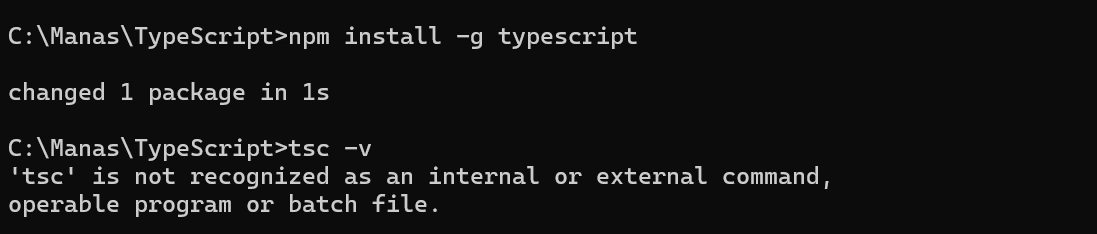
typescript installed but not showing typescript version
Know the answer? Post it. Somebody with the same question will find it here.
Answer a question in the forums and earn +20 SHARP for every answer.
See unanswered questions Arun PottiAnswers in the forums20answers02
 Tahir AnsariAnswers in the forums5answers03
 Kamlesh KumarAnswers in the forums5answers04
 Sam HobbsAnswers in the forums4answers05
 Željko PerićAnswers in the forums3answersFull leaderboard →
 DevSocialUpcoming · 3rd editionAI Agents ConferenceDec 1–3, 2026Live onlineFree to attend5days leftRegister

Sophia CarterRank #4,018 · 371 reputationPosted Mar 13, 2025, 6:56 AM EDT
It appears that the screenshot you've shared indicates that TypeScript is installed, but it's not showing the TypeScript version information. This can happen due to a few reasons:
1. Check TypeScript Installation: You can verify if TypeScript is installed correctly by running `tsc -v` in your terminal. This command should display the installed TypeScript version globally.
2. Local vs. Global Installation: If you are working within a specific project, the TypeScript version could be installed locally within that project, and hence not globally visible. You can check the local TypeScript version by running `npx tsc -v`.
3. IDE Integration: IDEs like Visual Studio Code may also display TypeScript information. Make sure your IDE is properly configured to show TypeScript version details.
4. Package.json Information: Another way to check the TypeScript version for a specific project is by looking at the `package.json` file under `devDependencies` or `dependencies`.
Here's an example of how you can display TypeScript version in your project:
By following these steps, you should be able to determine the TypeScript version installed on your system or within a specific project. If you encounter any issues along the way, feel free to provide more details for further assistance.
PinkuRank #3,922 · 378 reputationPosted Mar 13, 2025, 7:08 AM EDT
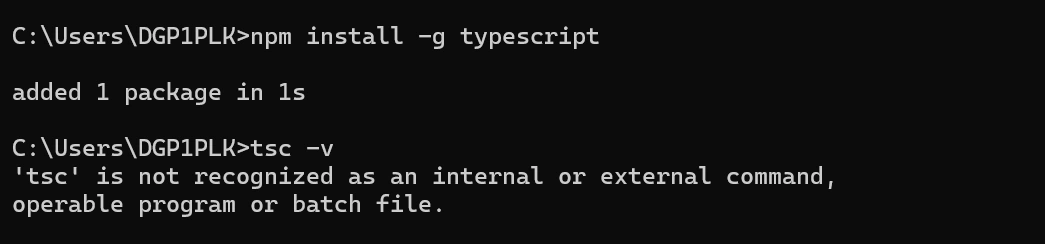
I uninstall and install again . why it is not working now
Prasad RaveendranRank #320 · 7.8K reputationPosted Mar 16, 2025, 1:56 AM EDT
f the issue persists, try reinstalling TypeScript: