
Introduction
Ajax (Asynchronous JavaScript and XML) is new web development technique used for interactive websites. With AJAX help we can develop web applications and retrieve small amounts of data from a web server. AJAX consists of a different type of technology.
- JavaScript
- XML
- Asynchronous Call to the server
In this article, I will show how we can use a ModelPopupExtender control with client side behavior so that when the user performs any action in the dialog box, such as a button click, there is no post back to the server.
Step 1 : Open Visual Studio 2010
- Go to File->New->WebSite
- Select ASP.NET Empty WebSite
Step 2 : Go to Solution Explorer and right-click.
- Select Add->New Item
- Select WebForm
- Default.aspx page open
Step 3 : Go to Default.aspx page and click on the [Design] option and drag control from Toolbox.
- Drag ScriptManager contro, Label,Button
Step 4 : Go to Default.aspx [Source] option and define ContentTemplate.
Code
<ContentTemplate>
<asp:Button ID="Button1" runat="server" Text="button" />
<br />
<asp:Label ID="Label1" runat="server"></asp:Label>
<asp:Panel ID="Panel1" runat="server" BackColor="#ffffff"
BorderColor="#dadada" BorderStyle="Solid" BorderWidth="4px"
Height="190px" Width="350px" Font-Names="Arial" Font-Size="10pt">
</ContentTemplate>
Step 5 : We create a Panel inside the Update Panel which will be used as a popup window by the ModelPopupExtender control.
Code
<asp:Panel ID="Panel1" runat="server" BackColor="#ffffff"
BorderColor="#dadada" BorderStyle="Solid" BorderWidth="4px"
Height="190px" Width="350px" Font-Names="Arial" Font-Size="10pt">
Step 6 : Go to the Default.aspx page [Design] option and click on UpdatePanel Control.
- Select Properties option and define ClientMode "Inherit"
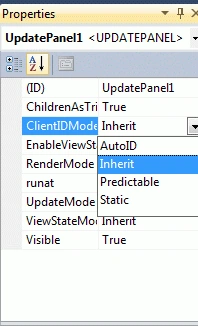
Step 7 : We will define CSS for the BackgroundCssClass.
Code
<style type="text/css">
.BackgroundStyle
{
background-color: Gray;
filter: alpha(opacity=30);
opacity: 0.5;
}
</style>
Step 8 : Go to the Toolbox option and drag a ModelPopupExtender control.
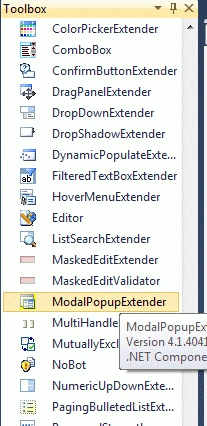
Step 9 : Go to the Default.aspx[Source] page option and define all ModelPopupExtender property.
Code :
<asp:ModalPopupExtender ID="ModalPopupExtender1" runat="server" TargetControlID="Button1" PopupControlID="Panel1" DropShadow="True" CancelControlID="Button3" OkControlID="Button2" OnOkScript="OkButtonClick()" BackgroundCssClass="BackgroundStyle
</asp:ModalPopupExtender>
Define JavaScript Function
Step 10 : Go to the Default.aspx page and define a JavaScript function.
Code
<script type="text/javascript">
var language = "";
function SetLanguage(value) {
language = value;
}
function OkButtonClick() {
$get("Label1").innerHTML = language;
}
Step 11 : Now go to the Default.aspx page option and write some code.
Code
<title> my ajax application</title>
<style type="text/css">
.BackgroundStyle
{
background-color:gray;
filter: alpha(opacity=30);
opacity: 0.5;
}
</style>
<script type="text/javascript">
var language = "";
function SetLanguage(value) {
language = value;
}
function OkButtonClick() {
$get("Label1").innerHTML = language;
}
</script>
</head>
<body>
<form id="form1" runat="server">
<asp:ScriptManager ID="ScriptManager1" runat="server">
</asp:ScriptManager>
<div style="background-color: #EAAA7B">
<asp:UpdatePanel ID="UpdatePanel1" runat="server">
<ContentTemplate>
<asp:Button ID="Button1" runat="server" Text="button" />
<br />
<asp:Label ID="Label1" runat="server"></asp:Label>
<asp:Panel ID="Panel1" runat="server" BackColor="#ffffff"
BorderColor="#dadada" BorderStyle="Solid" BorderWidth="4px"
Height="190px" Width="350px" Font-Names="Arial" Font-Size="10pt">
</ContentTemplate>
<table cellpadding="10" cellspacing="0" style="width: 100%">
<tr>
<td style="background-color: #D5D1AC">
Select Favorite Programming Language?
</td>
</tr>
<tr>|
<td style="background-color: #A9D6D0">
<input name="rdLanguage" type="radio" value="Java"
onclick="SetLanguage('Java');" />
java<br />
<input name="rdLanguage" type="radio" value="ASP.NET"
onclick="SetLanguage('ASP.NET');" />
ASP.NET
<br />
<input name="rdLanguage" type="radio" value="C#"
onclick="SetLanguage('C#');" />C#
<br />
<input name="rdLanguage" type="radio" value="C"
onclick="SetLanguage('C');" /> C|
<br />
<input name="rdLanguage" type="radio" value="C++"
onclick="SetLanguage('C++');" /> C++
<br />
</td>
</tr>
<tr>
<td style="background-color: #DFEA95">
<asp:Button ID="Button2" runat="server" Text="Submit" />
<asp:Button ID="Button3" runat="server" Text="Cancel" />
</td>
</tr>
</table>
</asp:Panel>
<asp:ModalPopupExtender ID="ModalPopupExtender1" runat="server" TargetControlID="Button1" PopupControlID="Panel1" DropShadow="True" CancelControlID="Button3" OkControlID="Button2" OnOkScript="OkButtonClick()" BackgroundCssClass="BackgroundStyle"
</asp:ModalPopupExtender>
</div>
Step 12 : Now run the application by Pressing F5. When we click on the Button option the following popup window opens.
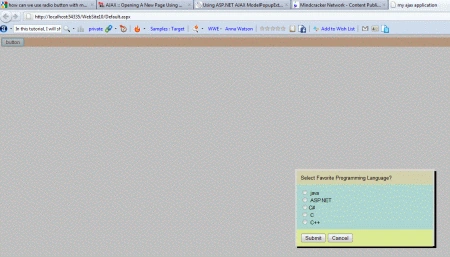
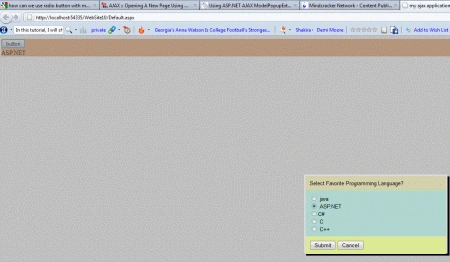
Step 13 : Now we select any language and click on the submit button; the following output will be shown.
Resource
Vikas MishraPosted Feb 1, 2012, 6:58 AM
very good work Davin...........