
In this article, I would like to share the steps to add the Excel Web Access webpart in SharePoint online site
- Excel Web Access web part is used to display the content in SharePoint page.
- We can customize the webpart appearance and functionality of Excel web access webpart.
- We can connect this webpart to other webparts for data analysis tasks like filtering and getting external data.
Steps
Follow the below listed steps to add the Excel Web Access webpart on your site.
Step 1
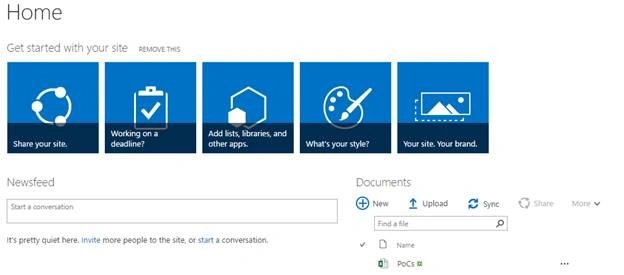
Open your SharePoint Site.
Step 2
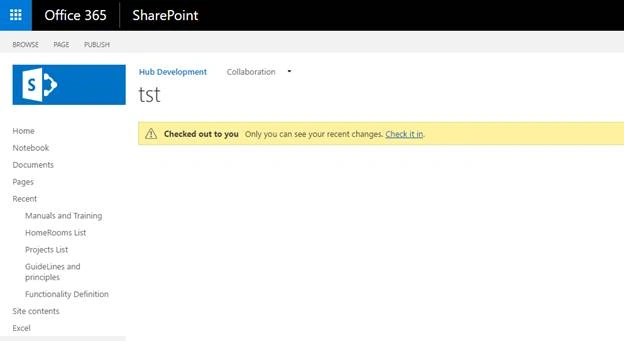
Then, go to the page where you want to add this webpart.
Step 3
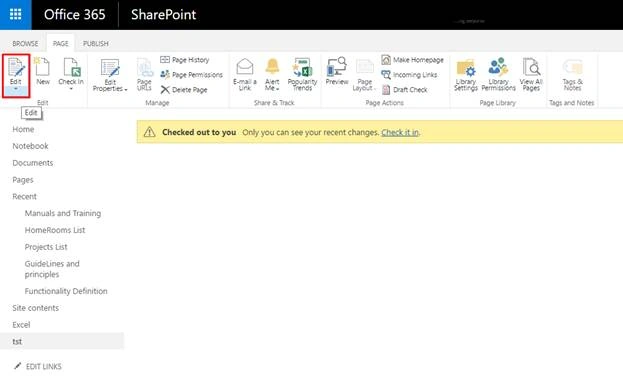
Edit the page using ribbon bar, as shown below.
Step 4
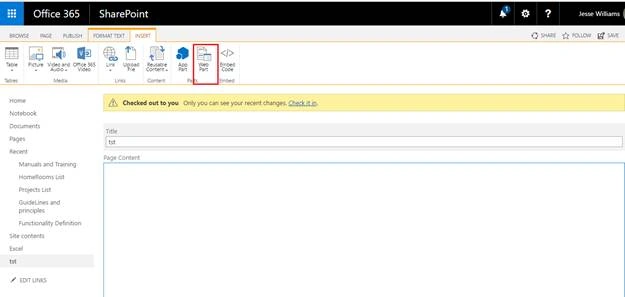
On the edited page, click on the “Insert” from your top ribbon, where you can see the webpart option.
Step 5
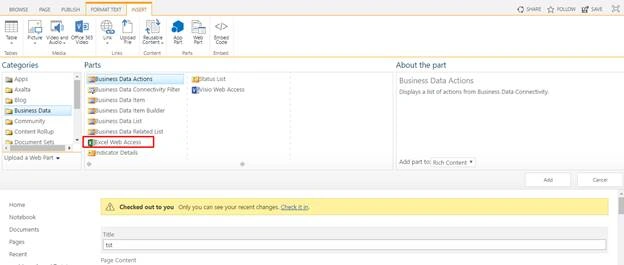
Click on the “Webpart” option and go to the “Business Data” Category in webpart category section, and select “Excel Web Access”.
Step 6
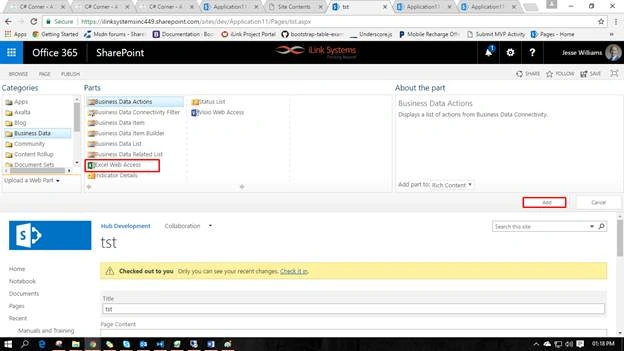
Once you select “Excel Web Access” webpart, click “ADD” to add the webpart on your page.
Step 7
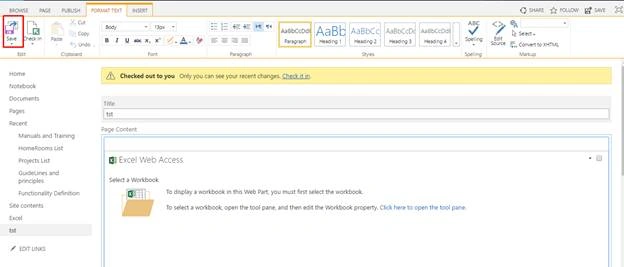
Excel web access webpart will be added on your page, as shown below. Then, save your page.
Step 8
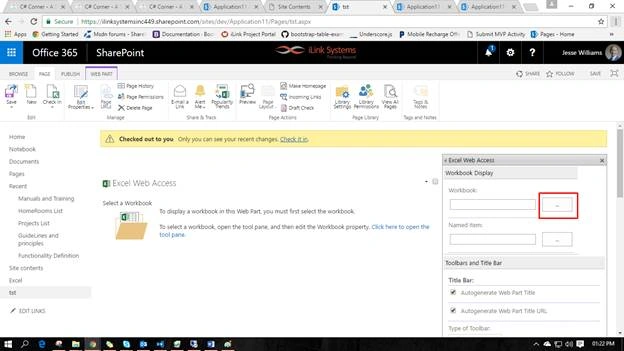
On the page click on “Click here to open the tool pane." Link to customize the webpart appearances and add the workbooks. Then, click on the ellipse (...) button on the webpart properties to map the workbook.
Step 9
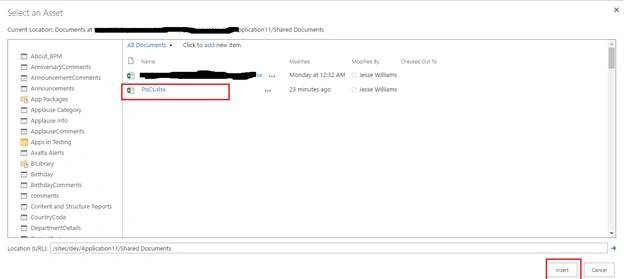
When you click on the ellipse (...), you will get the pop up as shown below. On the pop up, you can select the workbook from your document libraries.
Step 10
Click Insert button on the pop up window after selecting the workbook from the document library, and click “OK” on webpart property pane as shown below.
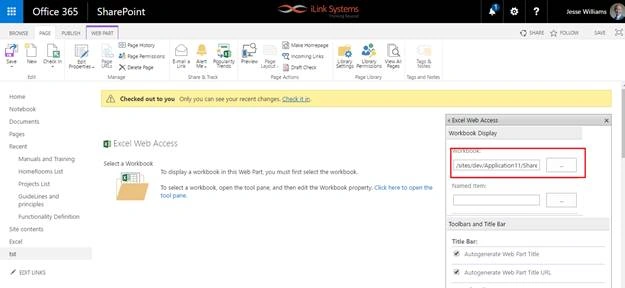
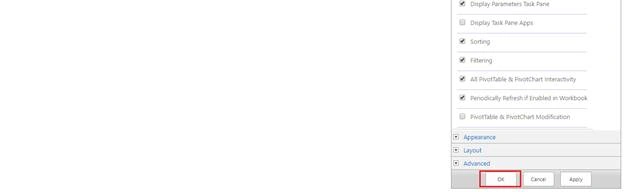
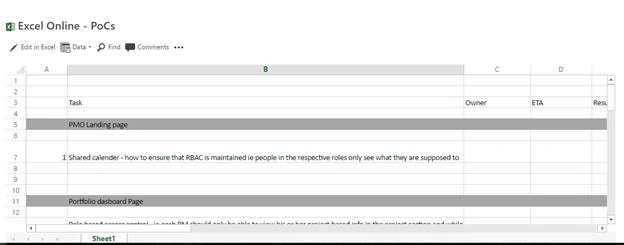
Finally, the workbook will be displayed on your SharePoint page. You can customize the webpart using property pane.
Summary
In this article, we have explored how to add the Excel web access webpart and how to connect the work book in SharePoint Online Site.


Pavan KalyanPosted Oct 5, 2018, 4:39 PM EDT
Very good information. Thanks