

Introduction: This is a simple application for beginners that helps wil how to add your own master page in an ASP.NET MVC application. We know that MVC is the integrated module that is built on three seperated words that mean Model,VIew,Controller. Models are used to create the business logic. Views is provide the presentation and controller handle the request provide by model and view. Master Pages were introduced in version 2.0 of ASP.NET. Master Pages are a template that other pages can inherit from to keep consistent functionality. The pages that inherit from Master Pages are referred to as content pages. Master Pages allow the ASP.NET developer to keep consistent reusable, web based code (html, css, javascript, etc.) in one high level place so the content pages can concentrate on their specific web-based code. It contains the extension ".master" a common SharePoint Master Page is default.master. ASP.NET MVC gives you a powerful patterns based way to build dynamic websites that enables a clean separation of concerns and that gives you full control over markup for enjoyable agile development
Step1: Open Visual Studio 2010.
- Go to file -> New->Projects
- Create an ASP.NET MVC 2 Empty Web Application
- Name it "Sonal"


Step2: Add master page in shared folder.
- Right Click of shared folder add master page
- Right Click of shared folder ->add->add new items->Web->MVC->View master page


Step 3: Write the code of the master page.
Code:
<%@
Master Language="C#"
Inherits="System.Web.Mvc.ViewMasterPage"
AutoEventWireup="false"
%>
<!DOCTYPE
html PUBLIC
"-//W3C//DTD XHTML 1.0 Transitional//EN"
"http://www.w3.org/TR/xhtml1/DTD/xhtml1-transitional.dtd">
<html
xmlns="http://www.w3.org/1999/xhtml"
>
<head
id="Head1" runat="server">
<title></title>
<style
type="text/css">
html
{
background-color:Green;
}
.column
{
float:left;
width:300px;
border:solid
1px black;
margin-right:10px;
padding:5px;
background-color:white;
min-height:500px;
}
</style>
<asp:ContentPlaceHolder
ID="head"
runat="server">
</asp:ContentPlaceHolder>
</head>
<body>
<h1>
This is Manish application</h1>
<div
class="column">
<asp:ContentPlaceHolder
ID="ContentPlaceHolder1"
runat="server">
</asp:ContentPlaceHolder>
</div>
<div
class="column">
<asp:ContentPlaceHolder
ID="ContentPlaceHolder2"
runat="server">
</asp:ContentPlaceHolder>
</div>
</body>
</html>
Step 4: Add a folder of view.
- Right click of View Folder->Add->New Folder
- The name of Folder is "Home"
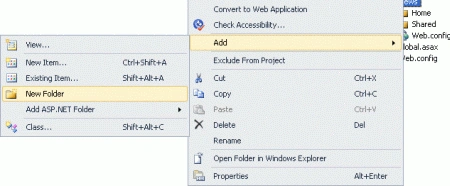
Step 5: Add the content page on the in home folder.
- Right click of Home Folder->Add->Add new item->Web->MVC->add content page.
- Nmae of content page is "content.


Step6: Write the following code on the content page.
Code:
<%@
Page Title=""
Language="C#"
MasterPageFile="~/Views/Shared/manish.Master"
AutoEventWireup="false"
Inherits="System.Web.Mvc.ViewPage"
%>
<script
runat="server">
</script>
<asp:Content
ID="Content1" ContentPlaceHolderID="head"
runat="server">
</asp:Content>
<asp:Content
ID="Content2" ContentPlaceHolderID="ContentPlaceHolder1"
runat="server">
<h1>This
is manish page</h1>
<asp:Image
ID="Image2" runat="server"
Height="243px"
ImageUrl="~/Image/Panoramics_Images.jpg"
Width="300px"></asp:Image>
</asp:Content>
<asp:Content
ID="Content3" ContentPlaceHolderID="ContentPlaceHolder2"
runat="server">
<h1>This
is sandeep page</h1>
<asp:Image
ID="Image1" runat="server"
Height="244px"
ImageUrl="~/Image/Taj
Mahal.jpg" Width="301px"
/>
</asp:Content>
<%@
Page Title=""
Language="C#"
MasterPageFile="~/Views/Shared/manish.Master"
AutoEventWireup="false"
Inherits="System.Web.Mvc.ViewPage"
%>
<script
runat="server">
</script>
<asp:Content
ID="Content1" ContentPlaceHolderID="head"
runat="server">
</asp:Content>
<asp:Content
ID="Content2" ContentPlaceHolderID="ContentPlaceHolder1"
runat="server">
<h1>This
is manish page</h1>
<asp:Image
ID="Image2" runat="server"
Height="243px"
ImageUrl="~/Image/Panoramics_Images.jpg"
Width="300px"></asp:Image>
</asp:Content>
<asp:Content
ID="Content3" ContentPlaceHolderID="ContentPlaceHolder2"
runat="server">
<h1>This
is sandeep page</h1>
<asp:Image
ID="Image1" runat="server"
Height="244px"
ImageUrl="~/Image/Taj
Mahal.jpg" Width="301px"
/>
</asp:Content>
Step 7:
Add a controller.
- Right click on the Controllers folder ->add->Controllers.
- Name of the Controller is "Home".
- In a controller, define the request.
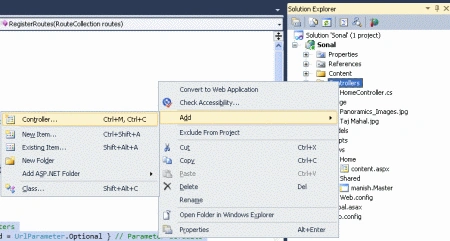

Step8: Write the code for the controller.
Code:
using
System;
using
System.Collections.Generic;
using
System.Linq;
using
System.Web;
using
System.Web.Mvc;
using
Sonal.Controllers;
namespace
Sonal.Controllers
{
public class
HomeController :
Controller
{
//
// GET: /Home/
public
ActionResult content()
{
return View();
}
}
}
Step 9: Some changes in the global.aspx file.
Code:
public
static void
RegisterRoutes(RouteCollection routes)
{
routes.IgnoreRoute("{resource}.axd/{*pathInfo}");
routes.MapRoute(
"Default",
// Route name
"{controller}/{action}/{id}",
// URL with parameters
new { controller =
"Home", action =
"content", id = UrlParameter.Optional
} // Parameter defaults
);
}
Step 10: The complete application is:
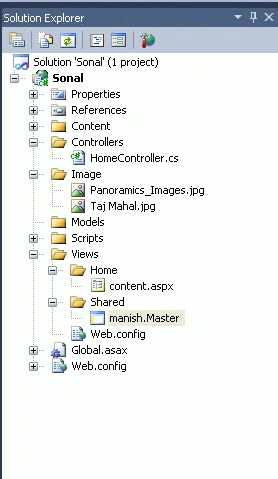
Step11: Press cltr+f5 run the application.
Output:

Nilesh WaniPosted Jan 30, 2016, 1:59 AM
how to use textbox in content page and how to insert that in database ?