

Prologue:
My previous article discussed how to bind the custom control to the screen property in a LightSwitch screen. In this article we shall see how to add the custom control dynamically to the LightSwitch screen.
We can take the LightSwitch demo application we created in part I of this article series. As we have discussed in part I, create a demo application with a custom control.
We have added the custom control, if you want to do something with the control; we need to access the custom control. So access the custom control as we discussed in this article.
So we have accessed the custom control, now we need to bind the control with the screen property [entity property], do this stuff as we did in the last article.
In this let us discuss how to add custom controls dynamically.
If you see the output of the article part I, the gender property is bound with the check box. So instead of displaying a check box we are trying to display the radio buttons to select male or female.
 :
:
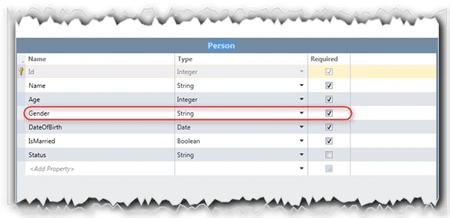
As shown in the above figure, change the Gender property type "Boolean" to "String".
Delete the Gender property from Screen:
As we are going to add the radio buttons instead of check box, delete the gender check box as shown in the figure.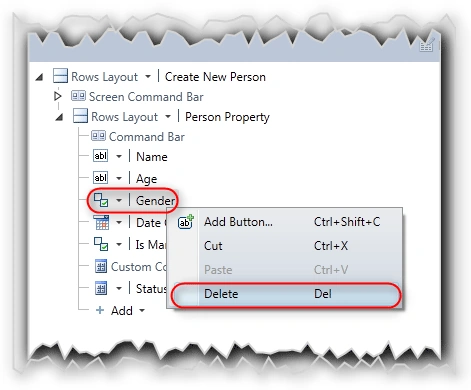
Adding StackPanel to Screen:
We need to add a stack panel to the LightSwitch screen as a custom control to hold the radio buttons.
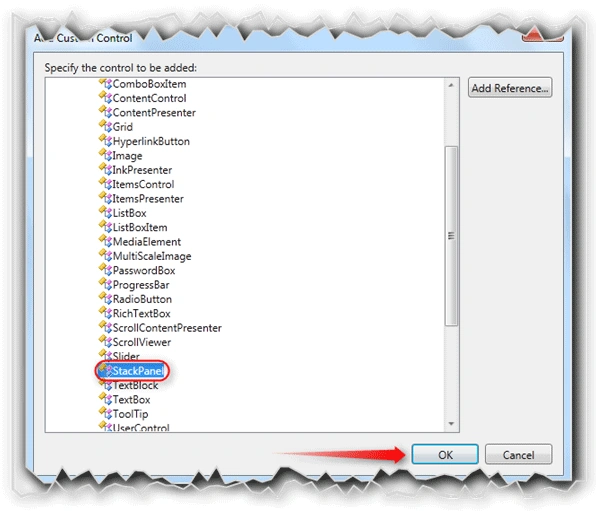
As shown in the above figure, just add the StackPanel control as we did for Button control.
Before accessing the StackPanel, we need to add the namespaces to the code-behind. So refer to the article part III to add the namespace.
Adding Radio Buttons Dynamically:
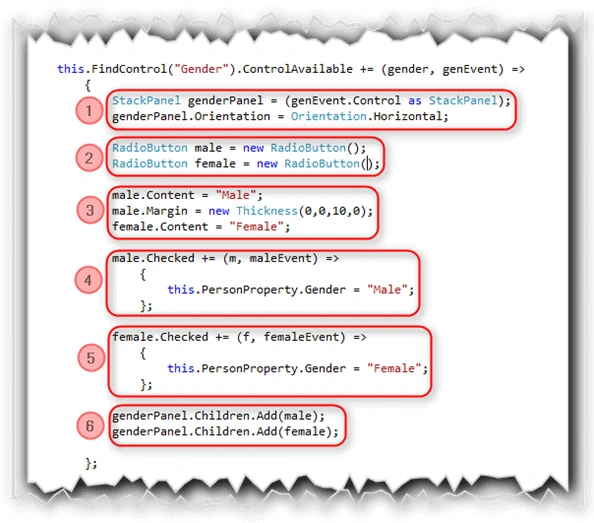
In the given following figure, we have added the radio buttons dynamically.
Here,
- We are getting the StackPanel control and setting the Orientation to Horizontal.
- We are creating two Radio buttons for male and female.
- Setting the content of the radio buttons as male and female respectively.
- If the user clicks on the male radio button, "Checked" event will be fired to set the Gender property to "Male".
- If the user clicks on the female radio button, "Checked" event will be fired to set the Gender property to "Female".
- Add the radio buttons to the StackPanel.
Complete Screen tree:
The following figure shows the complete screen tree for this article parts.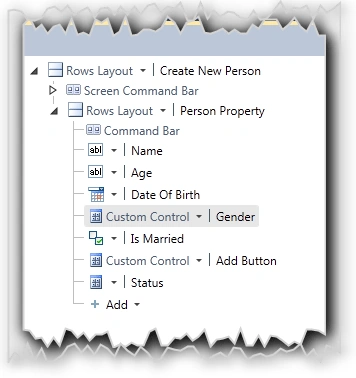
Hit F5 to see the application in action.
Application in Action:
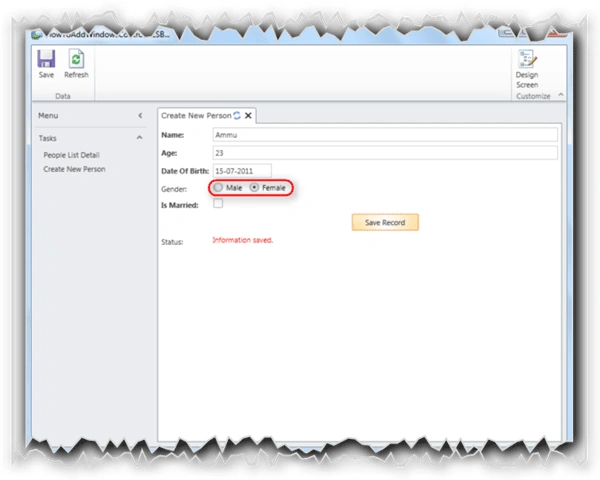
You can see the male and female radio buttons added into the LightSwitch screen.
Summary:
In this article part IV, we have seen how to add a custom control dynamically to the LightSwitch screen.
Thanks for spending your precious time here. Please provide your valuable feedbacks and comments, which make me to give a better article next time.
Thanks.
Jaganathan BantheswaranPosted Sep 4, 2013, 1:19 AM
I will update the article with source code. THanks
Rakesh GargPosted Sep 3, 2013, 6:29 AM
Also for avoiding Radio Buttons not to added , I have add one condition "if (genderPanel.Children.Count() == 0)" which works for me, but I saw that Activated function calls as many times as user clicks
Rakesh GargPosted Sep 3, 2013, 6:27 AM
Hi Jaganathan, Thanks for providing this article but this code has one loophole , Every time when user click on Create New Person , Radio Buttons added in StackPanel,
Matthias MertensPosted Sep 4, 2012, 5:53 AM
In my case i changed the standard checkboxes of a boolean value to the stackpanel with radio Buttons "yes", "no" on it. I also had Validations on these checkboxes. So i add sometimes Warnings with "results.AddPropertyResult(message, ValidationSeverity.Warning)" in the *_Validate(EntityValidationResultsBuilder results) i my *Item.cs code. Now with this Custom Control (Stackpanel) these warnings are not shown anymore. I think I have to do something like explained on http://msdn.microsoft.com/en-us/library/hh290141 --> "Your Silverlight control must contain a reference to the LightSwitch.Presentation.Framework namespace, which provides some common building-block controls. For example, LightSwitch provides a StatesControl that you can use to display loading information and validation errors." Right?
Jaganathan BantheswaranPosted Aug 29, 2012, 12:32 PM
What you meant by Warnings? Can you explain bit more ?
Matthias MertensPosted Aug 29, 2012, 10:27 AM
Hey Jaganathan, great work. But i have a Problem with my Validation now, because the warnings are not shown at the Element anymore. Maybe the Validation only works with Lightswitch controls?
Urs GloorPosted Jan 19, 2012, 8:51 AM
Hi Jaganathan Thank you for your article. You give me good advice on how I can implement radio buttons with LightSwitch. Urs
naresh kamisettiPosted Dec 22, 2011, 11:57 AM
Hi....Jagan I downloaded your Source code..but i didnt see any code there
shreedhar DeshwalPosted Oct 4, 2011, 1:31 AM
This app contain error.If you click on "create person detail " and then "Pepole list detail" and again "Crete person detail" you cant RADIO BUTTON GENERATED AGAIN.