

In this article I am showing how to make hyperlink in Data view web part.
Normally when you create a Data view web part of a list it will just display
the items from that list. There are some situations you need to add
hyperlink, when you click on it will open the List item.
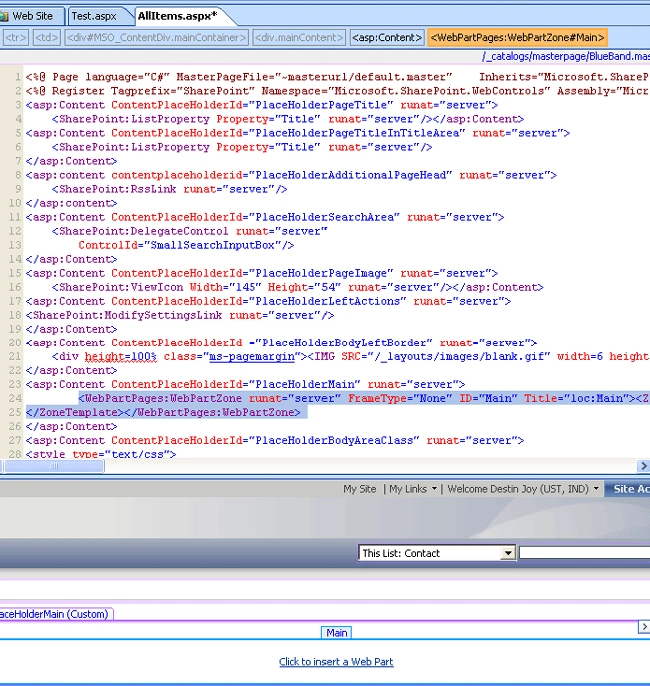
- First of all you have to open your web application in share point
designer. Open the page where you want to insert data view
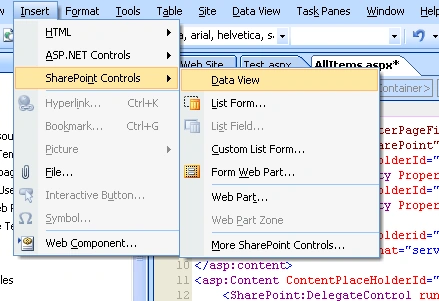
- Click on Insert --> Share point Control --> Data view
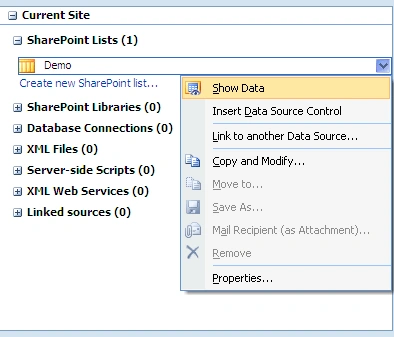
- From the Data source library select the list you want to add to data
view web part and click on Show data
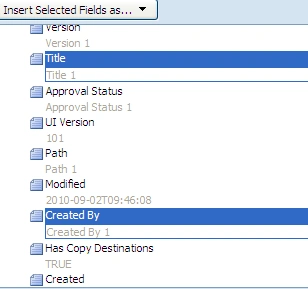
- Select the fields you want to insert to Data View
- You will get a Data View as shown below
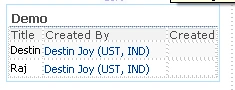
- Select on the Title field you will get the drop down as shown below
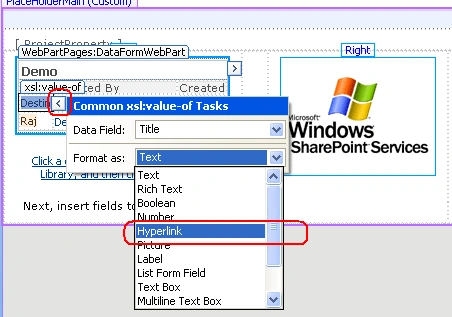
- From the Format as drop down select Hyperlink
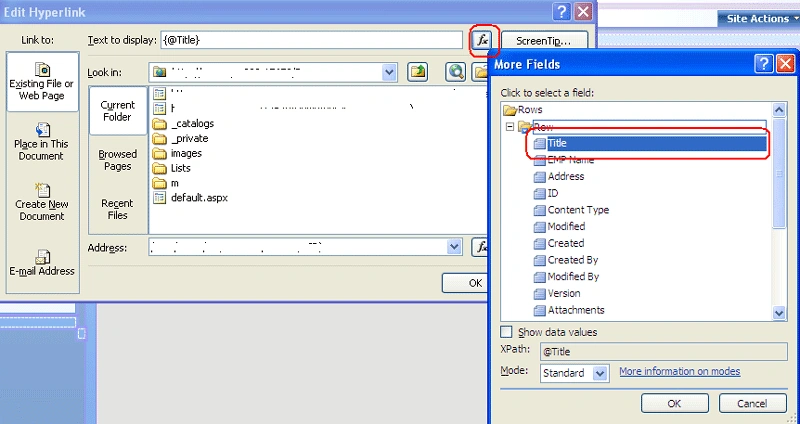
- Click ok you will be prompted with below popup
- Click on first Function button marked on red and select Title from
the pop up as shown below
- In the Address Section you have to give the URL of the List with
display from till id= as shown below
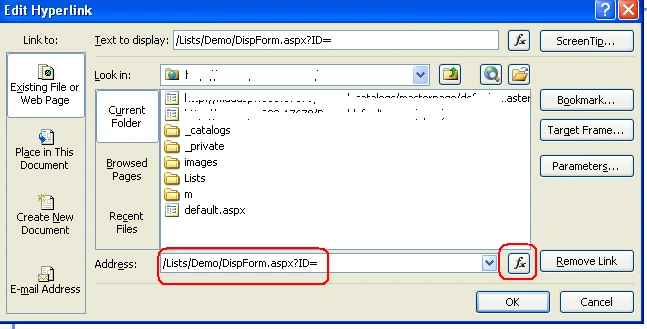
- Then click on the button marked RED
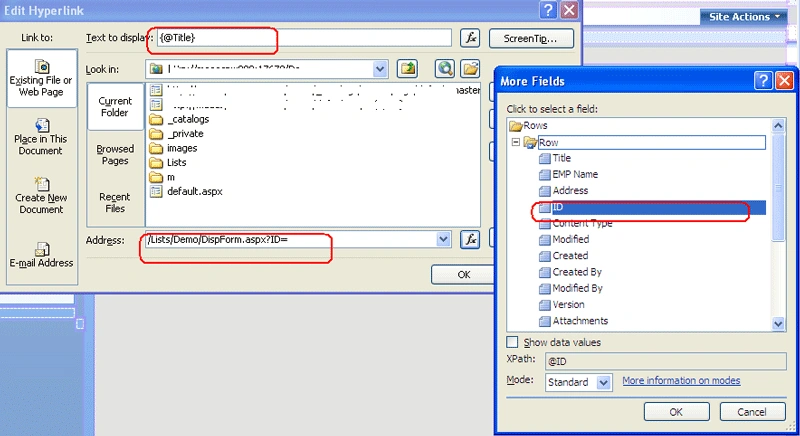
- Select ID from the next pop up as shown above
- Click OK. Save the changes and Check in the page
- You have done .Now go to the page where you inserted data view
webpart.

- You can see the Title now becomes the Hyperlink Clicking on it will
open the Display page congaing that item.
- Alternatively you can open the same in Editpage also by replacing DispForm.aspx with EditForm.aspx
Join the conversation! Your thoughts help the community grow.