

Step 1
Open Expression Blend 4 -> select Silverlight-Application -> select Silverlight-Application -> change Name and Location accordingly -> hit OK.
Step 2
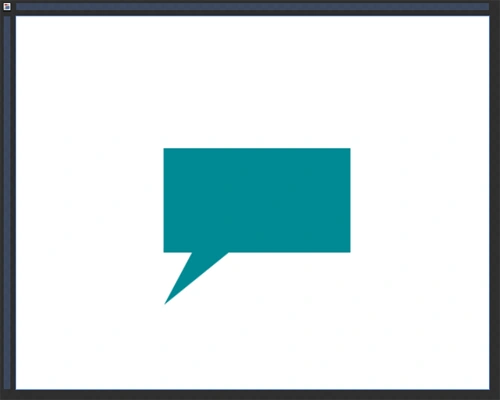
Select Assets -> select Shapes
-> select Callout-Rectangular, draw Rectangle, manage the width & height,
background-color, stroke color, margin and shadow-effect as shown below:
Step 3
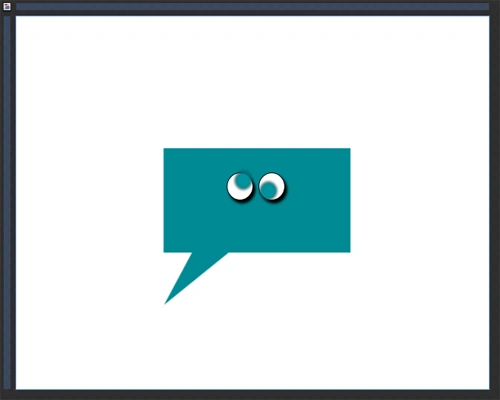
Select Assets -> select Shapes ->
select Ellipse, draw Eyes and Retina, manage the width & height,
background-color, stroke color, margin, blur-effect and shadow-effect
as shown below:
Step 4
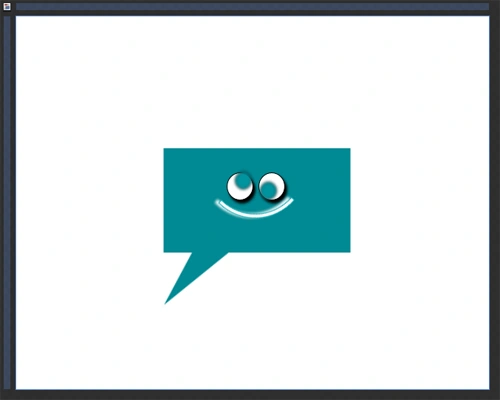
Select Assets -> select Shapes
-> select Arc, draw Nose, manage the width & height,
background-color, stroke color, margin, blur-effect and shadow-effect
as shown below:
Step 5
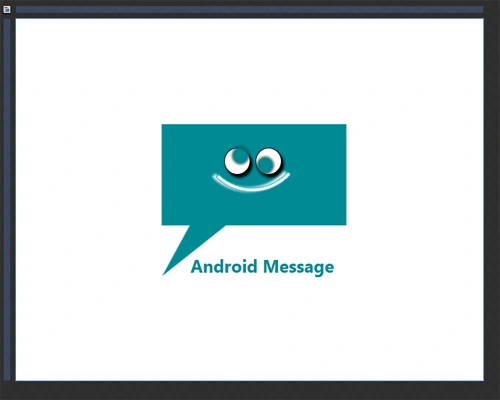
Select Text-Block from Tool-Box, write text according to your choice, manage the width & height and foreground-color as shown below.
Here's the Android Message Icon is ready.
Summary
This article provides the new idea of creating "Icon's" through control's.
Join the conversation! Your thoughts help the community grow.