
This article shows how to create a web application and select Web API + MVC from the wizard.
Step 1
Create a web application and select Web API + MVC from the wizard.
Install AngularJs from the Nuget package.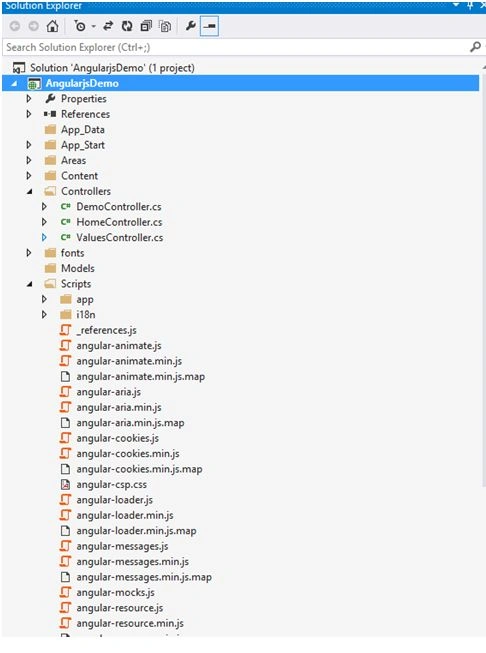
Step 2
Create a folder called app inside the scripts (if you are using it with TypeScript then the app folder should come under the root folder).
Step 3
Create a JavaScript file called app under the app folder.
Add a reference for the angular-route.js file to the app.js file as in the following.
/// <reference path="../angular-route.js" />
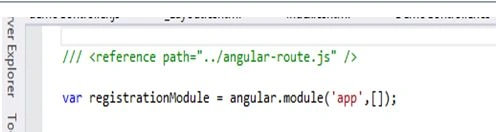
Now, initialize the app module using the following code. We are initializing the app module only once thoughout the application.
var registrationModule = angular.module('app',[]);
Step 4
Now to create the controller.
So, here we are reusing the Angular module instance that we initialized already in the app module.
Create a new JavaScript file and name it demoController and add the reference of app.js file to the top.
/// <reference path="app.js" />
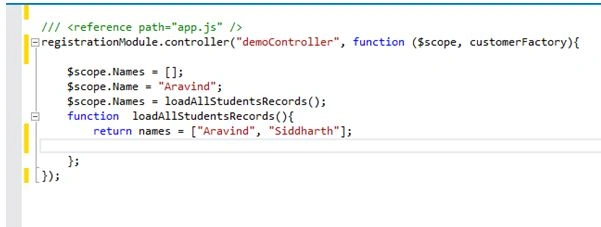
We will now use the registrationModule instance from the app.js file.
Use the following code to create a new controller.
- registrationModule.controller("demoController", function ($scope){
- $scope.Names = [];
- $scope.Names = loadAllStudentsRecords();
- function loadAllStudentsRecords(){
- var names=[“Aravind”,”Siddharth”,”Senthil”,Abhinav”];
- return names;
- };
- });
Here, the Controller name is demoController.
Step 5
Use ng-app to call the app module in the main page.
In the layout.chtml file, add ng-app=”app” to the HTML tag (we actually initialize our app and register the modules on which it depends).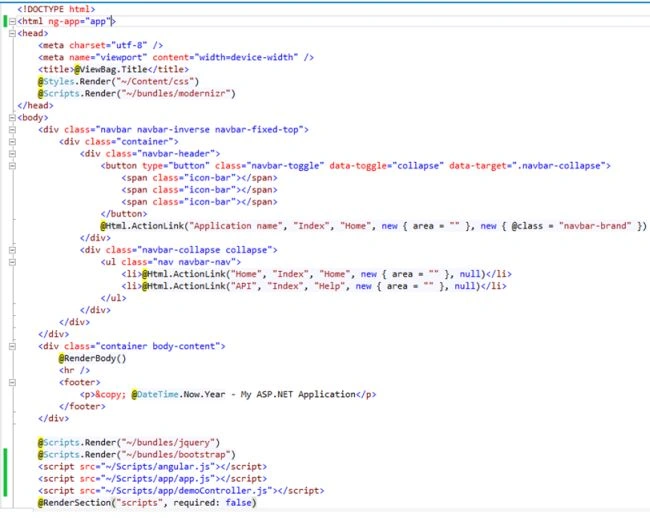
Also add the script file references of the following resources.
- <script src="~/Scripts/angular.js"></script>
- <script src="~/Scripts/app/app.js"></script>
- <script src="~/Scripts/app/demoController.js"></script>
Step 6
Now to bind the data in the view.
Under View, go to Home and select Index, add the HTML code shown in the following image: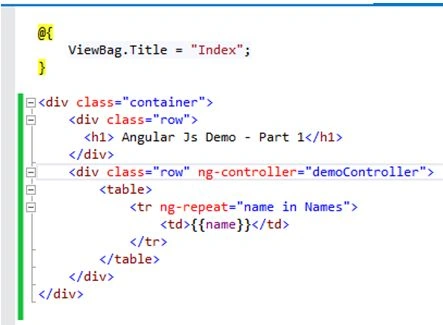
- @{
- ViewBag.Title = "Index";
- }
- <div class="container">
- <div class="row">
- <h1> Angular Js Demo - Part 1</h1>
- </div>
- <div class="row" ng-controller="demoController">
- <table>
- <tr ng-repeat="name in Names">
- <td>{{name}}</td>
- </tr>
- </table>
- </div>
- </div>
- Refer to the JavaScript controller file: ng-controller="demoController">.
- Bound the data using a scope variable that is being used inside the controller.


Aravind BsPosted May 20, 2017, 11:53 PM EDT
Https://www.youtube.com/channel/UCN09Z5u6ypUvdxQkp6y2oFg
Aravind BsPosted May 20, 2017, 11:52 PM EDT
Can watch videos on latest tech..
Jacob RobinsonPosted Jun 29, 2015, 10:27 PM EDT
Good One..
Manoj KulkarniPosted Jun 9, 2015, 6:24 AM EDT
Nice article. Thank you for sharing
Vivek TripathiPosted Jun 8, 2015, 5:12 PM EDT
Nice. Thanks
Santhakumar MunuswamyPosted Jun 8, 2015, 11:04 AM EDT
Thanks for nice article