

- AngularJS: A Complete Client-Side Solution
- Understanding AngularJS Directives
- Data Binding in AngularJS
- Controller in AngularJS
AngularJS allows the following two different ways to bind data to HTML.
- By using ng-bind directive.
- By using expressions.
We have already gone through directives in previous articles in which we discussed the ng-bind directive. Dealing with expressions is the purpose of this article.
AngularJS Expressions
Expressions are used to bind the data to HTML (a view) and also decides the position of that data, how and where it should be displayed in the view. AngularJS expressions are defined inside the the double curly braces, for example {{expression here}}.
Like JavaScript expressions, AngularJS expressions can also have various valid expressions. We can use operators between numbers and strings, literals, objects and arrarys inside the expression {{ }}. For example:
- {{ 2 + 2 }} (numbers)
- {{Name + " " + email}} (string)
- {{ Country.Name }} (object)
- {{ fact[4] }} (array)
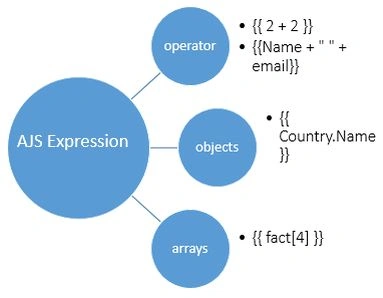
Angulars Expressions vs JavaScript Expressions
- In JavaScript, if we try to evaluate the properties that are not previously defined then JavaScript generates a RefrenceError or TypeError whereas for AngularJS we will get undefined or null.
- In JavaScript, a control flow statement can be used whereas we cannot use one in AngularJS.
- There is not the tradition of using a comma or void in an AngularJS expression.
- To set the format of data, we can use a filter with an AngularJS expression, like {{expression| filter}} {{number | currency}} will format the number as a currency like $number. For examle {{100|currency}}will roduce $100.00. We have more filters in AngularJS like date, filter, json, limitTo, lowercase, number, orderBy and uppercase.
Let's go through a simple example. We will first see how to bind data using the ng-bind directive then we will move to the main agenda of this article, AngularJS expressions.
Without using Expression/Using ng-bind
- <!DOCTYPE html>
- <html>
- <head>
- <title>Using ng-bind Directive</title>
- <script src="http://ajax.googleapis.com/ajax/libs/angularjs/1.2.26/angular.min.js"></script>
- </head>
- <body>
- <div ng-app="" ng-init="firstName='iShriss';lastName='Sharma'">
- <h1>Without using expression</h1>
- Fullname : <span ng-bind="firstName +' ' + lastName "></span> //ng-bind using
- </div>
- </body>
- </html>
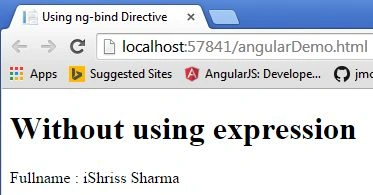
For the same piece of the preceding code, we can bind the data by replacing ng-bind by {{expression}}. Here is how it is.
Using Expression
- <!DOCTYPE html>
- <html>
- <head>
- <title>Using Expression</title>
- <script src="http://ajax.googleapis.com/ajax/libs/angularjs/1.2.26/angular.min.js"></script>
- </head>
- <body>
- <div ng-app="" ng-init="firstName='iShriss';lastName='Sharma'">
- <h1>using expression</h1>
- Fullname : {{firstName+' '+lastName}} //expression
- </div>
- </body>
- </html>
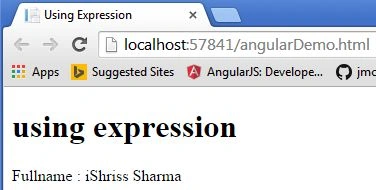
The preceding example showed the use of a string inside an expression, just like:
{{Name + " " + email}} (string)
Using Filter in Expression
- <div ng-app="" ng-init="firstName='ishriss';lastName='sharma'">
- <h1>using expression|uppercase</h1>
- Fullname : {{firstName+' '+lastName|uppercase}} <!--//using filter uppercase-->
- </div>
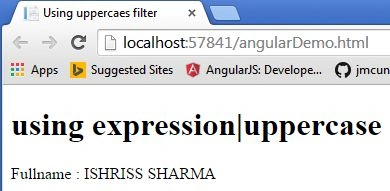
Similarly we can apply various types of filters depending on our needs.
Binding and Displaying AngularJS Number
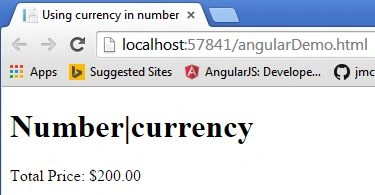
As explained about JavaScript expression and AngularJS expressions earlier, we can use numbers inside AngularJS expressions that are just like JavaScript numbers in which we can filter using a pipe '|' character.
Let's see an example..
- <h1>Number|currency</h1>
- <div ng-app="" ng-init="items=2;price=100">
- <p>Total Price: {{ items * price|currency }}</p>
- </div>
Binding and Displaying AngularJS Objects
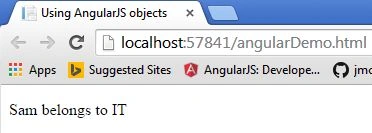
We can also use AngularJS objects just like we did with JavaScript objects.These objects are used inside an expression.
Let's see an example.
- <div ng-app="" ng-init="employee={name:'Sam',department:'IT'}">
- <p>{{ employee.name }} belongs to {{employee.department}}</p> <!--objects in expression-->
- </div>
Working with Arrays in Angularjs
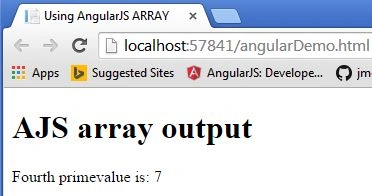
AngularJS arrays behave just like we studied in JavaScript. Let's understand with a simple demo example.
- <div ng-app="" ng-init="prime=[2,3,5,7,11,13]">
- <p>Fourth primevalue is: {{ prime[4] }}</p> <!--AJS array-->
- </div>
Summary
So developers, we learned the basics of AngularJS expressions. Much more on AngularJS is yet to be learned, we will cover them one by one. Stay tuned to this series of AngularJS.
Happy Coding!
Gaurav Kumar AroraPosted Feb 7, 2015, 3:41 PM
Keep it up
Shridhar SharmaPosted Feb 6, 2015, 5:23 AM
Nice to know that this article is getting your attention.Definitely going to upgrade this series ASAP, might need your assistance :) Working on it. Thanks Sumit Jolly sir.
Guest UserPosted Feb 6, 2015, 2:22 AM
curious to see part 6 now.. keep it up!