




Angular is a powerful framework for building client-side applications, and components are at the heart of Angular development. In this enhanced guide, I'll walk you through creating a simple Angular component with Bootstrap styling, complete with code examples and instructions for capturing the UI output.
What is a Component in Angular?
A component in Angular is a self-contained, reusable piece of the user interface (UI). It consists of,
- TypeScript Class: Contains the logic for the component
- Template: Defines the HTML structure of the component
- Styles: CSS for the component
- Decorator (@Component): Links the TypeScript class to its template and provides metadata
Every Angular application has at least one component, called the root component (usually named AppComponent), which serves as the container for all other components.
Steps to Create a Component with Bootstrap
Step 1. Set Up Your Angular Project.
If you haven't already set up an Angular project, use the Angular CLI to create one,
ng new my-angular-app
cd my-angular-app
Step 2. Add Bootstrap to Your Project.
Install Bootstrap using npm.
npm install bootstrapThen, open the angular.json file and add Bootstrap CSS to the styles array.
"styles": [
  "node_modules/bootstrap/dist/css/bootstrap.min.css",
  "src/styles.css"
],
Step 3. Create a Header Component.
Let's create a HeaderComponent that displays a navigation bar with the eCart title.
Generate the Component
Use Angular CLI to generate the component.
ng generate component headerThis will create.
- src/app/header/header.component.ts
- src/app/header/header.component.html
- src/app/header/header.component.css
- src/app/header/header.component.spec.ts
Modify the Component Files
Update header.component.html.
<nav class="navbar navbar-expand-lg navbar-dark bg-primary">
  <div class="container">
    <a class="navbar-brand" href="#">
      <i class="bi bi-cart3 me-2"></i>eCart
    </a>
    <button class="navbar-toggler" type="button" data-bs-toggle="collapse" data-bs-target="#navbarNav">
      <span class="navbar-toggler-icon"></span>
    </button>
    <div class="collapse navbar-collapse" id="navbarNav">
      <ul class="navbar-nav ms-auto">
        <li class="nav-item">
          <a class="nav-link active" href="#">Home</a>
        </li>
        <li class="nav-item">
          <a class="nav-link" href="#">Products</a>
        </li>
        <li class="nav-item">
          <a class="nav-link" href="#">About</a>
        </li>
        <li class="nav-item">
          <a class="nav-link" href="#">Contact</a>
        </li>
      </ul>
    </div>
  </div>
</nav>
Update header.component.ts
import { Component } from '@angular/core';

@Component({
  selector: 'app-header',
  templateUrl: './header.component.html',
  styleUrls: ['./header.component.css']
})
export class HeaderComponent {
  // Component logic goes here
}
Add Bootstrap Icons (optional).
Install Bootstrap Icons
npm install bootstrap-iconsAdd to angular.json
"styles": [
  "node_modules/bootstrap/dist/css/bootstrap.min.css",
  "node_modules/bootstrap-icons/font/bootstrap-icons.css",
  "src/styles.css"
],
Step 4. Create a Product Card Component.
Let's create another component for displaying product cards.
ng generate component product-cardUpdate product-card.component.ts
import { Component, Input } from '@angular/core';

@Component({
  selector: 'app-product-card',
  templateUrl: './product-card.component.html',
  styleUrls: ['./product-card.component.css']
})
export class ProductCardComponent {
  @Input() product: any;
}
Update product-card.component.html
<div class="card h-100">
  <img
    src="{{product.imageUrl}}"
    class="card-img-top"
    alt="{{product.name}}"
    style="height: 200px; object-fit: cover;"
  >
  <div class="card-body">
    <h5 class="card-title">{{product.name}}</h5>
    <p class="card-text">{{product.description}}</p>
    <p class="text-primary fw-bold">${{product.price.toFixed(2)}}</p>
  </div>
  <div class="card-footer bg-white border-top-0">
    <button class="btn btn-primary w-100">
      <i class="bi bi-cart-plus me-2"></i>Add to Cart
    </button>
  </div>
</div>
Step 5. Update the App Component.
Now, let's use these components in the main app component.
Update app.component.ts
import { Component } from '@angular/core';

@Component({
  selector: 'app-root',
  templateUrl: './app.component.html',
  styleUrls: ['./app.component.css']
})
export class AppComponent {
  title = 'my-angular-app';

  products = [
    {
      id: 1,
      name: 'Smartphone',
      description: 'Latest model with advanced features',
      price: 799.99,
      imageUrl: 'https://via.placeholder.com/300x200?text=Smartphone'
    },
    {
      id: 2,
      name: 'Laptop',
      description: 'Powerful processor with high-end graphics',
      price: 1299.99,
      imageUrl: 'https://via.placeholder.com/300x200?text=Laptop'
    },
    {
      id: 3,
      name: 'Smartwatch',
      description: 'Track your fitness and stay connected',
      price: 249.99,
      imageUrl: 'https://via.placeholder.com/300x200?text=Smartwatch'
    },
    {
      id: 4,
      name: 'Wireless Earbuds',
      description: 'Crystal clear sound with noise cancellation',
      price: 149.99,
      imageUrl: 'https://via.placeholder.com/300x200?text=Earbuds'
    }
  ];
}
Update app.component.html
<app-header></app-header>

<div class="container mt-4">
  <h2 class="mb-4">Featured Products</h2>

  <div class="row row-cols-1 row-cols-md-2 row-cols-lg-4 g-4">
    <div class="col" *ngFor="let product of products">
      <app-product-card [product]="product"></app-product-card>
    </div>
  </div>
</div>

<footer class="bg-light py-4 mt-5">
  <div class="container text-center">
    <p class="mb-0">© 2025 eCart. All rights reserved.</p>
  </div>
</footer>
Step 6. Run the Application.
Start the Angular development server.
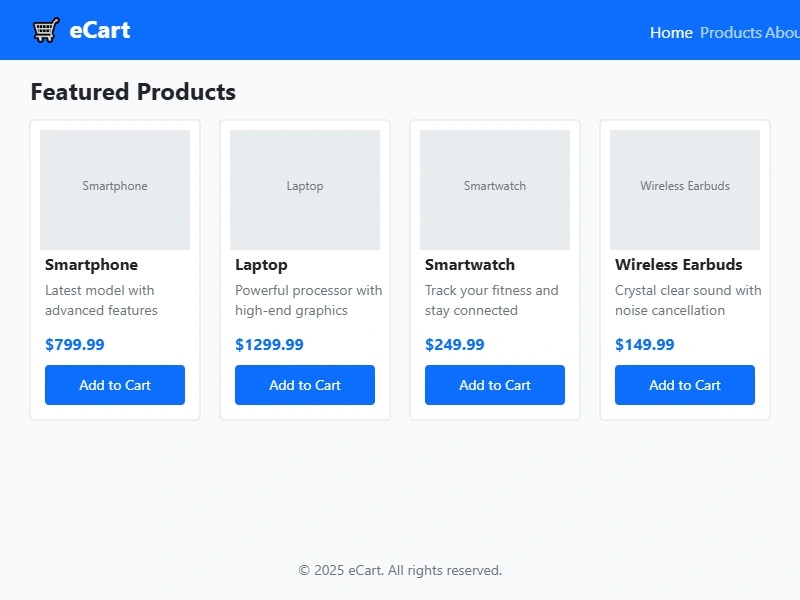
ng serveOpen your browser and navigate to http://localhost:4200. You should see the eCart header and product cards displayed with Bootstrap styling.
UI Screenshot Instructions
After running ng serve, your application should look like this.
Complete Code Summary
app.module.ts
import { NgModule } from '@angular/core';
import { BrowserModule } from '@angular/platform-browser';
import { AppComponent } from './app.component';
import { HeaderComponent } from './header/header.component';
import { ProductCardComponent } from './product-card/product-card.component';

@NgModule({
  declarations: [
    AppComponent,
    HeaderComponent,
    ProductCardComponent
  ],
  imports: [
    BrowserModule
  ],
  providers: [],
  bootstrap: [AppComponent]
})
export class AppModule { }
header.component.ts and Template
Already provided above.
product-card.component.ts and Template
Already provided above.
app.component.ts and Template
Already provided above.
Key Takeaways
- Components are the fundamental building blocks of Angular applications
- Bootstrap provides ready-to-use CSS classes for creating responsive layouts
- The @Input() decorator allows passing data from parent to child components
- The *ngFor directive is used for rendering lists of elements
- Components can be nested to create complex UIs from simple, reusable parts
Join the conversation! Your thoughts help the community grow.