
Let's start with SharePoint Designer workflow which accesses the SharePoint List data using REST call i.e Web Service Call
SharePoint List
The following is a list structure which we are referencing for our application.

Figure 1: SharePoint
Step 1: Create Site Workflow
Using SharePoint Designer create site workflow. Make sure you select SharePoint 2013 Workflow as the platform type.

Figure 2: Workflow
Step 2: Create Workflow Stage.
Let’s start by creating a new stage.

Figure 3: Stage
Workflow Stages
Stage 1: Workflow Initialization: The following variables get initialized at this stage:
ServiceURL: Here's the URL.

Figure 4: Initialized
Index: Create Index variable of type Integer & set it to 0.
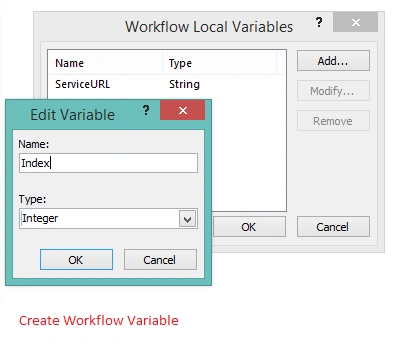
Figure 5: Index
Service Call Header: Next, we add a Dictionary variable (Build a Dictionary action), call it requestHeaders and initialize it as this:

Figure 6: Header
Both “Accept” and “Content-Type” entries are of the String type and they both contain the value “application/json;odata=verbose”. SharePoint REST API understands this and sets the response content type appropriately as JSON. If we don’t pass these values, the output would come as XML.

Figure 7: Accept
Stage 2: Web Service Call
Add a Call as HTTP Web Service action and set its properties. The request will be the url variable:
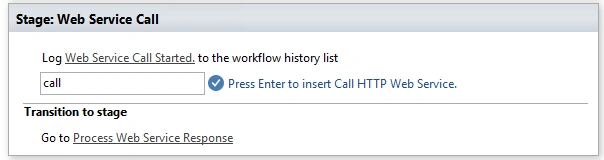
Figure 8: Webservice
Set workflow variable "ServiceURL" as Web Service URL.
HTTP method as "GET".

Figure 9: Get
Response content will go to a new variable called responseContent.(type - Dictionary).
Response headers will go to a new variable called responseHeaders.(type - Dictionary).
Response code will go to a new variable called responseCode.(type - Dictionary ).
Then we set the request headers to be the requestHeaders variable we created just now, by clicking on the properties for the Call on HTTP Web Service action:

Figure 10: Call set variable as needed.
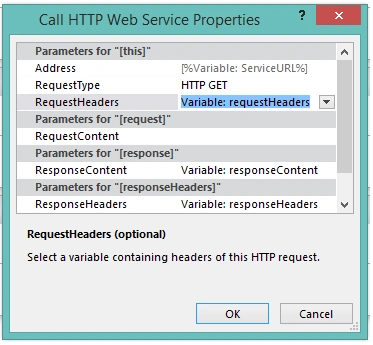
Figure 11: Variable
Process Web Service Response
Now, create a new stage, call it " Process Web Service Response".
At the end of the " Web Service Call" add a Go to Process Web Service Response stage.
- Add a Get an Item from a Dictionary action, set the item as d/results, the source variable reponseContentand the output to a new variable of type Dictionary called List.
- Then count items from this list variable using a Count Items in Dictionary action and store the result in a new Integer variable called TotalListItem. This variable will tell us how many times we have to loop.
- Finally, create a new Integer variable called index and set it to 0 (Set Workflow Variable), this will be the loop index.

Figure 12: Loop


List Item Looping
- Add a loop (Loop n Times), call it Loop Task Items, and set the loop variable to TotalListItem variable.
- Inside the loop, get value d/results([%Variable: index%]) using a Get an Item from a Dictionary action from responseContent and store it in a new Dictionary variable called CurrentItem.
- Get some fields (Get an Item from a Dictionary) from the CurrentItem variable, such as Title and store them in appropriate variables and do whatever you want with them, like logging its contents (Log).
- Its Time to increment the loop counter: add a Do Calculation action and in it increment the index variable into a new Integer variable called IncrementCounter.
- Then set the index variable to be the IncrementCounter(Set Workflow Variable).
- Finally exit the loop and set the workflow status (Set Workflow Status action) to Finished.
- At the end of the stage, select Go to End of Workflow.

Figure 13: TaskItem
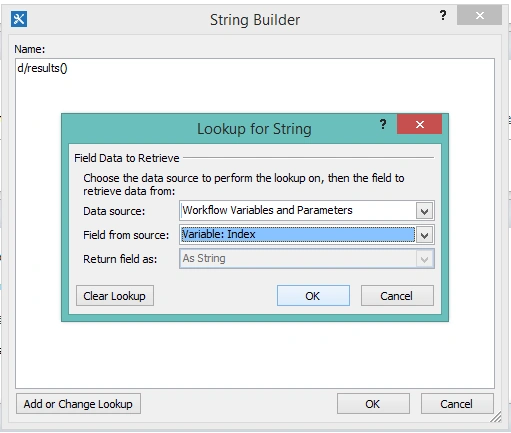
Figure 14: String
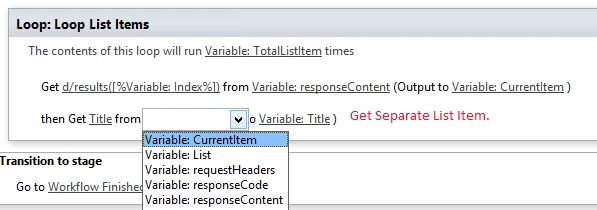
Figure 15: item
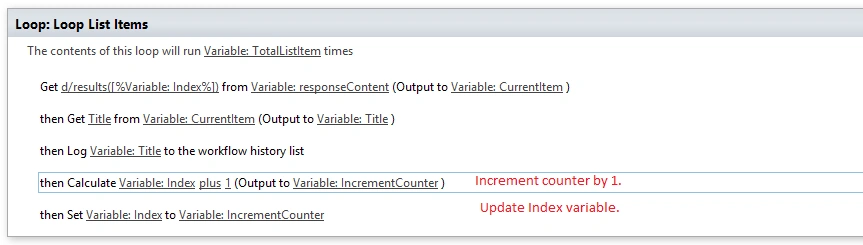
Figure 16: listitem
Final Workflow

Figure 17: Workflow1

Figure 18: wk2
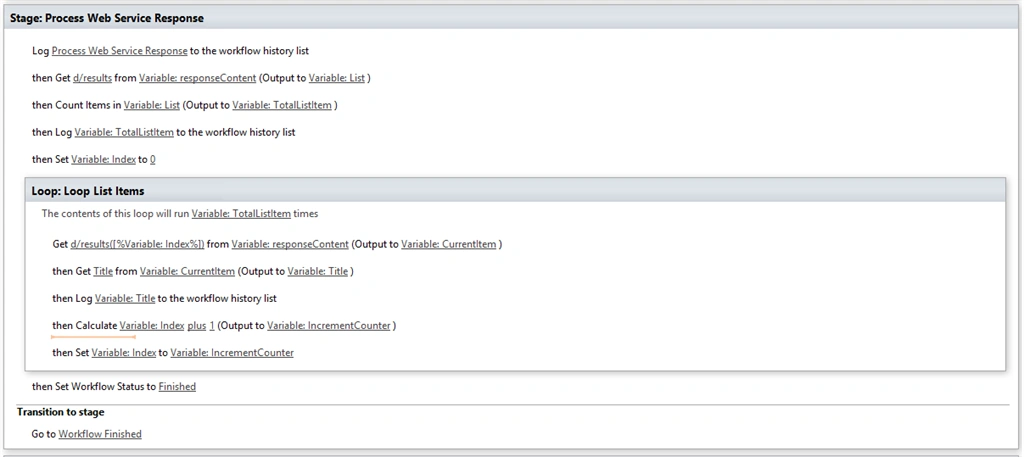
Figure 19: wk3

Figure 20: wk4
Check Workflow Execution
Add some list item's.
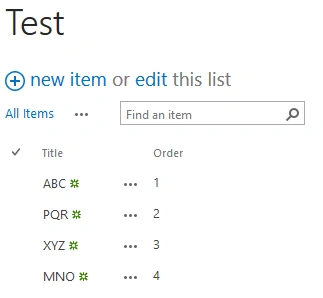
Figure 21: newitem
Follow below steps

Figure 22: follow
- go to site content
- Click Site Workflow
- Select Appropriate workflow
- Click it
- Workflow started.
Output

Figure 23: Output


Noman RafiquePosted Mar 13, 2020, 7:16 AM EDT
For me it's showing the counts but not the actual names or any data. Why's dat?
Fabian WaynePosted Mar 6, 2018, 7:47 AM EST
Why do you need to specify the responseHeaders in the figure 11, and why use d/response in Figure 13, in the Item secction you dont specify where do you get the Title value, and other values, i get lost there
Ganesh SanapPosted Sep 13, 2017, 10:01 PM EDT
Good one...But what is the use of "index" variable in this workflow??
jon vPosted Apr 18, 2017, 7:46 AM EDT
Please, can someone help me? I am receiving an access denied and 403 forbidden error while executing this Site Workflow.
Dhayanand KalimidiPosted Apr 5, 2017, 3:50 AM EDT
Nice article for beginners to lean call Http web service using SharePoint Designer workflow 2013. Excellent!
Manish RanglaniPosted Jan 2, 2017, 3:32 AM EST
Is is possible to trigger SharePoint Online site workflow from another SharePoint Online Site Workflow using REST API?
MadhavPosted Dec 2, 2016, 1:57 AM EST
Hii Rupali,am trying same aproch for copying items from one library to another ,for that am only calling the Call Action with REST API's inside the loop in that am passing the retrieved document name from the responseContent Dictionary variable to my REST API URL and it is as like below https://MyServerURL/sites/appdev/_api/web/folders/GetByUrl('MySourceLibrary')/Files/getbyurl('[%Variable: Name%]')/copyto(strNewUrl='/sites/appdev/MyDestinationLibrary/[%Variable: Name%]', bOverWrite=true) so when am calling this REST API the loop gets only a first item from Library,but when am doing same without this REST API call Action then loop goes through all items that i can see in workflow history log.so do you have any idea of this?
Laura MartinezPosted Jul 14, 2016, 12:02 PM EDT
Thanks! Well Done!
Santhakumar MunuswamyPosted Oct 17, 2015, 10:22 PM EDT
Good one
Rupali ShindePosted Oct 16, 2015, 11:31 PM EDT
thanks everyone, I hope will come with new ideas in future
Mukesh KumarPosted Oct 16, 2015, 8:52 PM EDT
Great job done by you
Nilesh JadavPosted Oct 16, 2015, 8:12 PM EDT
Thank you for sharing mam !! Nice Article
Harshad PansuriyaPosted Oct 16, 2015, 8:09 PM EDT
Great Work
Priyaranjan K STOP 100Posted Oct 16, 2015, 7:54 PM EDT
Excellent Work . Keep Sharing :)