

Introduction
For those new to Cosmos DB, Azure Cosmos DB is Microsoft’s globally distributed, multi-model database. With the click of a button, Azure Cosmos DB enables you to elastically and independently scale throughput and storage across any number of Azure’s geographic regions. It offers throughput, latency, availability, and consistency guarantees with comprehensive service level agreements (SLAs), something no other database service can offer. Currently, there are five different types of APIs are supported by Cosmos DB as given below.
- SQL
- MongoDB
- Graph
- Table
- Cassandra
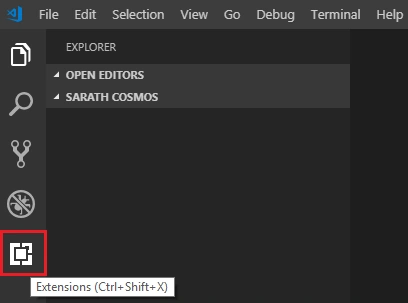
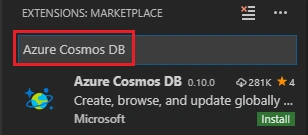
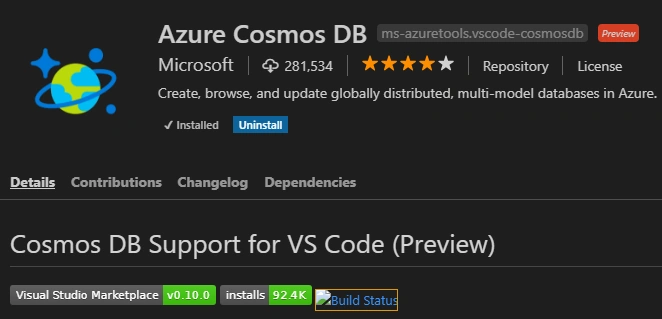
Add Cosmos DB extension to Visual Studio Code. You can click "Extensions" on the left menu.
https://dev.azure.com/ms-azuretools/AzCode/_build/results?buildId=3206
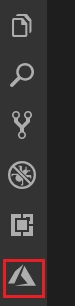
Now, you can see a new Azure Cosmos DB menu appeared in the left menu bar.
The Azure Cosmos DB Emulator provides a local environment that emulates the Azure Cosmos DB service for development purposes. Using the Azure Cosmos DB Emulator, you can develop and test your application locally, without creating an Azure subscription or incurring any costs. When you're satisfied with how your application is working in the Azure Cosmos DB Emulator, you can switch to using an Azure Cosmos DB account in the cloud.
Currently, the Data Explorer in the emulator only fully supports clients for SQL API and Azure Cosmos DB's API for MongoDB. Clients for Table, Graph, and Cassandra APIs are not fully supported.
You can download the Emulator from the below link. It is free of cost.
https://docs.microsoft.com/en-us/azure/cosmos-db/local-emulator
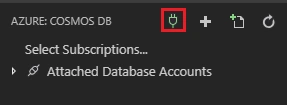
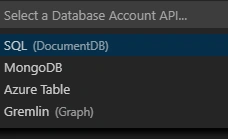
We are choosing MongoDB API now.

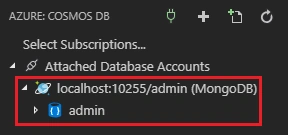
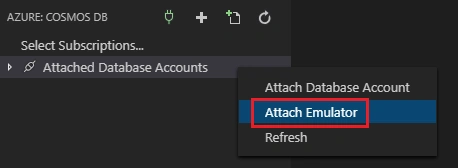
It will ask the API type and you can choose a type you want (SQL/Mongo).
We can create a new database by right clicking the account connection and click “Create Database”.
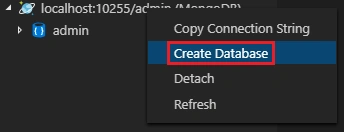
Give a name and Enter.
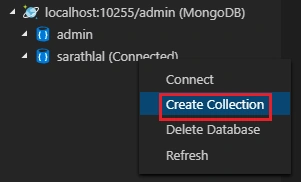
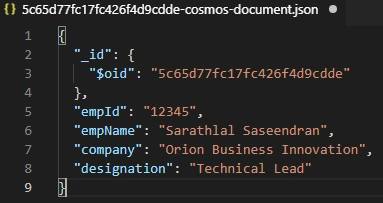
We can import existing JSON files also into MongoDB.
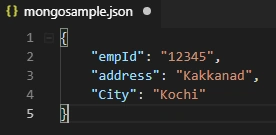
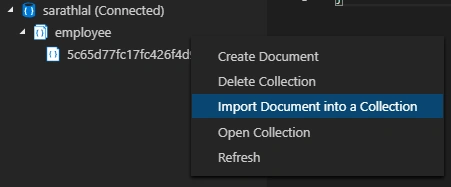
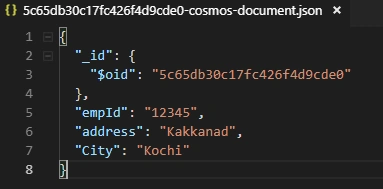
We can choose the existing JSON file and import to our collection. The JSON file data is successfully imported to a new document. $oid is the Object Id used in MongoDB as a unique reference for a document.
Conclusion
In this article, we have seen how to add Azure Cosmos DB extension to Visual Studio Code and then we connected a MongoDB account from Cosmos DB local emulator. We have created a new database, collection and document easily. Finally, we have seen how to import JSON data to a collection very easily.
Divyang DesaiPosted Feb 18, 2019, 9:30 AM
Good one, thanks for sharing.