

In this article, I am going to share with you the method of converting an XML file to Excel in C#.
Here, we are going to learn to read XML files in C# Windows.Form applications. We are going to make a small single-form application which takes an XML file from the user and converts that XML Data to Excel Data and returns an Excel file.
Targeted Audience
The targeted audience is people with basic knowledge of C#.
Explanation
Things to do,
- Make a C# WinForm application.
- Add a reference.
- Create UI
- Code
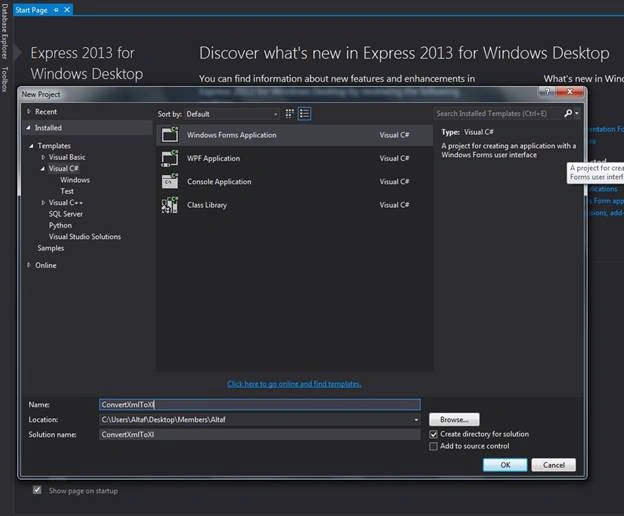
Create a new project and give it a suitable name as I gave the project name - ‘ConvertXmlToXl’.
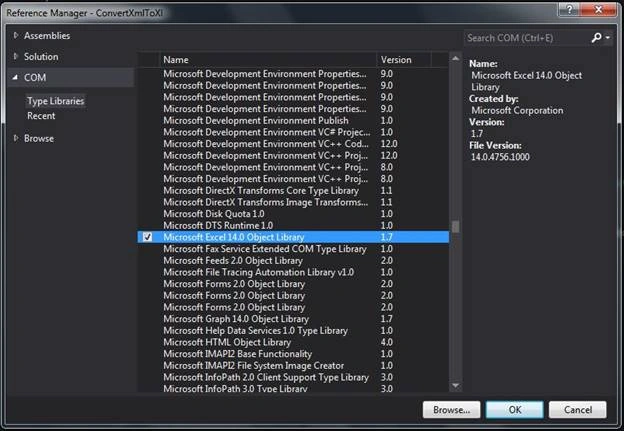
After creating the project, you have to add a reference named “Microsoft Excel Object library” in your project. You will find this reference in ‘COM’ Section.
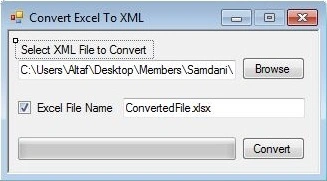
Now, make a UI which contains two Buttons, two Textboxes, one CheckBox, a single ProgressBar, and an OpenFileDialog tool. A button is used to browse the XML file and checkbox to give an option to the user for custom Excel file name. And the ProgressBar is used to show the progress of the conversion. And, another button is for converting the XML file to Excel.
So, here, our UI looks like the following.
Now, code the click event of the button to browse the computer files so that the user can select the desired XML file.
Code
- using System.Data;
- using System.Runtime.InteropServices;
- using Microsoft.Office.Interop.Excel;
- Code for the file "Browse" button click event.
- private void btnBrowseFolder_Click(object sender, EventArgs e)
- {
- DialogResult drResult = OFD.ShowDialog();
- if (drResult == System.Windows.Forms.DialogResult.OK)
- txtXmlFilePath.Text = OFD.FileName;
- }
- Code for the ‘Convert’ button click event.
- private void btnConvert_Click(object sender, EventArgs e)
- {
- progressBar1.Value = 0;
- if (chkCustomeName.Checked && txtCustomeFileName.Text != "" && txtXmlFilePath.Text != "") // using Custome Xml File Name
- {
- if (File.Exists(txtXmlFilePath.Text))
- {
- string CustXmlFilePath = Path.Combine(new FileInfo(txtXmlFilePath.Text).DirectoryName, txtCustomeFileName.Text); // Ceating Path for Xml Files
- System.Data.DataTable dt = CreateDataTableFromXml(txtXmlFilePath.Text);
- ExportDataTableToExcel(dt, CustXmlFilePath);
- MessageBox.Show("Conversion Completed!!");
- }
- }
- else if (!chkCustomeName.Checked || txtXmlFilePath.Text != "") // Using Default Xml File Name
- {
- if (File.Exists(txtXmlFilePath.Text))
- {
- FileInfo fi = new FileInfo(txtXmlFilePath.Text);
- string XlFile = fi.DirectoryName + "\\" + fi.Name.Replace(fi.Extension,".xlsx");
- System.Data.DataTable dt = CreateDataTableFromXml(txtXmlFilePath.Text);
- ExportDataTableToExcel(dt, XlFile);
- MessageBox.Show("Conversion Completed!!");
- }
- }
- else
- {
- MessageBox.Show("Please Fill Required Feilds!!");
- }
- }
- In ‘CreateDataTableFromXml’ function, we are simply converting the XML data into ‘DataTable’. This function returns a DataTable and we export this datatable into the Excel file.
- // Creating DataTable With Xml Data
- public System.Data.DataTable CreateDataTableFromXml(string XmlFile)
- {
- System.Data.DataTable Dt = new System.Data.DataTable();
- try
- {
- DataSet ds = new DataSet();
- ds.ReadXml(XmlFile);
- Dt.Load(ds.CreateDataReader());
- }
- catch (Exception ex)
- {
- }
- return Dt;
- }
- In ‘ExportDataTableToExcel’ function, we are passing the DataTable and Excel file name through function’s parameters. We are creating a new Excel file and we are exporting DataTable’s column names as Header row in that Excel file. And also, exporting the DataRow as Excel rows.
- private void ExportDataTableToExcel(System.Data.DataTable table, string Xlfile)
- {
- Microsoft.Office.Interop.Excel.Application excel = new Microsoft.Office.Interop.Excel.Application();
- Workbook book = excel.Application.Workbooks.Add(Type.Missing);
- excel.Visible = false;
- excel.DisplayAlerts = false;
- Worksheet excelWorkSheet = (Microsoft.Office.Interop.Excel.Worksheet)book.ActiveSheet;
- excelWorkSheet.Name = table.TableName;
- progressBar1.Maximum = table.Columns.Count;
- for (int i = 1; i < table.Columns.Count + 1; i++) // Creating Header Column In Excel
- {
- excelWorkSheet.Cells[1, i] = table.Columns[i - 1].ColumnName;
- if (progressBar1.Value < progressBar1.Maximum)
- {
- progressBar1.Value++;
- int percent = (int)(((double)progressBar1.Value / (double)progressBar1.Maximum) * 100);
- progressBar1.CreateGraphics().DrawString(percent.ToString() + "%", new System.Drawing.Font("Arial", (float)8.25, FontStyle.Regular), Brushes.Black, new PointF(progressBar1.Width / 2 - 10, progressBar1.Height / 2 - 7));
- System.Windows.Forms.Application.DoEvents();
- }
- }
- progressBar1.Maximum = table.Rows.Count;
- for (int j = 0; j < table.Rows.Count; j++) // Exporting Rows in Excel
- {
- for (int k = 0; k < table.Columns.Count; k++)
- {
- excelWorkSheet.Cells[j + 2, k + 1] = table.Rows[j].ItemArray[k].ToString();
- }
- if (progressBar1.Value < progressBar1.Maximum)
- {
- progressBar1.Value++;
- int percent = (int)(((double)progressBar1.Value / (double)progressBar1.Maximum) * 100);
- progressBar1.CreateGraphics().DrawString(percent.ToString() + "%", new System.Drawing.Font("Arial", (float)8.25, FontStyle.Regular), Brushes.Black, new PointF(progressBar1.Width / 2 - 10, progressBar1.Height / 2 - 7));
- System.Windows.Forms.Application.DoEvents();
- }
- }
- book.SaveAs(Xlfile);
- book.Close(true);
- excel.Quit();
- Marshal.ReleaseComObject(book);
- Marshal.ReleaseComObject(book);
- Marshal.ReleaseComObject(excel);
- }
Conclusion
By using this easy and simple method, we can convert the XML files into DataTable. And from DataTable, we can export the data into Excel file or we can create a new Excel file and export the DataTable’s data. Also, we can display the DataTable’s data in “DataGridView”, Simply, sett the DataGridView property “DataSource” to DataTable.
Hope this will help you. Please give your valuable feedback in the comment section.
Anbu ArasuPosted Dec 29, 2020, 8:42 AM
Altaf Ansari Thank you sir. But I need one more option I got two dataset from xml. I want to export excel sheet1(dataset1) Sheet2(dataset2)
Emanuel VillegasPosted Dec 18, 2020, 3:06 PM
The zip is no longer found, someone can provide it to me
Edward CurranPosted Sep 25, 2019, 4:11 AM
Hi Altaf i am trying to do the opposite any suggestions can it be done (Excel to Xml)?
Nikita PanchalPosted Nov 30, 2017, 10:06 PM
Nice article... Keep it ip
Upendra Pratap ShahiPosted Nov 28, 2017, 5:31 AM
Nice one share......