
I have created a custom list named “K2 Workflow Tutorials” in which a K2 workflow will be created to copy a list item. The item will be copied to the custom list named “K2 Workflow List”. Please refer to my previous article to create a K2 workflow in SharePoint 2013 Online.
Go to K2 designer, drag and drop a Copy List Item step from the List Item workflow steps in the ribbon interface.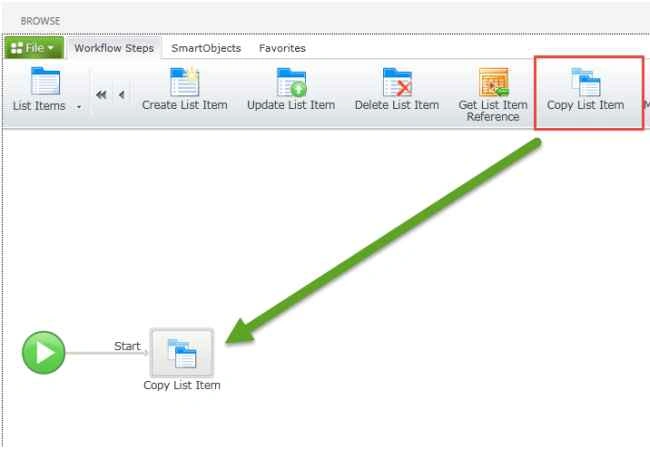
Specify a list item that must be copied and then click the Next button.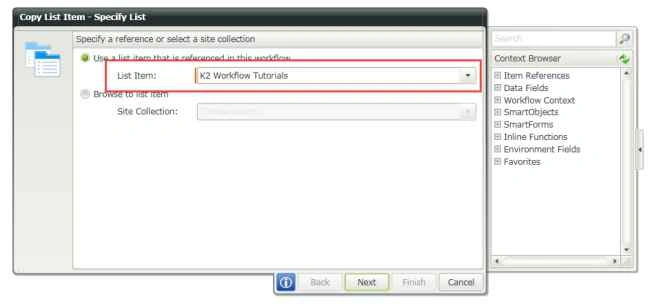
Specify the destination to where you want to copy the list item and then click the Next button.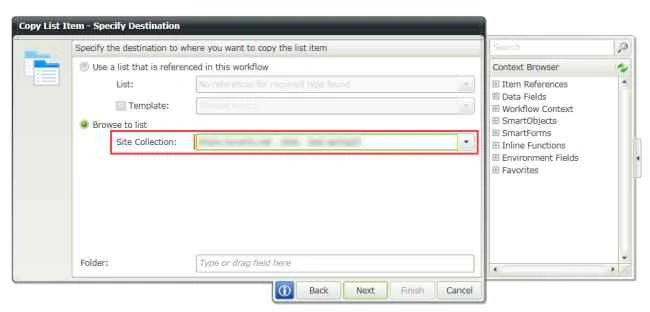
Specify the destination list and then click the Next button.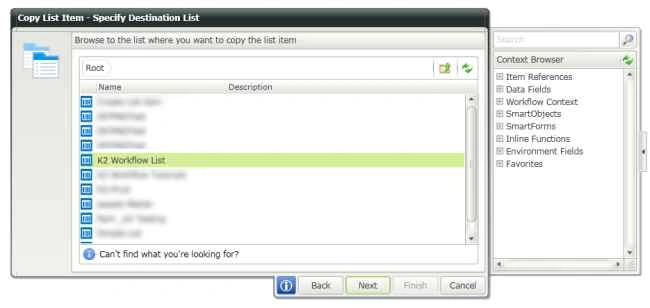
Specify properties for the list item to copy and then click the Finish button.
Note: I have only a “Title” field in the custom list because of which properties are not displayed.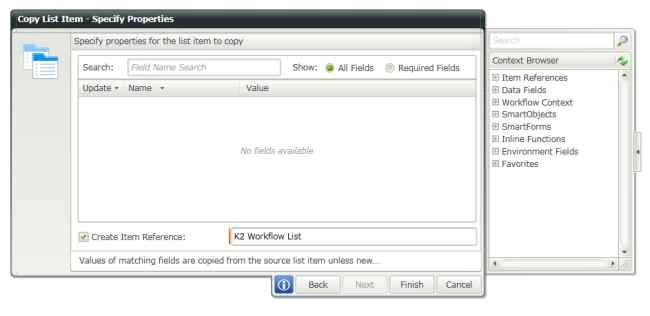
Deploy the workflow. Create a list item in “K2 Workflow Tutorials”. After a few minutes the workflow will be completed and the list item will be copied to the “K2 Workflow List” list.
Copy List Item Using K2 Workflow in SharePoint 2013 Online
In this article you will see how to copy list items using K2 Workflow in SharePoint 2013 Online.


Kumaresh RajalingamPosted Mar 24, 2016, 6:02 AM EDT
Nice share sir
Vaikesh K PPosted Aug 24, 2015, 9:28 PM EDT
Good One
Gowtham KTOP 100Posted Aug 22, 2015, 6:10 PM EDT
Nice Share
Abhay ShankerPosted Aug 22, 2015, 5:43 PM EDT
Nice One...
Santhakumar MunuswamyPosted Aug 22, 2015, 3:13 AM EDT
Nice Article. Thanks for sharing
Vaikesh K PPosted Aug 21, 2015, 11:29 PM EDT
Good One
Chervine BhiwooPosted Aug 21, 2015, 9:59 PM EDT
Thanks for sharing!
Nilesh JadavPosted Aug 21, 2015, 8:13 PM EDT
Nice one sir
Karthikeyan KPosted Aug 21, 2015, 5:28 PM EDT
Good sir...Thanks for share