
This article explains how to create a calculation field in a SharePoint list.
Step 1
Here I have used an Employee details list. 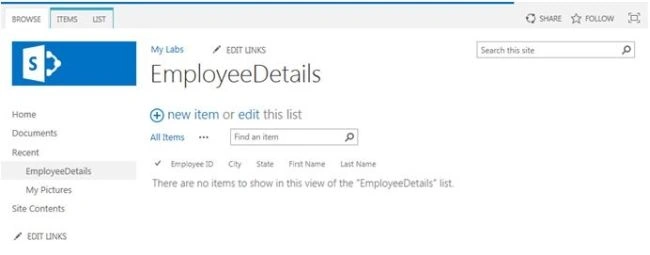
Step 2
Click the List menu item in the top navigation and click the List settings menu. 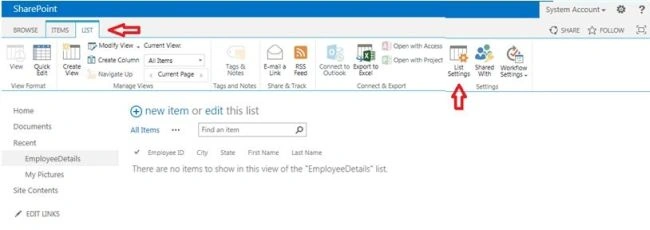
Step 3
The following screen will appear.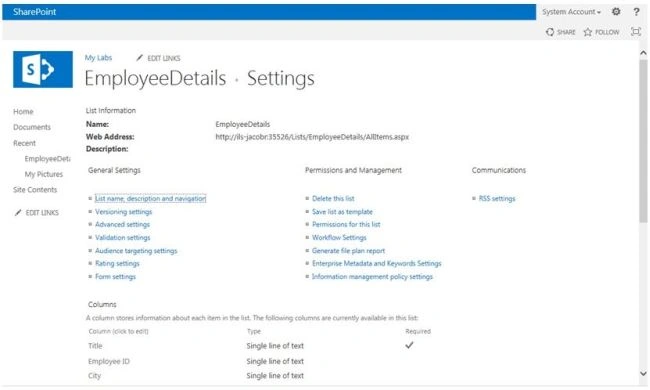
Step 4
Here I have calculated the First Name and Last Name fields.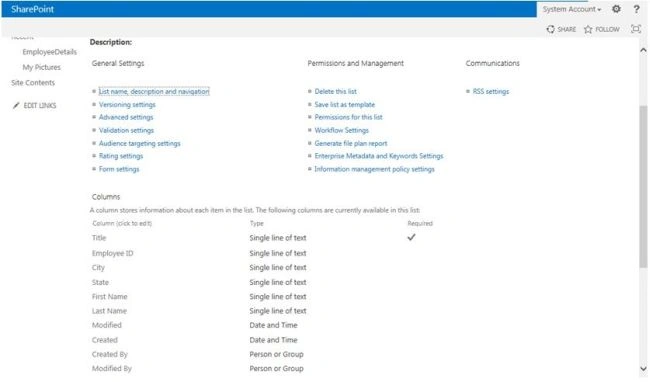
Step 5
Create a new column named Employee name.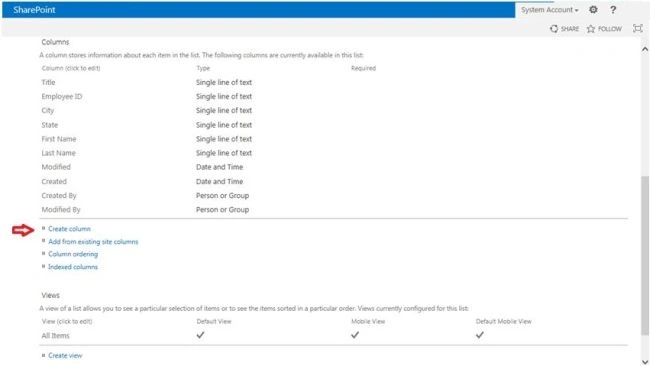
Selected the calculated option in type of information.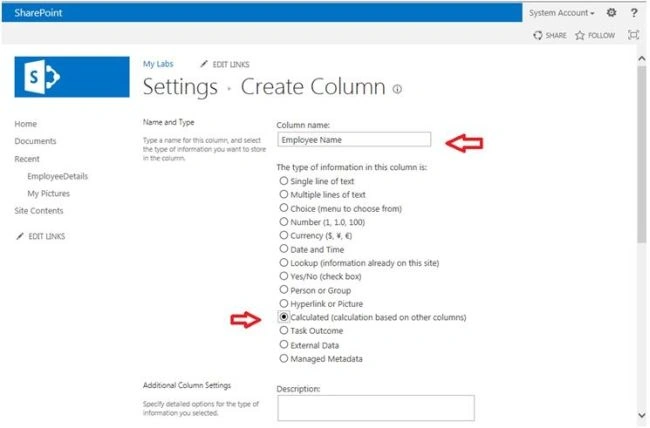
Here I concatenate two strings, First name and Last name.
=CONCATENATE([First Name]," ",[Last Name])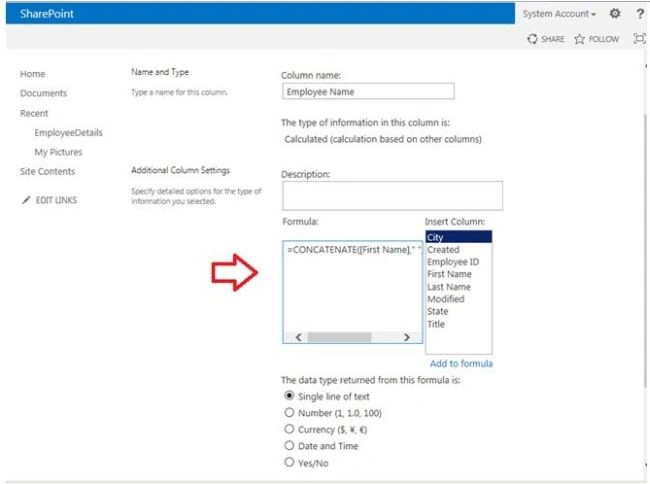
Click the Ok button.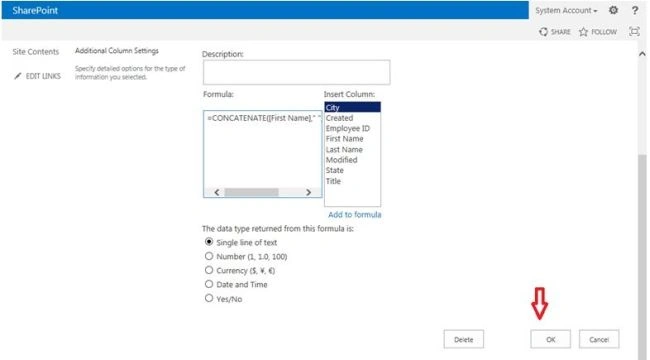
Go and create one list item in EmployeeDetails List.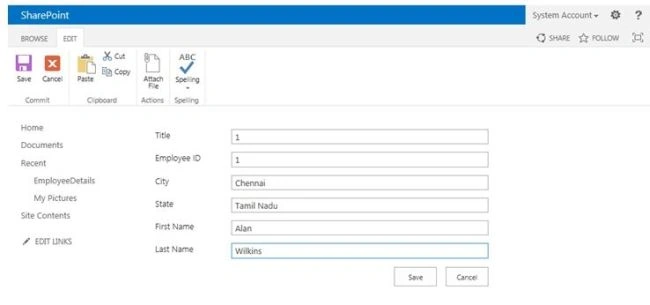
The calculation field will appear.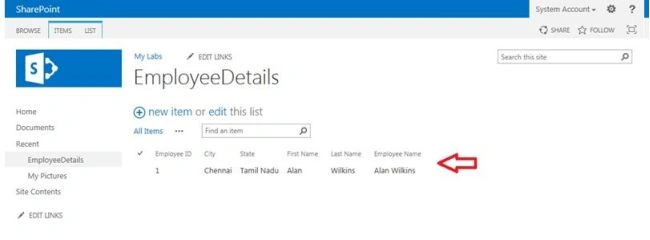
Summary
In this article we have explored how to create a calculation field in a SharePoint 2013 List.


SriramPosted Jul 2, 2015, 4:09 AM EDT
Good.............
Jacob RobinsonPosted Jun 24, 2015, 1:25 AM EDT
Thanks All.....
Gowtham RajamanickamTOP 100Posted Jun 24, 2015, 12:14 AM EDT
good one..keep it up...
Debasis SahaTOP 100Posted Jun 23, 2015, 10:43 PM EDT
Good article
Santhakumar MunuswamyPosted Jun 23, 2015, 11:00 AM EDT
Thanks for nice article:)
Shailesh UkePosted Jun 23, 2015, 6:22 AM EDT
Nice Article............
Abhay ShankerPosted Jun 23, 2015, 6:14 AM EDT
nice one....