
Step 1
Login to the SharePoint 2013 site as an Administrator (System Account).
Step 2
Clicking the settings menu near User Account (System Account). The following window will appear. In that item details click the Site contents.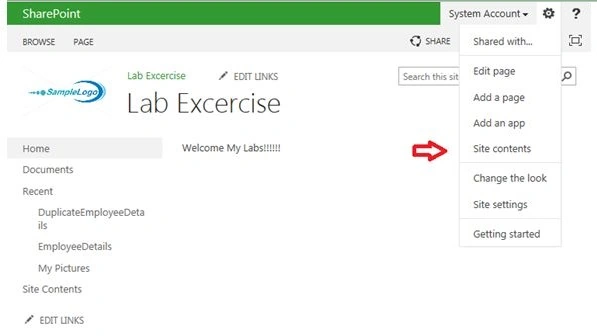
Step 3
The following screen will appear. Click the new subsite item.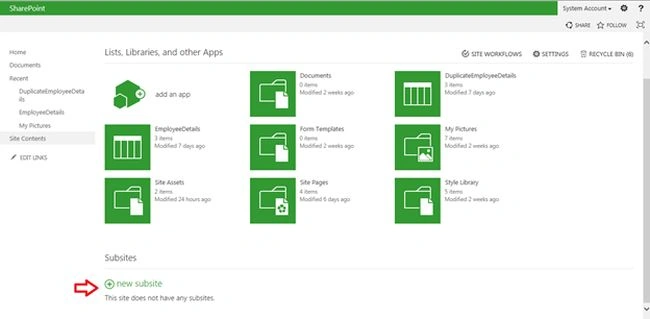
Step 4
Enter the project site's title and select the Project Site template in the template section.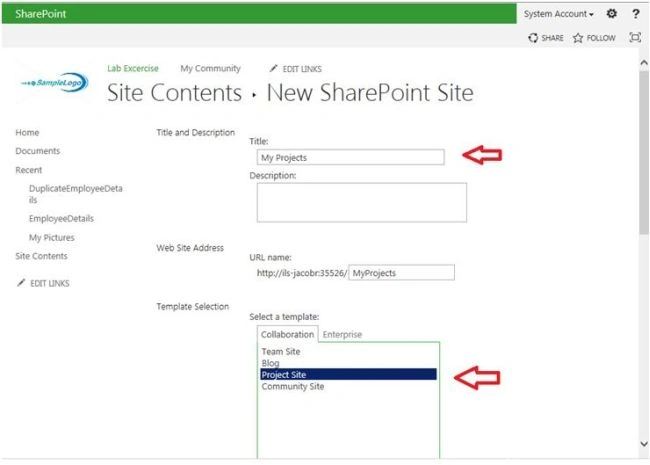
Click the Create button.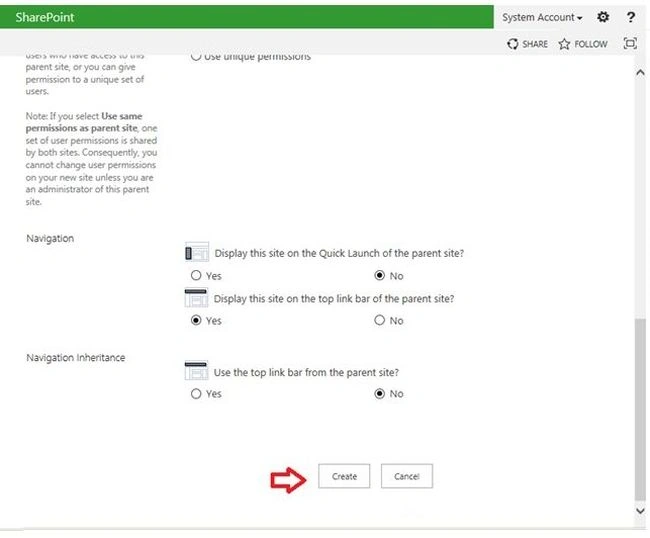
The project site will be created successfully with the project related lists.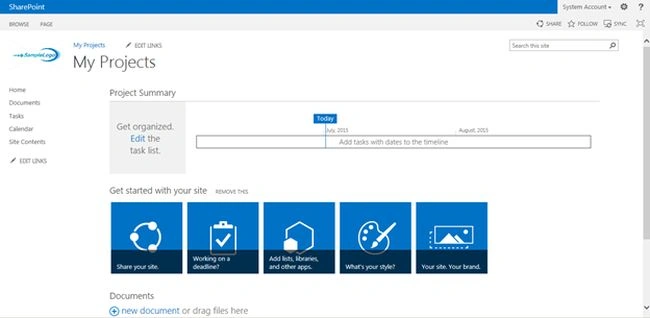
Summary
In this article we explored how to create a project site in SharePoint 2013.
Create a Project Site in SharePoint 2013
This article explains how to create a project site in SharePoint 2013.


SriramPosted Jul 5, 2015, 11:28 PM EDT
Good................
Abhay ShankerPosted Jul 1, 2015, 7:12 AM EDT
nice one.
Sibeesh VenuTOP 100Posted Jul 1, 2015, 2:35 AM EDT
Good one.
Gopi ChandPosted Jul 1, 2015, 2:25 AM EDT
Great work