

Introduction
This article gives you an overview of using pipes and also create a custom pipe in Angular.
What is a Pipe in Angular?
Pipes are used for data transformations in an Angular application. A pipe takes in data as input and transforms it into the desired output.
List of inbuilt pipes in Angular
- AsyncPipe
- CurrencyPipe
- DatePipe
- DecimalPipe
- DeprecatedCurrencyPipe
- DeprecatedDatePipe
- DeprecatedDecimalPipe
- DeprecatedPercentPipe
- I18nPluralPipe
- I18nSelectPipe
- JsonPipe
- KeyValuePipe
- LowerCasePipe
- PercentPipe
- SlicePipe
- TitleCasePipe
- UpperCasePipe
Step 1
Open the command prompt from the Windows search.
Step 2
Create a new project in Angular.
ng new AngularProject
Step 3
Open the project in Visual Studio Code. Type the following command to open it.
Code .
Step 4
Open a terminal in Visual Studio Code and create a component, "product".
ng g c product
Step 5
Open the product.component.ts and write the code.
- import { Component, OnInit } from '@angular/core';
- @Component({
- selector: 'app-product',
- templateUrl: './product.component.html',
- styleUrls: ['./product.component.css']
- })
- export class ProductComponent{
- product={
- productName:"Dell Laptop",
- productRating:4.9745,
- productSold:1250,
- productPrice:49999,
- productLaunch:new Date(2019,6,1),
- productDescription:"Dell DataSafeTM Online Our optional online backup service offers data protection by enabling customers to back up data to a safe, remote storage site using a broadband connection. Dell DataSafe Online is designed to be easy, flexible and secure. After setup, it will automatically back up data and help protect against software, hardware and catastrophic failure."
- }
- }
Step 6
Open product.component.html and write the below code:
- <div class="div container py-4">
- <h3 class="text-center text-uppercase">Product List</h3>
- <table class="table table-bordered">
- <thead>
- <tr>
- <th>Product Name</th>
- <th>Product Rating</th>
- <th>Product Sold</th>
- <th>Product Price</th>
- <th>Product Launch</th>
- </tr>
- </thead>
- <tr>
- <td>{{product.productName|uppercase}}</td>
- <td>{{product.productRating |number:'1.1-1'}}</td>
- <td>{{product.productSold |number}}</td>
- <td>{{product.productPrice |currency:'INR':true:'3.2-2'}}</td>
- <td>{{product.productLaunch | date:'dd-MMM-yyyy'}}</td>
- </tr>
- <tr>
- <td colspan="5">Description:{{product.productDescription|summary:50}}</td>
- </tr>
- </table>
- </div>
Step 7
Open app.component.html to take the selector name from product.component.ts.
- <app-product></app-product>
PipeTransform Interface
An interface that is implemented by pipes in order to perform a transformation. Angular invokes the transform method with the value of a binding as the first argument and any parameters as the second argument in list form
Signature of Interface
- interface PipeTransform { transform(value: any, ...args: any[]): any }
Step 8
Create a folder CustomPipe. In that folder, create a class with name Summary.pipe which summarizes the text or description in your desired words.
- import { Pipe, PipeTransform } from '@angular/core';
- @Pipe({
- name: "summary"
- })
- export class SummaryPipe implements PipeTransform {
- transform(value: string, limit?: number) {
- if (!value)
- return null;
- let actualLimit = (limit) ? limit : 50;
- return value.substr(0, actualLimit) + '.....';
- }
- }
Step 9
Now register custom pipe in app.module.ts
- import { BrowserModule } from '@angular/platform-browser';
- import { NgModule } from '@angular/core';
- import { SummaryPipe } from './CustomPipe/Summary.pipe';
- import { AppComponent } from './app.component';
- import { ProductComponent } from './product/product.component';
- @NgModule({
- declarations: [
- AppComponent,
- ProductComponent,
- SummaryPipe
- ],
- imports: [
- BrowserModule
- ],
- providers: [],
- bootstrap: [AppComponent]
- })
- export class AppModule { }
Step 10
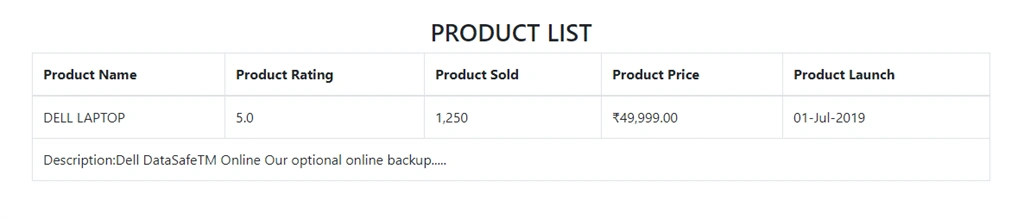
Now it’s time run application. Run the application by typing the following command:
ng serve –open
Join the conversation! Your thoughts help the community grow.