

Django Web framework can use SQLite, Mysql, PostgreSQL, MS SQL Server, etc. By default, creating a Django app web framework with support for a lightweight DB called SQLite. To make sure that we can ensure that in the settings file. Let's start creating a Django application by executing the command.
First, we will install the MySql Django package for Windows.
pip install django mysqlclientThe below command is to create a Django project. By running this one, a Django web framework project will be created in the respective folder. But before this, ensure that the Python recent package as to already installed.
django-admin startproject myproject
cd myproject
After creating a project, we get the folder structure as below mentioned.
myproject/
├── manage.py
└── myproject/
    ├── __init__.py
    ├── settings.py
    ├── urls.py
    ├── asgi.py
    └── wsgi.py
Open the setting file and update the MySQL server details in myproject/settings.py.
DATABASES = {
    'default': {
        'ENGINE': 'django.db.backends.mysql',
        'NAME': 'your_db_name',
        'USER': 'your_db_user',
        'PASSWORD': 'your_db_password',
        'HOST': 'localhost',  # or your MySQL server IP
        'PORT': '3306',
    }
}
Run the command to create an app in my project folder. Make sure that manage.py should exist in Django environment.
python manage.py startapp myappApp folder structure,
myapp/
├── __init__.py
├── admin.py
├── apps.py
├── migrations/
│   └── __init__.py
├── models.py
├── tests.py
└── views.py
Open setting file and add the app name to INSTALLED_APPS list.
INSTALLED_APPS = [
    ...
    'myapp',
]
Login to respective database and create tables all those in Mysql server. To create models, run the Migration command.
python manage.py migrateTo run the Django server by executing command we can launch the Python Django Web page view.
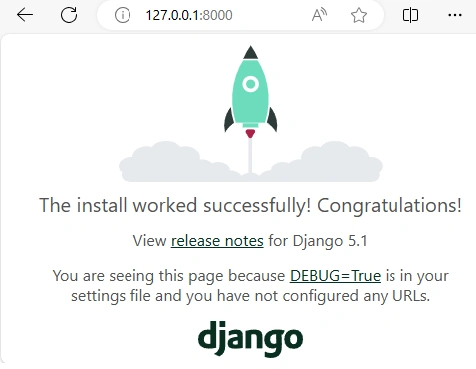
python manage.py runserverOutput
Join the conversation! Your thoughts help the community grow.