

Introduction
Today, in this article let's play around with one of the interesting and most useful concepts in SharePoint 2010.
Question: What is Folder in list?
In simple terms "It provides flexibility to create a folder in any specific list".
Step 1: Open SharePoint 2010 Central Administration and navigate to a specific site.
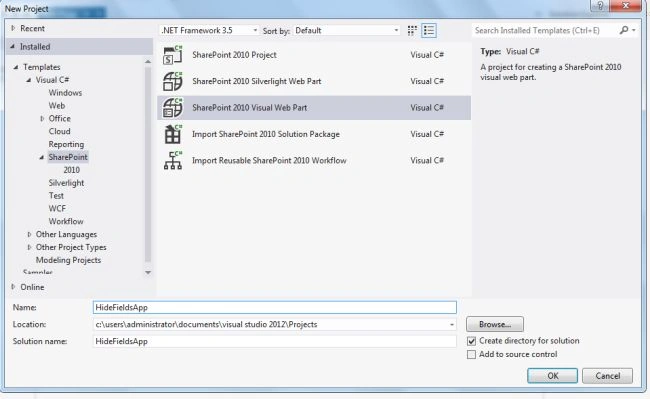
Step 2: Open up Visual Studio 2012 and try to "SharePoint Visual Web Part" project, as in:
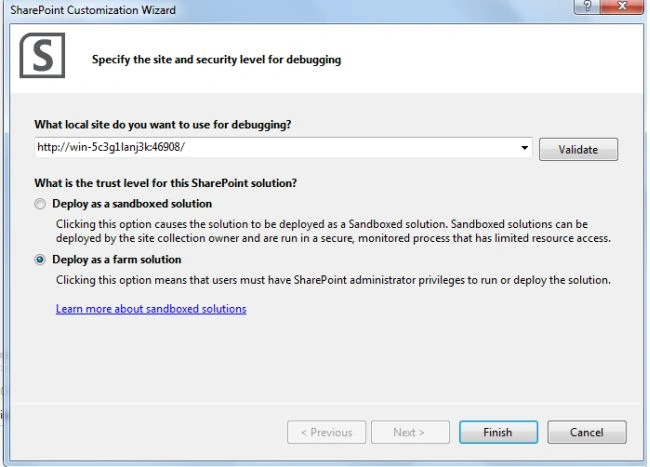
Step 3: Select "Deploy as a farm solution" as in the following and click the "Finish" button.
Step 4: The complete code of visualwebpart1usercontrol.ascx looks like this:
<%@ Assembly Name="$SharePoint.Project.AssemblyFullName$" %>
<%@ Assembly Name="Microsoft.Web.CommandUI, Version=14.0.0.0, Culture=neutral, PublicKeyToken=71e9bce111e9429c" %>
<%@ Register TagPrefix="SharePoint" Namespace="Microsoft.SharePoint.WebControls"
Assembly="Microsoft.SharePoint, Version=14.0.0.0, Culture=neutral, PublicKeyToken=71e9bce111e9429c" %>
<%@ Register TagPrefix="Utilities" Namespace="Microsoft.SharePoint.Utilities" Assembly="Microsoft.SharePoint, Version=14.0.0.0, Culture=neutral, PublicKeyToken=71e9bce111e9429c" %>
<%@ Register TagPrefix="asp" Namespace="System.Web.UI" Assembly="System.Web.Extensions, Version=3.5.0.0, Culture=neutral, PublicKeyToken=31bf3856ad364e35" %>
<%@ Import Namespace="Microsoft.SharePoint" %>
<%@ Register TagPrefix="WebPartPages" Namespace="Microsoft.SharePoint.WebPartPages"
Assembly="Microsoft.SharePoint, Version=14.0.0.0, Culture=neutral, PublicKeyToken=71e9bce111e9429c" %>
<%@ Control Language="C#" AutoEventWireup="true" CodeBehind="VisualWebPart1.ascx.cs"
Inherits="SPListFolderApp.VisualWebPart1.VisualWebPart1" %>
<center>
<div>
<table style="text-align: center">
<tr>
<td colspan="2">
<asp:label id="Label1" runat="server" text="Update List Data via Object Modelling - SharePoint 2010"
font-bold="true" font-size="Large" font-names="Verdana" forecolor="Maroon"></asp:label>
</td>
</tr>
<tr>
<td>
<asp:label id="Label6" runat="server" text="Please Enter List Name" font-size="Large"
font-names="Verdana" font-italic="true"></asp:label>
</td>
<td>
<asp:textbox id="TextBox4" runat="server"></asp:textbox>
</td>
</tr>
<tr>
<td>
<asp:label id="Label2" runat="server" text="Please Enter Folder Name" font-size="Large"
font-names="Verdana" font-italic="true"></asp:label>
</td>
<td>
<asp:textbox id="TextBox1" runat="server"></asp:textbox>
</td>
</tr>
<tr>
<td colspan="2">
<asp:button id="Button1" runat="server" text="Create Folder " font-names="Verdana"
width="166px" backcolor="Orange" font-bold="True" onclick="Button1_Click" />
</td>
</tr>
<tr>
<td colspan="2">
<asp:label id="Label5" runat="server" font-bold="true" font-names="Verdana" forecolor="Maroon"></asp:label>
</td>
</tr>
</table>
</div>
</center>
Step 5: The complete code of visualwebpart1usercontrol.ascx.cs looks like this:
using Microsoft.SharePoint;
using System;
using System.ComponentModel;
using System.Web.UI.WebControls.WebParts;namespace SPListFolderApp.VisualWebPart1
{
[ToolboxItemAttribute(false)]
public partial class VisualWebPart1 : WebPart
{
// Uncomment the following SecurityPermission attribute only when doing Performance Profiling using
// the Instrumentation method, and then remove the SecurityPermission attribute when the code is ready
// for production. Because the SecurityPermission attribute bypasses the security check for callers of
// your constructor, it's not recommended for production purposes.
// [System.Security.Permissions.SecurityPermission(System.Security.Permissions.SecurityAction.Assert, UnmanagedCode = true)]
public VisualWebPart1()
{
}
protected override void OnInit(EventArgs e)
{
base.OnInit(e);
InitializeControl();
}
protected void Page_Load(object sender, EventArgs e)
{
TextBox1.Focus();
}
protected void Button1_Click(object sender, EventArgs e)
{
if (string.IsNullOrEmpty(TextBox1.Text) || string.IsNullOrEmpty(TextBox4.Text))
{
Label5.Text = "Please Enter Some Values";
Label5.ForeColor = System.Drawing.Color.Red;
}
else{SPWeb web = SPContext.Current.Web;
SPList list = web.Lists[TextBox4.Text];
web.AllowUnsafeUpdates = true;
SPListItem folderItem = list.Items.Add(list.RootFolder.ServerRelativeUrl, SPFileSystemObjectType.Folder);
folderItem["Title"] = TextBox1.Text;
folderItem.Update();
web.AllowUnsafeUpdates = false;
Label5.Text = TextBox1.Text + " folder is created successfully in " + TextBox4.Text;
Label5.ForeColor = System.Drawing.Color.Green;
TextBox1.Text = string.Empty;
TextBox4.Text = string.Empty;
}
}
}
}
Step 6: Deploy the solution file and add the new webpart to a SharePoint site.
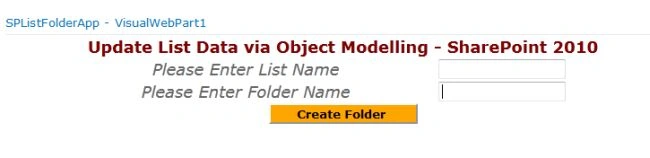
Step 7: The output of the application looks like this:
Step 8: Entering data output of the application looks like this:
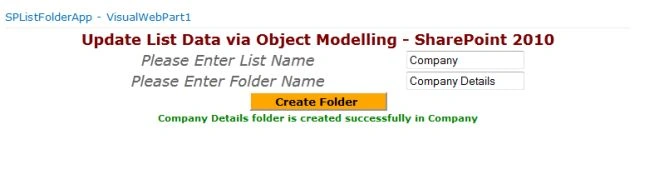
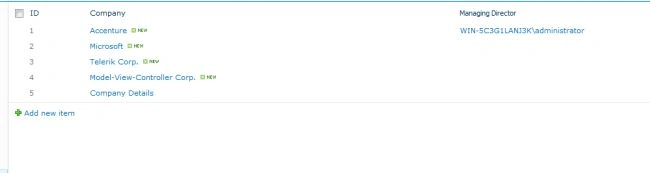
Step 9: Folder created output of the application looks like this:
I hope this article is useful for you.
Join the conversation! Your thoughts help the community grow.