
In this article I will show the steps to create managed search property.
- Managed properties are used in search verticals.
- In SharePoint 2013, when you create the site column, the managed property will create automatically.
- Using Managed property we will show the search results in content search web part and can use it for filtering, reporting, and/or refining.
- You can create managed property at the SSA level and site collection levels.
Steps to Create Managed Property
Here are the steps to create a property:
Step 1: Go to you SharePoint Site.
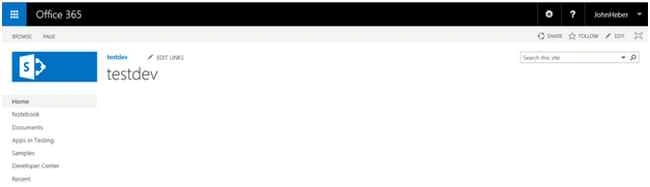
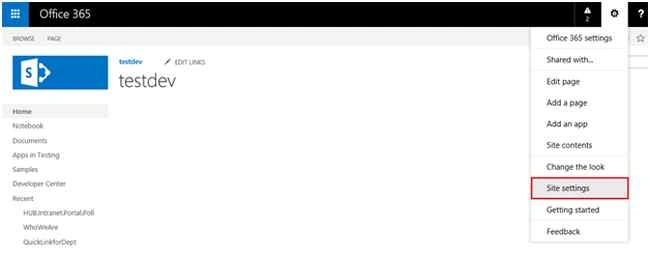
Step 2: Then click the gear menu and select the site settings as in the following screenshot:
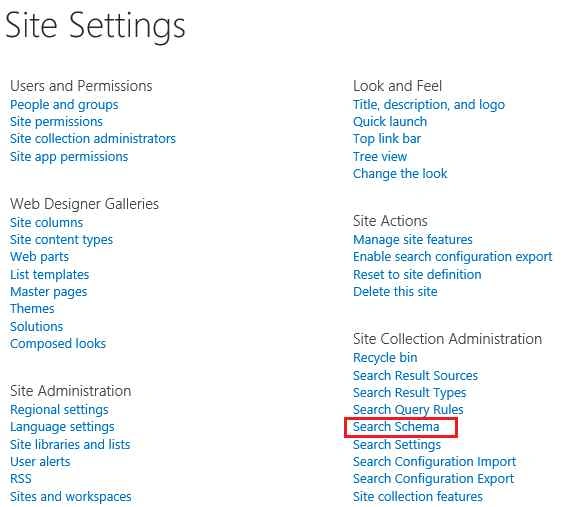
Step 3: On the site settings page select the “Search Schema” from site collection administration section.
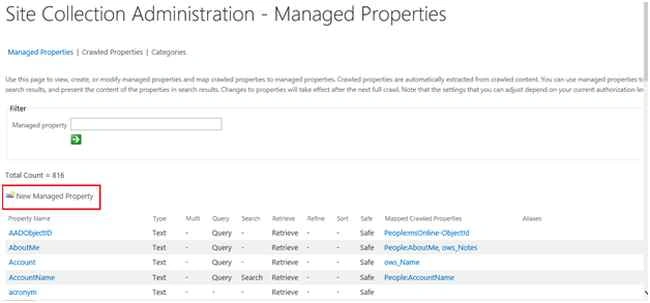
Step 4: Click on the “New Managed Property” from the Site Collection Administration – Managed Properties page, you will able to create new property in site collection level
Step 5: Then provide property name and description, etc as shown in the following screenshot:
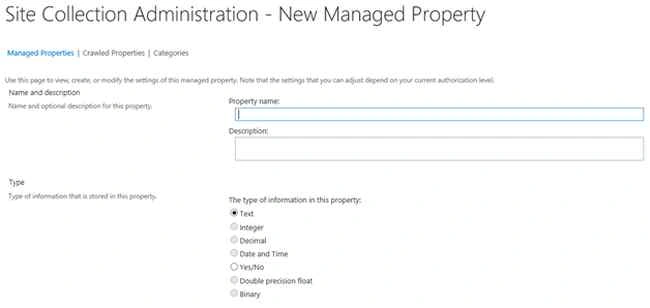
Step 6: Then map the crawled property with manage property using Add a Mapping button,
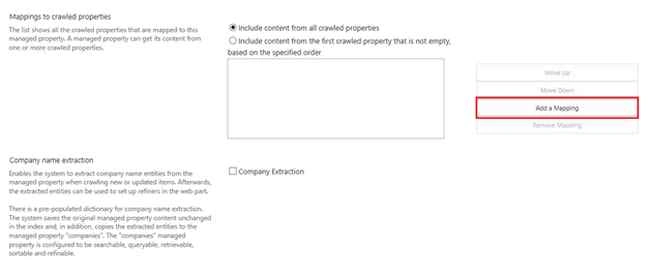
And click OK to save the managed property.
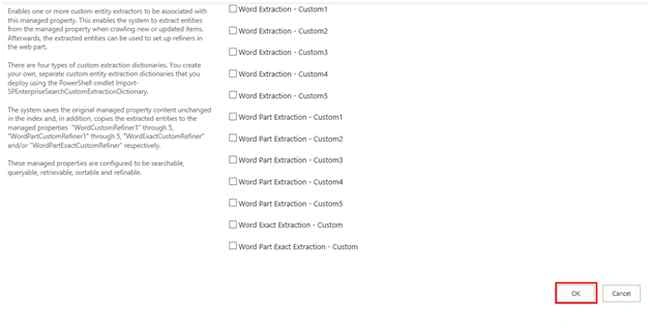
Finally New managed property will be created successfully in your site collection.
References
Summary
In this article we explored the use of managed property and created a new managed search property in SharePoint 2013 Online.


Kaviya BalasubramanianPosted Sep 7, 2015, 3:23 AM EDT
Thank you all :)
RakeshPosted Sep 5, 2015, 8:36 PM EDT
Good one
Santhakumar MunuswamyPosted Sep 5, 2015, 12:07 AM EDT
Thanks for nice share
Mohammed IbrahimPosted Sep 4, 2015, 1:28 PM EDT
nice
Sumit JoshiPosted Sep 4, 2015, 7:44 AM EDT
Thanks for share.
Rajeesh MenothPosted Sep 4, 2015, 5:49 AM EDT
Nice Share
Pankaj Kumar ChoudharyTOP 100Posted Sep 4, 2015, 2:46 AM EDT
Nice Explain........
Karthikeyan KPosted Sep 4, 2015, 2:30 AM EDT
Good one...Thanks for sharing