
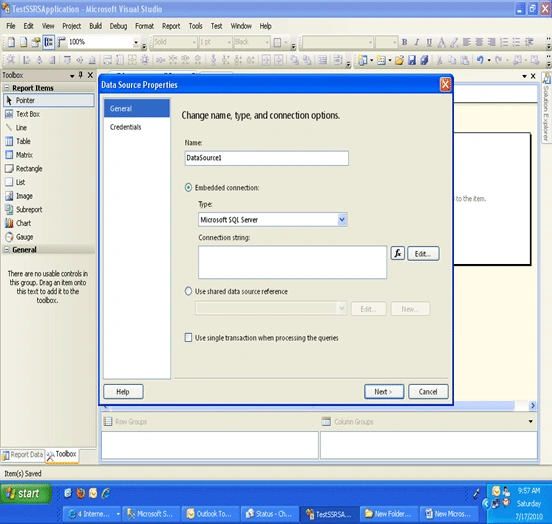
2. Create a new Connection String by Clicking EDIT button. When you click on
that EDIT Button the screen will be like below
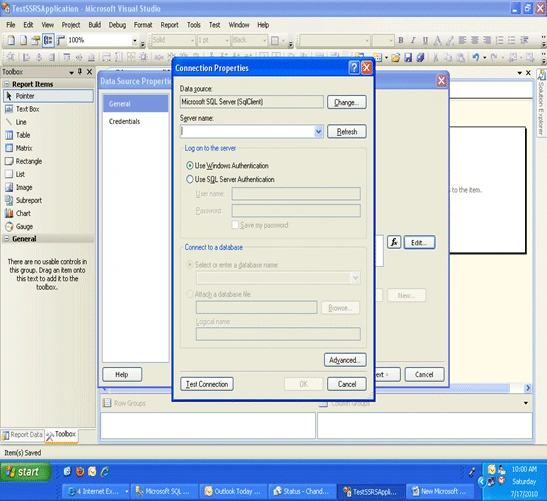
3. Select Server Name, Select Authentication Type. That is Windows
Authentication or Sql server Authentication .
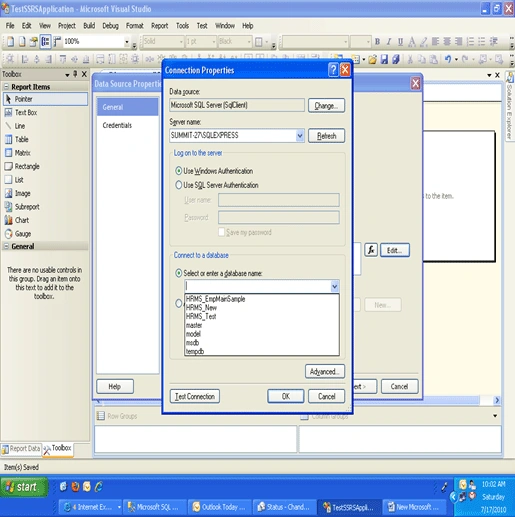
4. Select the Database name from the Option from drop down that is (Select or
enter a database name)
5. And click on Test Connection button and Click on OK Button . The screen shot
will be like this
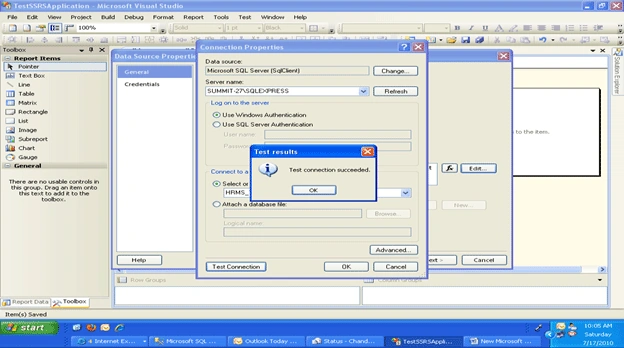
6. By clicking on the Ok Button the Screen will close. Next Screen will be looks
like below format.
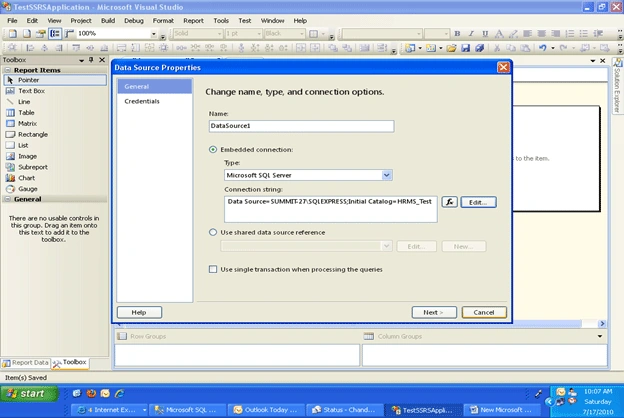
7. Next Click on NEXT BUTTON it will display QUERY DESIGNER WINDOW. The screen
shot looks like below
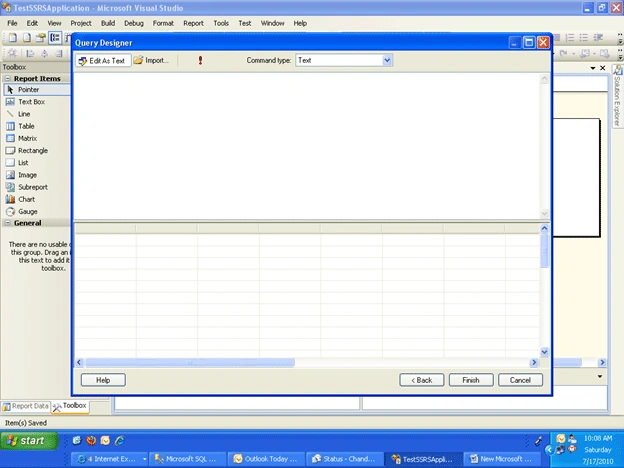
8. Next Click on EDIT TEXT Button that was located left side at topmost Place.
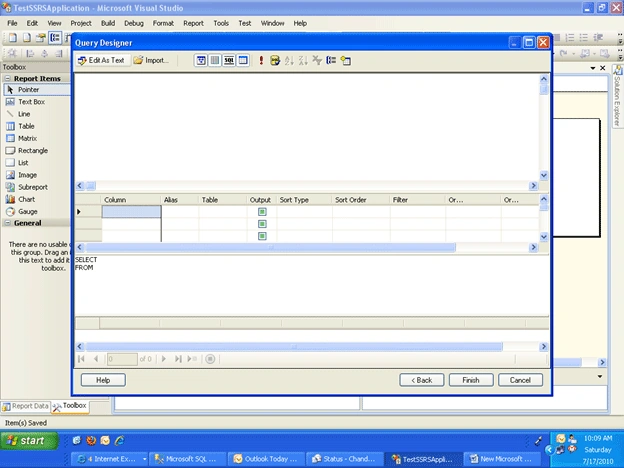
9. By Clicking on the EDIT AS TEST button it will display the following options.
- SHOW/HIDE Diagram Pane,
- SHOW/HIDE Grid Pane,
- SHOW/HIDE SQL Pane,
- RUN
- Verify SQL
- Use Group By
- Add Table
The screen show looks like below format
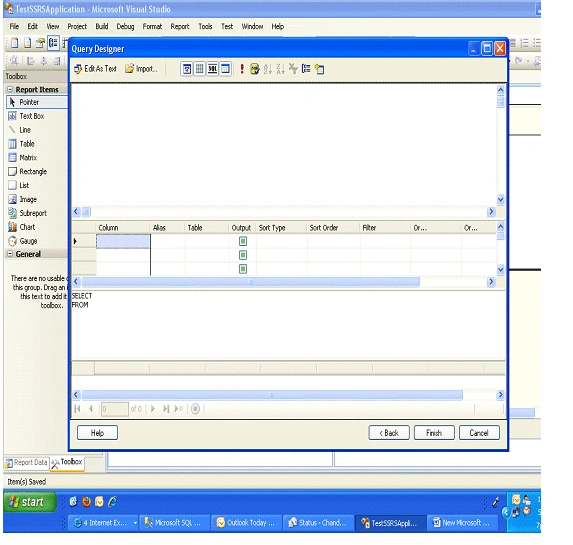
10. Click on Add Table ICON(Located at the end of right side).have a look for
window
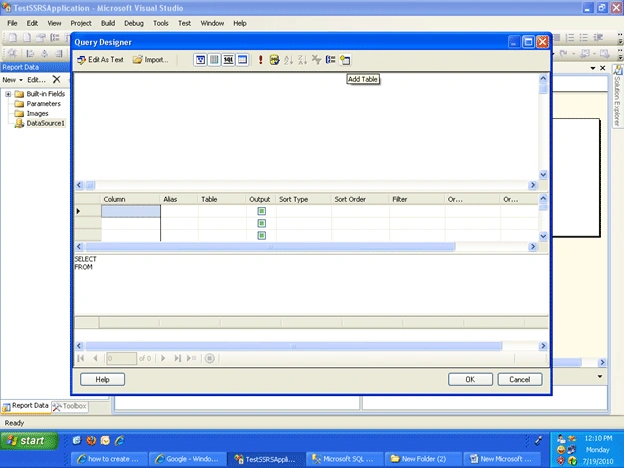
11. By Clicking on the ADD TABLE ICON the list of Tables will be displayed. The
screen looks like below format
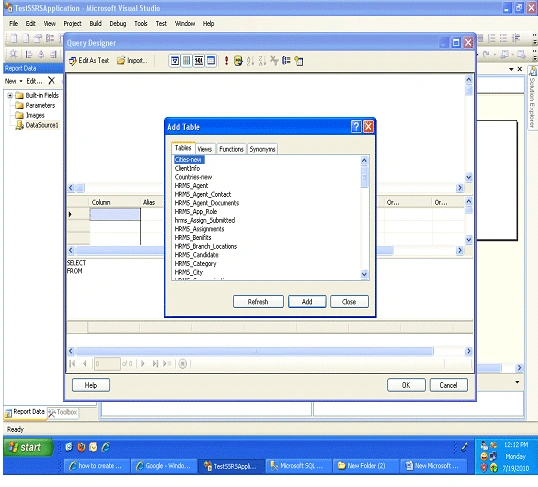
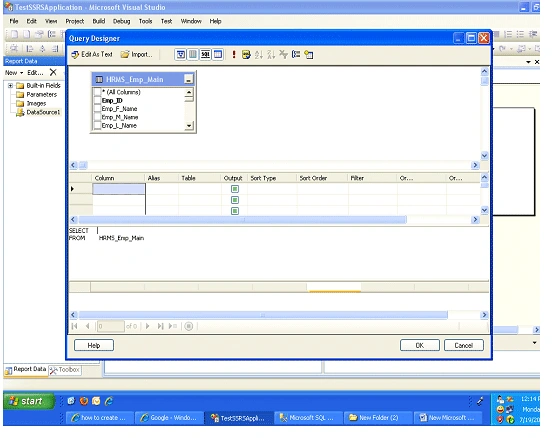
12. Select the table name from the List of Table and click on ADD Button. Next
click on CLOSE BUTTON To close the window. Next the screen looks like below
format.
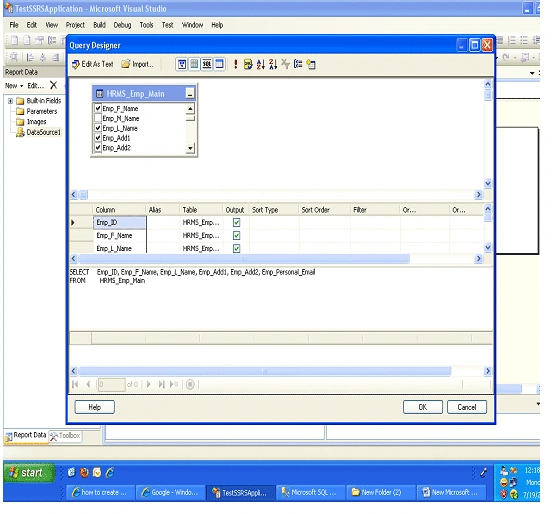
13. Select what are all the columns are required by checking the check box .
Kindly have a look below screen shot to get an idea.
14. Next Click on OK Button . After that the screen shot looks like below format
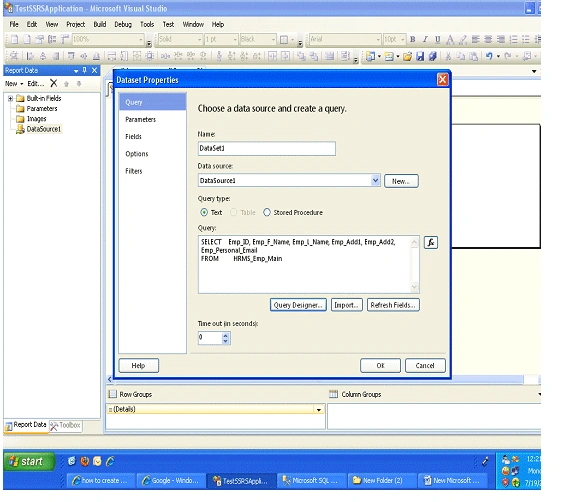
15. Next Click on OK Button . After that the screen shot looks like below format
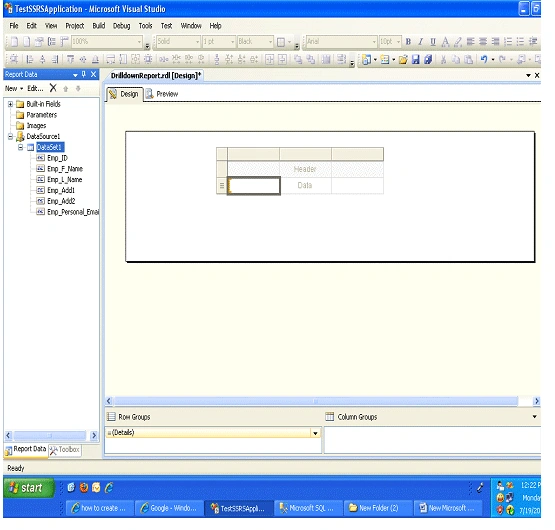
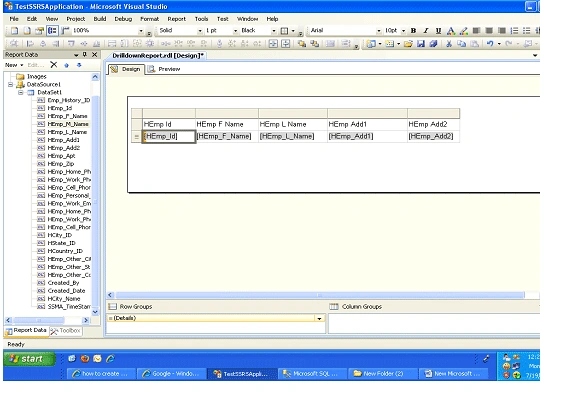
16. Drag the what are all the columns are to display.
17. Select the column for Group By. Here I have selected EmpID for Grouping.
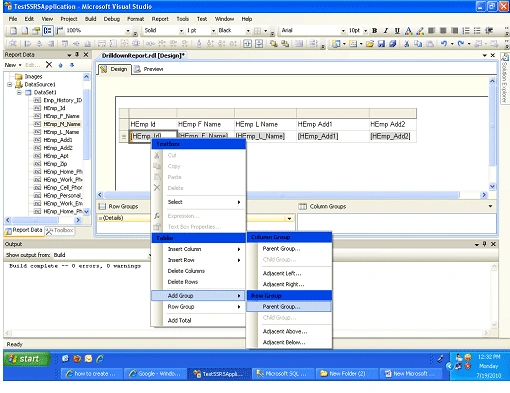
18. Right Click on that Empid column and click on AddGroup , Select Parent group
from ROW GROUP
The Screen will be looks like below format.
19. Click on Parent Group, Select EmpID Column from Group by DropDown list and
Click on OK BUTTON.
The screen shot looks like below format.
20. Select Detail section, right click on that Detail section, Click on INSERT
ROW . There 2 options are available . ABOVE and BELOW. Select ABOVE. The screen
shot looks like below format.
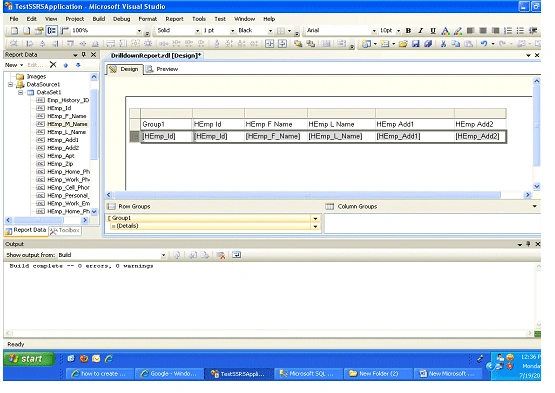
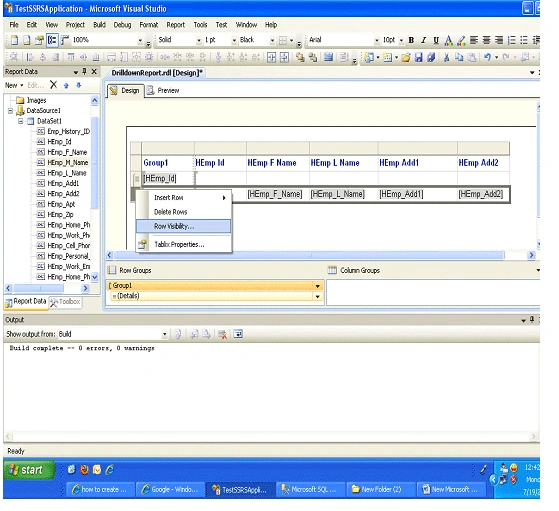
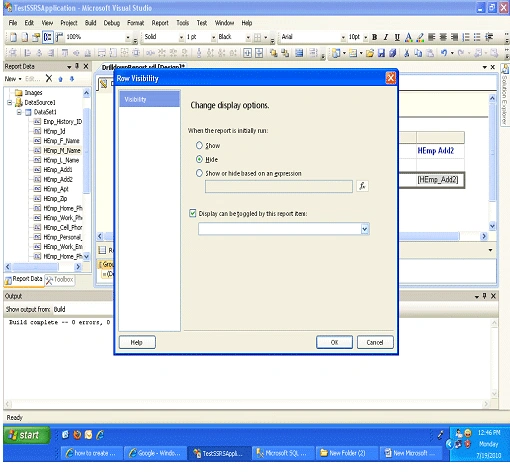
21. Next Select Detail section again and right click on that select ROW
VISIBILITY Property . The screen shot looks like below format.
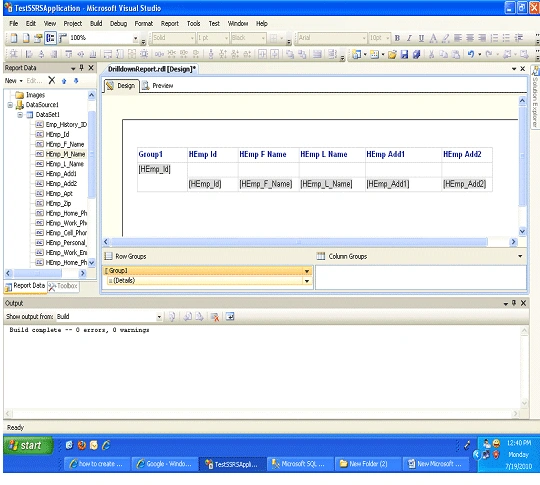
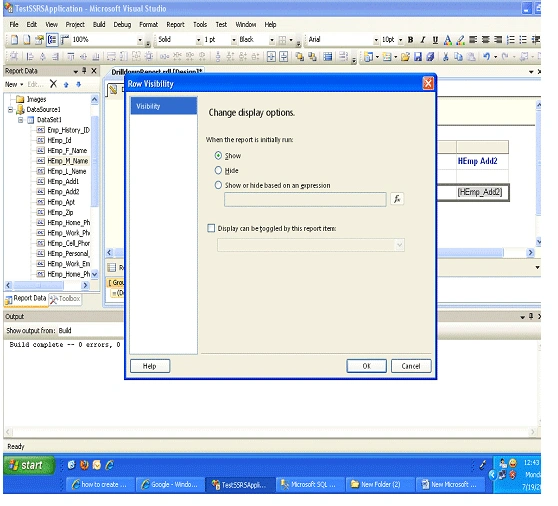
22. When select ROWVISIBILTY property , The ROW VISIBILITY window will open
.Find the Screen shot below format.
23. Select HIDE Option from "When the report is initially run" and Check on
"Display can be toggled by this Report item".
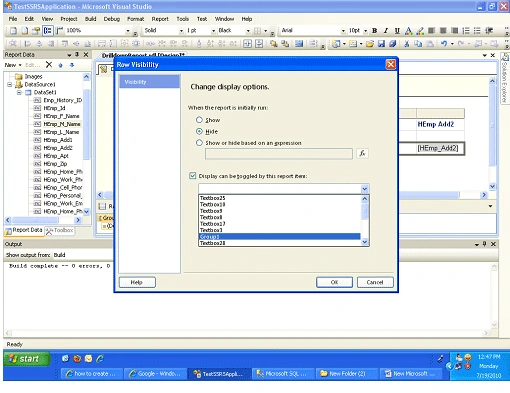
24. Select Group name from the Dropdown list which was enabled when check box
checked(Display can be toggled by this Report item) Next the screen shot will be
looks like below format.
25. Click on OK Button Next the screen shot will be looks like below format
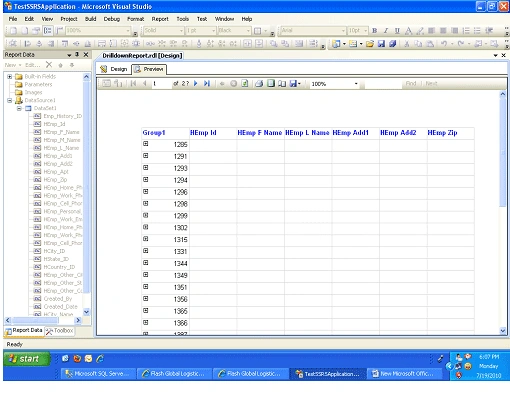
26. After that build and run the reports the screen shot looks like below format
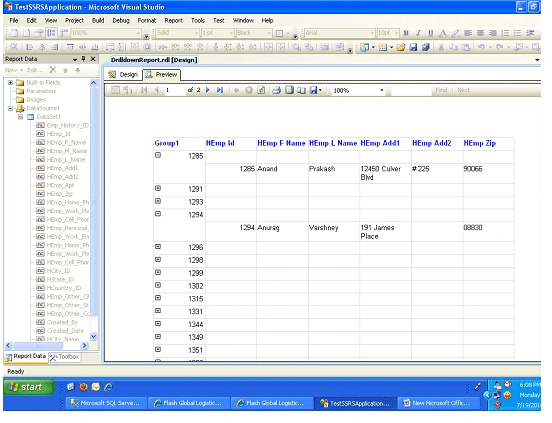
27.By clicking on the Plus button the record will be shown. The screen shot
looks like below format.
Roopesh MandloiPosted Sep 13, 2010, 1:47 AM
Dear Sir, I am developing a financial accounting software, I just want to create a drill down report that show the account name, total debit amount, total credit amount, balance; on clicking on the total debit amount I should get the list of all vouchers and on clicking any of the voucher number I should get the detail of that voucher. Can I have such report?