What do we want to achieve,
- Create a Google Maps AutoComplete dropdown.
- Save those address details into our database Server (here, I am using SQL Server).
- Retrieve those map details into the browser, create and place markers on the map.
- Navigate between markers on mouse click.
Before creating the project, I will show you how to get API key for Google Maps API.
Step 1.0
Create a Google Maps API from Google console application
Go to Console Google.
Create New Project.
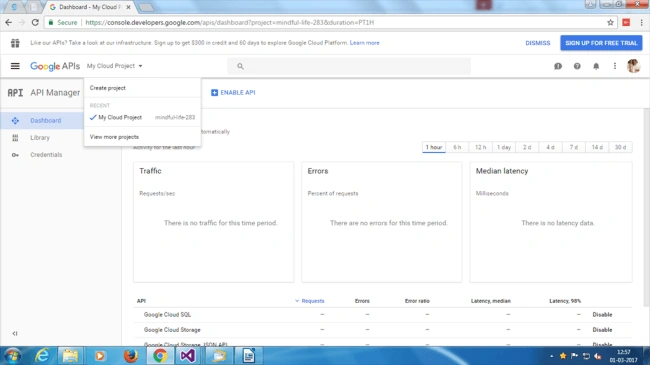
It will take some time to create the project.
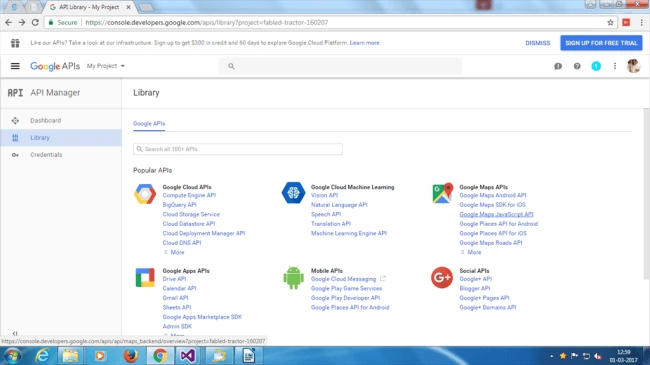
Click Google Maps Javascript API link at the right side under Google Maps APIs.
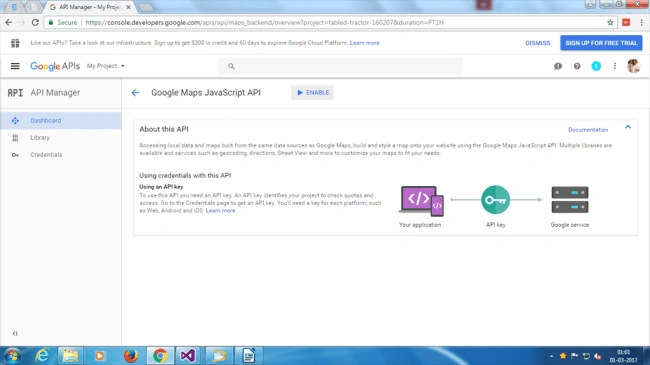
Click "Enable" to enable API.
Once you enable, you will see one button “Create Credential”.
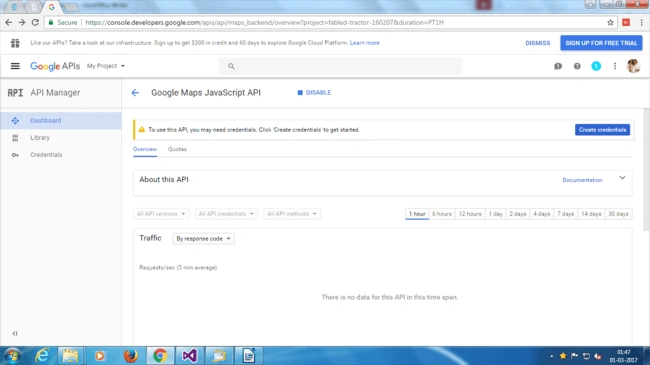
Copy your credentials somewhere.
Step 1.1
Create an MVC project and name it as GoogleMapTutor.
Go to Add > New Project > ASP.NET Web Application.
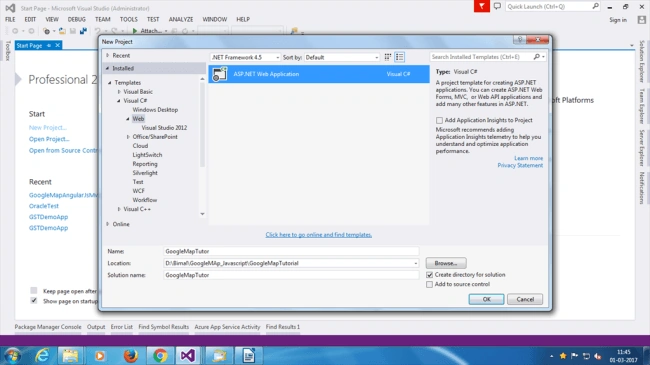
Select MVC with No Authentication (As we don't need authentication).
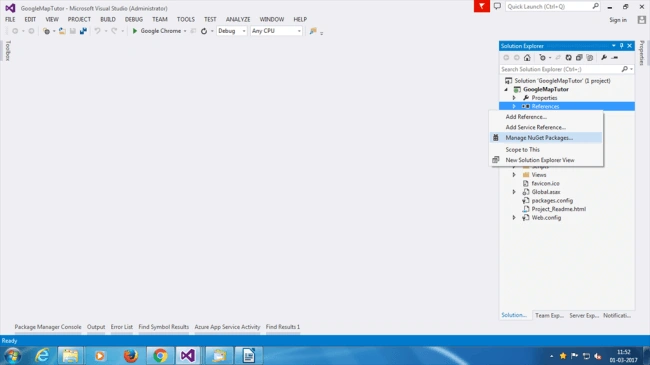
Right click on References and click "Manage NuGet Packages".
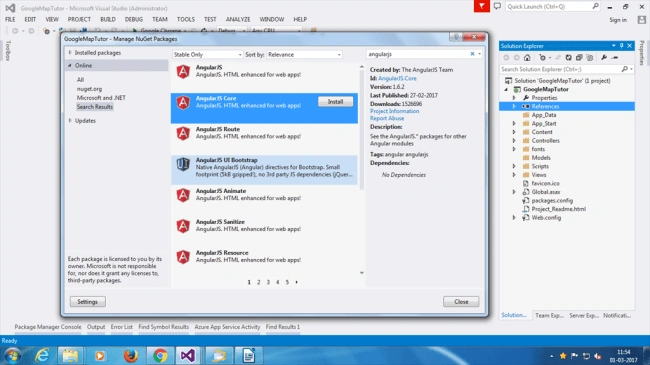
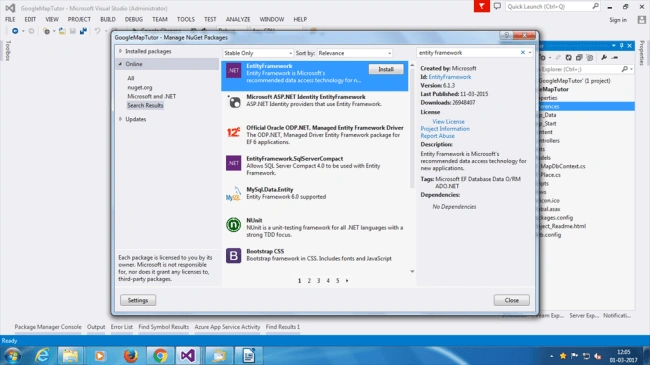
Add packages AngularJS.Core and Entity Framework.
Step 2
Create Place.cs and MapDbContext.cs files into "Models" folder.
Add the code given below inside Place.cs file.
- using System;
- using System.Collections.Generic;
- using System.ComponentModel.DataAnnotations;
- using System.Linq;
- using System.Web;
- namespace GoogleMapTutor.Models {
- public partial class Place {
- [Key]
- public Guid Id {
- get;
- set;
- }
- public string PlaceGroupId {
- get;
- set;
- }
- public string PlaceId {
- get;
- set;
- }
- public string FullAddress {
- get;
- set;
- }
- public string Latitude {
- get;
- set;
- }
- public string Longitude {
- get;
- set;
- }
- }
- }
Add the code into MapDbContext.cs file.
- using System;
- using System.Collections.Generic;
- using System.Data.Entity;
- using System.Linq;
- using System.Web;
- namespace GoogleMapTutor.Models {
- public class MapDbContext: DbContext {
- public MapDbContext(): base("GoogleMapConnString") {
- Database.SetInitializer < MapDbContext > (new DropCreateDatabaseIfModelChanges < MapDbContext > ());
- }
- public DbSet < Place > places {
- get;
- set;
- }
- }
- }
The code given above is to generate a database, using Entity Framework Code-First Approach.
Step 3
Add the connection string into Web.config file.
Add the code given below for the database connection string. You do not have localDB installed but you can change the connection string to sqlserver db.
- <connectionStrings>
- <add name="GoogleMapConnString" connectionString="Data Source=(LocalDB)\v11.0;AttachDbFilename=|DataDirectory|Database1.mdf;Integrated Security=True" providerName="System.Data.SqlClient" />
- </connectionStrings>
Step 4
Add a Controller into Controllers > PlacesController and paste the code given below.
- using System;
- using System.Collections.Generic;
- using System.Linq;
- using System.Web;
- using System.Web.Mvc;
- using GoogleMapTutor.Models;
- namespace GoogleMapTutor.Controllers {
- public class PlacesController: Controller {}
- }
Add 4 action methods given below into the Controller class.
- MapDbContext db = new MapDbContext();
- public ActionResult Index() {
- //var result = db.places.GroupBy(x => x.PlaceGroupId).Select(grp => grp.ToList()).ToList();
- var items = new List < SelectListItem > ();
- var groups = db.places.Select(x => new SelectListItem {
- Text = x.PlaceGroupId, Value = x.PlaceGroupId
- }).Distinct().ToList();
- if (groups != null && groups.Count > 0) {
- groups[0].Selected = true;
- }
- return View(groups);
- }
- [HttpGet]
- public ActionResult Add() {
- return View();
- }
- [HttpPost]
- public ActionResult Add(List < Place > places) {
- places.ForEach(x => x.Id = Guid.NewGuid());
- db.places.AddRange(places);
- var result = db.SaveChanges();
- if (result > 0) {
- return Json(new {
- result = "Redirect", url = Url.Action("Index", "Places")
- });
- }
- return Json(new {
- result = "InvalidLogin"
- }, JsonRequestBehavior.AllowGet);
- }
- [HttpGet]
- public JsonResult GetLocationsByGroupId(string groupid) {
- var locations = db.places.Where(x => x.PlaceGroupId == groupid).ToList();
- return Json(locations, JsonRequestBehavior.AllowGet);
- }
The first is Method Index() which returns List<SelectListItem>() for dropdown.
The last method is to get all the places, which are based on its GroupId. This function will return JSON data.
Step 5
Create two files “Add.cshtml” and “Index.cshtml” into Into Views>Places folder (Create Places folder, if it does not exist).
Note
Please make sure that in Layout.cshtml page, jQuery and Bootstrap are referred.
Step 6
Open “Add.cshtml” file
Remove all the code from the page and paste the code given below.
Replace the credentials used for the Application and paste your own credentials into Google API script tag given below.
- @ {
- ViewBag.Title = "Add";
- } < div ng - app = "googleMapApp"
- ng - controller = "googleMapController"
- ng - cloak id = "angular_scope" > < div style = "margin:70px 0;" > < /div> < div class = "row"
- ng - show = "IsLoaded" > < div class = "col-xs-12" > < h4 > Add Places < /h4> < table class = "table table-bordered table-hover table-striped" > < thead > < tr > < th class = "col-sm-2" > Sl No < /th> < th > Id < /th> < th > Full Address < /th> < th > Latitude < /th> < th > Longitude < /th> < td > Action < /td> < /tr> < /thead> < tbody > < tr > < td > < /td> < td colspan = "6" > < span google - map - directive placelist = "placeList"
- groupid = "groupId" > < /span> < /td> < /tr> < tr ng - repeat = "place in placeList" > < td > {
- {
- $index + 1
- }
- } < /td> < td > {
- {
- place.PlaceId
- }
- } < /td> < td > {
- {
- place.FullAddress
- }
- } < /td> < td > {
- {
- place.Latitude
- }
- } < /td> < td > {
- {
- place.Longitude
- }
- } < /td> < td > < input type = "button"
- class = "btn btn-xs btn-primary"
- ng - click = "remove(place)"
- value = "delete" / > < /td> < /tr> < /tbody> < tfoot > < tr > < td colspan = "6" > < div class = "text-right" > < input type = "text"
- placeholder = "Enter Group Id"
- class = "input-sm"
- ng - model = "groupId" / > < input type = "button"
- class = "btn btn-primary"
- ng - click = "post()"
- value = "Add Places" / > < /div> < /td> < /tr> < /tfoot> < /table> < /div> < /div> < /div>
- @section scripts { < script src = "https://maps.googleapis.com/maps/api/js?libraries=places&sensor=false&key=AIzaSyD3fJEYrzU3pvnZ_DGwBN0yxM-e7fCbNjI" > < /script> < script src = "~/Scripts/angular.js" > < /script> < script src = "~/Scripts/app/add.js" > < /script>
- }
Step 7
Create an app folder into Scripts folder and add add.js file.
Paste the code given below into add.js file.
- angular.module("googleMapApp", []).controller("googleMapController", ['$scope', '$filter', 'googleMapFactory', function($scope, $filter, googleMapFactory) {
- $scope.IsLoaded = true;
- $scope.placeList = [];
- $scope.remove = function(place) {
- //var newTemp = $filter("filter")($scope.placeList, { PlaceId: place_id });
- var index = $scope.placeList.indexOf(place);
- $scope.placeList.splice(index, 1);
- }
- $scope.post = function() {
- if (!$scope.groupId) {
- alert("please add a group id.");
- return
- }
- if (!$scope.placeList.length) {
- alert("please add atleast one place.");
- return
- }
- angular.forEach($scope.placeList, function(item, index) {
- item.PlaceGroupId = $scope.groupId;
- })
- googleMapFactory.Post($scope.placeList).then(function(response) {
- if (response.data.result == "Redirect") {
- window.location = response.data.url;
- return
- } else {
- alert("Failed");
- }
- }, function(error) {
- debugger
- alert("Failed");
- })
- }
- }]).factory("googleMapFactory", function($http) {
- var fac = {}
- fac.Post = function(data) {
- return $http.post("/Places/Add", data)
- }
- return fac
- }).directive("googleMapDirective", function() {
- return {
- restrict: 'EA',
- scope: {
- placelist: "="
- },
- template: '<div class="row"><div class="col-sm-8"><input type="text" id="input-add" ng-model="newPlace.PlaceId" class="form-control input-sm" /></div></div>',
- link: function(scope, element, attrs) {
- google.maps.event.addDomListener(window, 'load', initialize);
- function initialize() {
- var input = document.getElementById('input-add');
- var autocomplete = new google.maps.places.Autocomplete(input);
- autocomplete.addListener('place_changed', function() {
- debugger
- var place = autocomplete.getPlace();
- var newPlace = {
- PlaceId: place.place_id,
- FullAddress: place.formatted_address,
- Latitude: place.geometry['location'].lat(),
- Longitude: place.geometry['location'].lng()
- }
- var result = $.grep(scope.placelist, function(e) {
- return e.PlaceId == newPlace.PlaceId;
- });
- if (result.length == 0) {
- scope.placelist.push(newPlace);
- } else {
- alert("This Place Already Added!!!")
- }
- input.value = '';
- console.log($('.pac-container'));
- $('.pac-container').html("");
- scope.$apply();
- });
- }
- $(element).on('click', '#button-add', function(e) {
- alert();
- });
- }
- }
- })
- In JS given above, I have created one Controller for our View, one factory to communicate with our back-end Server, and one directive for Google Maps auto-complete.
- The directive will simply create the auto-complete dropdown into our HTML page.
Step 8
Run the Application
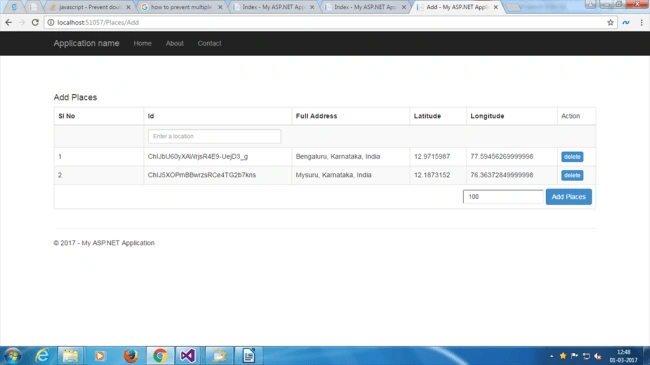
Go to /Places/Add and test whether it works or not.
Add some places, which you like.
Save the places.
Step 9
Index.cshtml file,
Remove everything and paste the code given below into index.cshtml file in Places folder.
Replace the credentials used for the Application and paste your own credentials into Google API script tag given below.
Step 10
Add “index.js” and “google-map-dir.js” files into Scripts>app and Scripts>app>Directives(create Directives folder, if it does not exist) folders respectively.
Step 11
Paste the code given below into index.js file.
- angular.module('GoogleMapApp', ['googleMapDirectiveApp']).controller('GoogleMapAppController', function($scope, GoogleMapAppFactory) {
- $scope.init = function() {
- GoogleMapAppFactory.GetLocations($scope.groupId).then(function(response) {
- $scope.locationList = response.data;
- if ($scope.locationList && $scope.locationList.length) {
- $scope.GoToThisLocation($scope.locationList[0].Latitude, $scope.locationList[0].Longitude);
- }
- }, function(error) {
- alert("error!!!");
- })
- }
- $scope.selectedLocation = {
- lat: 23,
- lon: 79
- };
- $scope.GoToThisLocation = function(lat, lon) {
- if ($scope.selectedLocation.lat != lat || $scope.selectedLocation.lon != lon) {
- $scope.selectedLocation = {
- lat: lat,
- lon: lon
- };
- if (!$scope.$$phase) {
- $scope.$apply("selectedLocation");
- }
- }
- }
- //$scope.init();
- }).factory("GoogleMapAppFactory", function($http) {
- var fac = {}
- fac.GetLocations = function(locationGroupId) {
- return $http.get('/Places/GetLocationsByGroupId?groupid=' + locationGroupId)
- }
- return fac;
- })
$scope.GoToThisLocation() function will be called when we change (select) a particular place from the place list.
Step 12Add the code given below into google-map-dir.js file.
- angular.module("googleMapDirectiveApp", []).directive('googleMapDir', function() {
- return {
- restrict: "EA",
- replace: true,
- template: "<div></div>",
- scope: {
- center: '=',
- markers: '=',
- width: "@",
- height: "@"
- },
- link: function(scope, element, attribute) {
- //debugger
- var map;
- scope.$watch('center', function() {
- //debugger
- if (map && scope.center && scope.markers) {
- map.setCenter(getLocation(scope.center))
- }
- })
- scope.$watch('markers', function() {
- //debugger
- if (scope.markers) {
- updateControl();
- }
- })
- function updateControl() {
- //debugger
- var options = {
- center: new google.maps.LatLng(23, 79),
- zoom: 15,
- mapTypeId: "roadmap"
- }
- if (scope.center.lat && scope.center.lon) {
- options.center = getLocation(scope.center)
- } else {
- return
- }
- map = new google.maps.Map(element[0], options);
- updateMarkers();
- }
- function updateMarkers() {
- //debugger
- // create new markers
- currentMarkers = [];
- var markers = scope.markers;
- if (angular.isString(markers)) markers = scope.$eval(scope.markers);
- for (var i = 0; i < markers.length; i++) {
- var m = markers[i];
- var loc = new google.maps.LatLng(m.Latitude, m.Longitude);
- var mm = new google.maps.Marker({
- position: loc,
- map: map,
- title: m.FullAddress
- });
- currentMarkers.push(mm);
- }
- }
- function getLocation(location) {
- if (location == null) {
- return new google.maps.LatLng(23, 79);
- }
- if (angular.isString(location)) {
- location = scope.$eval(location);
- }
- return new google.maps.LatLng(location.lat, location.lon)
- }
- }
- }
- })
Step 13
Run the Application.
Go to /Places/Index.
The screen should look similar to the one shown below.
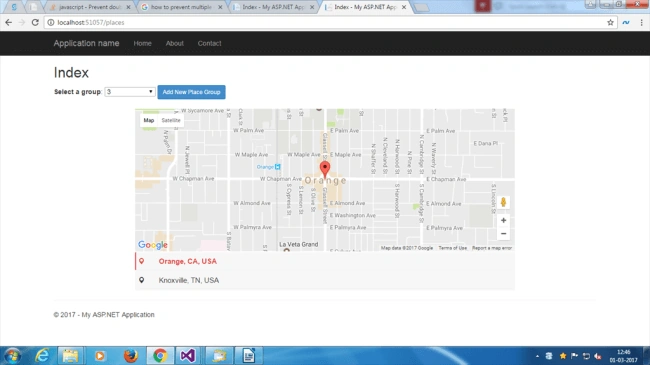
Great. You have created Google Maps auto-complete with multiple pointers with navigation.

Join the conversation! Your thoughts help the community grow.