

Introduction
Talend provides many tools for a software solution. They are application integration, data management, data preparation, data quality, data integration, and big data. In which data integration and Big Data is most widely using the tool. Talend is the ETL tool with all the plugins to integrate with Big Data ecosystem. Talend offers Open Studio, which is an open-source free tool. This article helps you to learn about data integration and Big Data.
Talend Open Studio (ETL Tool)
Requirements
Operating System
Talend is available for the below operating systems
- Microsoft Windows
- Ubuntu
- MacOS
Memory Requirement
- RAM - Minimum 4 GB. Recommended 8 GB
- Disk - 20 GB+ (Based on the number of projects created we need more space)
Talend is an Eclipse based developer tool, so java setup(JRE/JDK) is needed for studio.
Benefits
- It is used to combine data into a single system.
- It improves the collaboration between teams to access the data.
- If integrate the data properly, then it cuts down significantly on the time it takes to prepare and analyze that data.
- Data Integration automation is used to synchronize the data and generate the report easily, effectively with less consuming time.
- Integrate the data from several sources (integrated into a centralized system) are helping to identify the quality issues accurately, So improves the better data quality.
How to download the Talend Open Studio
Follow the below steps to download the Talend Open Studio.
Step 1
Go to https://www.talend.com/products/talend-open-studio/.
Step 2
Click the Download button.
Step 3
Give necessary details in "Get Started for Free" section and press the download now button.
Step 4
You will get the download link in your mail and download the Talend Open Studio from the link.
Why Talend Open Studio
- In Talend we are extracting the data from the data sources such as RDBMS, Files, Saas Big Data, Amazon, Salesforce, and Apps like SAP, CRM Dropbox and more, etc., then transforming the data as we required and can analyze to get a result, load the data in the data source as a form we needed, this process is called Data Integration.
- In Talend we can build the data processing job by dragging and dropping the components and connect them for processing the data as we required. There are more than 1000 components and multiple build-in connectors.
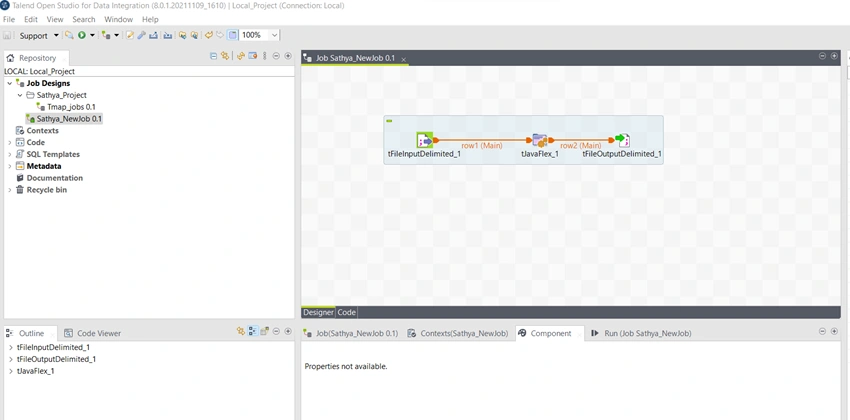
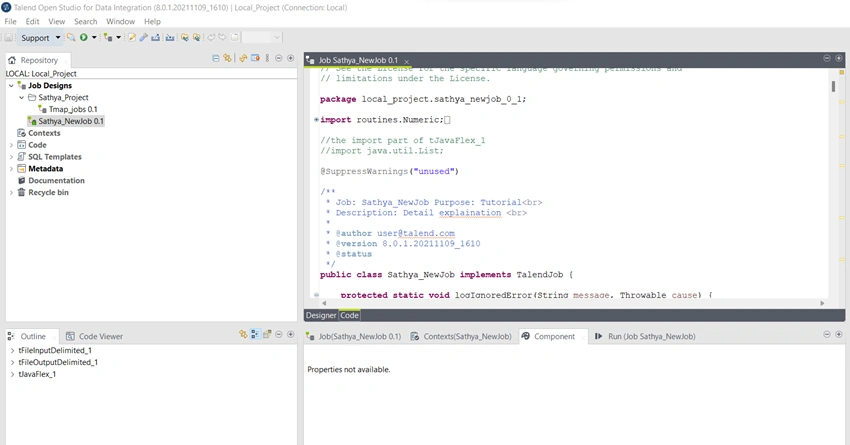
- Talend Open Studio provides 2 types of view mode.
- Design tab - All the components and connectors are shown like graphical view of the job.
- Code view tab - Jobs are shown in java code.
Design Tab
Code Tab
Projects
In this section let us understand how to create, delete, export, and develop the project in Talend.
Creating a Projects
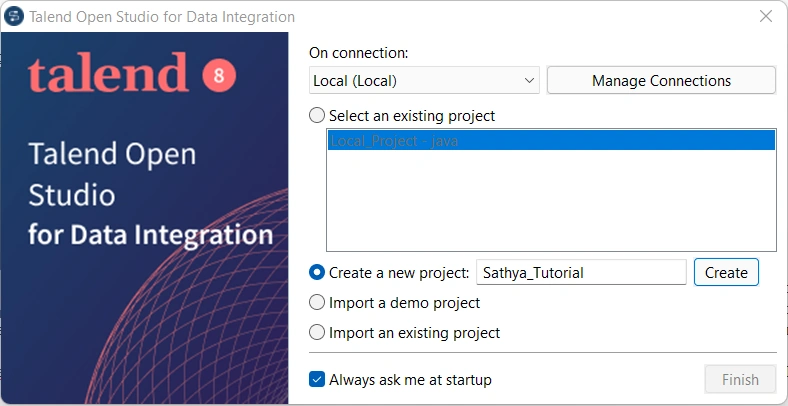
Open Talend Open Studio. Enter the new project name in create a new project and click the create button.
Import a Demo Project
Open Talend Open Studio. Select Import a demo project option and click Select.
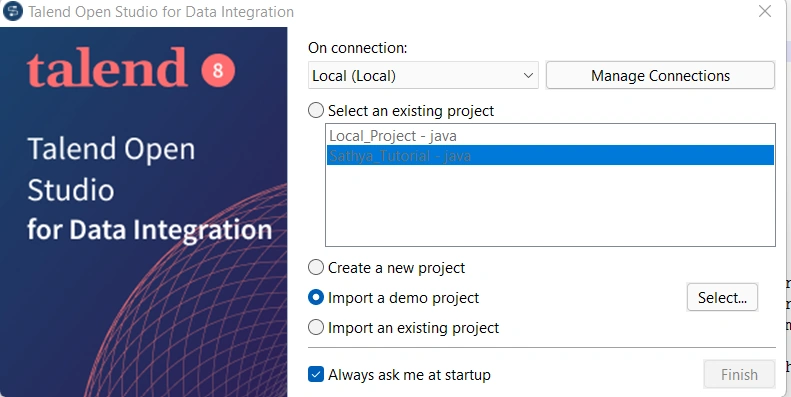
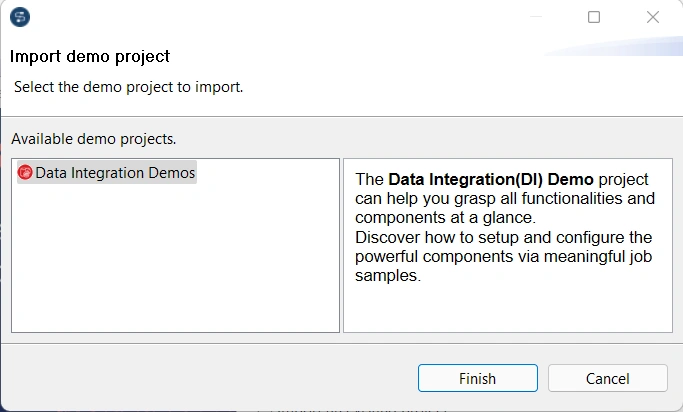
Select Data Integration Demos and click Finish button.
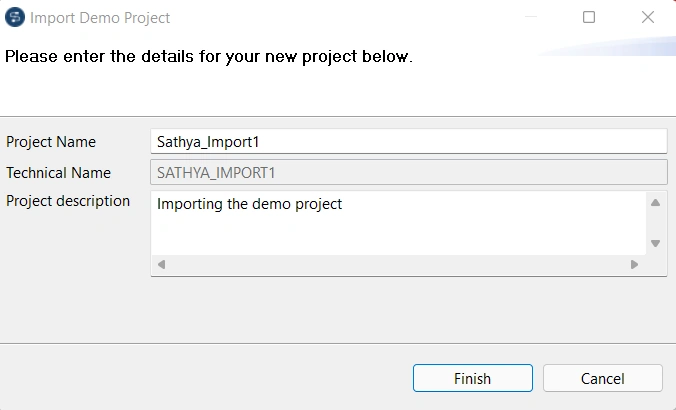
Enter the Project name and description. Click Finish.
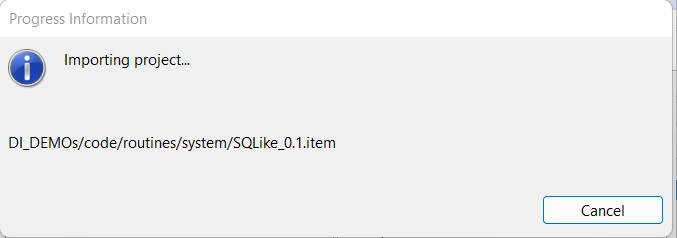
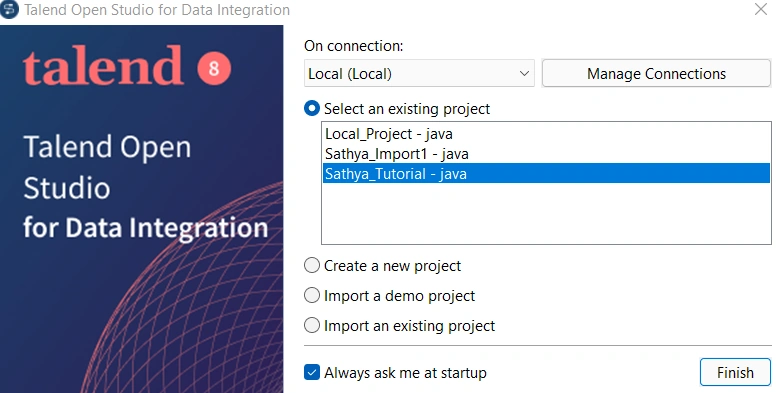
You can see the imported project under existing projects list.
Import an existing Talend project
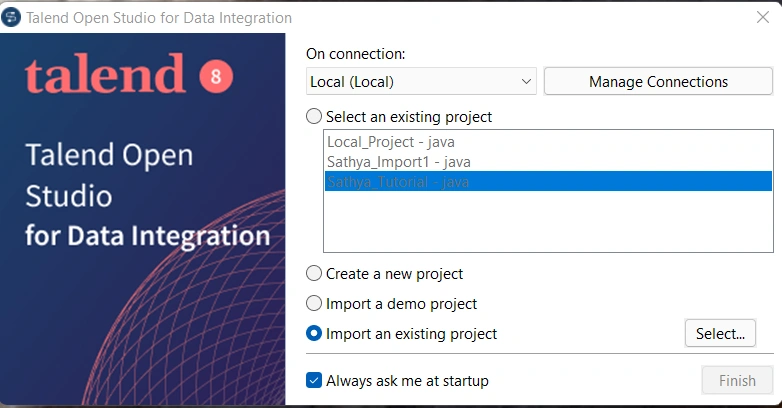
Open the Talend Studio. Select Import an existing project option and click on Select.
Enter Project Name and select the “Select root directory” option.
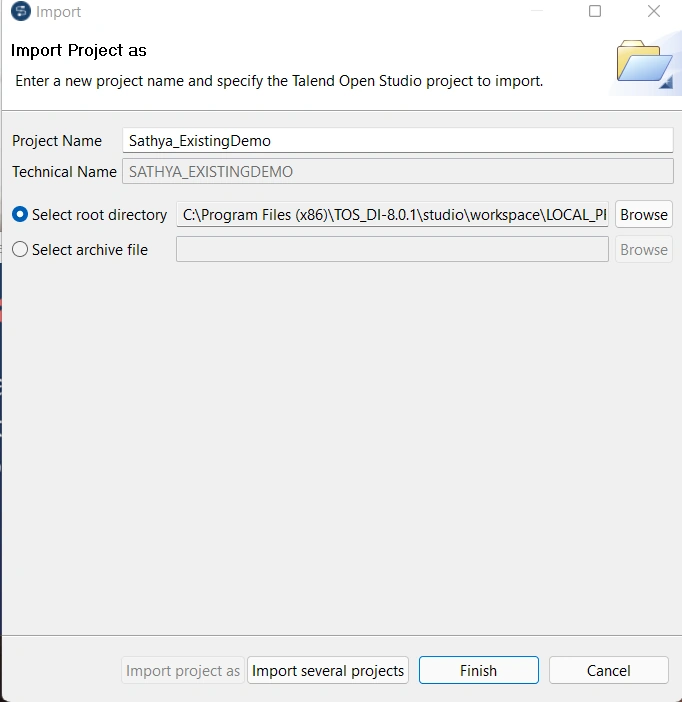
Browse your existing Talend project location directory and click Finish.
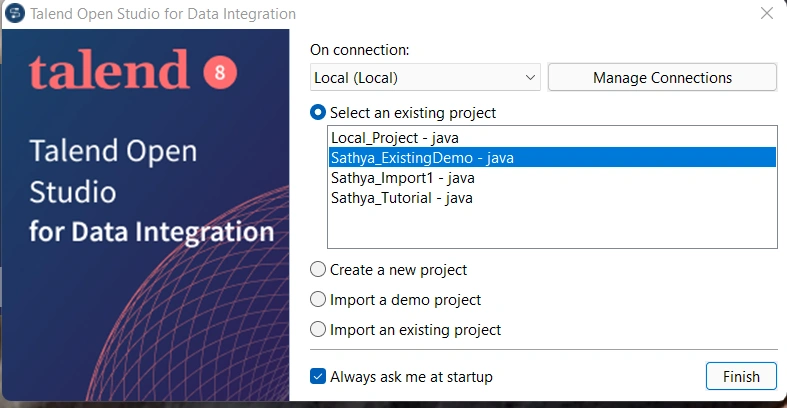
The imported existing project is shown under existing project.
Delete the Project
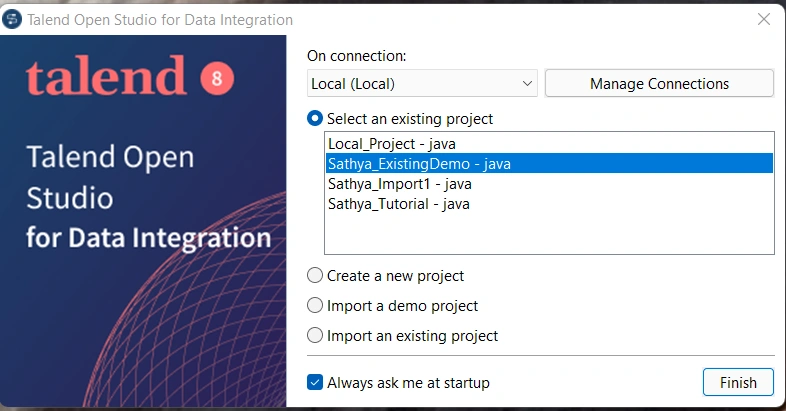
For deleting the project, select which project we plan to delete. In the below example, we going to delete Sathya_ExistingDemo project from Talend Open Studio.
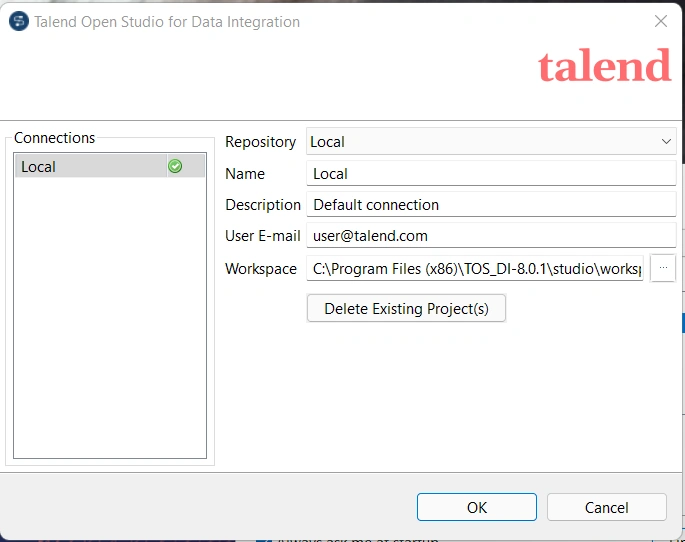
Click Manage connections to delete the job. Click Delete Existing Project button.
Choose the project from the list to delete.
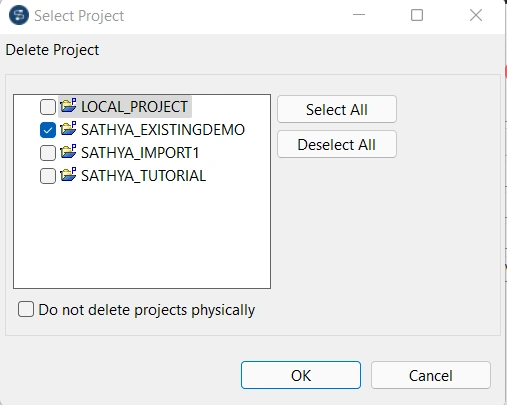
Click Ok. Now the selected project is deleted.
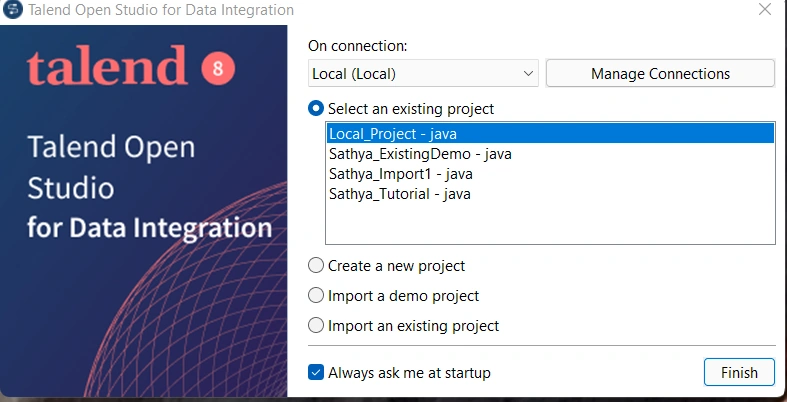
Open an existing Project
Select the project from existing project list and click Finish button.
Jobs
Create a new Job
- Create a new project / open an existing project.
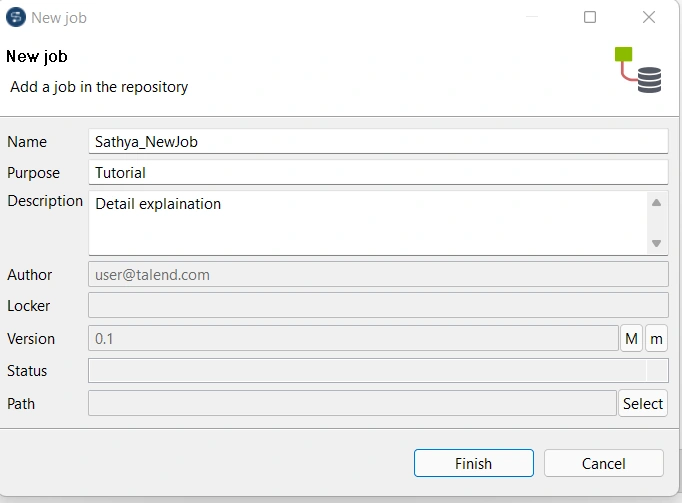
- Under Repository, right-click on the Job Designs and select create job.
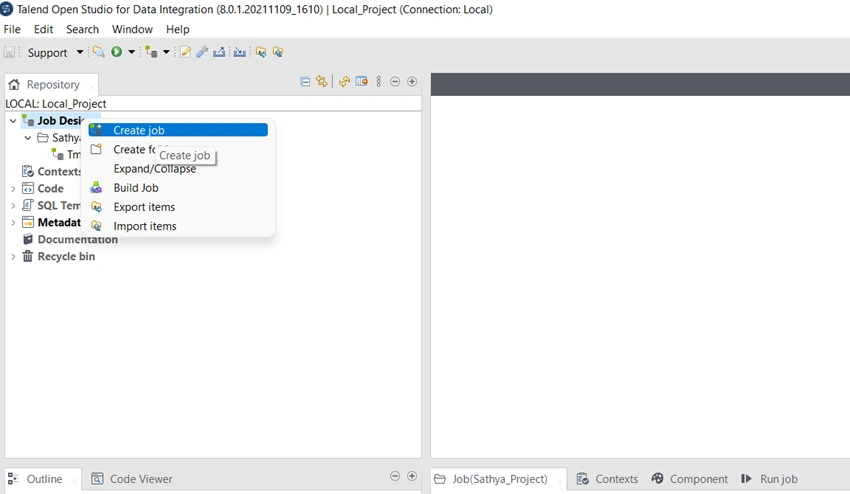
Provide job details.
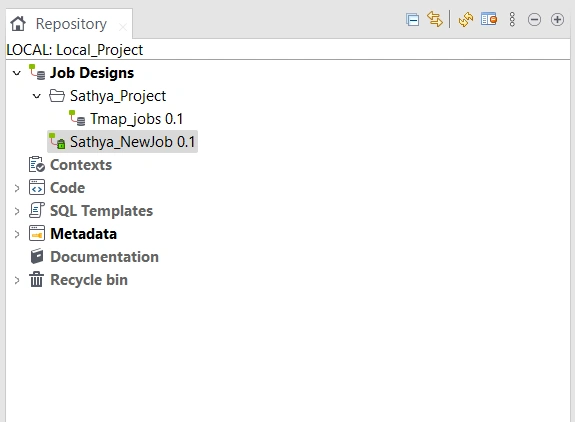
Newly created job is existing under the Job Designs.
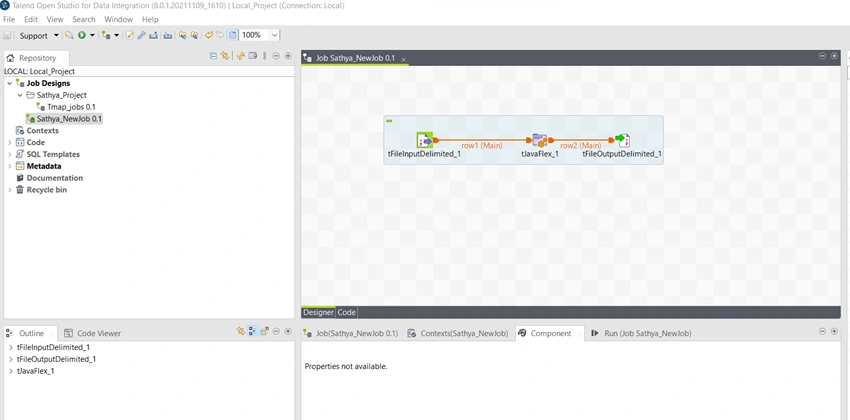
Develop the Job
In Designer view, drag and drop the component and connect it with the connector to develop the job for data analysis.
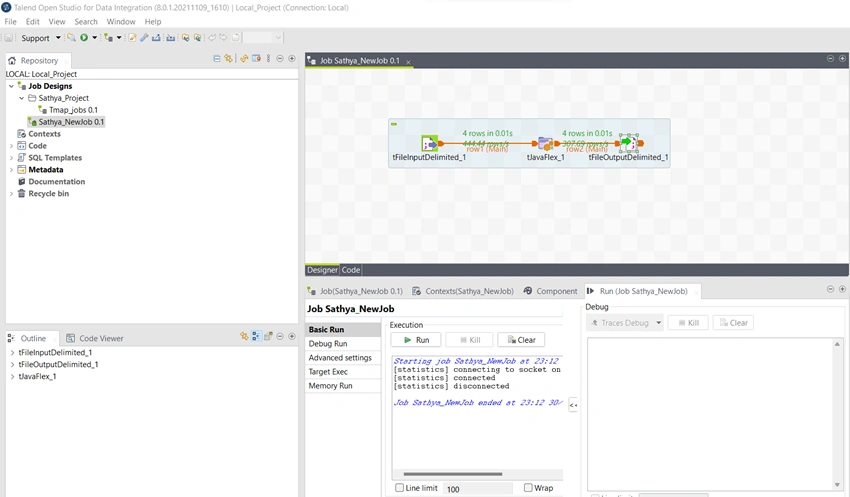
Run the Job
In Run view, click Run button to run the job.
Export the Job
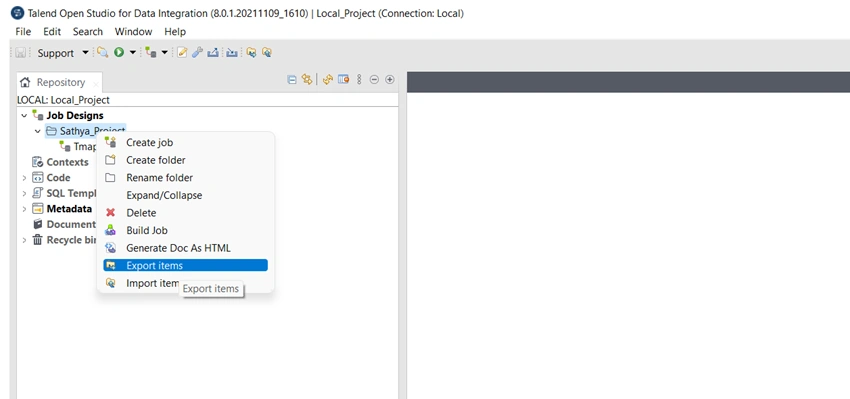
Right-click on the job which we need to export and click export items.
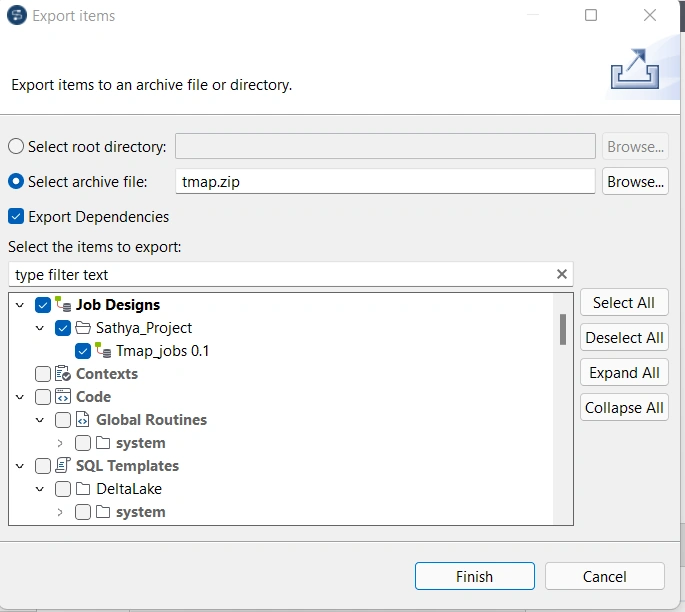
Provide the export job name and directory to save.
Summary
In this article, we have learned about the fundamentals of Talend Open Studio and how to install and create the project in it.
Join the conversation! Your thoughts help the community grow.