
Please refer to my previous article to learn more about creating NINTEX forms in SharePoint 2013 Online.
I have created a custom list with a “Title” and “Date” field and I have customized the form using a NINTEX form. In this article you will see how to add date validation for the “Date” field using NINTEX Forms 2013 validation rules. The validation for the date field will be Date > Current Date.
Navigate to the custom list. Click on the List tab and then click on the NINTEX Forms button in the ribbon interface. Click on the Add Rule button available in the Control tab in the ribbon interface.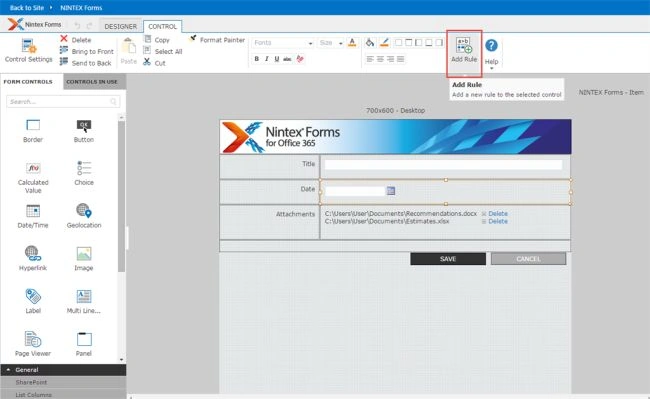
Validation Rule: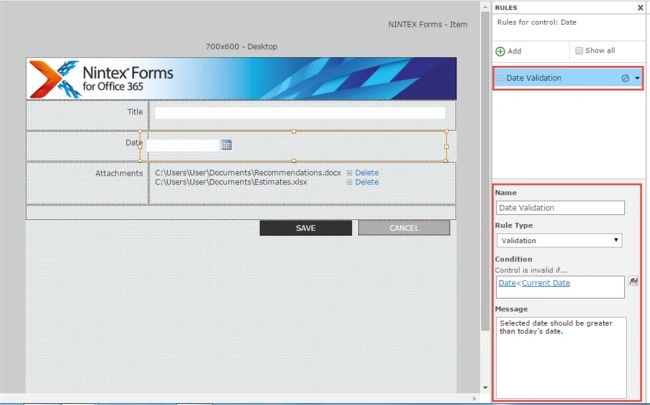
Add the validation rule to the selected control as in the following: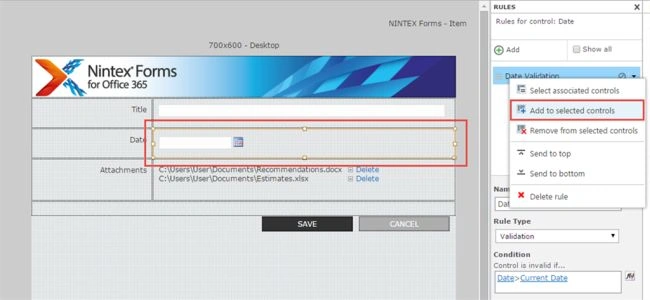
Result
Create a new item in the custom list and select the date field value lesser than the current date. You will get an error as shown in the following screenshot.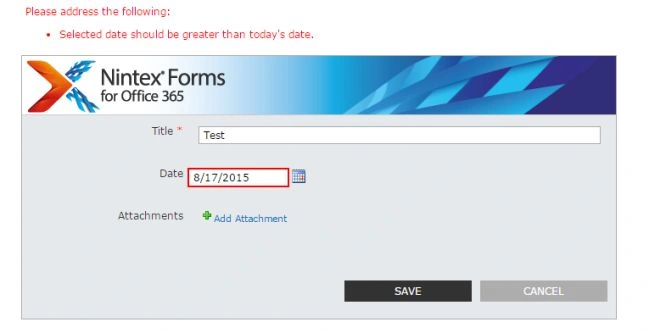
Thus in this article you saw how to add date validation using NINTEX Forms 2013 validation rules.
Date Validation using Nintex Forms 2013 Validation Rules in SharePoint 2013 Online
In this article you will see how to add date validation using NINTEX Forms 2013 validation rules.


Kumaresh RajalingamPosted Mar 24, 2016, 6:02 AM EDT
Nice share sir
Vipin TyagiPosted Jan 3, 2016, 11:49 PM EST
Not working in my case as I am binding today's date on page load.
Santhakumar MunuswamyPosted Aug 22, 2015, 3:51 AM EDT
Good Article. Thanks for sharing
Sibeesh VenuTOP 100Posted Aug 20, 2015, 2:25 AM EDT
Nice Share
Gopi ChandPosted Aug 19, 2015, 10:58 PM EDT
Its nice
Ankit BansalPosted Aug 19, 2015, 9:43 PM EDT
good one...
Vaikesh K PPosted Aug 19, 2015, 9:42 PM EDT
Good
Rajeesh MenothPosted Aug 19, 2015, 9:41 PM EDT
Nice Share
Yashwanth MuthineniPosted Aug 19, 2015, 9:31 PM EDT
Nice Share
RakeshPosted Aug 19, 2015, 9:24 PM EDT
Good one sir
Karthikeyan KPosted Aug 19, 2015, 9:06 PM EDT
Thanks for share sir...