

Introduction
AngularJS is an MVC based framework. Google developed AngularJS. AngularJS is an open source project, which can be freely used, modified, and shared by others.
To know more, click here>>
Description
Here, I will show you how checkbox works dynamically in drop-down list using AngularJS in ASP.NET MVC. Multiselect dropdown with checkboxes is used to use a dropdown like a feature that can select multiple values.
Source Code
Steps to build this project
Step 1
Create a table named "Menu".
T-SQL script for the table
- CREATE TABLE [dbo].[Menu] (
- [MenuID] INT NOT NULL,
- [MenuName] VARCHAR (50) NOT NULL,
- CONSTRAINT [PK_Menu] PRIMARY KEY CLUSTERED ([MenuID] ASC)
- );
Script for the stored procedure
- Create Procedure Sp_Menu
- As
- Begin
- Select * From Menu
- End
- exec Sp_Menu
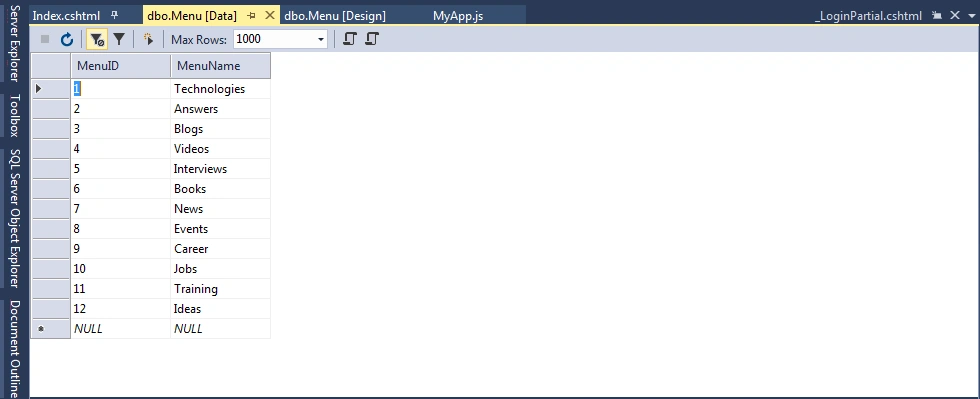
Step 2
Create an ASP.NET MVC application named "SatyaCheckboxAngularjs".
Step 3
- Go to Solution Explorer.
- Right-click on Project name and click Add > New item > select ADO.net Entity Data Model under data > Enter model name > Add.
- A popup window will appear (Entity Data Model Wizard). Select "Generate from database" > Next.
- Choose your data connection > select database > Next.
- Select table, i.e., Menu > enter Model Namespace > Finish.
After the above steps, add the stored procedure using the steps mentioned in my another article Go here>>.
Step 4
Create a JavaScript file to get the Angular feature.
- Here, I have created a folder named "Scripts" first.
- Then, I have added a JS file for adding Angular components (module, controller etc).
- Here, we will fetch the menu data from the database.
- Right-click on your solution file (from Solution Explorer) and Add > New Folder. Rename your folder.
- Right click on your folder (Scripts) > Add > New Item > select "javascript" file > Enter name (here "MyApp.js")> OK.
Code Ref
- var app = angular.module('MyApp', ['angularjs-dropdown-multiselect']);
- app.controller('multiselectdropdown', ['$scope', '$http', function ($scope, $http) {
- $scope.MenusSelected = [];
- $scope.Menus = [];
- $scope.dropdownSetting = {
- scrollable: true,
- scrollableHeight: '200px'
- }
- $http.get('/home/getmenus').then(function (data) {
- angular.forEach(data.data, function (value, index) {
- $scope.Menus.push({ id: value.MenuID, label: value.MenuName });
- });
- })
- $scope.SubmittedMenus = [];
- $scope.SubmitData = function () {
- var menuIds = [];
- angular.forEach($scope.MenusSelected, function (value, index) {
- menuIds.push(value.id);
- });
- var data = {
- menuIds: menuIds
- };
- $http({
- method: "POST",
- url: "/home/savedata",
- data: JSON.stringify(data)
- }).then(function (data) {
- $scope.SubmittedMenus = data.data;
- }, function (error) {
- alert('Check Your Server Running Or Not!');
- })
- }
- }])
Code Description
I have used an Angular directive named angularjs-dropdown-multiselect. This directive gives us a Bootstrap drop-down with the power of AngularJS directives. It's very easy to implement and has lots of features with functionality. It is used for using ng-dropdown-multiselect directive for getting multiselect dropdown with checkboxes.
- var app = angular.module('MyApp', ['angularjs-dropdown-multiselect']);
- app.controller('multiselectdropdown', ['$scope', '$http', function ($scope, $http) {
- $scope.MenusSelected = [];
- $scope.Menus = [];
- $scope.dropdownSetting = {
- scrollable: true,
- scrollableHeight: '200px'
- }
- $http.get('/home/getmenus').then(function (data) {
- angular.forEach(data.data, function (value, index) {
- $scope.Menus.push({ id: value.MenuID, label: value.MenuName });
- });
- })
I have accessed here to get the request of Home Controller action method.
- $http.get('/home/getmenus')
Post or submit the selected items from multiselect dropdown to the Server.
- $scope.SubmittedMenus = [];
- $scope.SubmitData = function () {
- var menuIds = [];
- angular.forEach($scope.MenusSelected, function (value, index) {
- menuIds.push(value.id);
- });
- var data = {
- menuIds: menuIds
- };
- $http({
- method: "POST",
- url: "/home/savedata",
- data: JSON.stringify(data)
- }).then(function (data) {
- $scope.SubmittedMenus = data.data;
- }, function (error) {
- alert('Check Your Server Running Or Not!');
- })
- }
- $http({
- method: "POST",
- url: "/home/savedata",
- url: "/home/savedata"
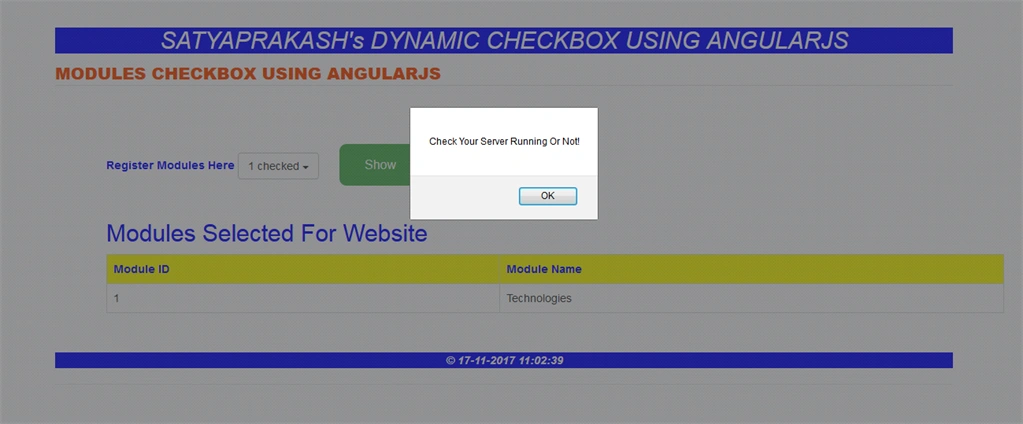
A very important role that AngularJS will play is to show an alert message whether your Server is Running or Not when a user clicks the button.
- function (error) {
- alert('Check Your Server Running Or Not!');
- })
Create a Controller
Go to Solution Explorer > Right Click on Controllers folder form Solution Explorer.
Go to Add > Controller > Enter Controller name > select Templete "empty MVC Controller"> Add.
Here, I have created a Controller named "HomeController".
Here, I have created a Controller named "HomeController".
Code Ref
- using System;
- using System.Collections.Generic;
- using System.Linq;
- using System.Web;
- using System.Web.Mvc;
- namespace SatyaCheckboxAngularjs.Controllers
- {
- public class HomeController : Controller
- {
- public ActionResult Index()
- {
- return View();
- }
- public JsonResult getmenus()
- {
- using (CrystalGranite2016Entities dc = new CrystalGranite2016Entities())
- {
- return new JsonResult { Data = dc.Menus.ToList(), JsonRequestBehavior = JsonRequestBehavior.AllowGet };
- }
- }
- [HttpPost]
- public JsonResult savedata(int[] menuIds)
- {
- List<Menu> list = new List<Menu>();
- if (menuIds != null)
- {
- using (CrystalGranite2016Entities dc = new CrystalGranite2016Entities())
- {
- list = dc.Menus.Where(a => menuIds.Contains(a.MenuID)).ToList();
- }
- }
- return new JsonResult { Data = list };
- }
- public ActionResult About()
- {
- ViewBag.Message = "Your application description page.";
- return View();
- }
- public ActionResult Contact()
- {
- ViewBag.Message = "Your contact page.";
- return View();
- }
- }
- }
Add another action to your Controller for getting the data from a database for showing in the multiselect dropdown.
- public JsonResult getmenus()
- {
- using (CrystalGranite2016Entities dc = new CrystalGranite2016Entities())
- {
- return new JsonResult { Data = dc.Menus.ToList(), JsonRequestBehavior = JsonRequestBehavior.AllowGet };
- }
- }
Here, "CrystalGranite2016Entities" is the entity data model. Here JsonResult represnts a Class That is used to send JSON-FORMATTED content to the response. JsonRequestBehavior specified whether HTTP GET requests from the client are allowed.
- JsonRequestBehavior.AllowGet=0
Then, it gets or sets the value whether HTTP GET requests from the client are allowed and menu will display.
- return new JsonResult { Data = dc.Menus.ToList(), JsonRequestBehavior = JsonRequestBehavior.AllowGet };
Add one more action into your controller for post data if selected data from multiselect dropdown to the server.
- [HttpPost]
- public JsonResult savedata(int[] menuIds)
- {
- List<Menu> list = new List<Menu>();
- if (menuIds != null)
- {
- using (CrystalGranite2016Entities dc = new CrystalGranite2016Entities())
- {
- list = dc.Menus.Where(a => menuIds.Contains(a.MenuID)).ToList();
- }
- }
- return new JsonResult { Data = list };
- }
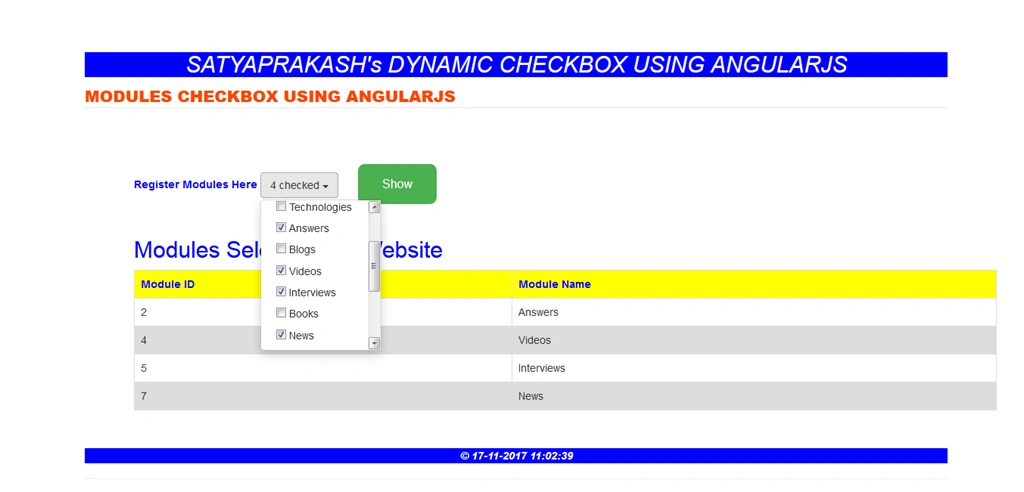
Here based on checkbox selection , the selected checkboxes records will show in below table after button click event.
- if (menuIds != null)
- {
- using (CrystalGranite2016Entities dc = new CrystalGranite2016Entities())
- {
- list = dc.Menus.Where(a => menuIds.Contains(a.MenuID)).ToList();
- }
- }
- return new JsonResult { Data = list };
View for your multiselect dropdown Checkbox list named "Index.cshtml".
Code Ref
- @{
- ViewBag.Title = "Satyaprakash Dynamic Checkbox";
- }
- <link rel="stylesheet" href="//cdnjs.cloudflare.com/ajax/libs/twitter-bootstrap/3.2.0/css/bootstrap.min.css" />
- <script src="//cdnjs.cloudflare.com/ajax/libs/angular.js/1.4.0/angular.js"></script>
- <script src="//cdnjs.cloudflare.com/ajax/libs/lodash.js/2.4.1/lodash.js"></script>
- <script src="~/Scripts/angularjs-dropdown-multiselect.js"></script>
- <script src="~/Scripts/MyApp.js"></script>
- <style>
- .body-content {
- padding-top: 50px;
- }
- .checkbox {
- padding: 0;
- margin: 0;
- }
- .dropdown-menu {
- overflow: auto !important;
- }
- .form-group div {
- display: inline-block;
- margin-right: 10px;
- }
- table {
- font-family: arial, sans-serif;
- border-collapse: collapse;
- width: 100%;
- }
- td, th {
- border: 1px solid #dddddd;
- text-align: left;
- padding: 8px;
- }
- tr:nth-child(even) {
- background-color: #dddddd;
- }
- .button {
- background-color: #4CAF50;
- border: none;
- color: white;
- padding: 15px 32px;
- text-align: center;
- text-decoration: none;
- display: inline-block;
- font-size: 16px;
- margin: 4px 2px;
- cursor: pointer;
- }
- .button4 {
- border-radius: 9px;
- }
- </style>
- <h2 style="background-color: blue;color: white; text-align: center; font-style: oblique">SATYAPRAKASH's DYNAMIC CHECKBOX USING ANGULARJS</h2>
- <fieldset>
- <legend style="font-family:Arial Black;color:orangered">MODULES CHECKBOX USING ANGULARJS</legend>
- <div ng-app="MyApp" ng-controller="multiselectdropdown">
- <div class="container" style="margin:50px">
- <form class="form-inline" name="myForm" role="form" ng-submit="SubmitData()">
- <div class="form-group">
- <label style="color:Blue">Register Modules Here</label>
- <div ng-dropdown-multiselect="" extra-settings="dropdownSetting"
- options="Menus" selected-model="MenusSelected" checkboxes="true"></div>
- </div>
- <input type="submit" class="button button4" value="Show" />
- </form>
- <div style="margin-top:40px" ng-if="SubmittedMenus.length > 0">
- <h2 style="color:Blue">Modules Selected For Website</h2>
- <table align="center" border="1" cellpadding="4" cellspacing="4">
- <thead>
- <tr>
- <th style="background-color: Yellow;color: blue">Module ID</th>
- <th style="background-color: Yellow;color: blue">Module Name</th>
- </tr>
- </thead>
- <tbody>
- <tr ng-repeat="cat in SubmittedMenus">
- <td>{{cat.MenuID}}</td>
- <td>{{cat.MenuName}}</td>
- </tr>
- </tbody>
- </table>
- </div>
- <div style="margin-top:40px" ng-if="SubmittedMenus.length < 1">
- <label style="color:red">No Modules Selected !</label>
- </div>
- </div>
- </div>
- </fieldset>
- <footer>
- <p style="background-color: blue; font-weight: bold; color:white; text-align: center; font-style: oblique">© @DateTime.Now.ToLocalTime()</p> @*Add Date Time*@
- </footer>
Code Description
Load bootstrap css.
- <link rel="stylesheet" href="//cdnjs.cloudflare.com/ajax/libs/twitter-bootstrap/3.2.0/css/bootstrap.min.css" />
- <script src="//cdnjs.cloudflare.com/ajax/libs/angular.js/1.4.0/angular.js"></script>
- <script src="//cdnjs.cloudflare.com/ajax/libs/angular.js/1.4.0/angular.js"></script>
- <script src="//cdnjs.cloudflare.com/ajax/libs/lodash.js/2.4.1/lodash.js"></script>
- <script src="~/Scripts/angularjs-dropdown-multiselect.js"></script>
- <script src="~/Scripts/MyApp.js"></script>
- <style>
- .body-content {
- padding-top: 50px;
- }
- .checkbox {
- padding: 0;
- margin: 0;
- }
- .dropdown-menu {
- overflow: auto !important;
- }
- .form-group div {
- display: inline-block;
- margin-right: 10px;
- }
- table {
- font-family: arial, sans-serif;
- border-collapse: collapse;
- width: 100%;
- }
- td, th {
- border: 1px solid #dddddd;
- text-align: left;
- padding: 8px;
- }
- tr:nth-child(even) {
- background-color: #dddddd;
- }
- .button {
- background-color: #4CAF50;
- border: none;
- color: white;
- padding: 15px 32px;
- text-align: center;
- text-decoration: none;
- display: inline-block;
- font-size: 16px;
- margin: 4px 2px;
- cursor: pointer;
- }
- .button4 {
- border-radius: 9px;
- }
- </style>
- <div ng-app="MyApp" ng-controller="multiselectdropdown">
- <div class="container" style="margin:50px">
- <form class="form-inline" name="myForm" role="form" ng-submit="SubmitData()">
- <div class="form-group">
- <label style="color:Blue">Register Modules Here</label>
- <div ng-dropdown-multiselect="" extra-settings="dropdownSetting"
- options="Menus" selected-model="MenusSelected" checkboxes="true"></div>
- </div>
- <input type="submit" class="button button4" value="Show" />
- </form>
- <div ng-app="MyApp" ng-controller="multiselectdropdown">
- <div class="container" style="margin:50px">
- <div style="margin-top:40px" ng-if="SubmittedMenus.length > 0">
- <h2 style="color:Blue">Modules Selected For Website</h2>
- <table align="center" border="1" cellpadding="4" cellspacing="4">
- <thead>
- <tr>
- <th style="background-color: Yellow;color: blue">Module ID</th>
- <th style="background-color: Yellow;color: blue">Module Name</th>
- </tr>
- </thead>
- <tbody>
- <tr ng-repeat="cat in SubmittedMenus">
- <td>{{cat.MenuID}}</td>
- <td>{{cat.MenuName}}</td>
- </tr>
- </tbody>
- </table>
- </div>
- <div style="margin-top:40px" ng-if="SubmittedMenus.length < 1">
- <label style="color:red">No Modules Selected !</label>
- </div>
- ng-if="SubmittedMenus.length
- <label style="color:red">No Modules Selected !</label>
- <footer>
- <p style="background-color: blue; font-weight: bold; color:white; text-align: center; font-style: oblique">© @DateTime.Now.ToLocalTime()</p> @*Add Date Time*@
- </footer>
The URL is,
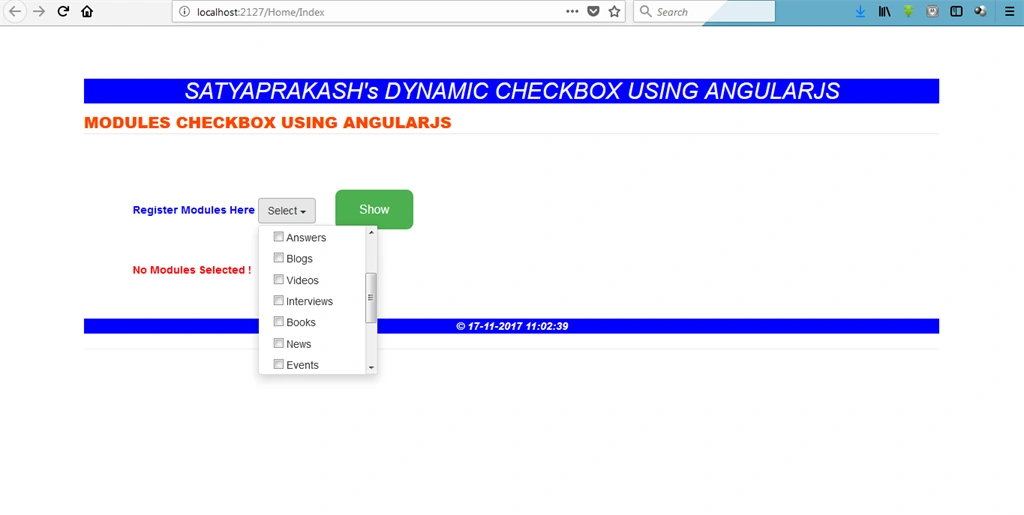
http://localhost:2127/Home/Index .


Check for Dynamic Checkboxes In Multi select Dropdownlist control. Here u can check no checkbox selected so, the warning message is showing in red mark.
Show selected checkboxes records in the table.
If Server Not Found....
Multiplatform Support Using Bootstrap.
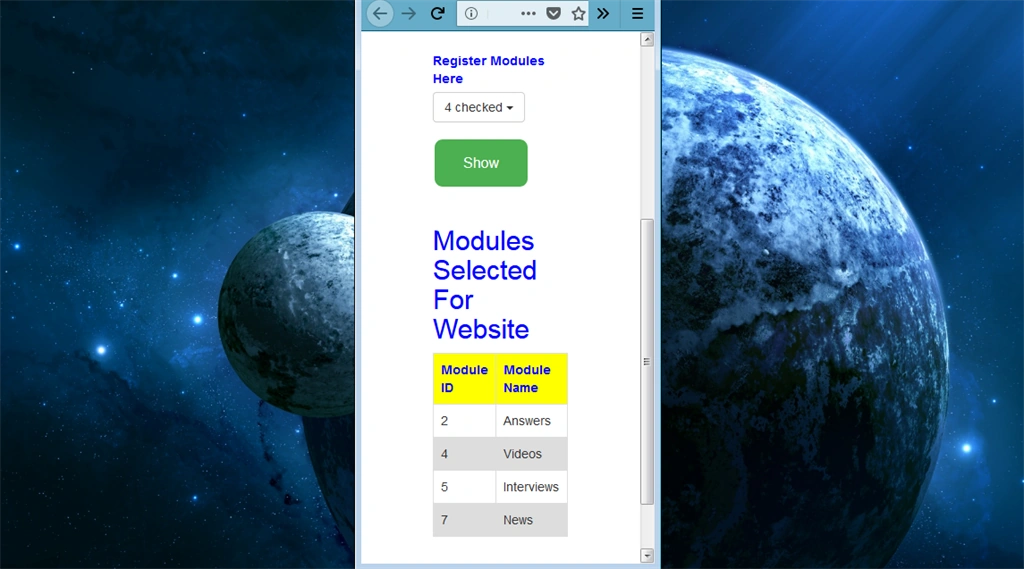
Gif Images,
AngularJS will show alert message If your Server Running or not Also u can say Internet connection available or not when user clicks the button.
Module Summary
- Checkbox using dynamic concept.
- Checkbox data will save in html table in mvc.
- Check server not found or internet issue using AnguarJS Component.
- Booystrap support.
Join the conversation! Your thoughts help the community grow.