

Introduction
Data integration is a critical aspect of working with spreadsheets, especially when dealing with diverse data sources or multiple datasets. In this article, we'll explore an efficient method for data integration using the HSTACK and XLOOKUP functions. These two powerhouse functions can help you merge data from different sources seamlessly.
Understanding the Challenge
Imagine you have data in multiple columns or datasets that you want to integrate into a single, cohesive dataset. This task can be daunting if done manually, involving copying and pasting or using complex formulas. However, with Excel's HSTACK and XLOOKUP functions, you can simplify the data integration process and save a significant amount of time.
Sample Data
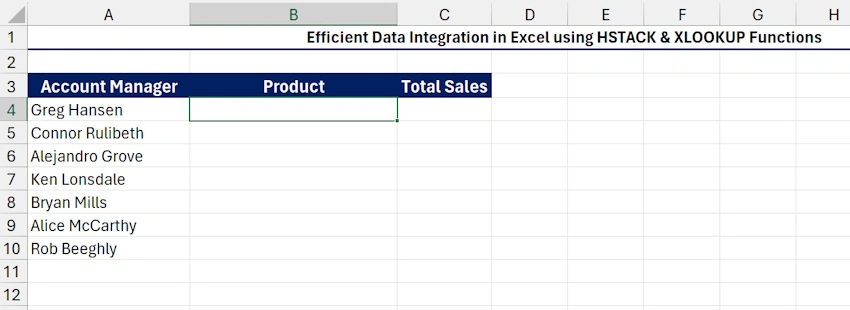
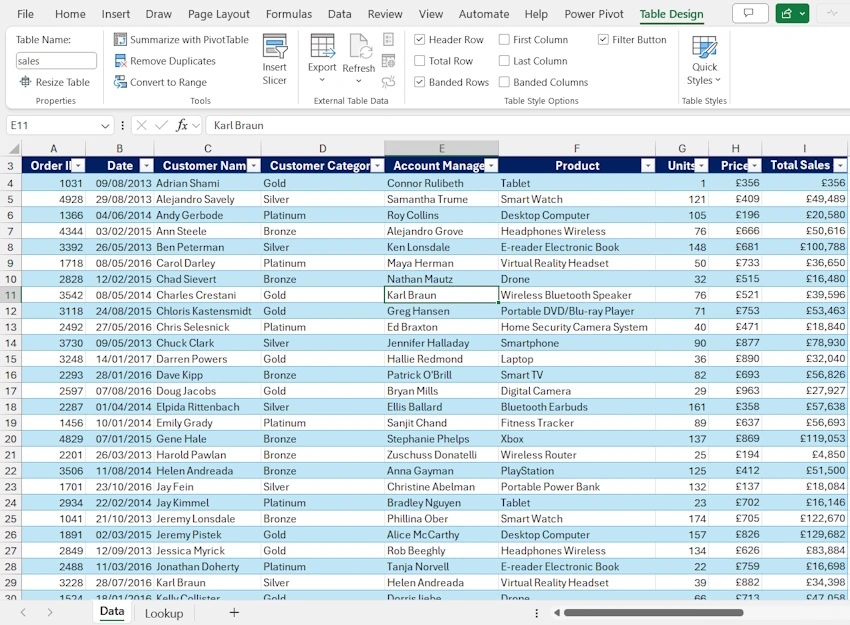
In the screenshots below, we've got the sheets where we are going to perform the data integration and the source data.
The XLOOKUP Function
The XLOOKUP function is a versatile tool for searching and retrieving data from a given range based on specified criteria. In our case, we will use XLOOKUP to fetch data from different columns or datasets and then stack them horizontally.
Syntax: XLOOKUP(lookup_value, lookup_array, return_array)
lookup_value: The value to search for.
lookup_array: The range to search within.
return_array: The range to retrieve data from.
The HSTACK Function
Now, let's introduce the HSTACK function. This function enables stacking of data horizontally, creating a unified dataset by placing the results of different XLOOKUP functions side by side.
Syntax: HSTACK(range1, range2, ...)
range1, range2, ...: Multiple ranges or data sources that you want to stack horizontally.
Efficient Data Integration Formula
In cell B4, execute this formula:
=HSTACK(XLOOKUP(A4:A10,sales[Account Manager],sales[Product]),XLOOKUP(A4:A10,sales[Account Manager],sales[Total Sales £]))- Click Enter
Breakdown of the first XLOOKUP function in the formula: XLOOKUP(A4:A10, sales[Account Manager], sales[Product])
- A4:A10: represents the lookup value or array. In this case, it's a range of cells A4 to A10 containing the names of account managers to search for in the "sales[Account Manager]" column.
- sales[Account Manager]: represents the lookup array, which is a table and column structured references where to search for the values.
- sales[Product]: is the return array. It's another table, and column references to return values corresponding to the matched account managers.
- This XLOOKUP function will search for each value in the range A4:A10 within the "sales[Account Manager]" column and return the corresponding values from the "sales[Product]" column. The result is an array of products related to the account managers in A4:A10.
XLOOKUP Function: XLOOKUP(A4:A10,sales[Account Manager],sales[Total Sales £])
The second XLOOKUP function in the formula is essentially the same as the first one, but it returns values from a different column.
- XLOOKUP(A4:A10, sales[Account Manager],sales[Total Sales £]) formula is identical to the first XLOOKUP, but it retrieves values from the "sales[Total Sales £]" column. So, it searches for the same account managers in the "sales[Account Manager]" column and returns their corresponding total sales values
- HSTACK Function:
The HSTACK function is used to horizontally stack two arrays (the results of the two XLOOKUP functions) to one array (side by side).
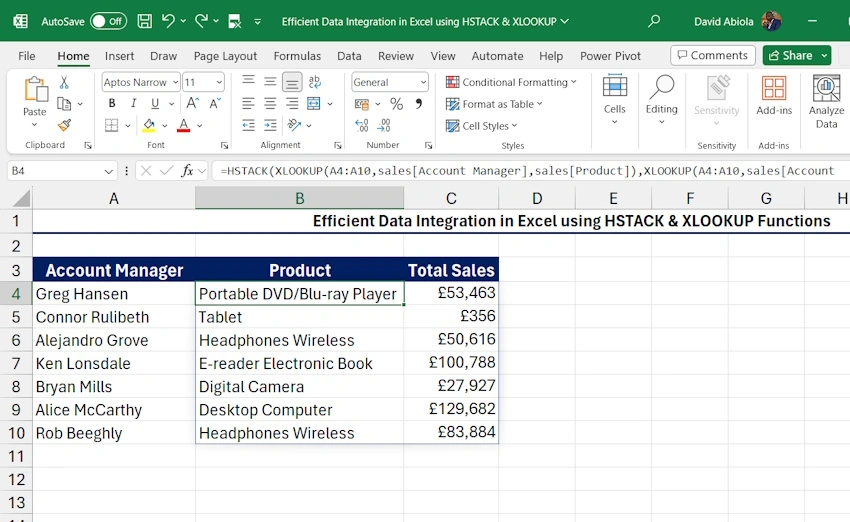
In the screenshot below, we have the result of the data integration using HSTACK and XLOOKUP.
Summary
The formula uses XLOOKUP to search for specific information related to account managers in a sales data table and then stacks the results side by side using the HSTACK function. The result shows a table with account manager names, their corresponding products, and their total sales values. See you in the next tutorial.
Join the conversation! Your thoughts help the community grow.