

- Open your Website where you want to place this "button like Image" in your Microsoft Expression web:
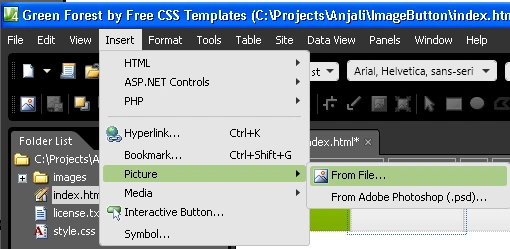
- Double-Click on the index.html, and now you have to decide that at which place you want to place your Image that you want to use as a button on your web page, and to do this click on the Insert dropdown menu from the Web's toolbar, choose Picture and then From File.
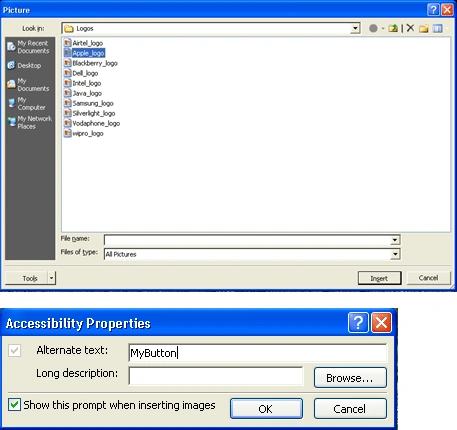
- Choose the picture and click on Insert button, when you click on insert you see a "Accessibility Properties" pop-up appeared; type "Mybutton" in the alternate text:
- You see now that your image is on your webpage, If you want to change its place use drag and drop for that;

- To give your Image a button like appearance Click on the image to activate the toolbar.

- Choose bevel option for your image:

So, your Image will now look like this:
Note: you can use any of the options to make modifications to the image that has been selected.
- It's time to link it to whatever destination you choose, and to do this choose any one of the option from Circular Hotspot or rectangular Hotspot ( I have used a rectangular hotspot as it is closer to the shape of our image) , draw a hotspot over the image including as much of the area of the image as possible:
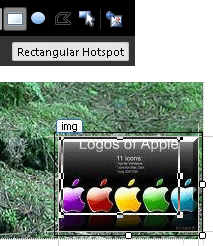
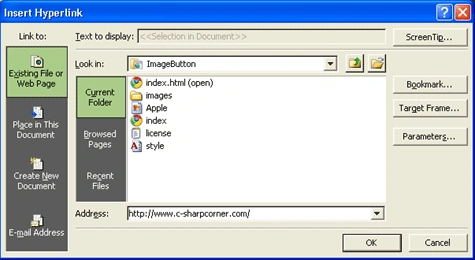
- When you release the mouse key, the Insert Hyperlink dialog box will appear. Type in the URL or file name for your hyperlink and click OK.
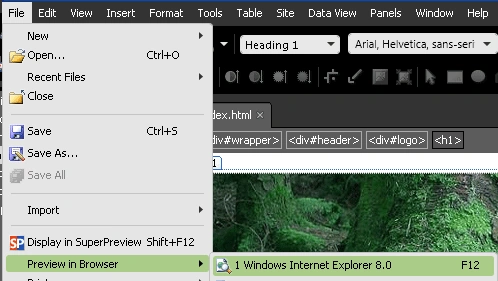
- Save your webpage and go to the file menu to see the preview, and also click on the your recently made button to check that it is working or not:
- My Webpage with a newly made button in the preview screen is as under:
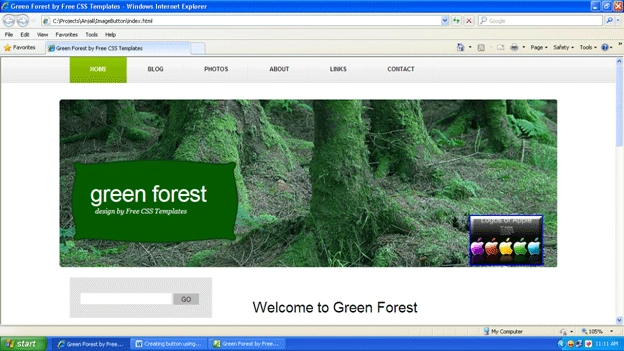
Expression Web 4: Creating button for Hyperlink by using Image
Join the conversation! Your thoughts help the community grow.
Sign in to leave a comment
It is the same account you read, post and publish with — and you will come straight back to this page.
Hagos NegussePosted Jun 29, 2018, 2:09 PM
Dear Nipun: I tried to place a button write on top of my picture and can't do it. It is ppearing on the side of the picture. THank you.