
InfoPath is one of the most popular and widely used forms design and development solution that developers and IT consultants use alike, primarily across on-premise versions. However, there are no direct out-of-the-box means of identifying lists/libraries using InfoPath.
Once again, PowerShell comes to the rescue. Using a simple PowerShell, we can easily identify the lists/libraries using InfoPath Forms. We can extend it and generate a report out of it as well.
This script can identify all the lists and libraries that use InfoPath. This can be useful for scenarios like -
- Identify lists using InfoPath to consider them for replacement with other solutions like Nintex Forms, K2 SmartForms, etc.
- Convert/Re-engineer InfoPath forms to PowerApps
- Generate a report containing lists using InfoPath form, and replace them with CSOM designs
- User Profile service embedded in InfoPath works differently in SharePoint 2016 than that of SharePoint 2010. A report of all InfoPath enabled list/library will be beneficial to perform the fix.
The Script
- #########################################
- #### Infopath Usage Identifier ####
- #### Scope - Site Collection ####
- #### Input - Site Collection URL ####
- #########################################
- $siteCollectionURL = "http://sharepoint.devbox.com/sites/mysitecollection"
- if((Get-PSSnapin | Where {$_.Name -eq "Microsoft.SharePoint.PowerShell"}) -eq $null)
- {
- Add-PSSnapin Microsoft.SharePoint.PowerShell;
- }
- try
- {
- $mySite = Get-SPSite -Identity $siteCollectionURL
- $myWebs = Get-SPWeb -Site $mySite -Limit All
- $results = @()
- foreach ($myWeb in $myWebs)
- {
- Write-Host "Looking in WEB: " $myWeb.Url -ForegroundColor Green
- foreach ($myList in $myWeb.Lists)
- {
- if ($myList.ContentTypes[0].ResourceFolder.Properties["_ipfs_infopathenabled"] -eq $true)
- {
- Write-Host "Found this list using Infopath - " $myList.Title -ForegroundColor Blue
- $RowDetails = @{
- "Site Collection" = $siteCollectionURL
- "Web" = $myWeb
- "List Name" = $myList.Title
- "List URL" = $myList.DefaultViewUrl
- }
- $results += New-Object PSObject -Property $RowDetails
- }
- }
- $myFileName = [Environment]::GetFolderPath("Desktop") + "\InfopathDependencyFinder-SiteCollectionScope-" + (Get-Date).ToString('MM-dd-yyyy') + ".csv"
- $results | export-csv -Path $myFileName -NoTypeInformation
- }
- Write-Host "---------------------Completed--------------------------" -ForegroundColor Green
- }
- catch
- {
- $ErrorMessage = $_.Exception.Message
- Write-Host $ErrorMessage
- }
The key here is the line below,
- $myList.ContentTypes[0].ResourceFolder.Properties["_ipfs_infopathenabled"] -eq $true
This snippet above checks if the Content Type’s Resource Folder metadata has the InfoPath property – InfoPath Forms Services (_ipfs_infopathenabled) activated on it.
This script runs against site collection, but it can be very easily extended to run across subsite level or even list/library level.
Usage
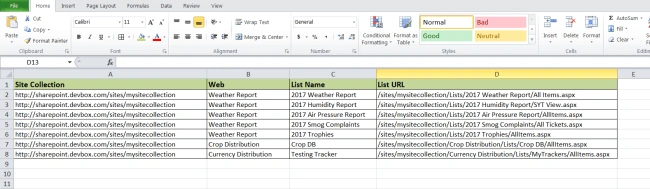
The script returns the InfoPath lists/libraries below details
- Site,
- Web,
- List/Library Name,
- List/Library URL where the form is deployed
The output is in the form of a CSV file which can be very easily be converted into a .xlsx file for further processing and reporting.
Here is a screenshot of a sample report,
The code snippets can be found in my GitHub repo as well.
Thanks for reading!


Sowmiya JothimaniPosted Jul 28, 2020, 9:13 AM EDT
Hi, Is there a way to get the infopath form xml of those list and libraries along with these details and path. Will be more helpful for me as my requirement is to read the field details used in infopath.