




Introduction:
Status Indicator is a one - line report type which is used to show and compare
the actual performance of particular measure with the goal value. In this
article we will be seeing how to create fixed value based Status Indicator. In
some cases we may need to enter the value manually for a status indicator. To
create a status indicator based on fixed value we need to do the following
steps:
- Create a status list.
- Add the Status indicator to the status list.
Note: You should have a site created
based on Business Intelligence center template.
Create a Status list:
- Go to the Business Intelligence Center site.
- Go to Site Actions => More Options.
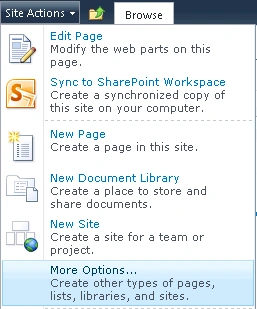
- Select the "Status List" template, enter
the list name and click on Create.
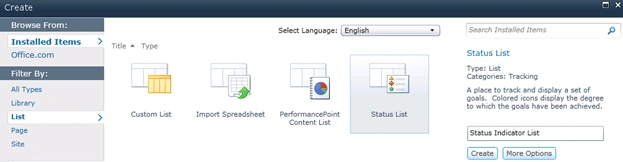
- I am going to create indicator based on the fixed value.
Add the Status indicator to the status list:
- Go to the Status List we have created.
- Click on the down arrow available near New button.
- You could see "Fixed Value based Status
Indicator" option.
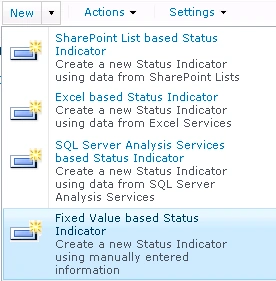
- Click on that.
- Enter the Name, Description and enter the
fixed value as shown in the following.
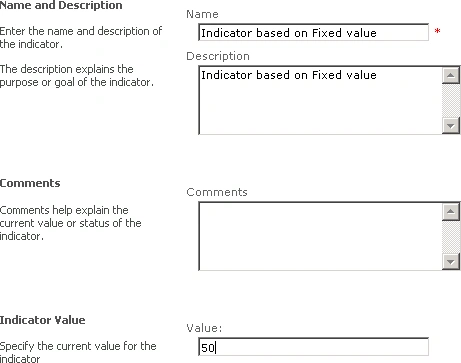
- Goal value 70 and Warning value 40.

- Click on Ok.
- Now you could see the indicator created
based on fixed value as shown in the following.

- Click on the Indicator (Indicator based on
Fixed value), you could see the following

Justin YehPosted Mar 6, 2012, 4:16 PM
Good article. Thanks! Btw one question. How do I add a column? I added a column, say, "Project Owner", so this list can be used to track team members' KPIs. I added this column, but it's not showing up in the "new indicator" form (the "Fixed Value" form), and of course not showing on the list view. Thanks! Justin. [email protected]