

In this article we will be seeing how to configure forms based authentication
for claims based web application using Active directory provider.
Steps Involved:
- Create a claim based web application
- Configure the web.config files
-> Central Administration Web application web.config file
-> Forms-based authentication claims-based Web application Web.Config file
-> Security Token Service web.config file
Create a claim based web application:
- Go to Central Administration =>Application Management => Manage web applications.
- In the Contribute group click on New.

- In the Authentication section of the
Create New Web Application dialog box, click Claims Based Authentication.
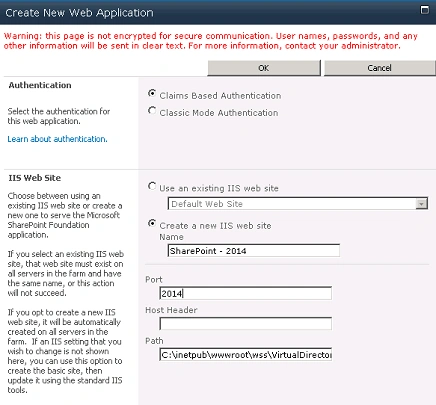
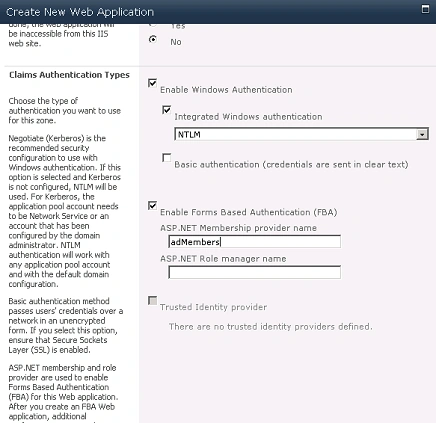
- In the Claims Authentication Types section, select Enable Forms Based Authentication (FBA).
- Type a membership provider name.
- Click OK to create the Web application.
Configure the web.config files:
- The Central Administration Web application Web.Config file.
- The forms-based authentication claims-based Web application Web.Config file.
- The Security Token Service Web.Config file.
Central Administration Web application web.config file:
- Go to Start => Run => inetmgr.
- Go to Sites => SharePoint Central
Administration => Right Click => Explore.
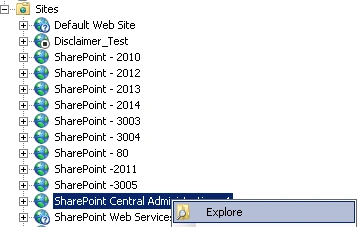
- Open the web.config file.
- Inside the <configuration></configuration>
section add the following entry.
<connectionStrings>
<add name="adconn" connectionString="LDAP://serverName.atest.btest.et/DC=atest,DC=btest,DC=et" />
</connectionStrings>
</configuration>
- And also add the following entry.
<membership defaultProvider="i">
<providers>
<add name="i" type="Microsoft.SharePoint.Administration.Claims.SPClaimsAuthMembershipProvider, Microsoft.SharePoint,Version=14.0.0.0, Culture=neutral, PublicKeyToken=71e9bce111e9429c" />
<add name="adMembers" type="System.Web.Security.ActiveDirectoryMembershipProvider, System.Web, Version=2.0.0.0,
Culture=neutral, PublicKeyToken=b03f5f7f11d50a3a" connectionStringName="adconn" enableSearchMethods="true" attributeMapUsername="sAMAccountName" />
</providers>
</membership>
- Save and close the web.config file.
Forms-based authentication claims-based Web application Web.Config file:
- Go to Start => Run => inetmgr.
- Go to Sites => SharePoint - 2014 => Right Click => Explore.
- Open the web.config file.
- Inside the <configuration></configuration>
section add the following entry.
<connectionStrings>
<add name="adconn" connectionString="LDAP://serverName.atest.btest.et/DC=atest,DC=btest,DC=et" />
</connectionStrings>
</configuration>
- And also add the following entry.
<membership defaultProvider="i">
<providers>
<add name="i" type="Microsoft.SharePoint.Administration.Claims.SPClaimsAuthMembershipProvider, Microsoft.SharePoint, Version=14.0.0.0, Culture=neutral, PublicKeyToken=71e9bce111e9429c" />
<add name="adMembers" type="System.Web.Security.ActiveDirectoryMembershipProvider, System.Web, Version=2.0.0.0, Culture=neutral, PublicKeyToken=b03f5f7f11d50a3a" connectionStringName="adconn" enableSearchMethods="true" attributeMapUsername="sAMAccountName" />
</providers>
</membership>
Security Token Service web.config file:
- Go to Start => Run => inetmgr.
- Go to Sites => SharePoint Web Services =>Security TokenServiceApplication => Right Click => Explore.
- Open the web.config file.
- Inside the <configuration></configuration>
section add the following entry.
<connectionStrings>
<add name="adconn" connectionString="LDAP://serverName.atest.btest.et/DC=atest,DC=btest,DC=et" />
</connectionStrings>
</configuration>
- And also add the following entry.
<system.web>
<membership defaultProvider="adMembers">
<providers>
<add name="adMembers"
type="System.Web.Security.ActiveDirectoryMembershipProvider, System.Web, Version=2.0.0.0, Culture=neutral,
PublicKeyToken=b03f5f7f11d50a3a"
connectionStringName="adconn"
enableSearchMethods="true"
attributeMapUsername="sAMAccountName" />
</providers>
</membership>
</system.web>
Policy for Forms-based authentication claims-based Web application:
- Go to Central administration =>
Application management => Manage service applications.
- Select the web application (SharePoint -
2014).
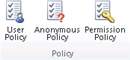
- In the Policy group, select User policy.
- Click on Next.
- In the Choose Users section, click on
Browse option to search for the users.
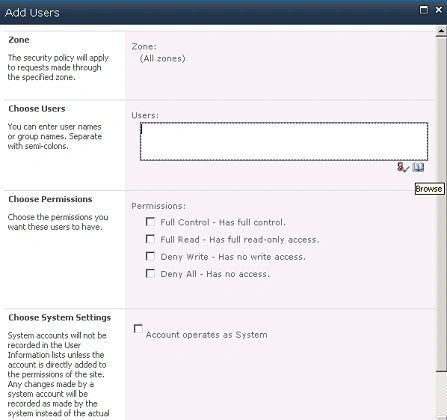
- Search for "sptestuser1" user who belongs
to "Forms auth" category.
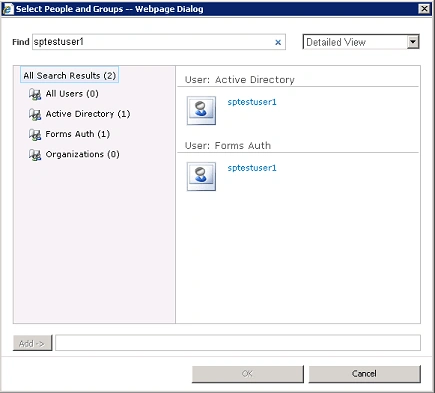
- Select the User =>Add => OK.
- Select the option "Full control - Has full
control" from Choose permissions section.
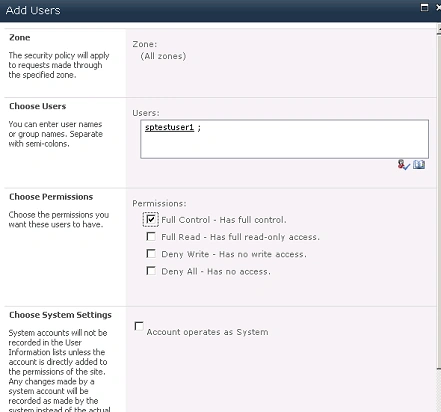
- Click on Ok.
- Click on Finish.
- You could see the user added as shown in the following.
Testing:
- Create a site collection for the web application SharePoint - 2014.
- When you try to access the site collection it will be redirected to the login page.
- Choose forms authentication.
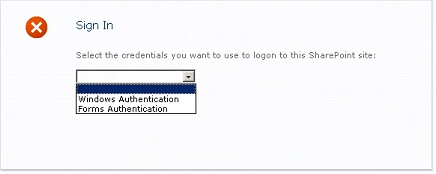
- Enter the user name and password.
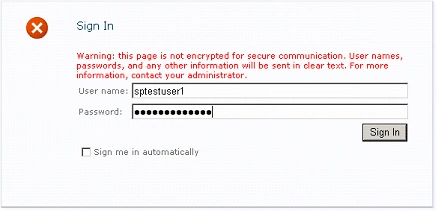
- You are now logged into your site as
"sptestuser1", with site administrator privileges.
Join the conversation! Your thoughts help the community grow.