
Here are the 8 steps to generate barcode for SharePoint document library in OOB features. You don't need to code for generating bar code. Let's start with the steps.
Steps to generate the bar code
The following are the steps for generating bar code.
Step 1: Go to SharePoint site and open the document library as in the following screenshot:
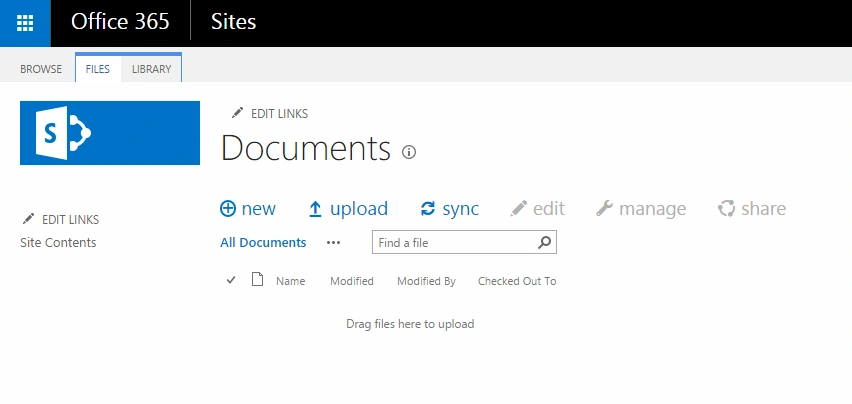
Figure 1: Sharepoint site
Step 2: Then click on the LIBRARY from ribbon bar and select the Library Settings, you will be navigated to library settings page.
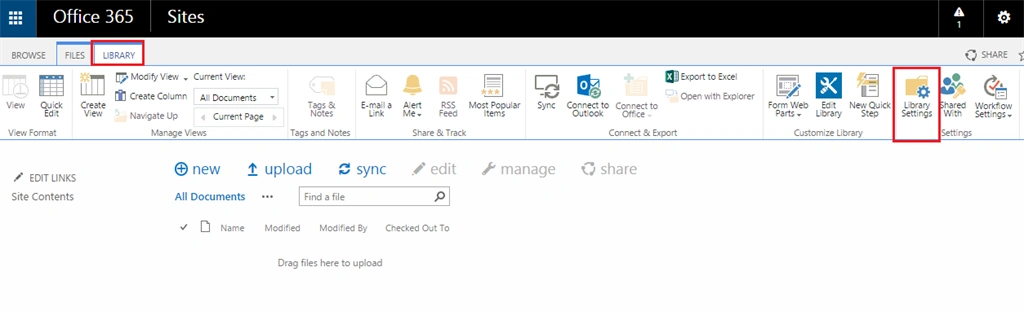
Figure 2: Select LibrAry
Step 3: Under library settings, select “Information Management Policy Settings” to enable the bar code.

Figure 3: Library setting
Step 4: Click on the Document from “Information Management Policy settings Page” as in the following screenshot and you will be navigated to Edit policy page.
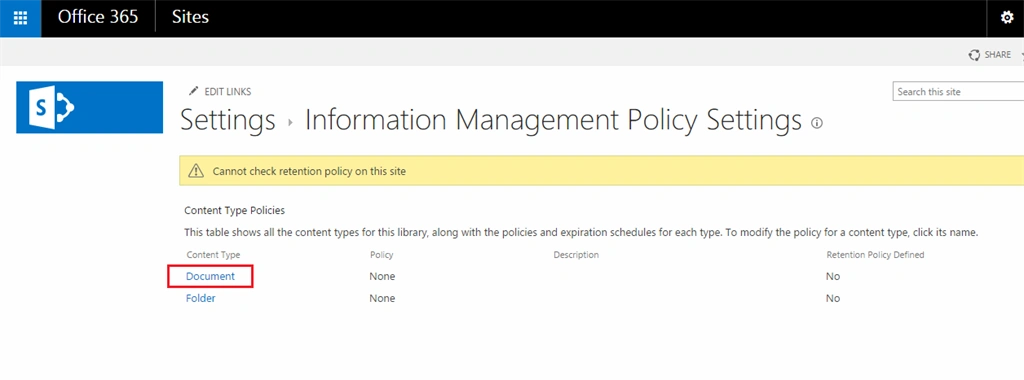
Figure 4: Document Form
Step 5: On the Edit policy settings page, you have multiple options for the document library. Check the Enable Barcodes checkbox and click OK to save the changes.
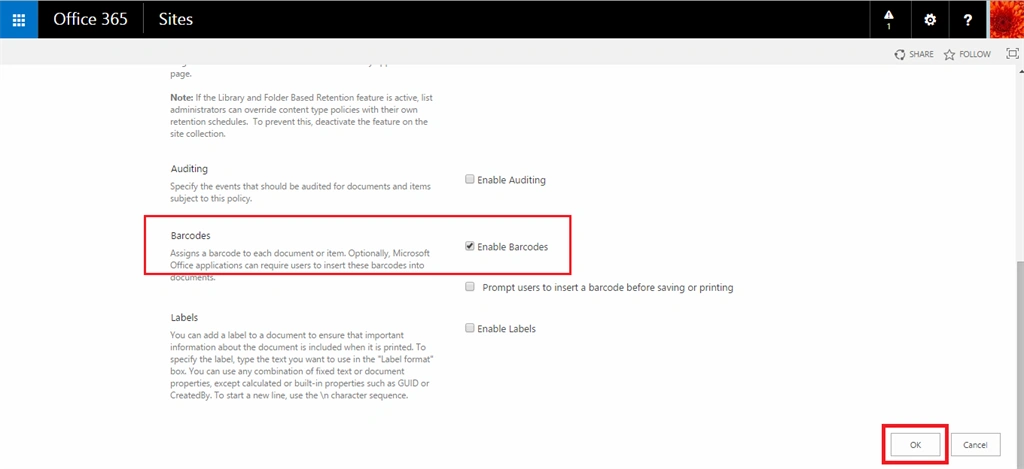
Figure 5: Edit Policy
Step 6: Go to the document library and upload the document, since you can’t find the bar code for that you need to change the view to show the bar code.
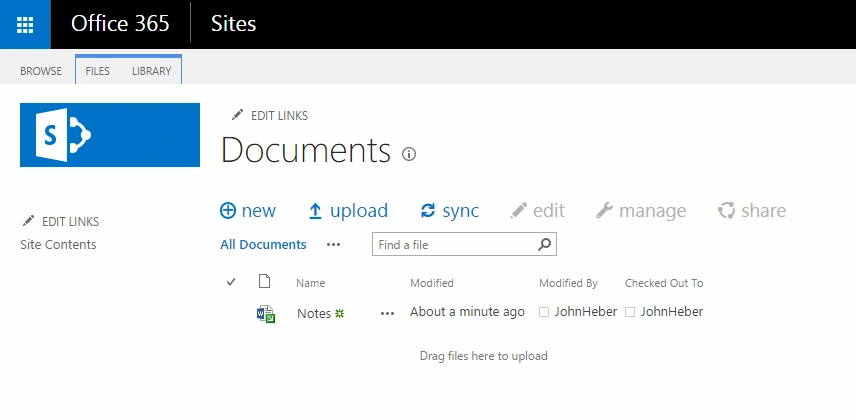
Figure 6: Document Librery
Step 7: go the list view and check the Barcode and Barcode Value in view and click save.
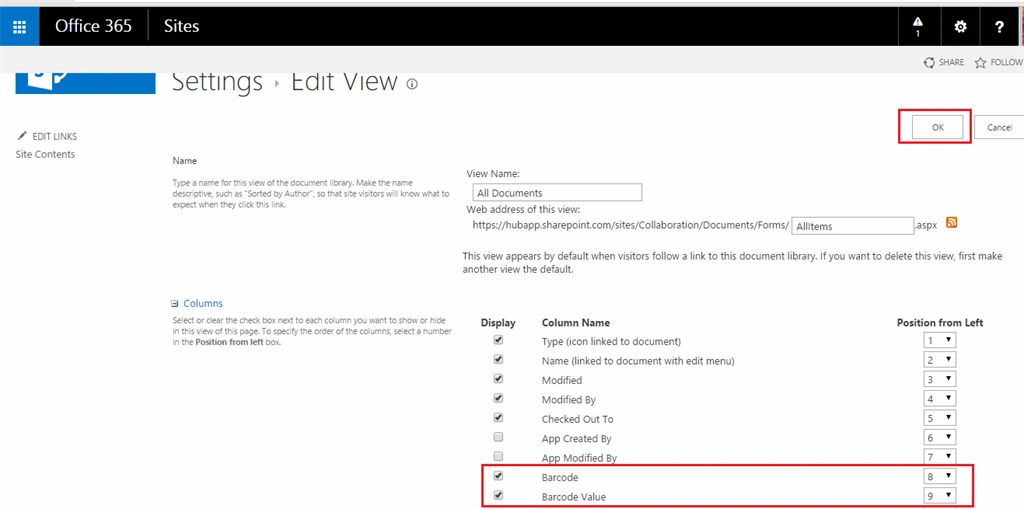
Figure 7: Barcode
Step 8: Finally you will be get the bar code for your document.
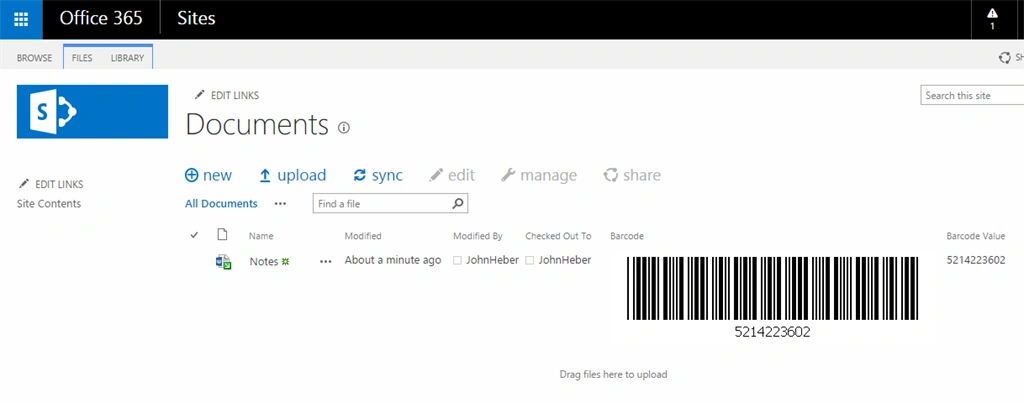
Figure 8: Bar code
Summary
In this article we explored how to generate the bar code for the documents in SharePoint document library.
Generate Bar Code For Document in SharePoint Document Library
Learn how to enable and display barcodes for documents in a SharePoint Online document library using built-in Information Management Policy settings.


Rajkiran SwainPosted Jul 27, 2016, 10:31 PM EDT
Nice
Kanji AnilkumarPosted Jul 18, 2016, 4:28 AM EDT
Helped me a lot. Thanks for sharing.
Supreeth JPosted Feb 3, 2016, 9:05 PM EST
if i scan this bar code, we will get only Bar code value, but how to set other information like Doc name, Created by..
Santhakumar MunuswamyPosted Sep 11, 2015, 11:12 PM EDT
Thanks for nice article:)
Kaviya BalasubramanianPosted Sep 11, 2015, 2:27 AM EDT
Thank you :)
Vinodh NarayananPosted Sep 10, 2015, 10:13 PM EDT
good one
Sumit DeshmukhPosted Sep 10, 2015, 10:10 PM EDT
Thanks for sharing, good one :-)
Kaviya BalasubramanianPosted Sep 10, 2015, 6:40 AM EDT
Thank you all :)
RakeshPosted Sep 10, 2015, 5:47 AM EDT
Good Sharing
Sibeesh VenuTOP 100Posted Sep 10, 2015, 4:09 AM EDT
Nice Share
Karthikeyan KPosted Sep 9, 2015, 11:36 PM EDT
Good one...Thanks for sharing
Rajeesh MenothPosted Sep 9, 2015, 11:34 PM EDT
Nice Share