
Go to your SharePoint list.
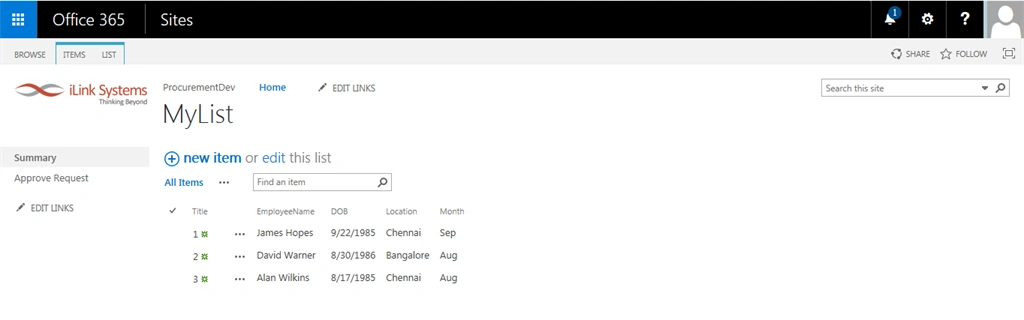
Figure 1: Office
Here I have an Year from DOB column. Click Create Column from the top ribbon.
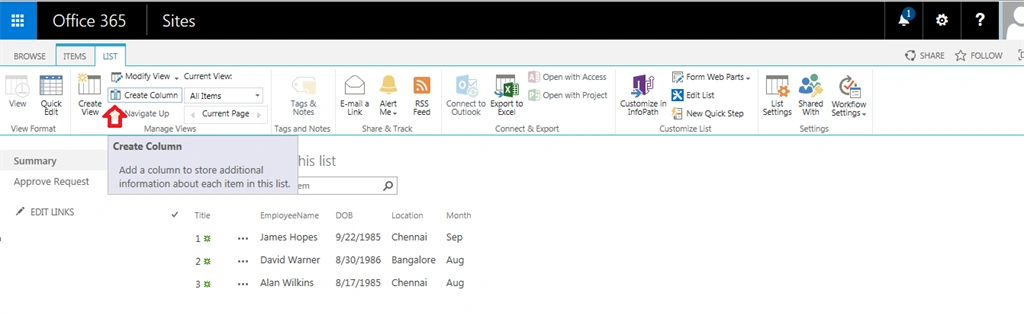
Figure 2: Ribbon
The following popup will appear.
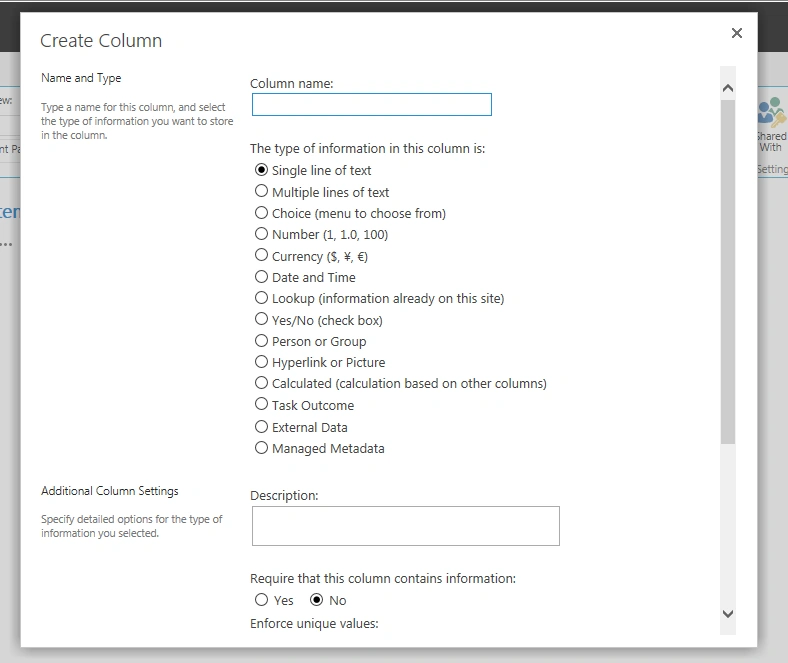
Figure 3: Appear
Enter column name (Year) and select calculated column.
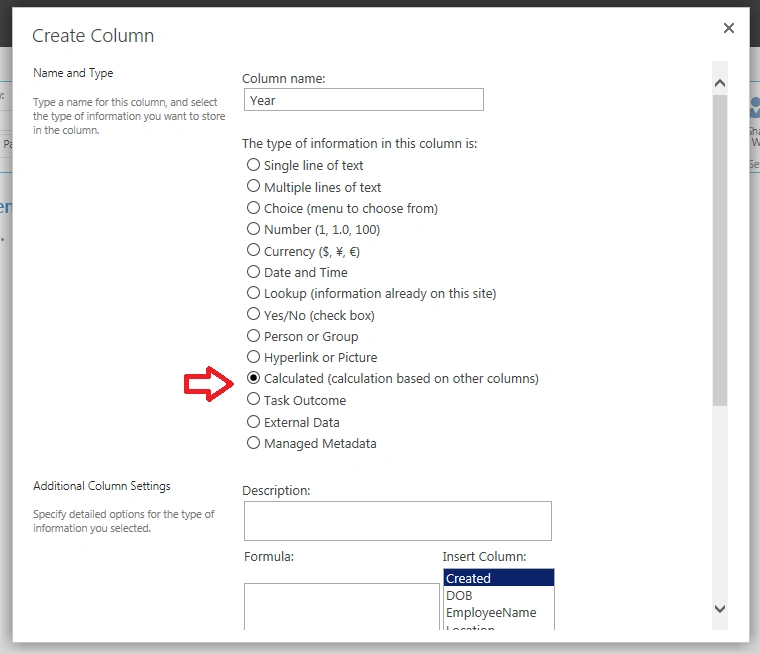
Figure 4: Create Column
Paste the following code to Formula field.
=CONCATENATE(YEAR(DOB)) Here, I have an year from DOB date time column.
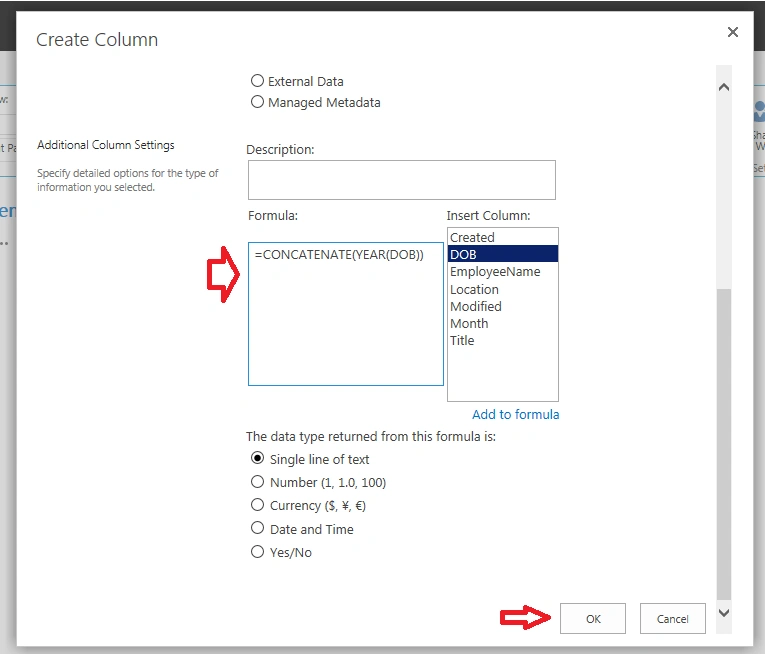
Figure 5: Time Column
Click Ok button. The results will be as in the following screenshot:
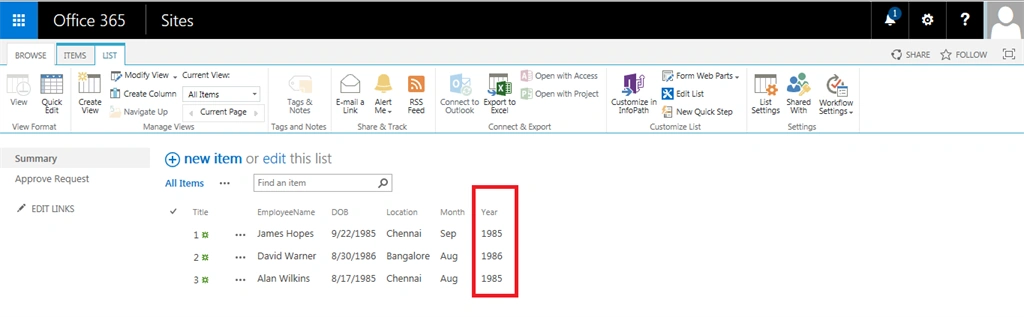
Figure 6: Result
Summary
In this article we have seen how to get an Year only from the date time column using calculation field in SharePoint 2013 list.


Saineshwar BageriPosted Sep 25, 2015, 4:34 AM EDT
Nice one
Pankaj Kumar ChoudharyTOP 100Posted Sep 24, 2015, 11:46 PM EDT
Nice Explain Sir.......
Sibeesh VenuTOP 100Posted Sep 24, 2015, 11:41 PM EDT
Nice Share :)
Jacob RobinsonPosted Sep 24, 2015, 11:33 PM EDT
Thanks Sujeet and Viipiin..
Jacob RobinsonPosted Sep 24, 2015, 11:32 PM EDT
Thanks Santhakuamr sir...
Vipin TyagiPosted Sep 24, 2015, 10:54 PM EDT
Informative Article Sir........
Sujeet SumanPosted Sep 24, 2015, 10:53 PM EDT
Nice Article................
Santhakumar MunuswamyPosted Sep 24, 2015, 10:42 PM EDT
Nice share
Jacob RobinsonPosted Sep 24, 2015, 9:41 PM EDT
Thanks Sumit...
Jacob RobinsonPosted Sep 24, 2015, 9:41 PM EDT
Thanks Ankit..
Sumit DeshmukhPosted Sep 24, 2015, 9:32 PM EDT
good one Thanks for share
Ankit BansalPosted Sep 24, 2015, 9:08 PM EDT
nice...thanks for sharing
Jacob RobinsonPosted Sep 24, 2015, 9:03 PM EDT
Thanks Rakesh sir and Nilesh...
Jacob RobinsonPosted Sep 24, 2015, 9:02 PM EDT
Thanks Vinodh..
Nilesh JadavPosted Sep 24, 2015, 7:53 AM EDT
Nice post !!
RakeshPosted Sep 24, 2015, 6:22 AM EDT
Good share
Vinodh NarayananPosted Sep 24, 2015, 2:54 AM EDT
nice share