
Overview
When you open a GitLab Merge Request, do you find that your feature branch is six commits behind main, despite the fact that your development environment indicates everything is up to date?
After fetching the latest changes, performing a pull, and checking your branch, you receive the familiar message:
Already up to date.
However, GitLab continues to report:
Your branch is 6 commits behind main.
Regardless of the development environment you use, this situation can occur.
Our might be working with IntelliJ IDEA on a Java Spring Boot application, Rider on a .NET solution, PyCharm on a Python project, WebStorm on a React application, or Visual Studio Code on an enterprise C# project.
Usually, the underlying problem is the same
Our IDE and GitLab are comparing different branches.
It comes down to how Git handles local branches, remote-tracking branches, upstream relationships, and Merge Request target branches.
This article will explain why this happens, how to diagnose it correctly, and how to synchronize your branches without losing local changes.
The following topics will be covered:
How GitLab and development environments determine whether branches are current.
Using Git commands, identify missing commits.
Resolving the issue across JetBrains IDEs, VS Code, and Visual Studio 2026.
Merging and rebasing at the right time.
Conflict resolution and protecting uncommitted changes.
Best practices for enterprise development teams.
Although the examples use GitLab, the Git concepts apply to other Git hosting platforms as well.
Understanding Why GitLab and Your IDE Disagree
Consider a typical development workflow.
Take a look at a typical development workflow.
As your team's primary integration branch, you use main.
When you create a feature branch, you do the following:
feature/customer-validation
Implement your changes, commit them, push the branch, and open a merge request.
There are the following items in the Merge Request:
Source: feature/customer-validation
Target: main
Other developers continue merging changes into main while you develop your feature.
After six commits, GitLab reports that your branch is six commits behind.
Perform a pull in your IDE.
In response, the IDE states:
Already up to date.
Why?
What your IDE is checking
A normal Git Pull typically integrates changes from the upstream branch configured for your current local branch.
For example:
Local branch:
feature/customer-validation
Upstream branch:
origin/feature/customer-validation
If both branches already contain the same commits, Git has nothing new to integrate.
Consequently, your IDE reports that the branch is up to date.
What GitLab is checking
GitLab is comparing your Merge Request source branch against its target branch.
In this example:
Source:
feature/customer-validation
Target:
main
GitLab detects that six commits are reachable from main but not from the feature branch.
Therefore, GitLab reports that your feature branch is behind.
The fact that your feature branch is up to date with your upstream feature branch does not imply that your feature branch contains the latest changes from main.
This distinction is essential for understanding the problem.
Which Development Environments Are Affected?
The issue is not specific to IntelliJ IDEA.
It can occur in practically any development environment that integrates with Git.
JetBrains IDEs
The same underlying Git concepts apply across the JetBrains family.
IDE | Typical development use |
IntelliJ IDEA | Java, Kotlin, Spring Boot |
Rider | C#, .NET, ASP.NET Core |
PyCharm | Python, Django, FastAPI |
WebStorm | JavaScript, TypeScript, React |
PhpStorm | PHP, Laravel, Symfony |
GoLand | Go applications and services |
RubyMine | Ruby, Ruby on Rails |
CLion | C and C++ |
DataGrip | Database development projects with Git-managed files |
RustRover | Rust development |
Android Studio | Android development, using JetBrains-based tooling |
The Git interface and available commands can vary by IDE and version, but the repository behaviour remains the same.
Microsoft development environments
The issue also affects:
IDE or editor | Typical development use |
Visual Studio Code | Full-stack, JavaScript, Python, Go, C#, DevOps |
Visual Studio 2026 | C#, .NET, ASP.NET Core, C++, Azure |
The important point is that Git operates independently of the IDE.
Our development environment provides a graphical interface around Git operations.
It does not change the fundamental meaning of a Git fetch, pull, merge, or rebase.
Understanding Git Branch Relationships
Before attempting to synchronize anything, it helps to understand three Git concepts.
Local branches
A local branch exists in your working repository.
For example:
git branch
Output:
* feature/customer-validation
main
The asterisk identifies the currently checked-out branch.
Remote-tracking branches
Remote-tracking branches represent the last fetched state of branches on a remote repository.
Examples include:
origin/main
origin/feature/customer-validation
These references are not automatically synchronized every second.
They are updated through fetch operations.
Upstream branches
A local branch can track an upstream branch.
Run:
git branch -vv
Example:
* feature/customer-validation a1b2c3d [origin/feature/customer-validation] Add validation
main e4f5a6b [origin/main] Update dependencies
Here, the feature branch tracks its corresponding remote feature branch.
A normal pull does not necessarily integrate changes from main.
It follows the branch's pull configuration.
This is why developers sometimes repeatedly pull without resolving the discrepancy reported by GitLab.
Visualising the Problem
Imagine the following commit history:
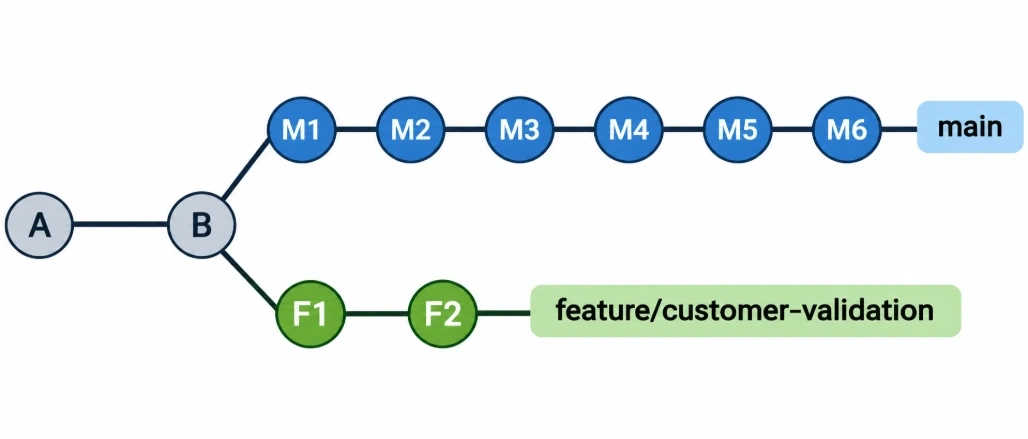
The feature branch contains two commits that are not in main.
Meanwhile, main contains six commits that are not in the feature branch.
Both branches have diverged.
Your local feature branch can be perfectly synchronized with:
origin/feature/customer-validation
while still being six commits behind:
origin/main
To resolve the issue, you must integrate the relevant target-branch commits into your feature branch.
The two most common approaches are merging and rebasing.
Before choosing either, however, you should verify the repository state.
Step One: Protect Your Local Work
Never begin a merge or rebase without checking your working directory.
Open the terminal in your IDE.
For example:
JetBrains IDEs: View → Tool Windows → Terminal
VS Code: Terminal → New Terminal
Visual Studio 2026: View → Terminal
Run:
git status
Example:
On branch feature/customer-validation
Your branch is up to date with
'origin/feature/customer-validation'.
nothing to commit, working tree clean
If the working tree is clean, you can continue.
If you have uncommitted changes, protect them first.
Option A: Commit your work
When the changes are ready to be recorded:
git add <specific-files>
git commit -m "WIP: preserve feature changes before synchronization"
Review the staged files before committing.
Option B: Stash your work
If the changes are incomplete:
git stash push -u -m "Backup before synchronizing with main"
The -u option includes untracked files, but ignored files are not included.
Check the stash:
git stash list
Best practice: A stash is a temporary working mechanism, not a replacement for a proper backup strategy. For important work, prefer commits on a dedicated branch or another approved backup mechanism.
Step Two: Confirm Your Branch and Remote Repository
Run:
git branch --show-current
Confirm that the output matches the source branch of your GitLab Merge Request.
Next:
git branch -vv
This displays the configured upstream relationships.
Then:
git remote -v
Example:
origin [email protected]:team/customer-api.git (fetch)
origin [email protected]:team/customer-api.git (push)
Verify that this repository matches the source project shown in GitLab.
In enterprise environments, it is common to have more than one remote.
For example:
origin
upstream
This matters because origin/main and upstream/main may refer to different repositories.
Do not assume that origin/main is always the correct Merge Request target.
Step Three: Fetch the Latest Remote Changes
Run:
git fetch origin --prune
This updates the remote-tracking references for origin.
It does not merge the changes into your current branch.
It also does not modify your working files.
The --prune option removes remote-tracking references for branches that no longer exist on that remote. It does not delete your local development branches.
If the Merge Request targets a different remote repository, fetch that remote as well.
For example:
git fetch upstream
Fetching before comparing is important because an outdated remote-tracking reference can produce misleading results.
Step Four: Identify the Missing Commits
Assuming the Merge Request targets main in origin, run:
git log HEAD..origin/main --oneline
Example output:
f1a2b3c Update application dependencies
d4e5f6a Improve customer validation
a7b8c9d Fix integration tests
e1f2a3b Refactor exception handling
c4d5e6f Add request tracing
a1b2c3d Update configuration
These commits exist in origin/main but are not reachable from your current branch.
To count commits on both sides:
git rev-list --left-right --count HEAD...origin/main
Example:
2 6
This means:
Count | Meaning |
2 | Commits unique to the current feature branch |
6 | Commits unique to origin/main |
Other examples:
Output | Interpretation |
0 6 | Six commits behind, none ahead |
3 6 | Three commits ahead and six behind |
3 0 | Three commits ahead, none behind |
0 0 | Both references point to the same commit |
This is a comparison of commit history, not merely file contents.
If GitLab still shows a different result, check whether you are comparing the same source and target repositories and branches as the Merge Request.
Step Five: Create a Backup Branch
Before changing branch history, create a local backup reference.
git branch backup/before-main-sync
This points to your current commit.
It does not copy your working directory or save uncommitted changes.
Nevertheless, it provides a useful reference if you need to inspect or recover the committed state from before synchronization.
Confirm the backup:
git branch --list
Once your working directory is clean and your backup exists, you can proceed.
Step Six: Merge Main into Your Feature Branch
For many shared development branches, merging is the preferred approach because it preserves existing commit history.
Run:
git merge origin/main
This explicitly integrates the latest fetched commits from main into your current feature branch.
If Git can combine the changes automatically, the merge completes.
If both branches modified overlapping code, Git may report conflicts.
Why merge is often suitable for enterprise teams
Merging has several advantages:
It preserves published feature-branch commit identities.
It does not require rewriting existing history.
It supports shared feature branches.
It avoids the need for force-pushing.
It records the integration of changes from the target branch.
However, some repositories enforce linear history or fast-forward-only merges.
In those environments, rebasing may be required.
Always check the project's merge policy.
What If Git Merge Says Already Up to Date?
Suppose you run:
git merge origin/main
Git responds:
Already up to date.
This means your current branch already contains all commits reachable from the local origin/main reference.
If GitLab still reports that the Merge Request is behind, investigate the following possibilities.
Our changes have not been pushed
Our local feature branch may contain the latest changes from main, while the remote feature branch does not.
Run:
git status -sb
Then compare your local branch with its remote-tracking counterpart.
For example:
git log origin/feature/customer-validation..HEAD --oneline
If you have unpublished commits, verify them and push the correct feature branch.
The Merge Request targets another repository
If you are working with a fork, the target branch may belong to another remote.
Check:
git remote -v
Fetch the actual target remote and compare against its target branch.
The Merge Request targets another branch
Some teams use:
develop
integration
release/2026.11
instead of main.
Use the actual target branch rather than assuming that every Merge Request targets main.
Our are on the wrong feature branch
Check:
git branch --show-current
Make sure the branch matches the Merge Request source branch.
Our remote-tracking references are outdated
Fetch the correct remote again and verify the branch positions.
Best practice: If Git reports “Already up to date,” investigate what it compared. Repeating Pull without checking the branch relationship will not solve the underlying problem.
Resolving the Issue in JetBrains IDEs
JetBrains provides a broadly consistent Git workflow across IntelliJ IDEA, Rider, PyCharm, WebStorm, PhpStorm, GoLand, RubyMine, CLion, RustRover, and other supported products.
Menu labels and available actions may differ slightly by product and version.
Step 1: Open the project
Open the project containing the Git repository.
Step 2: Check your branch
Use the branch selector, normally available in the IDE's main interface or status bar.
Confirm that the current branch matches the GitLab Merge Request source branch.
Step 3: Fetch the latest changes
Use:
Git → Fetch
This refreshes remote-tracking information.
Step 4: Locate the target branch
Open the Git branch selector and expand the remote branches.
Find:
origin/main
Or the actual target branch of your Merge Request.
Step 5: Merge into the current branch
Select the remote target branch and choose the action equivalent to:
Merge into Current
Ensure that your current branch is the feature branch.
The operation should merge origin/main into your feature branch, not the other way around.
Step 6: Resolve conflicts
If conflicts occur, use the JetBrains merge conflict editor.
Review the conflicting sections and construct the correct merged result.
Do not automatically accept all changes from one side.
Step 7: Validate and push
Run the project's tests and build.
Then use:
Git → Push
Verify the destination branch before confirming.
For complex situations involving forks or multiple remotes, the terminal is often the clearer and more reliable way to inspect the branch relationships.
Resolving the Issue in Visual Studio Code
Visual Studio Code provides built-in Git integration through its Source Control functionality.
Extensions can add additional Git capabilities, but the core workflow does not require them.
Step 1: Open the repository
Open the correct project folder in VS Code.
If the workspace contains multiple repositories, ensure you are operating on the repository associated with the Merge Request.
Step 2: Check your branch
Use the branch indicator in the status bar or the Source Control interface.
Confirm that the feature branch is checked out.
Step 3: Fetch changes
Open the Command Palette:
Ctrl + Shift + P
Search for:
Git: Fetch
Run the command.
Step 4: Merge the target branch
Open the Command Palette again.
Search for:
Git: Merge Branch...
Select the appropriate remote-tracking branch, such as:
origin/main
Ensure that you are currently on the feature branch before performing the merge.
Step 5: Resolve conflicts
VS Code can display conflicting files in Source Control.
Use the Merge Editor where available.
Review each conflicting section and resolve it carefully.
Step 6: Run tests
Use the integrated terminal:
git status
Then run your project's build and test commands.
Step 7: Push changes
Use the Source Control push action or run:
git push origin HEAD
Refresh your GitLab Merge Request and confirm the updated status.
Resolving the Issue in Visual Studio 2026
Visual Studio 2026 provides Git integration through the Git Changes and Git Repository windows.
The same principles apply to C#, ASP.NET Core, C++, and other projects managed through Git.
Step 1: Open your solution
Open the solution associated with your GitLab repository.
Step 2: Open Git Changes
Navigate to:
View → Git Changes
Check the currently selected branch.
Step 3: Fetch remote changes
Use the Fetch action available through the Git interface.
This updates the remote-tracking information.
Step 4: Open Git Repository
Navigate to:
View → Git Repository
Inspect the local and remote branches.
Locate the Merge Request target branch, such as:
origin/main
Step 5: Merge into the current branch
With your feature branch checked out, use the target branch's context menu and select the merge action that integrates it into your current branch.
Review the source and destination before confirming.
Step 6: Resolve conflicts
If conflicts occur, Visual Studio provides conflict resolution tools.
Inspect both versions and the resulting merged file.
For C# projects, pay particular attention to changes involving dependency injection, service contracts, project files, and configuration.
Step 7: Build and test
For a .NET solution, you can run:
dotnet restore
dotnet build --no-restore
dotnet test --no-restore
We can also run the solution's tests through Test Explorer.
Step 8: Push the feature branch
Return to Git Changes and push the updated feature branch.
Verify that GitLab reflects the new commit history and that the CI/CD pipeline passes.
Merge vs Rebase: Which Approach Is Better?
Both merging and rebasing can bring a feature branch up to date with the target branch.
However, they affect commit history differently.
Merge
git merge origin/main
Merge integrates the histories and may create a merge commit.
For a diverged feature branch, the existing feature commits retain their identities.
This is generally suitable for shared branches.
Rebase
git rebase origin/main
Rebase replays the feature branch's unique commits on top of the latest main.
This creates a linear history but usually changes the identities of the replayed commits.
Comparison
Feature | Merge | Rebase |
Preserves published feature commits | Yes | Usually no |
Produces linear history | Not necessarily | Yes |
Suitable for shared branches | Generally yes | Requires coordination |
May create merge commit | Yes | No |
May require force-push | No | Often, after publication |
Can produce conflicts | Yes | Yes |
When should you merge?
Consider merging when multiple developers share the branch or when preserving published history is important.
When should you rebase?
Consider rebasing when your team requires linear history, you are working on your own feature branch, and rewriting commits is acceptable.
If a published branch has been rebased, updating it may require:
git push --force-with-lease origin HEAD
Use this only after confirming that your organisation permits history rewriting and that you will not overwrite another developer's work.
--force-with-lease provides protection against some unexpected remote updates, but it does not eliminate every collaboration risk.
Handling Merge Conflicts Safely
Merge conflicts occur when Git cannot automatically reconcile changes.
For example, your feature branch and main may both modify the same method.
Git may report:
CONFLICT (content): Merge conflict in CustomerService.cs
Automatic merge failed;
fix conflicts and then commit the result.
Conflicts do not necessarily indicate a problem with the repository.
They indicate that a developer must decide how the changes should be combined.
Recommended conflict resolution workflow
Identify every conflicting file.
Review the changes from both branches.
Understand the intention behind each modification.
Construct the correct merged result.
Check that no conflict markers remain.
Run relevant tests.
Complete the merge.
After resolving the conflicts:
git add <resolved-files>
Check:
git status
Complete the merge if necessary:
git commit
If you need to abandon an in-progress merge:
git merge --abort
Avoid using destructive reset commands unless you fully understand their effects.
Validate the Application Before Pushing
A successful Git merge does not guarantee a successful application build.
Two branches may merge without textual conflicts while introducing behavioural incompatibilities.
For example, a dependency update in main might affect code written in the feature branch.
For .NET projects
Run:
dotnet restore
dotnet build --no-restore
dotnet test --no-restore
For Maven-based Java projects
Run:
mvn clean verify
For Gradle-based projects
Run:
./gradlew build
On Windows, use the appropriate Gradle wrapper script.
For Node.js and TypeScript projects
Depending on the repository's scripts:
npm ci
npm run build
npm test
Use the project's configured package manager and lockfile.
Enterprise testing considerations
Depending on the application, validation should also include:
Unit tests
Integration tests
Architecture tests
API contract tests
Database migration checks
Security and dependency scanning
CI/CD pipeline validation
The goal is not merely to make GitLab stop reporting missing commits.
The goal is to integrate the latest changes without introducing regressions.
Best Practices for Enterprise Development Teams
Fetch before comparing
Always refresh the relevant remote-tracking branches before checking commit differences.
Keep feature branches short-lived
Smaller, frequently integrated changes generally reduce merge complexity and make code reviews easier.
Understand your team's branching strategy
Some teams use trunk-based development, while others maintain long-lived integration or release branches.
Our synchronization approach should align with that strategy.
Protect uncommitted work
Before merging or rebasing, commit or safely stash changes and create a recovery reference where appropriate.
Avoid unnecessary force-pushing
Force-pushing published history can disrupt other developers.
Use it only when permitted and justified.
Review the actual Merge Request diff
Check that the resulting code changes are correct.
A successful merge command is not proof that the feature behaves as expected.
Validate through CI/CD
Local testing provides useful feedback, but the GitLab pipeline should remain an important part of the integration process.
Use meaningful commit messages
Commit messages should communicate why changes were made.
For example:
fix: handle missing customer validation fields
Or:
refactor: simplify customer validation service
Never assume the target branch is main
Always verify the Merge Request's target project and target branch.
Investigate before modifying history
If your IDE reports “Already up to date,” inspect the upstream and target branch relationships before performing additional Git operations.
Troubleshooting Common GitLab Synchronization Problems
Symptom | Possible cause | Recommended action |
IDE says up to date, GitLab says behind | IDE pulled the feature upstream | Compare against the MR target |
Fetch succeeds, MR still behind | Target commits have not been integrated | Merge or rebase as appropriate |
Merge says already up to date | Local target reference is already an ancestor | Check the remote MR source and target |
GitLab remains behind after merge | Updated local branch not pushed | Verify and push the source branch |
MR targets a fork or another project | Wrong remote used | Fetch the actual target repository |
Git reports conflicts | Overlapping changes | Resolve carefully and test |
Push is rejected | Remote advanced or policy prevents push | Fetch and investigate |
GitLab requires rebase | Linear-history policy | Follow repository policy |
Essential Git Commands Every Developer Should Know
Command | Purpose |
git status | Check working directory and branch status |
git branch --show-current | Identify current branch |
git branch -vv | Inspect upstream relationships |
git remote -v | Inspect remote repositories |
git fetch origin --prune | Refresh remote-tracking references |
git log HEAD..origin/main --oneline | List commits missing from the current branch |
git rev-list --left-right --count HEAD...origin/main | Count commits unique to each branch |
git merge origin/main | Integrate main into the current branch |
git rebase origin/main | Replay feature commits onto main |
git merge --abort | Abort an unfinished merge |
git log --graph --oneline --decorate -20 | Visualise recent commit history |
git push origin HEAD | Push the current branch to origin |
These commands work independently of whether you use JetBrains IDEs, Visual Studio Code, Visual Studio 2026, or another Git-capable development environment.
Recommended End-to-End Synchronization Workflow
For a feature branch whose Merge Request targets main in the origin repository, and where merge commits are permitted, the following workflow is a useful starting point.
First, commit or stash any uncommitted changes.
Then fetch:
git fetch origin --prune
Check the current branch:
git branch --show-current
Check the repository state:
git status
Compare commit history:
git rev-list --left-right --count HEAD...origin/main
Create a backup reference:
git branch backup/before-main-sync
Merge the latest main:
git merge origin/main
Resolve any conflicts and complete the merge.
Run the project's tests and build.
Review the final changes:
git status
git log --graph --oneline --decorate -15
Then push:
git push origin HEAD
Finally, refresh the Merge Request and verify the resulting diff, branch status, and CI/CD pipeline.
If you stashed changes, restore them using the appropriate stash entry and verify that they have been recovered correctly.
Summary
When GitLab reports that a feature branch is behind main but your IDE says "Already up to date," the issue is usually not with the IDE.
There is a misunderstanding of which branches Git compares.
The local feature branch may be fully synchronized with its upstream, but the Merge Request target branch may still be missing commits.
It is consistent across IntelliJ IDEA, Rider, PyCharm, WebStorm, Visual Studio Code, Visual Studio 2026, and other Git-capable development environments.
Before making changes, it is best to understand the branch relationships.
Check your current branch and remotes, fetch the latest references, compare commit histories, protect your existing work, and integrate the correct target branch using your team's preferred merge or rebase method.
Validate the application, push the updated feature branch, and review the merge request.
Using these practices prevents history from being rewritten, reduces the risk of losing local work, and makes collaborative development more predictable.
The key to mastering Git is not memorizing commands, but understanding the repository state and knowing what each operation will change.
Remember: Git is only telling you that the branch it checked has nothing new to integrate, not that all branches are synced. Next time your IDE says "Already up to date" while GitLab reports missing commits, remember: Git is only telling you that the branch it checked has nothing new to integrate.
Happy Coding!

Join the conversation! Your thoughts help the community grow.