

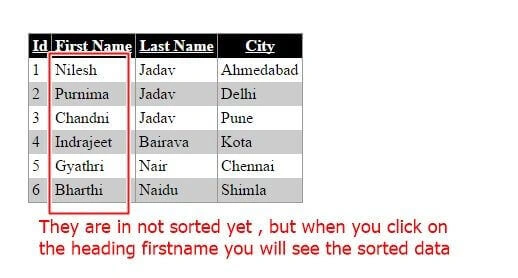
We will use one GridView and its sorting event, then we write some code in that event for making name ascending and descending.
Initial chamber
Step 1
Open your Visual Studio 2010 and create an Empty Website, provide a suitable name (gridviewsorting_demo).
Step 2
In Solution Explorer you get your empty website, then add two web forms and a SQL Server Database as in the following.
For Web Form:
Autocomplete_demo (your empty website) then right-click then select Add New Item -> Web Form. Name it gridviewsorting_demo.aspx.
For SQL Server Database
gridviewsorting_demo (your empty website) then right-click then select Add New Item -> SQL Server Database. (Add a database inside the App_Data_folder).
DATABASE CHAMBER
Step 3
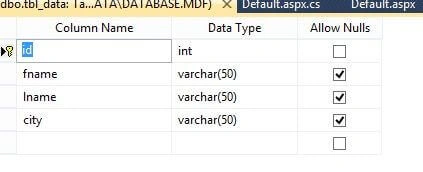
In Server Explorer, click on your database (Database.mdf) then select Tables -> Add New Table. Make the table like this.
Table tbl_data (Don't Forget to make ID as IS Identity -- True)
Design chamber
Step 4
Now open your gridviewsorting_demo.aspx file, where we create our design for GridView sorting.
Gridviewsorting_demo.aspx
- <%@ Page Language="C#" AutoEventWireup="true" CodeFile="Default.aspx.cs" Inherits="_Default" %>
- <!DOCTYPE html PUBLIC "-//W3C//DTD XHTML 1.0 Transitional//EN" "http://www.w3.org/TR/xhtml1/DTD/xhtml1-transitional.dtd">
- <html xmlns="http://www.w3.org/1999/xhtml">
- <head runat="server">
- <title></title>
- </head>
- <body>
- <form id="form1" runat="server">
- <div>
- <table style="width:100%;">
- <tr>
- <td>
- </td>
- <td>
- </td>
- <td>
- </td>
- </tr>
- <tr>
- <td>
- </td>
- <td>
- <asp:GridView ID="GridView1" runat="server" AllowSorting="True"
- AutoGenerateColumns="False" BackColor="White" BorderColor="#999999"
- BorderStyle="Solid" BorderWidth="1px" CellPadding="3" DataKeyNames="id"
- ForeColor="Black" GridLines="Vertical" onsorting="GridView1_Sorting">
- <AlternatingRowStyle BackColor="#CCCCCC" />
- <Columns>
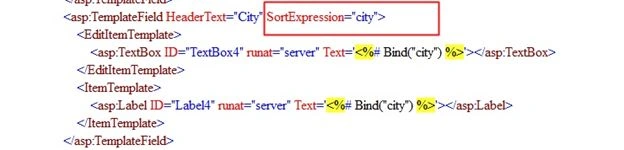
- <asp:TemplateField HeaderText="Id" SortExpression="id">
- <%--<EditItemTemplate>
- <asp:TextBox ID="TextBox1" runat="server" Text='<%# Bind("id") %>'></asp:TextBox>
- </EditItemTemplate>--%>
- <ItemTemplate>
- <asp:Label ID="Label1" runat="server" Text='<%# Bind("id") %>'></asp:Label>
- </ItemTemplate>
- </asp:TemplateField>
- <asp:TemplateField HeaderText="First Name" SortExpression="fname">
- <EditItemTemplate>
- <asp:TextBox ID="TextBox2" runat="server" Text='<%# Bind("fname") %>'></asp:TextBox>
- </EditItemTemplate>
- <ItemTemplate>
- <asp:Label ID="Label2" runat="server" Text='<%# Bind("fname") %>'></asp:Label>
- </ItemTemplate>
- </asp:TemplateField>
- <asp:TemplateField HeaderText="Last Name" SortExpression="lname">
- <EditItemTemplate>
- <asp:TextBox ID="TextBox3" runat="server" Text='<%# Bind("lname") %>'></asp:TextBox>
- </EditItemTemplate>
- <ItemTemplate>
- <asp:Label ID="Label3" runat="server" Text='<%# Bind("lname") %>'></asp:Label>
- </ItemTemplate>
- </asp:TemplateField>
- <asp:TemplateField HeaderText="City" SortExpression="city">
- <EditItemTemplate>
- <asp:TextBox ID="TextBox4" runat="server" Text='<%# Bind("city") %>'></asp:TextBox>
- </EditItemTemplate>
- <ItemTemplate>
- <asp:Label ID="Label4" runat="server" Text='<%# Bind("city") %>'></asp:Label>
- </ItemTemplate>
- </asp:TemplateField>
- </Columns>
- <FooterStyle BackColor="#CCCCCC" />
- <HeaderStyle BackColor="Black" Font-Bold="True" ForeColor="White" />
- <PagerStyle BackColor="#999999" ForeColor="Black" HorizontalAlign="Center" />
- <SelectedRowStyle BackColor="#000099" Font-Bold="True" ForeColor="White" />
- <SortedAscendingCellStyle BackColor="#F1F1F1" />
- <SortedAscendingHeaderStyle BackColor="#808080" />
- <SortedDescendingCellStyle BackColor="#CAC9C9" />
- <SortedDescendingHeaderStyle BackColor="#383838" />
- </asp:GridView>
- </td>
- <td>
- </td>
- </tr>
- <tr>
- <td>
- </td>
- <td>
- </td>
- <td>
- </td>
- </tr>
- </table>
- </div>
- </form>
- </body>
- </html>
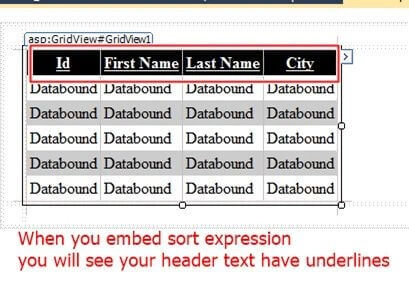
Your design looks like the following:
Code chamber
Step 5
Open your gridviewsorting_demo.aspx.cs and write some code for the application to make it work.
gridviewsorting_demo.aspx.cs
- using System;
- using System.Collections.Generic;
- using System.Linq;
- using System.Web;
- using System.Web.UI;
- using System.Web.UI.WebControls;
- using System.Data;
- using System.Data.SqlClient;
- public partial class _Default : System.Web.UI.Page
- {
- protected void Page_Load(object sender, EventArgs e)
- {
- if (!Page.IsPostBack)
- {
- refreshdata();
- }
- }
- public void refreshdata()
- {
- SqlConnection con = new SqlConnection(@"Data Source=.\SQLEXPRESS;AttachDbFilename=|DataDirectory|\Database.mdf;Integrated Security=True;User Instance=True");
- SqlCommand cmd = new SqlCommand("select * from tbl_data", con);
- SqlDataAdapter sda = new SqlDataAdapter(cmd);
- DataTable dt = new DataTable();
- sda.Fill(dt);
- GridView1.DataSource = dt;
- GridView1.DataBind();
- ViewState["dirState"] = dt;
- ViewState["sortdr"] = "Asc";
- }
- protected void GridView1_Sorting(object sender, GridViewSortEventArgs e)
- {
- DataTable dtrslt= (DataTable)ViewState["dirState"];
- if (dtrslt.Rows.Count > 0)
- {
- if (Convert.ToString(ViewState["sortdr"]) == "Asc")
- {
- dtrslt.DefaultView.Sort = e.SortExpression + " Desc";
- ViewState["sortdr"] = "Desc";
- }
- else
- {
- dtrslt.DefaultView.Sort = e.SortExpression + " Asc";
- ViewState["sortdr"] = "Asc";
- }
- GridView1.DataSource = dtrslt;
- GridView1.DataBind();
- }
- }
- }
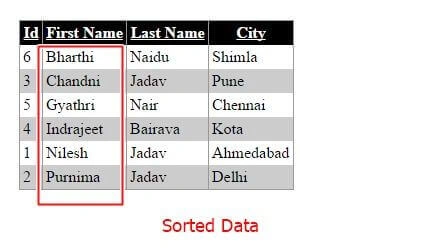
I hope you liked this. Thank you for reading. Have a good day.
Steven LastPosted Jan 10, 2020, 2:28 PM
How do you sort the current page instead of all pages?
Rohit KumarPosted Dec 13, 2018, 11:31 PM
After clicking on respective column in grid, page refreshes and grid gets empty. Any idea why this is happening?\
Ravi kiranPosted Mar 16, 2017, 9:08 AM
Thank You !!!!!!!!
Arul RPosted Oct 28, 2015, 5:38 AM
Good one !!!
Santhakumar MunuswamyPosted Jul 13, 2015, 3:01 PM
Nice article! Thanks for sharing
Rakesh KalluriPosted Jul 13, 2015, 7:16 AM
Good One.
RakeshPosted Jul 13, 2015, 4:19 AM
Good Nilesh Jadav