
In this exercise we see how to add links to the left of the website in SharePoint. Below are the steps:
Proceed with Title Sharepoint site is "Team Site"
Click on "Site Actions" | Site Settings
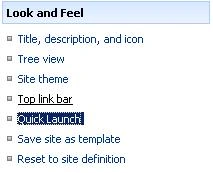
On the Look and Feel
- Quick Launch link
- Add new names on the new heading huukhang.com
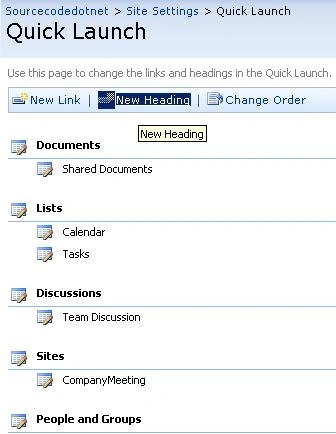
Fill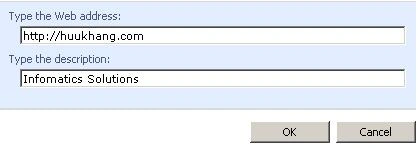
- Add new link and select Informatics Solutions (huukhang.com)
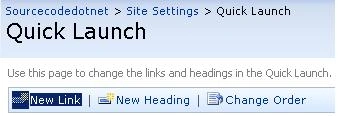
- Web address: huukhang.com
- Description: Informatics Solutions
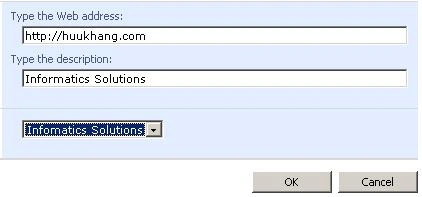
- Web address: huukhang.com
-
Add new link and select Informatics Solutions (huukhang.com)
- Web address: huukhang.com / sendtofriend.aspx
- Description: Send Informatics Solutions to your friends
- Web address: huukhang.com / sendtofriend.aspx
-
Change the order of menu items
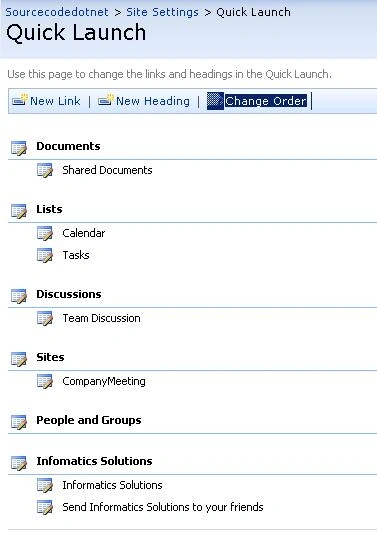
- Move to your friends Send Informatics Solutions to the front of
Informatics Solutions
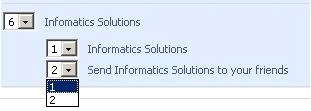
- Move to your friends Send Informatics Solutions to the front of
Informatics Solutions
- Click OK to see this change

Join the conversation! Your thoughts help the community grow.