
In this exercise we see how to add the top link in Publishing Site in SharePoint.
Proceed with Title Sharepoint site is " Publishing Site "
Click on "Site Actions" | Site Settings
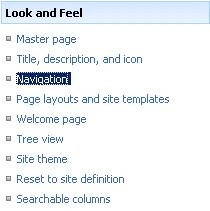
On the Look and Feel
- Click on the Navigation link
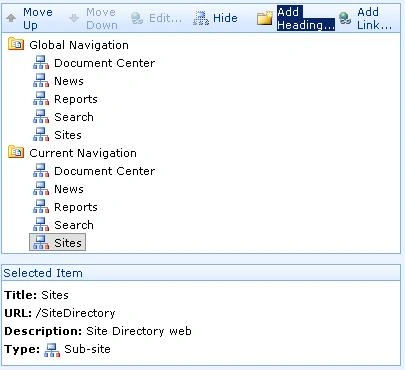
- Heading Definition 1 (Add Heading)
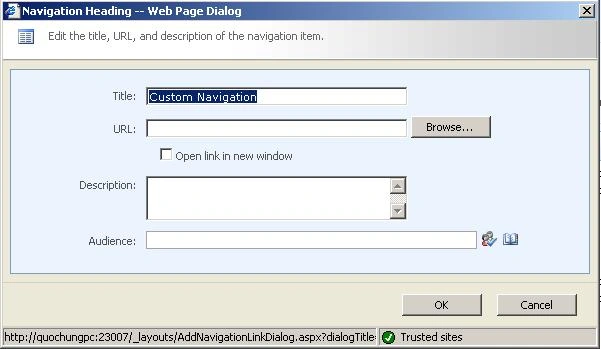
- Title: Custom Navigation and fill out an information if necessary / OK
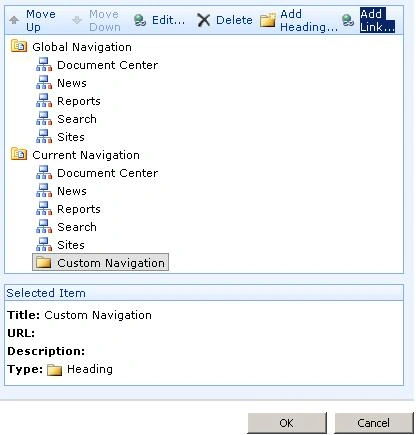
- Select Custom Navigation / Add Link
- Title: huukhang.com, URL: http://huukhang.com....
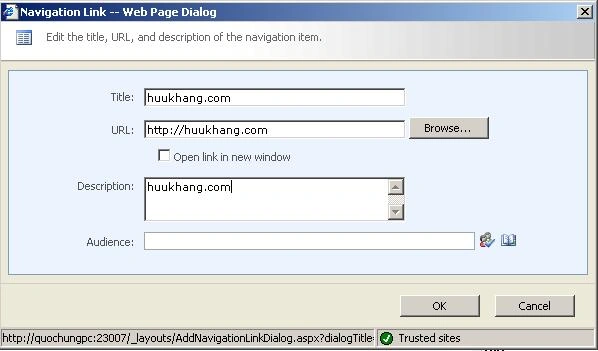
- Select Custom Navigation / Add Link
- Title: sourcecodedotnet
- URL: http://sourcecodedotnet.web.officelive.com
- Changes in the Custom menu item placement Navigation
- Move forward sourcecodedotnet huukhang.com (select sourcecodedotnet click
Move Up / OK)
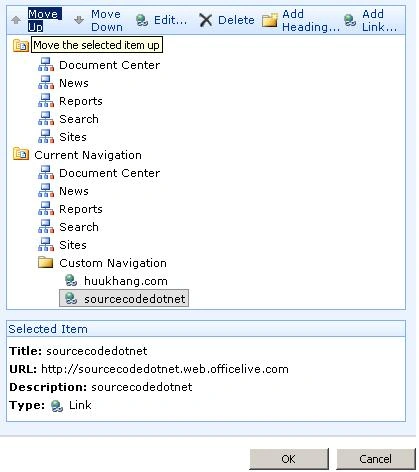
- Move forward sourcecodedotnet huukhang.com (select sourcecodedotnet click
Move Up / OK)

Join the conversation! Your thoughts help the community grow.