

Open server manager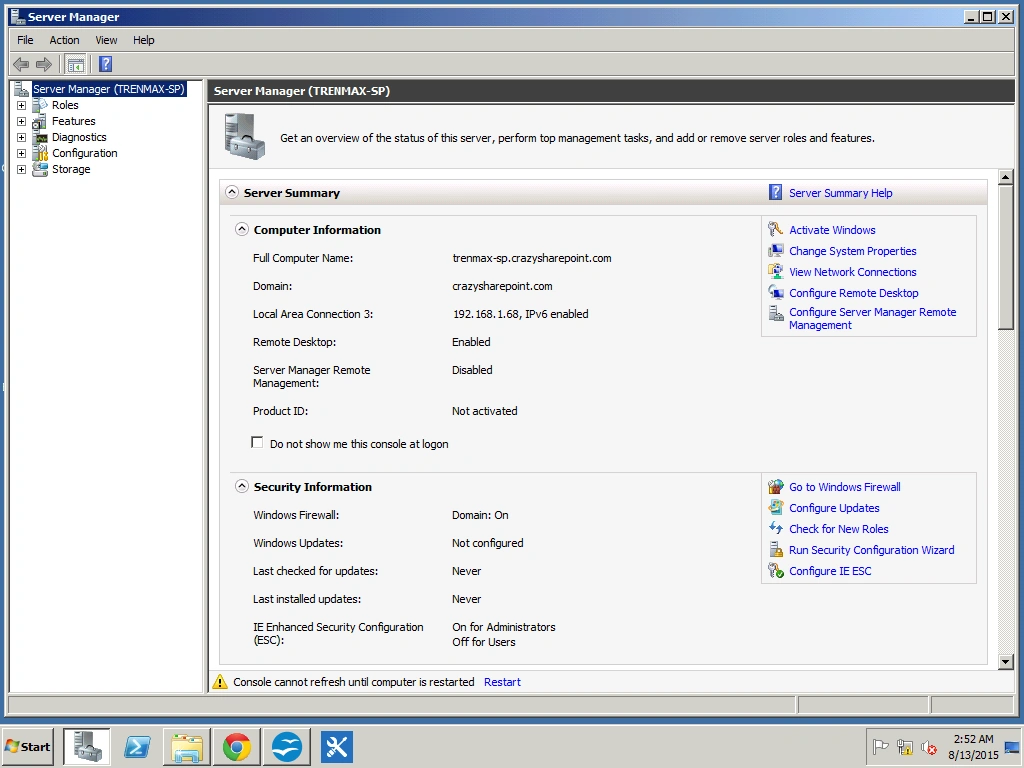
Figure 1: Server Manager
From the Features tab, click Add Features.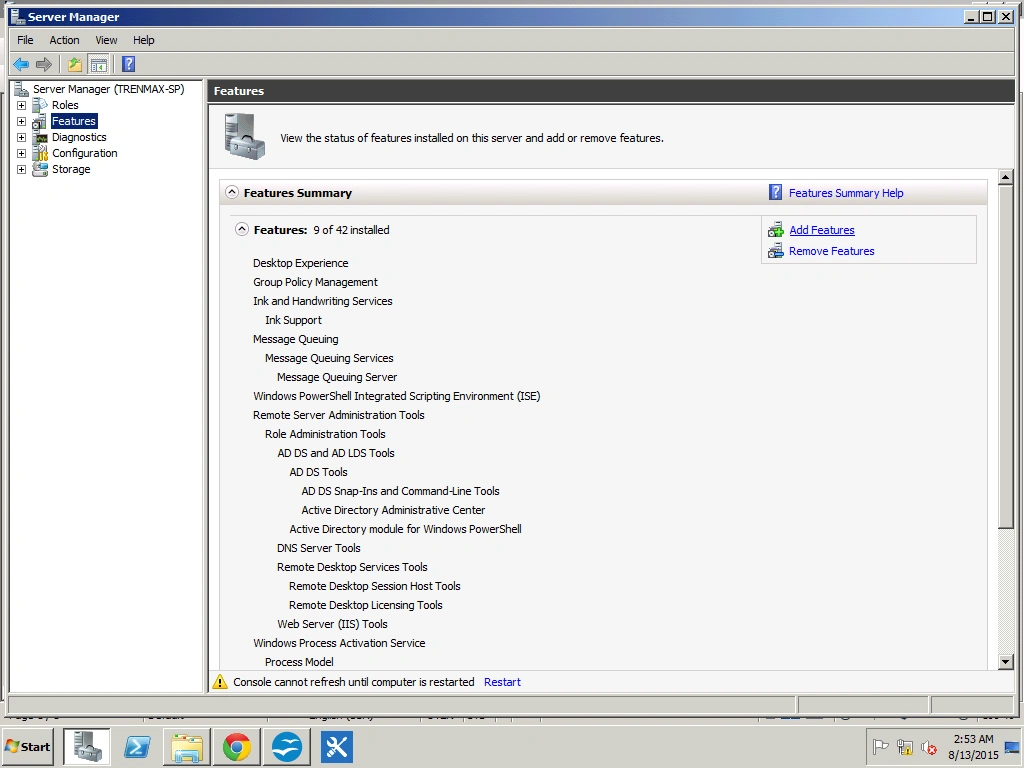
Figure 2: Add Feature
From this list select SMTP Server.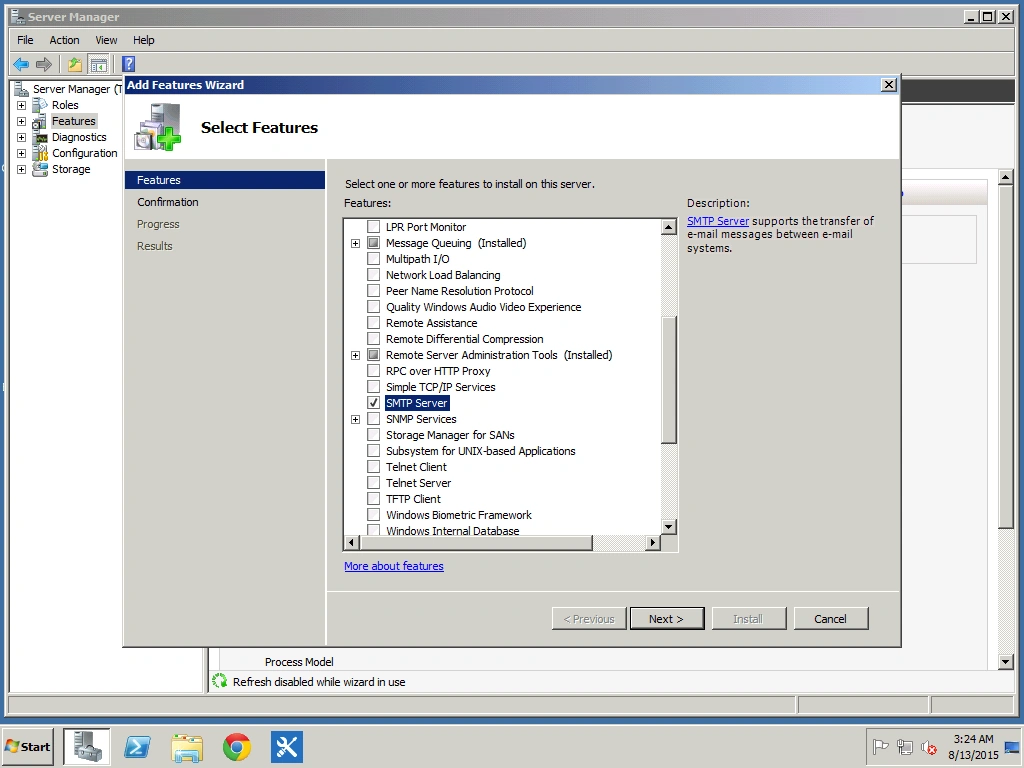
Figure 3: Select SMTP Server
Click Next and then Install to complete.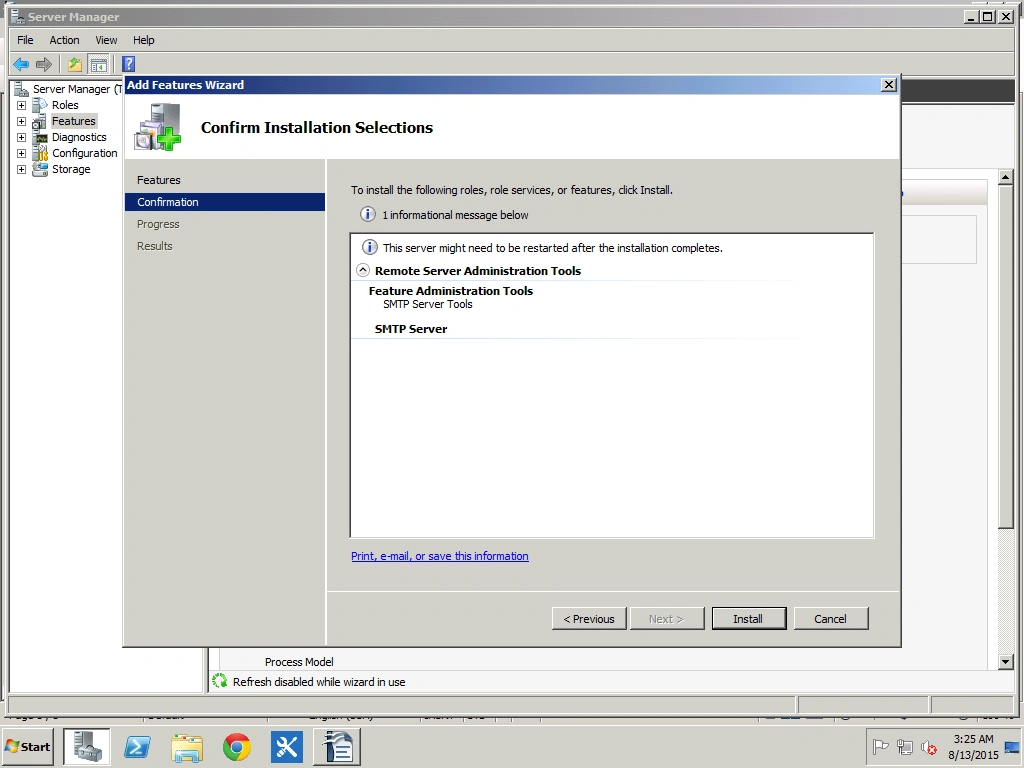
Figure 4: Click Install to Complete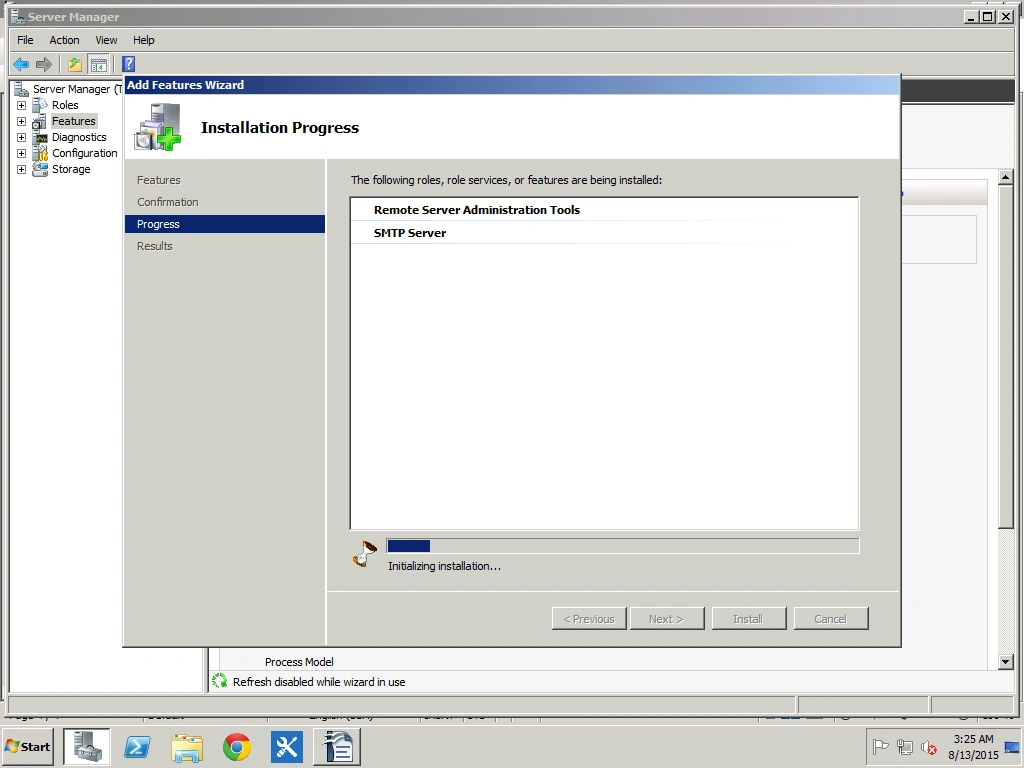
Figure 5: Install Progress
Installation Succeeded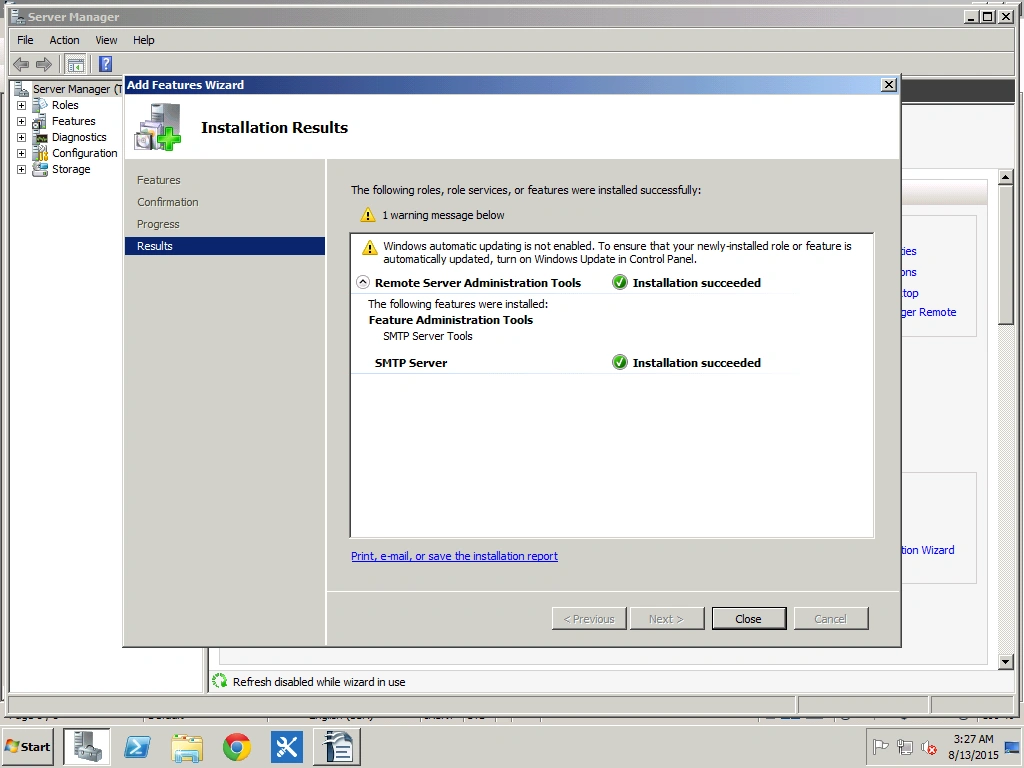
Figure 6:Installation Successfull
Click Close.
Open Windows services
Check that the SMTP service has been started.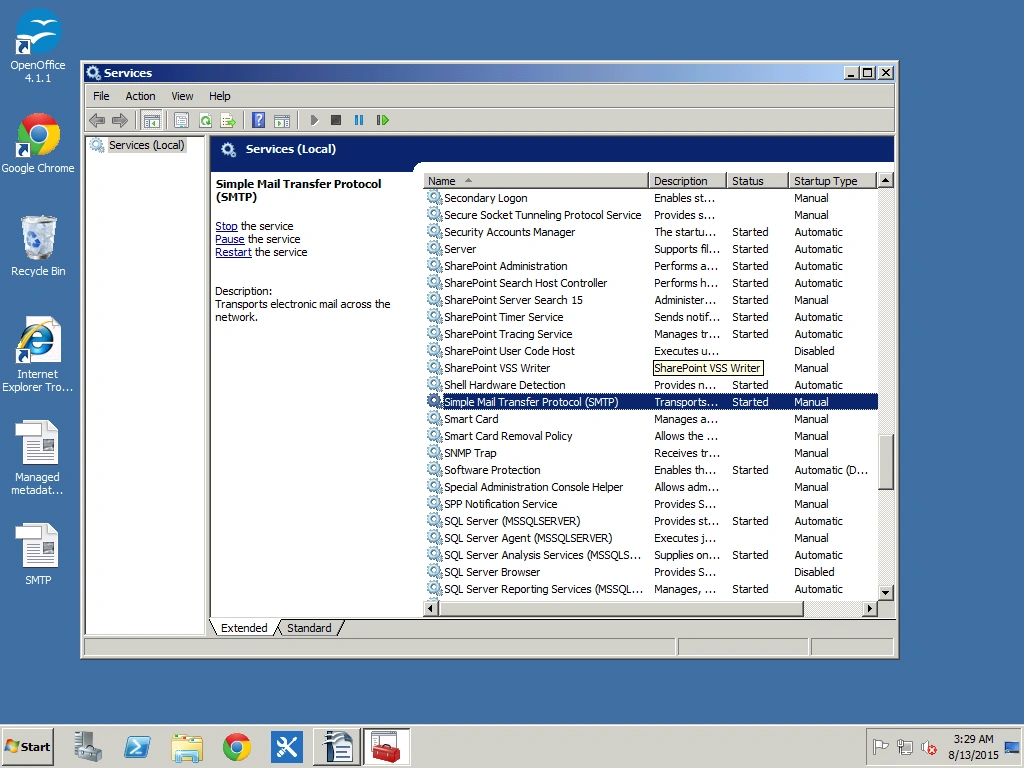
Figure 7: Open Windows services
Now open IIS 6.0 Manager.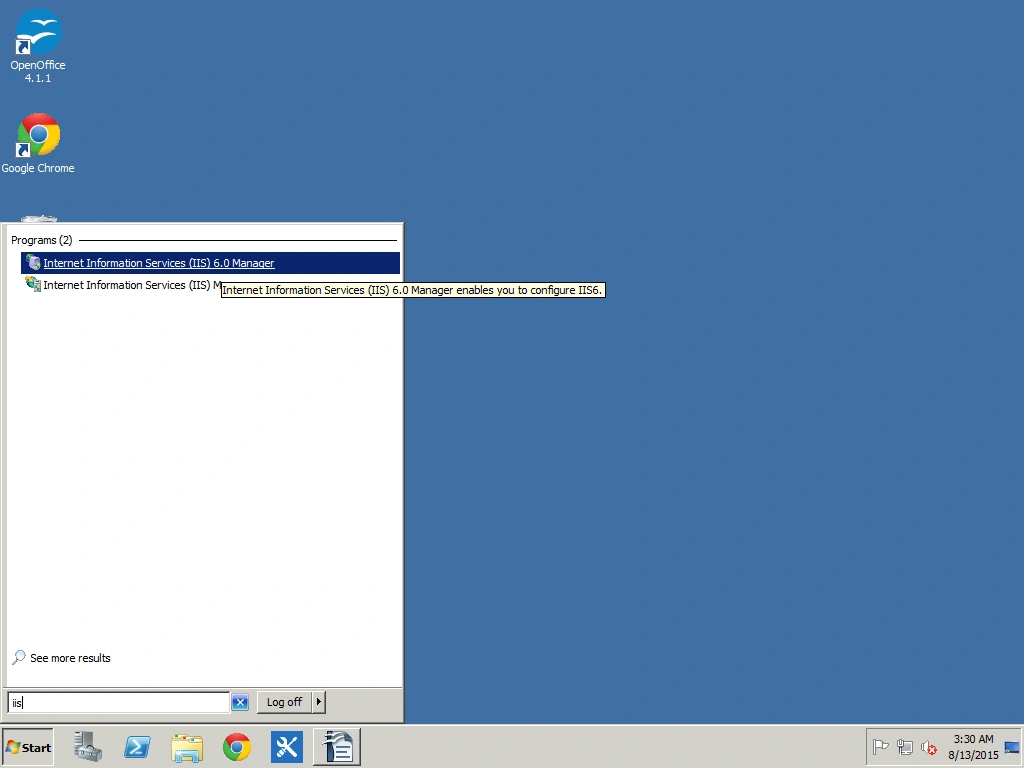
Figure 8: Now open IIS 6.0 Manager
Right-click on the SMTP Server and click Properties.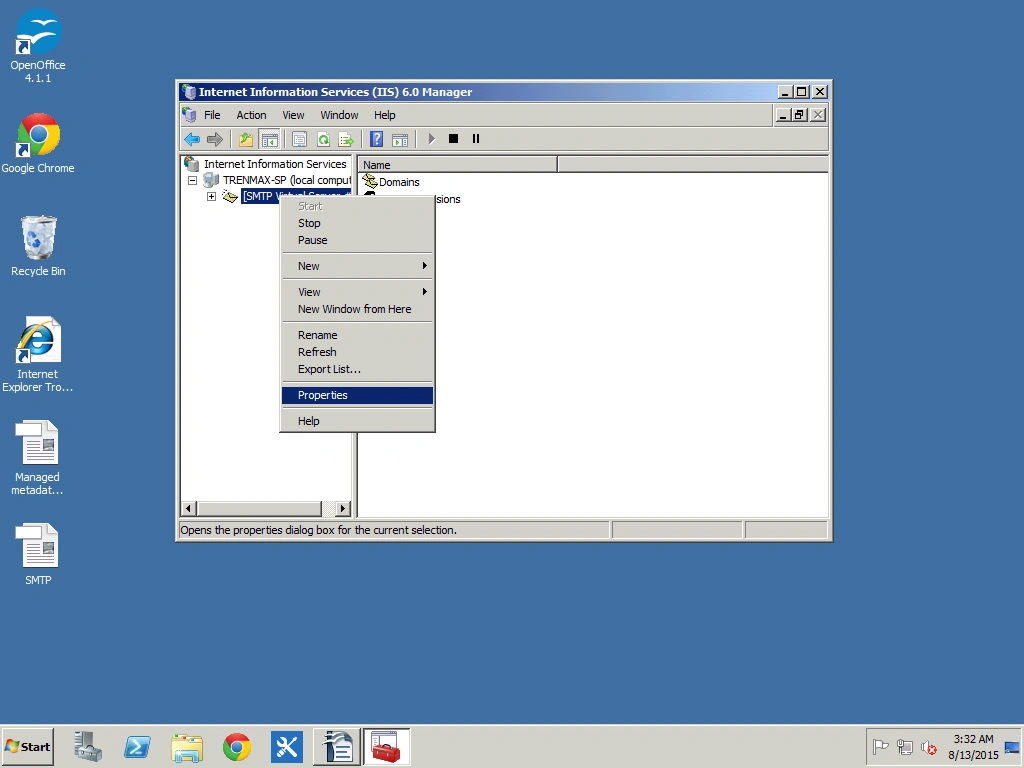
Figure 9: Click Properties
In the General tab under IP address select your local IP address.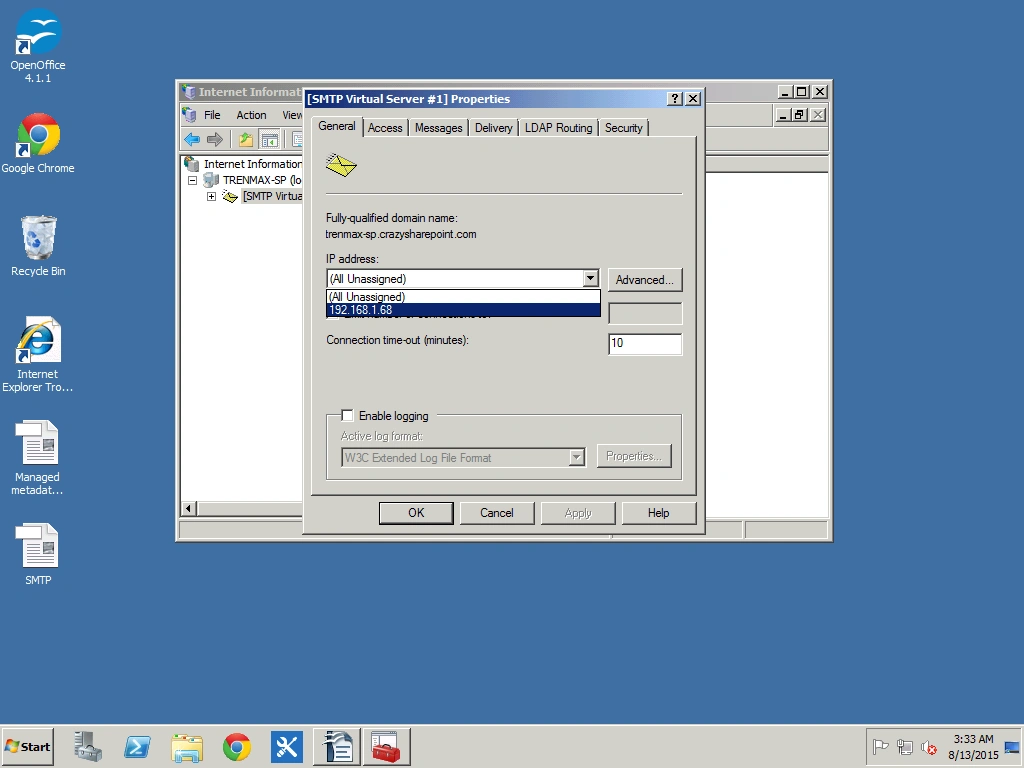
Figure 10: Select your local IPAddress
On the Access tab, go to Connection.
Select All.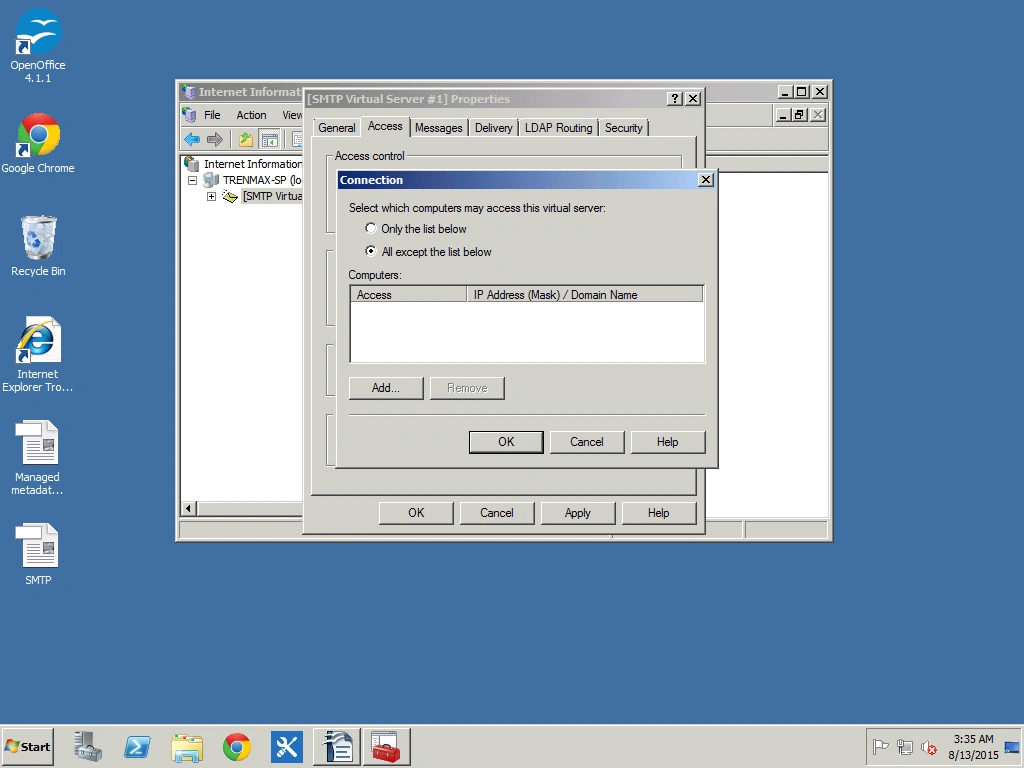
Figure 11: Connection
Do the same for Relay.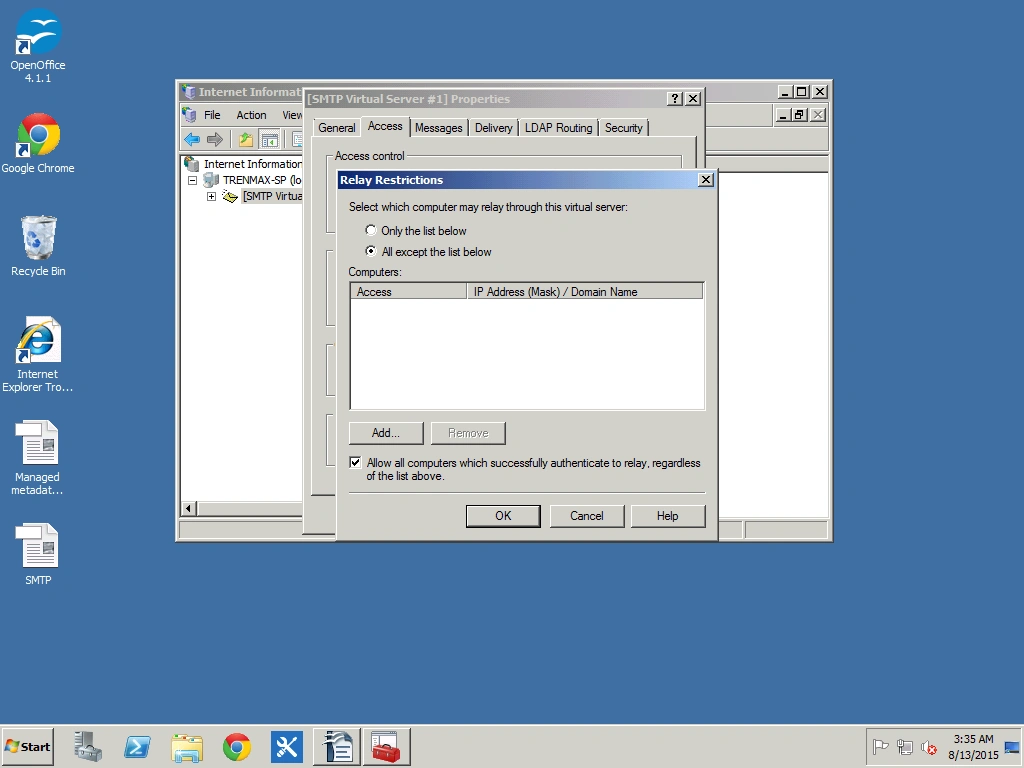
Figure 12: Do the same for Relay
Click the Delivery Tab.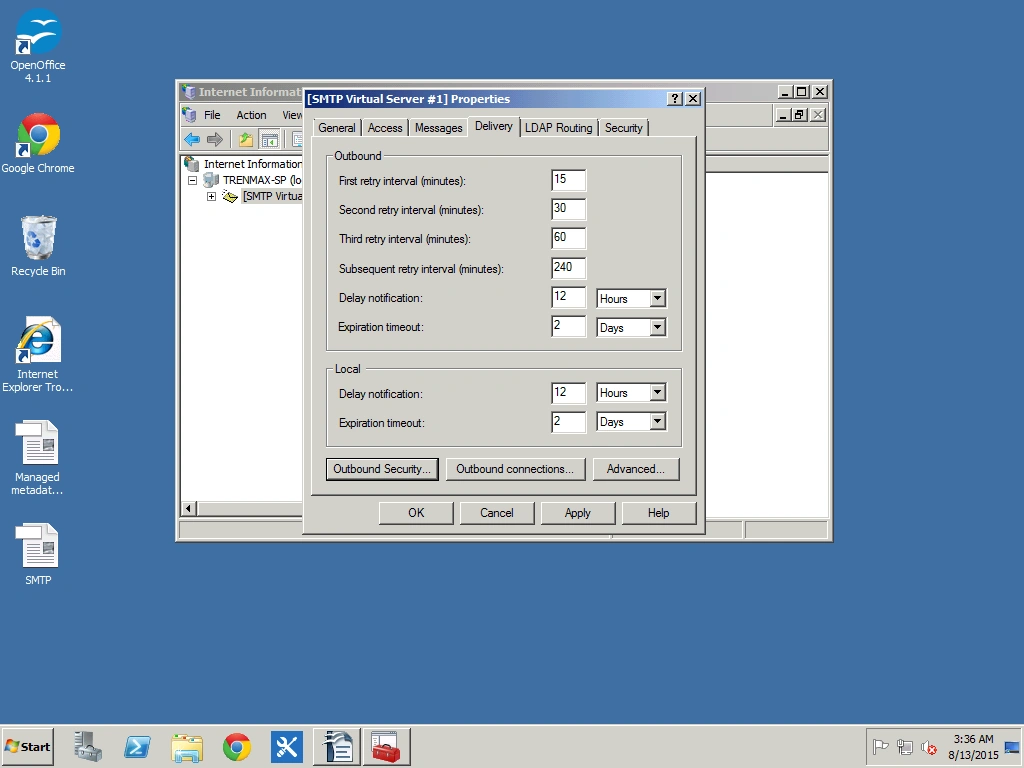
Figure 13: Delivery Tab
Click OutBound Security.
Click Basic Authentication.
Enter your email address and password.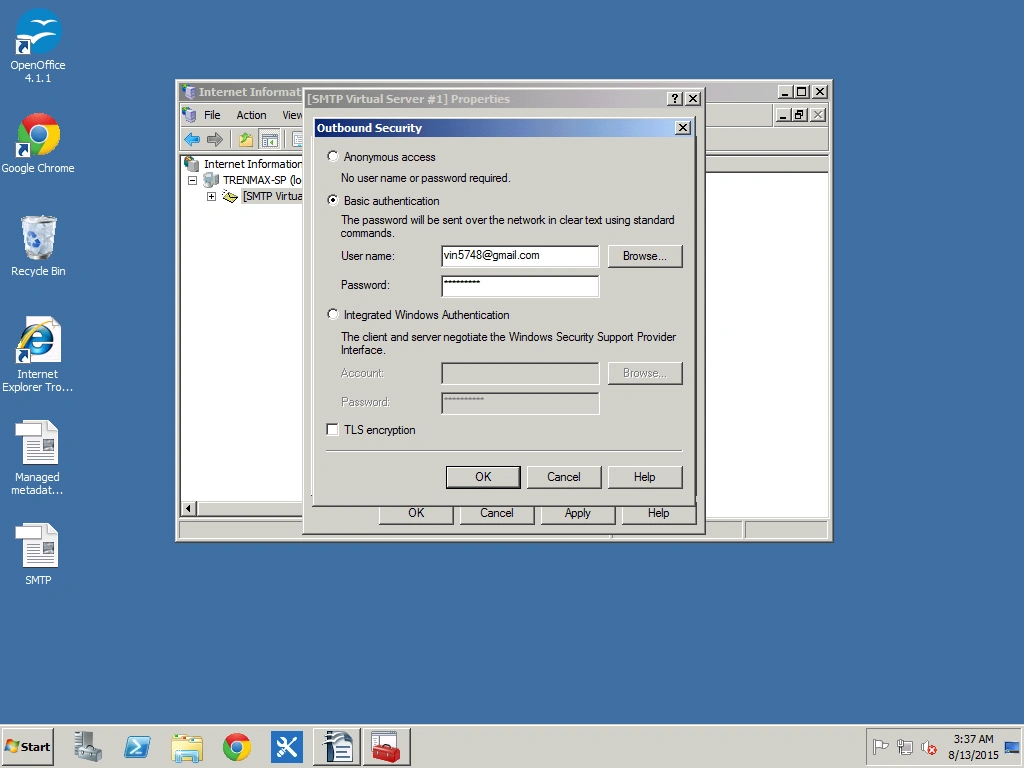
Figure 14: Address and Password
Enable TLS encryption and click OK.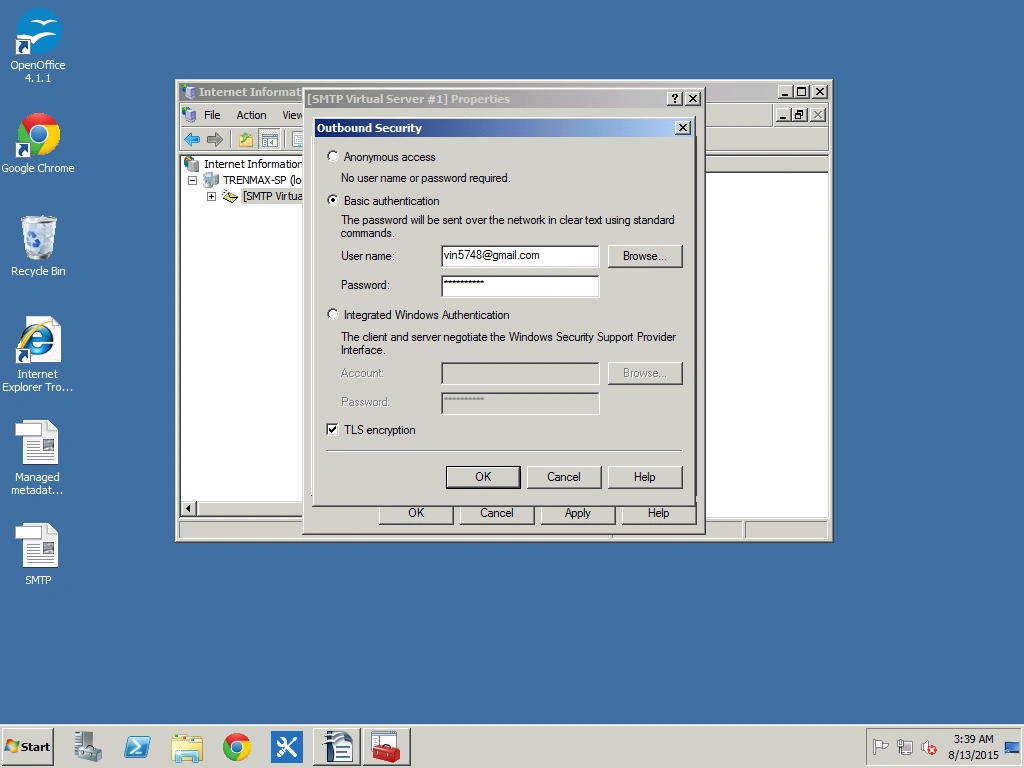
Figure 15: Enable TLS encryption
Open Outbound Security
Change TCP Port from 25 to 587.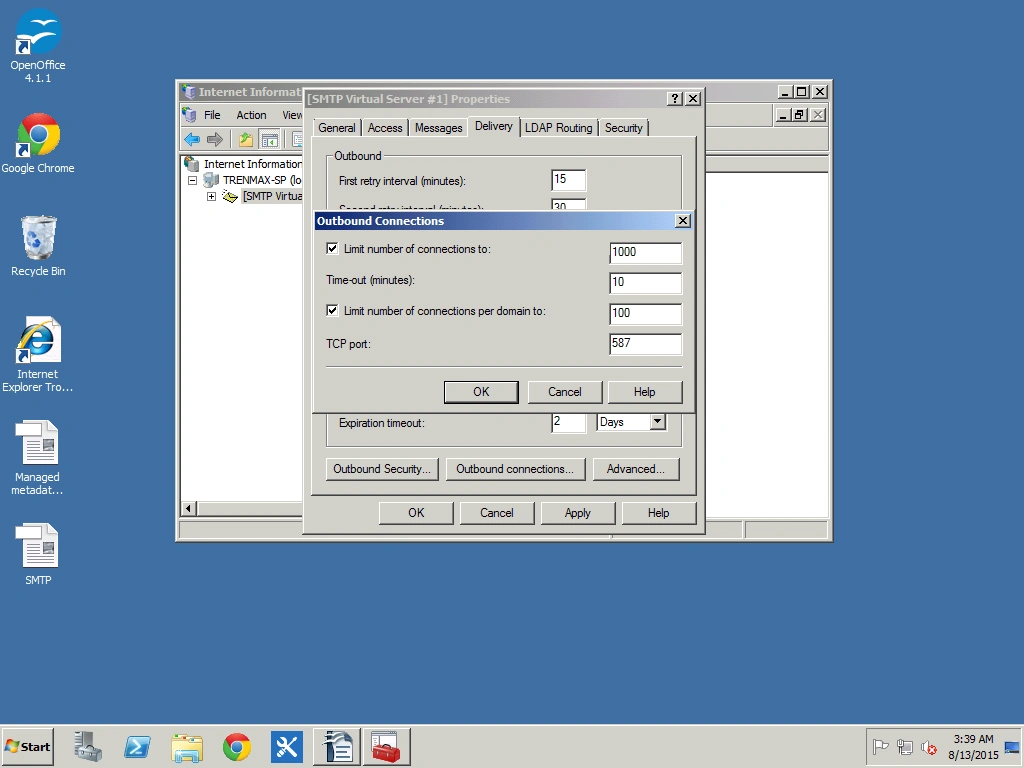
Figure 16: Change TCP Port from
Click the Advanced Tab, go to Smart host and write smtp.gmail.com
Figure 17: smtp.gmail.com
Click Apply and then OK.
Open SharePoint Central Administration.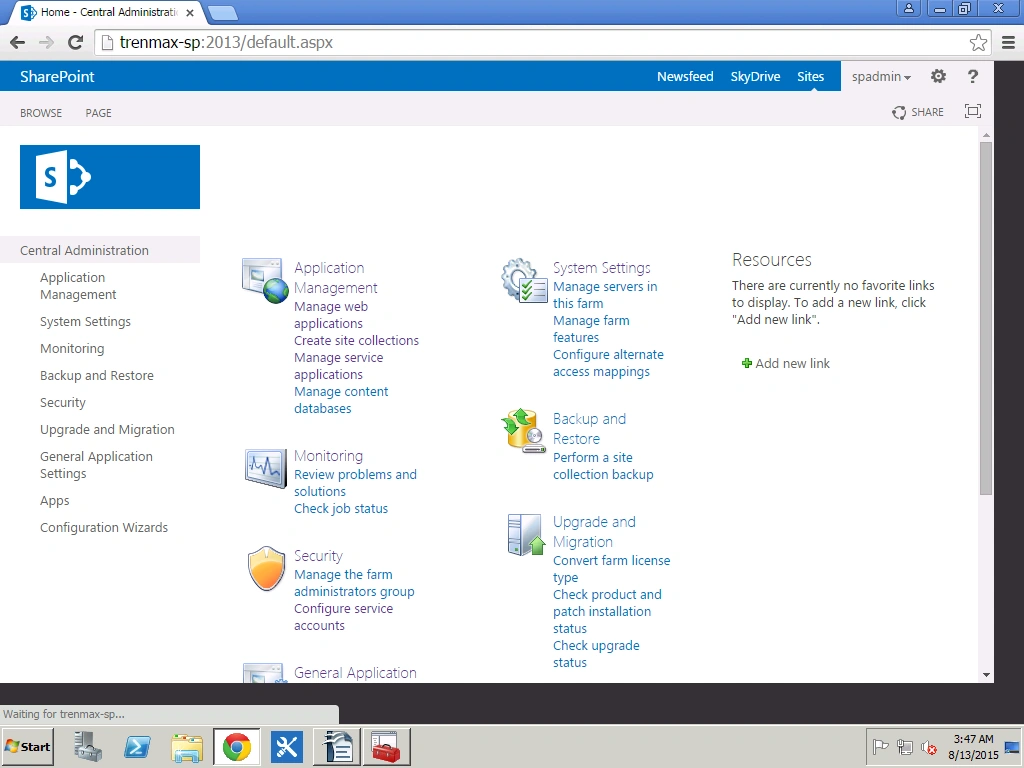
Figure 18: Open SharePoint Central Administration
Click System Settings.
Open Configure outgoing email settings.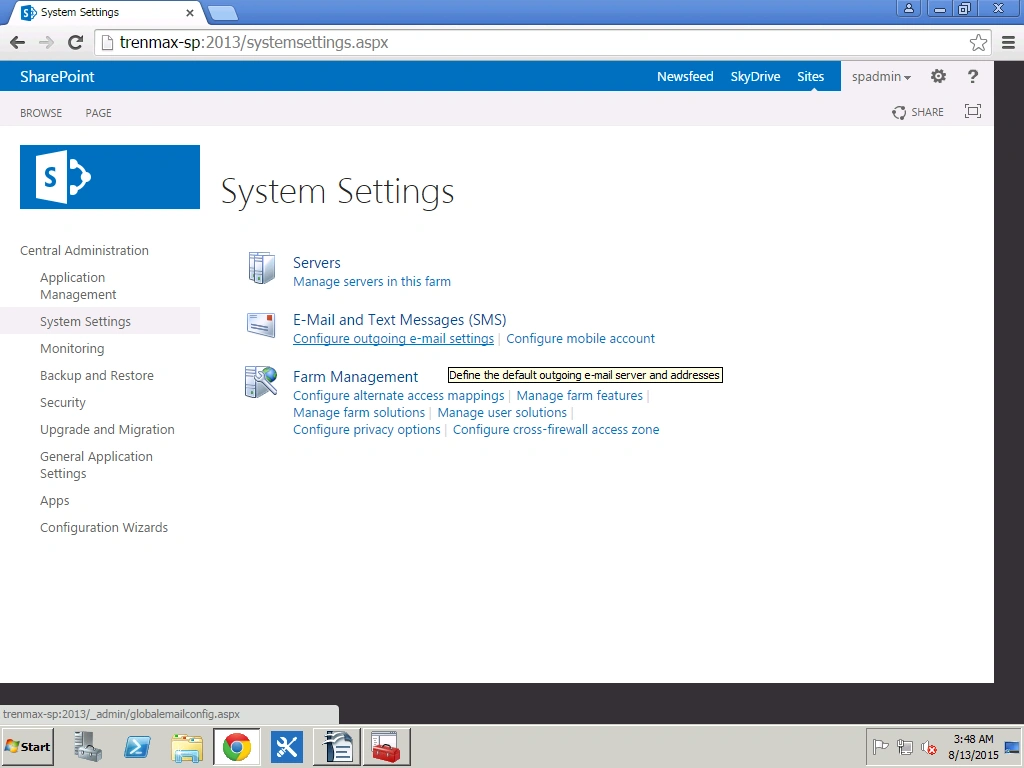
Figure 19: Configure outgoing email settings
Enter Outgoing E-mail Settings and click OK.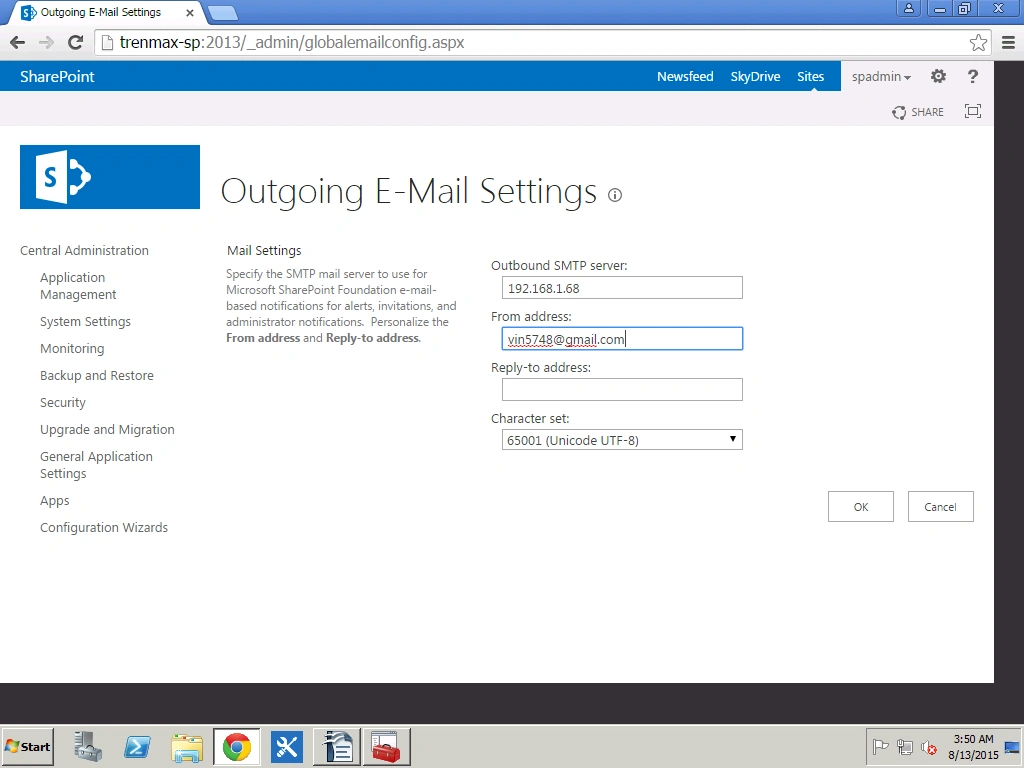
Figure 20: Happy SharePoint
Configure Gmail Settings in SharePoint 2013
This article explains how to configure Gmail settings in SharePoint 2013.
Join the conversation! Your thoughts help the community grow.
Sign in to leave a comment
It is the same account you read, post and publish with — and you will come straight back to this page.
Vinodh NarayananPosted Aug 16, 2015, 5:29 AM
Santhakumar Munuswamy thanks sir
Santhakumar MunuswamyPosted Aug 16, 2015, 2:32 AM
Good Article. Thanks for sharing
Vinodh NarayananPosted Aug 15, 2015, 3:06 AM
Thanks
Pankaj Kumar ChoudharyPosted Aug 14, 2015, 9:02 PM
Excellent Explanation ..............
Vinodh NarayananPosted Aug 14, 2015, 2:17 AM
Vaikesh K P Thanks
Vaikesh K PPosted Aug 14, 2015, 1:22 AM
Good One :)
Vinodh NarayananPosted Aug 13, 2015, 2:38 PM
Thank you
Abhay ShankerPosted Aug 13, 2015, 1:15 PM
nice one...
Vinodh NarayananPosted Aug 13, 2015, 12:12 PM
Thank u guys
RakeshPosted Aug 13, 2015, 10:08 AM
Good work
Vinodh NarayananPosted Aug 13, 2015, 9:51 AM
Thank u guys
Nilesh JadavPosted Aug 13, 2015, 9:43 AM
Nice article sir
Rajeesh MenothPosted Aug 13, 2015, 9:11 AM
Nice share
Karthikeyan KPosted Aug 13, 2015, 8:43 AM
Good one...Thanks for sharing